
Had six JPG photos of my handwritten homework and the submission asked for one PDF. Put them in question order and sent one file. Much less fiddly than what I was doing before.
Free Online JPG to PDF Converter
Combine JPG images into one PDF. Arrange the pages, choose your layout, and download your document.

Drop images here, or click to select
JPGJPEG
Up to 20 images · Max 50 MB each
- Easy to Use
- Free to Start
- No Sign-Up to Start
- No Installation
Files are converted locally in your browser. No files are uploaded.
Combine Multiple JPGs into One PDF
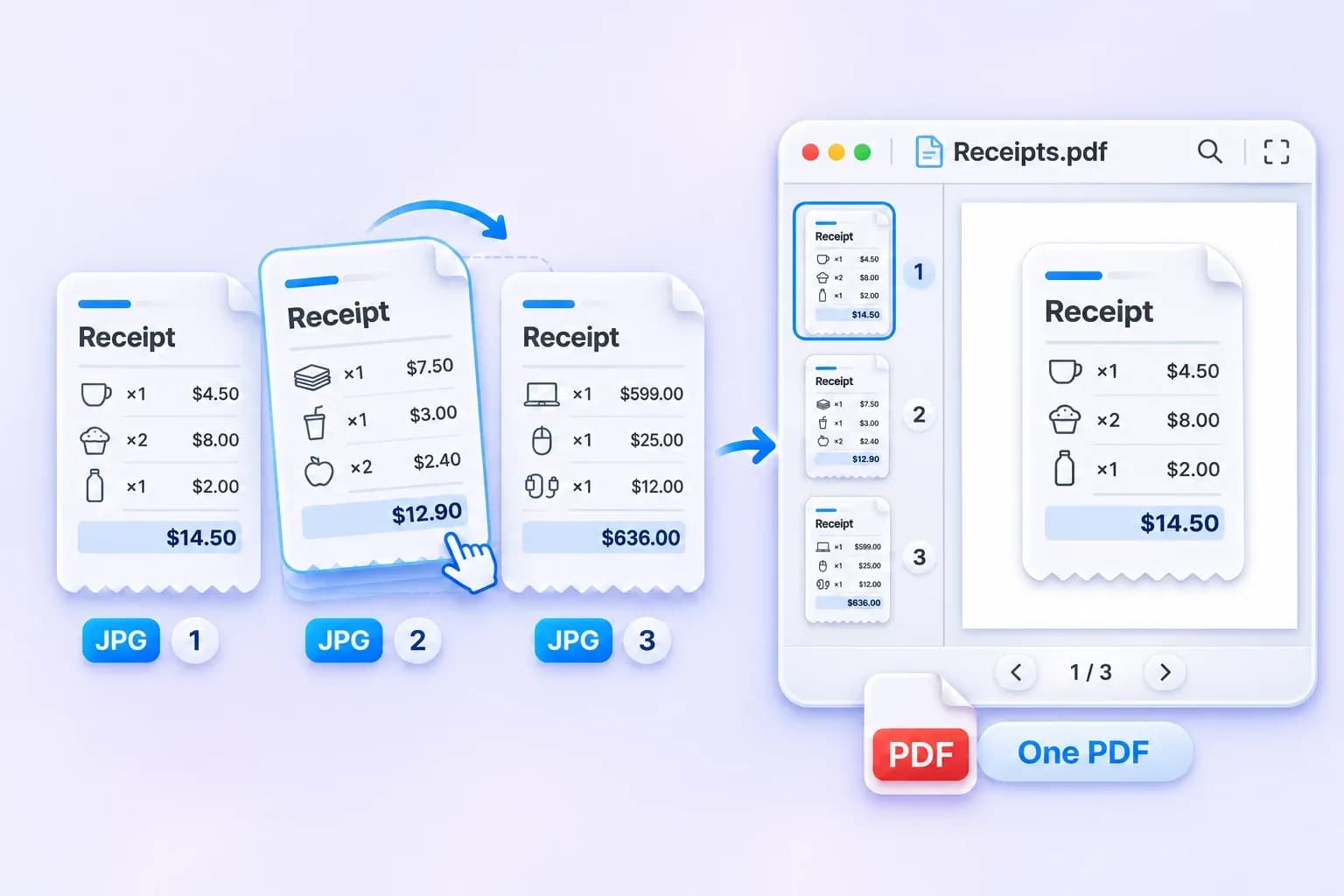
Keep related images together in one document. Add up to 20 JPG or JPEG files, arrange them in the order you want, and combine them into a single PDF.
From scanned receipts to application pages, each image becomes its own page—ready to share as one file.
Convert JPG to PDF with High Quality
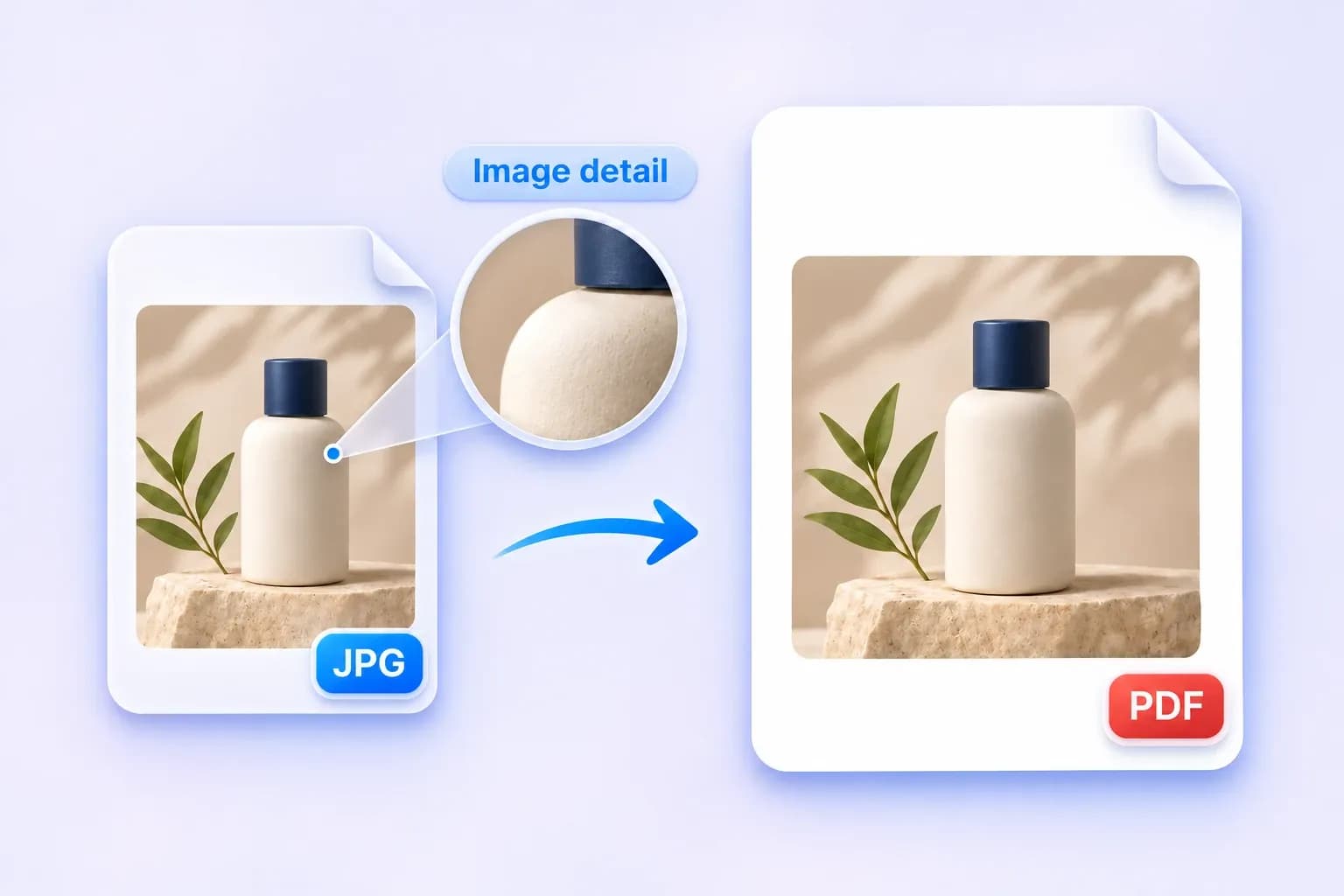
Give your images a clear home in a shareable PDF. Photos, product sheets, and scanned pages are fitted proportionally, without cropping or stretching.
Start with a sharp JPG for the best result. Conversion does not restore detail missing from the original image.
JPG to PDF Conversion with Advanced Settings
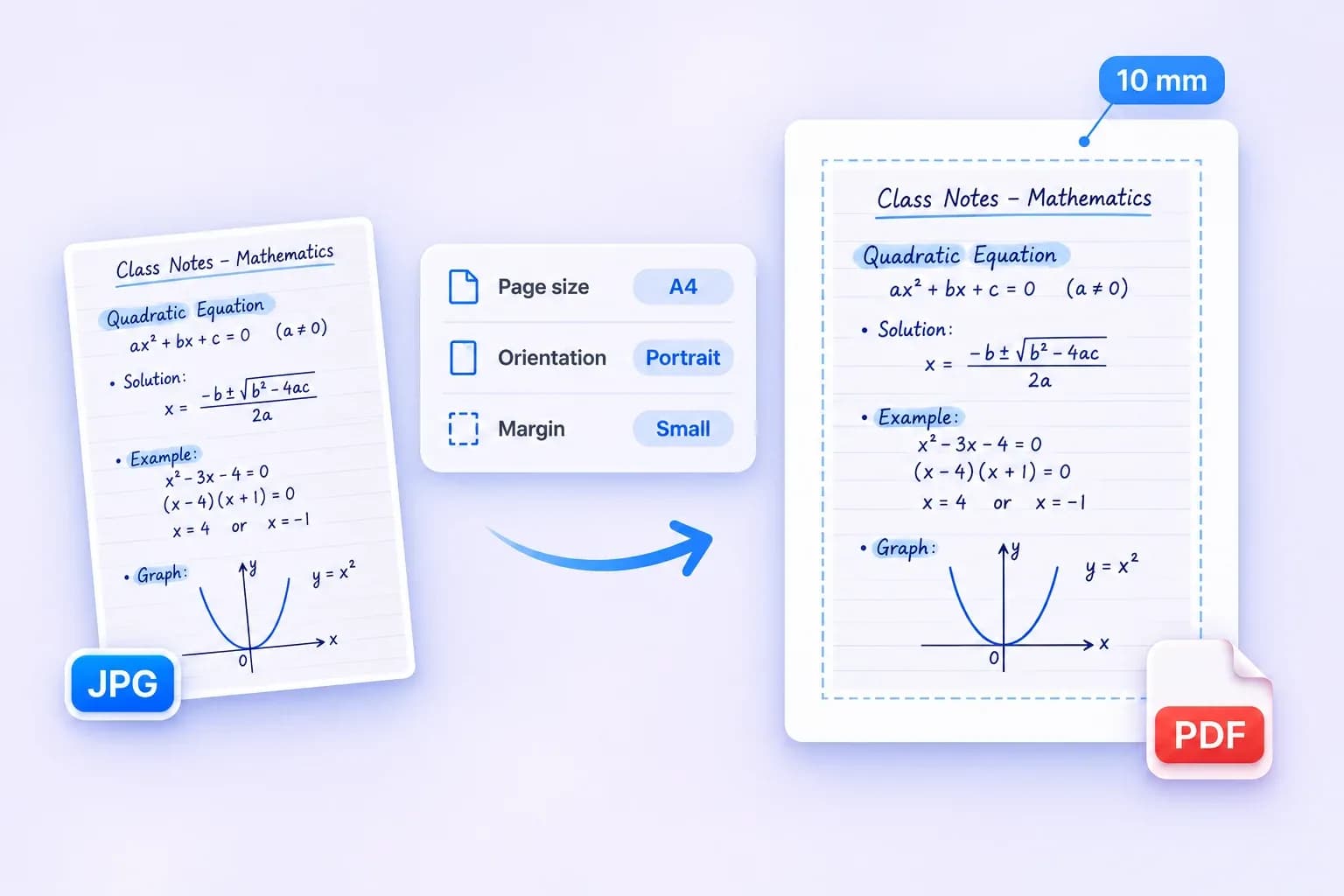
Set up your PDF for sharing or printing, with page options that put you in control of the layout.
Check the page layout preview as you adjust your settings, then create your PDF.
- Page size: Fit to image, A4, or US Letter.
- Orientation: Auto, Portrait, or Landscape for A4 and US Letter.
- Page margin: No margin or Small, adding 10 mm on each side.
How to Convert JPG to PDF Online
Step 1. Choose Your JPGs
Click Choose images or drag in your files. Add up to 20 JPG or JPEG images, with a maximum of 50 MB per image.
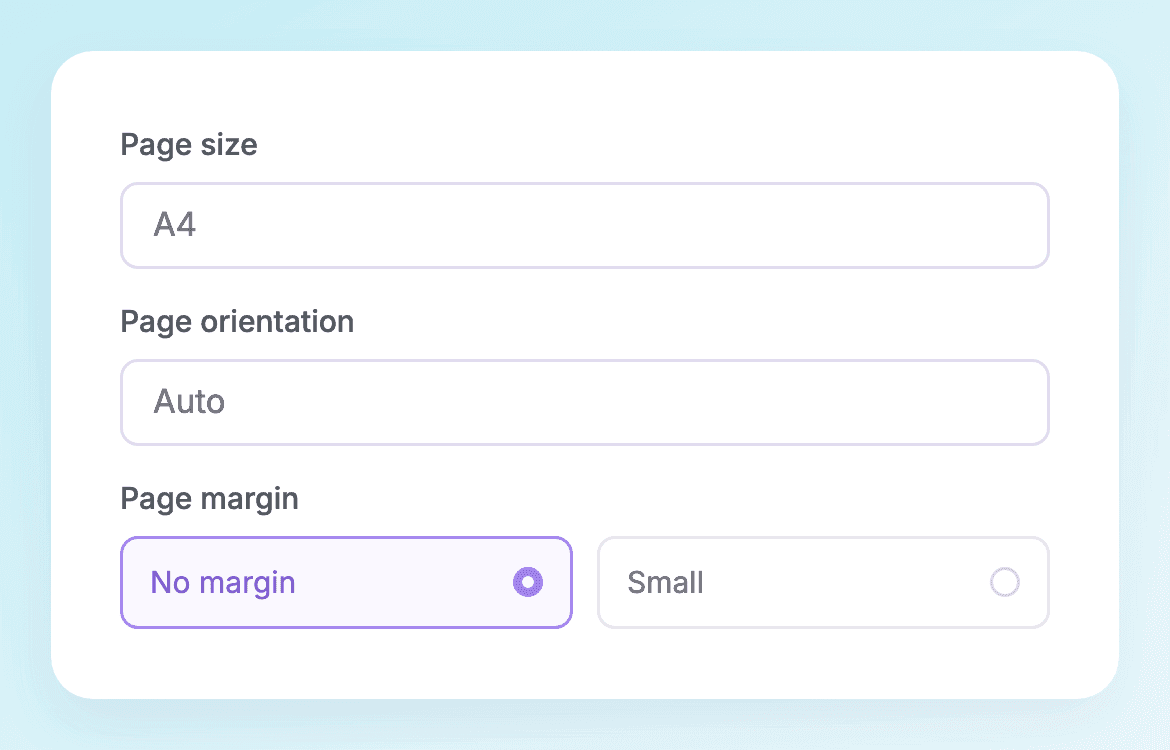
Step 2. Arrange and Customize
Put your images in order. Choose a page size, set the orientation for A4 or US Letter, and select your margins.
Step 3. Create and Download
Click Create PDF . Once every image has been added to your document, click Download PDF to save it.
JPG to PDF for Uploads, Submissions, and Print
Create one PDF for a required upload, a complete submission, or a set of images you need to print.
Upload Where Only PDF Is Accepted
<p>When an application requires PDF, turn a JPG scan of a certificate or completed form into the format requested. Combine related pages when they belong in the same upload.</p>
Submit All Your Homework Pages
<p>Have a JPG photo of each handwritten page? Combine them in question order so your teacher receives the complete assignment in one PDF.</p>

Send Receipts as One Attachment
<p>Finish an expense claim with one attachment. Collect the JPGs for a trip or purchase, put them in date order, and send a single PDF that can be reviewed page by page.</p>

Keep Evidence Photos in Sequence
<p>For a repair request or site inspection, keep overview and close-up JPG photos in a deliberate order. A single PDF gives the recipient one sequence to follow.</p>
Share a Portfolio as One Document
<p>Your design samples are exported as JPGs, but your client needs a document to circulate. Arrange selected work into a PDF the client can open and review page by page.</p>

Print Images on Consistent Pages
<p>Have a mix of portrait and landscape JPG scans to print? Put them on A4 or US Letter pages, choose an orientation, and add a small margin for a consistent document.</p>
Sample Reviews for Design Preview
Design preview · Sample reviews for layout only, not verified customer feedback.
All the taxi and lunch receipts from one trip, in one attachment. That’s honestly all I needed this for.
I’d already scanned my certificate as a JPG, then noticed the application wanted a PDF. Converted the one image and carried on with the form.
Why Choose Lynote’s JPG to PDF Converter?
Combine your images, choose your layout, and create a PDF without a complicated setup.
Batch Conversion
<p>Combine up to 20 JPG or JPEG images in one go. Each image becomes one page in a single PDF.</p>

Easy to Use
<p>Choose your images, arrange them, and create your PDF. The page layout preview helps you check your settings.</p>

Free to Start
<p>Begin with 50 free conversions as a guest. Each JPG included in a successfully created PDF uses one conversion.</p>
No Sign-Up to Start
<p>Use the guest allowance before creating an account. Choose your JPGs and start preparing your PDF right away.</p>
Choose Your Margins
<p>Choose No margin or Small. Small adds 10 mm of space on every side; the image stays proportional and centered.</p>

Flexible Page Sizes
<p>Keep a fitted page for each image, or use A4 and US Letter. Fixed paper sizes also support portrait, landscape, and auto orientation.</p>
No Installation
<p>Change JPG to PDF in your browser on a computer or phone. No separate app or extension is required.</p>
JPG to PDF Converter FAQs
Choose your JPG or JPEG images, arrange the page order, and select your page size and margins. Click Create PDF, then Download PDF when the whole document is ready. Each image becomes one page in the PDF.
Yes. Start without an account with a one-time allowance of 50 free conversions. Each JPG included in a successfully created PDF uses one conversion. Signed-in users follow Lynote’s one-time 100-conversion allowance; signing in does not add another 100 to the guest allowance. Further use follows your account’s available balance and plan.
Yes. Use the JPG to PDF combiner to add up to 20 JPG or JPEG images. Arrange them in the order you want before creating your PDF. The result is one document, with one image per page.
For a single image, choose your JPG, set the page layout, and click Create PDF. Download PDF saves a one-page PDF. You can also add more JPGs before creating the document if you need several pages.
Lynote fits images proportionally without cropping or stretching, but conversion is not a guarantee of a lossless result. JPEG images may be processed when preparing the PDF. Start with a sharp, high-resolution JPG; the converter does not restore missing detail or turn a low-resolution image into a sharper one.
Choose Fit to image, A4, or US Letter. Fit to image follows each image’s proportions and can create different page sizes within one PDF. A4 and US Letter also support Auto, Portrait, and Landscape. Auto chooses an orientation for each image.
Choose No margin or Small. Small adds 10 mm on each side. These are two presets, not a custom numeric margin field. Images stay proportional and centered, so some white space can remain when an image and a fixed paper size have different proportions.
Add up to 20 JPG or JPEG images, with a maximum of 50 MB per image. The current converter also has safeguards for a combined input size of 100 MB and image dimensions up to 24 megapixels per image. If your files exceed a limit, reduce their size or use a smaller group.
Yes. The JPG format to PDF converter runs in a web browser, with layouts for computers and phones. No separate converter needs to be installed. Large images may require more memory, especially on a phone.
Yes. JPG and JPEG are two filename extensions for the same image format, and both are supported. PNG, WebP, and HEIC images are not accepted by this tool; convert those files to JPG first.
Yes. On a computer, drag the image cards into the order you want. You can add or remove JPGs before generating the document. Check the visible page numbers before clicking Create PDF.
No. The converter places each JPG on a PDF page as an image. It does not perform OCR or create editable or searchable text from a scan.
More Tools for Images and Documents
Convert, compress, extract text, and do more with your files using Lynote.