 Live results
Students
Applications & course forms
Check character-limited application answers, scholarship responses, and course forms. Count only the text the instructions include, and use the Words total when the assignment specifies words instead.


Use our free character counter to count text with or without spaces and check your character limit instantly.
A character counter tool calculates the length of your text, including letters, numbers, punctuation, and spaces. Lynote shows totals with and without spaces, so you can check the measurement your assignment, form, or publishing brief requires.
Type or paste your writing into this online character counter to see the results update as you edit. Compare the total with the limit in your writing brief, and keep supporting word, sentence, and paragraph counts nearby when you need a wider view of your text.
 Step 1
Step 1. Add Your Text
Type directly into the editor or paste the passage you want to measure. Include only the material covered by your limit: a title, caption, answer, or complete draft. If you are checking a document, copy its text from your document editor first.

 Step 2
Step 2. Compare Counts With Your Limit
Compare Characters with Characters without spaces. Check which total your brief requires, then compare that number with the allowed maximum. To find the space remaining, subtract your current count from the limit.
 Step 3
Step 3. Edit and Copy
Use the character counter online while revising your text and watching the count change. Once it fits, read it again for meaning and copy it into its destination. For a platform with special rules for links, emoji, or encoded text, confirm the final count in that platform’s editor.

Type directly into the editor or paste the passage you want to measure. Include only the material covered by your limit: a title, caption, answer, or complete draft. If you are checking a document, copy its text from your document editor first.
Compare Characters with Characters without spaces. Check which total your brief requires, then compare that number with the allowed maximum. To find the space remaining, subtract your current count from the limit.
Use the character counter online while revising your text and watching the count change. Once it fits, read it again for meaning and copy it into its destination. For a platform with special rules for links, emoji, or encoded text, confirm the final count in that platform’s editor.
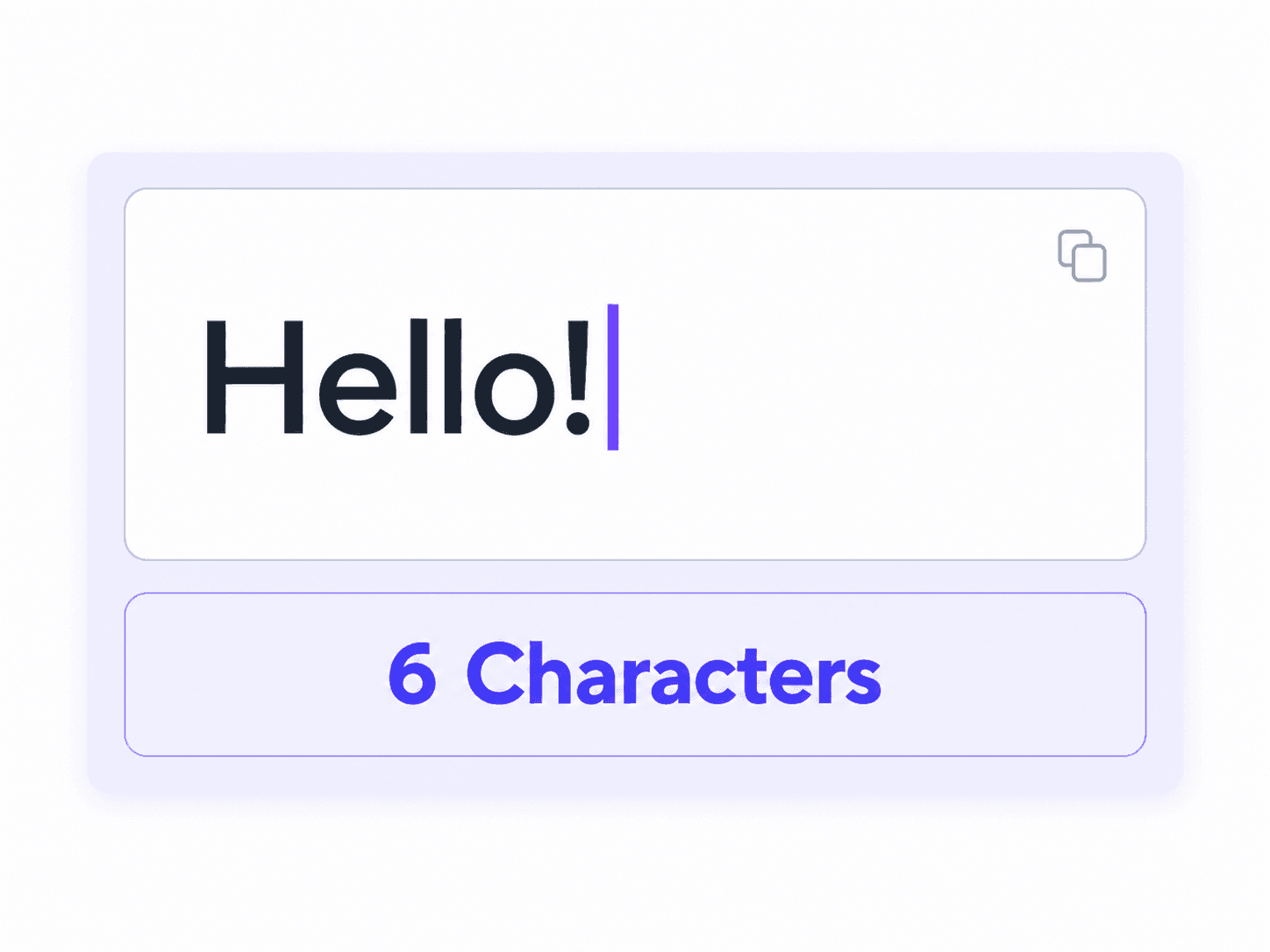
Use this text character counter to see your totals update while you write, paste, or revise. You can check a short headline or a longer passage without submitting it for a separate scan each time you change a word.
This live feedback makes small edits easier to compare. Replace a phrase, remove an unnecessary qualifier, or add a missing detail and immediately see how it affects the length of your draft.
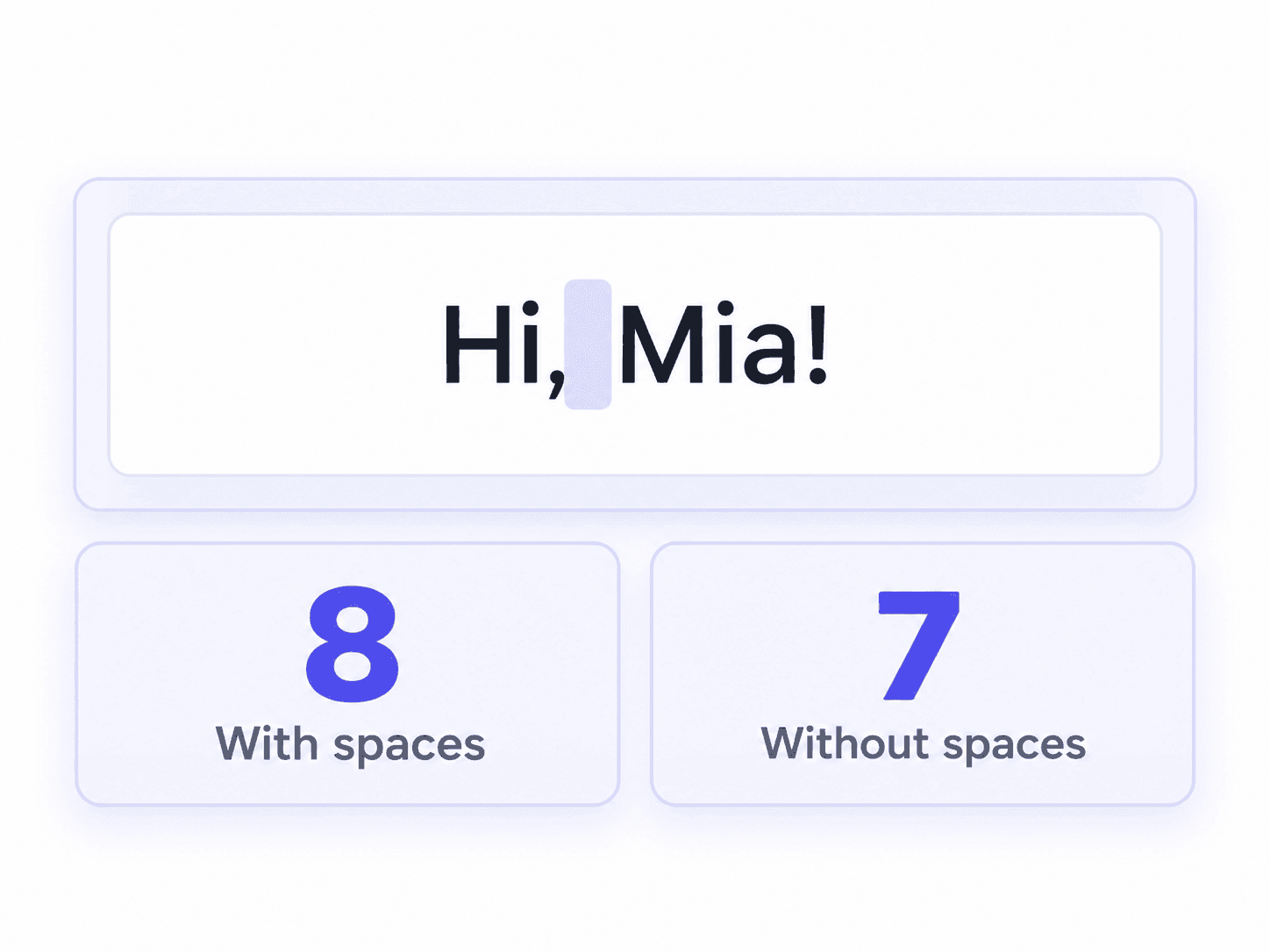
View the total character count alongside a second total that excludes spaces, tabs, and line breaks. Letters, numbers, and punctuation remain part of the count, so you can follow a brief that specifies either measurement.
For example, “Hi, Mia!” contains eight characters including its space and seven without it. Keeping both totals visible helps you choose the right figure before submitting a form or reporting a document’s length.
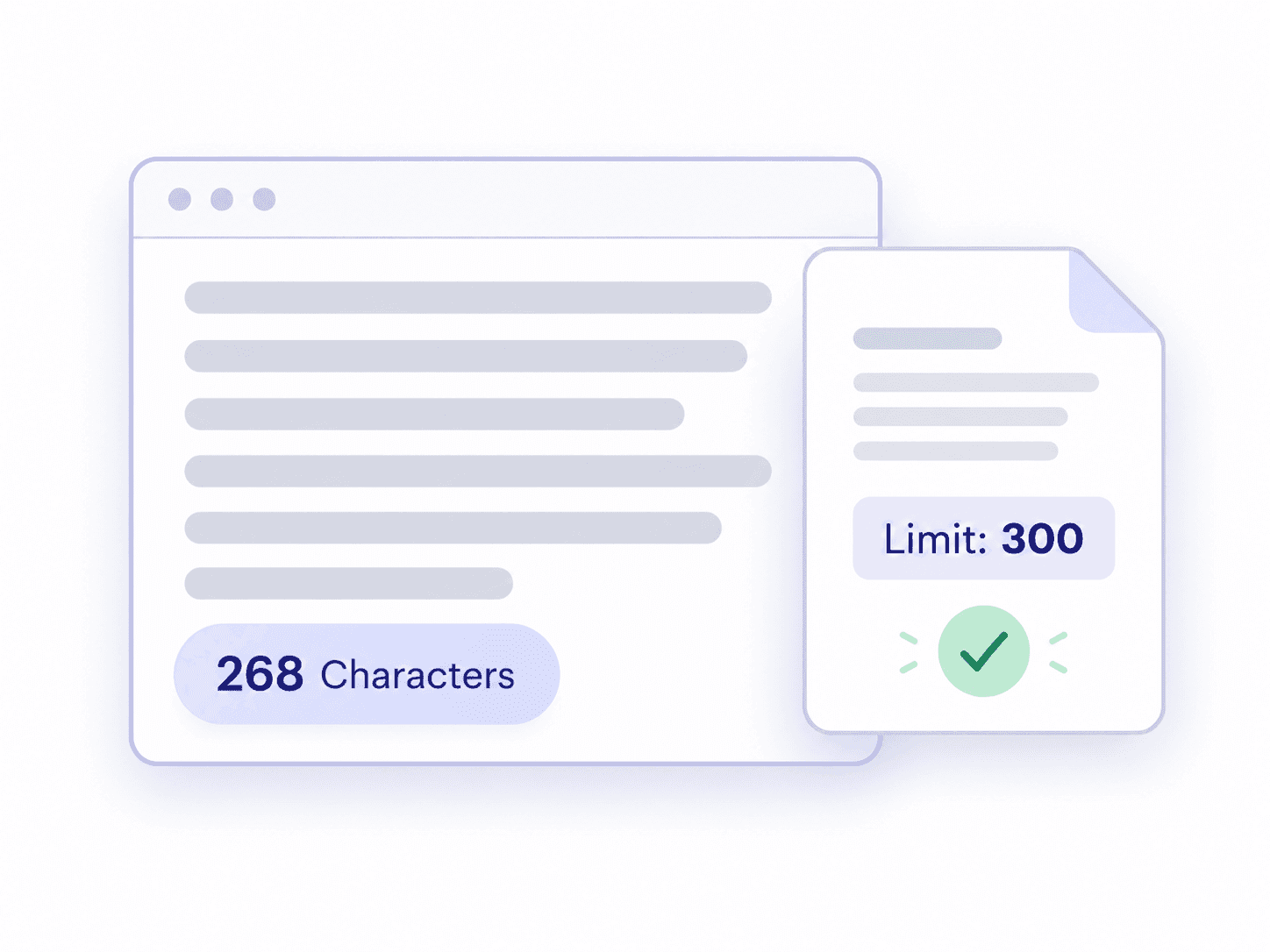
Check your character count online before pasting a draft into a limited field. Compare the inclusive total with the requirement for your caption, application answer, or publishing brief to decide whether it fits.
For example, a 268-character draft leaves 32 characters within a 300-character limit. Use that room for an essential detail, or trim excess text while keeping names, dates, and your main message intact. The calculation is simply your limit minus the current total.
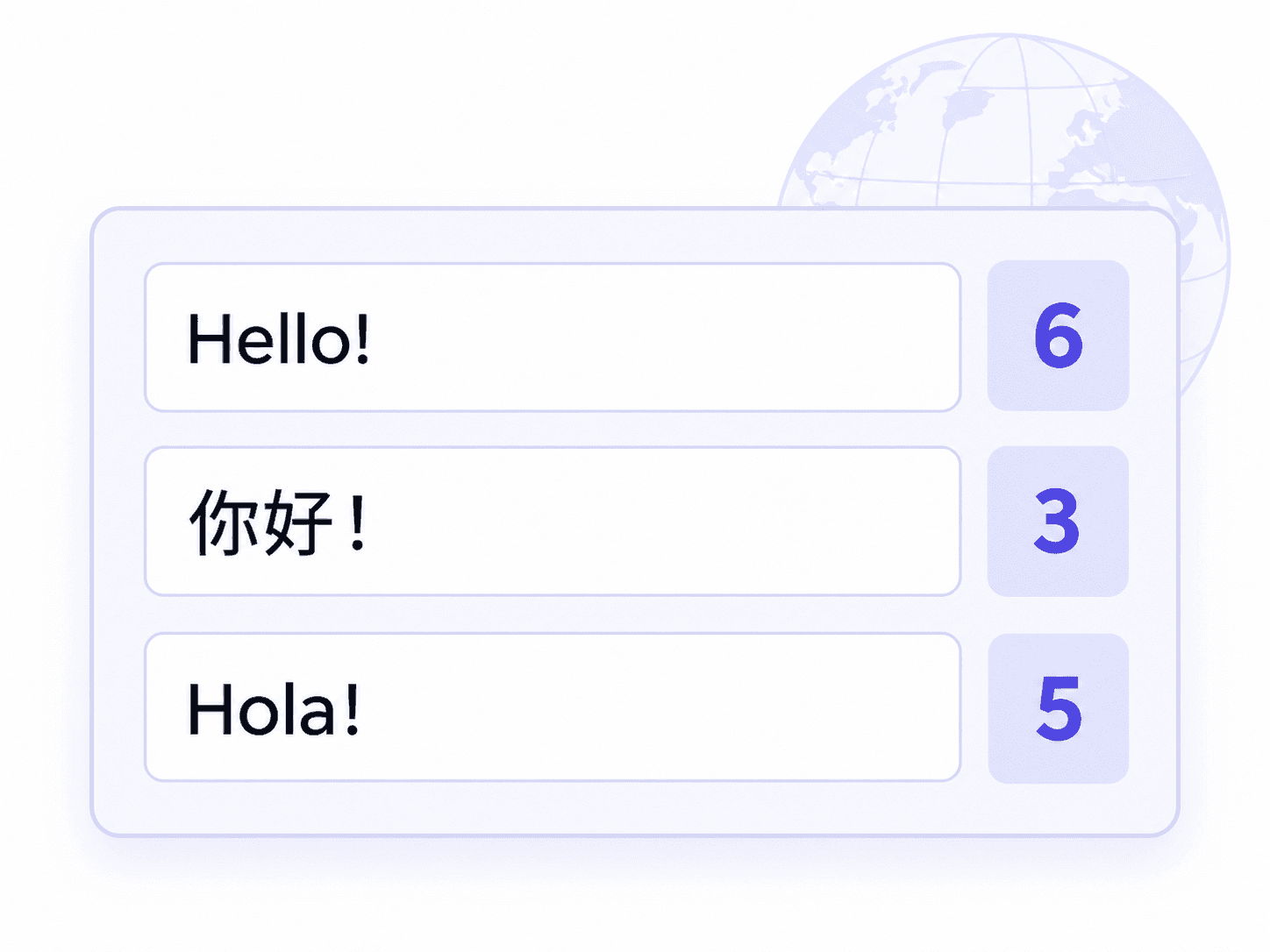
Paste text in English, Chinese, Japanese, or another language without selecting a language setting. Character counting gives you a useful length check even when the text does not separate every word with a space.
Use it when adapting a caption, form answer, or product description for another audience. Emoji, combining marks, and platform-specific weighting can affect the final total, so check translated copy in its destination as well.
A character count measures more than the letters you can see. Understanding what is included helps you choose the right total and explain unexpected differences.
Letters such as A, numbers such as 7, and punctuation such as commas and question marks contribute to the total. A letter counter answers a narrower question: how many letters are present. A character count includes the other symbols too.
The main Characters total includes whitespace. Without spaces excludes spaces, tabs, and line breaks. A line that wraps automatically because the editor is narrow does not insert a new line-break character into your text.
One visible symbol does not always equal one underlying character. Lynote counts Unicode code points: a simple emoji such as 😀 counts as one, while an emoji with a skin-tone modifier or a joined family emoji can contain several parts. An accented letter can also be stored as one character or as a letter followed by a combining mark.
Copied text can contain nonbreaking spaces, zero-width characters, or extra line breaks. Some of these are invisible but still affect a count. If a total looks unexpected, inspect the original text and remove unwanted formatting carefully; some invisible characters have a legitimate role in a language’s writing system.
These examples show how ordinary text, whitespace, and multilingual writing affect the count. Quotation marks used to introduce an example are not included unless they appear inside the text itself.
| Text | Including spaces | Without spaces | What changes the total? |
|---|---|---|---|
Hello |
5 | 5 | Five letters |
Hello! |
6 | 6 | The exclamation mark adds one |
Hi, Mia! |
8 | 7 | The comma and exclamation mark count; the space is excluded only from the second total |
Order 24 |
8 | 7 | Numbers count as well as letters |
| Text representation | Including whitespace | Without whitespace | Explanation |
|---|---|---|---|
A B |
3 | 2 | One ordinary space between two letters |
A B |
4 | 2 | Two ordinary spaces between two letters |
| A, one LF line break, then B | 3 | 2 | A single LF is one character in this example |
| A, one tab, then B | 3 | 2 | The tab’s visual width does not make it several tab characters |
The line-break example uses one LF character. A file that stores a line ending as a CR+LF pair has a different underlying representation; editors may normalize it when text is pasted.
“你好!” contains three characters: two Chinese characters and a full-width exclamation mark. “Hola!” contains five. Neither example needs a space between every character to be counted.
Emoji require more context. For example, 😀 is one visible symbol and one Unicode code point, but two UTF-16 code units. A family emoji can contain multiple code points joined into one visible symbol. Tools using different counting methods can therefore report different totals for the same-looking text.
Applications, profiles, and publishing systems may reject text that exceeds a field’s limit. Check character count before pasting your final answer so you have time to revise it without losing a required detail.
A length target gives you an editing constraint. When space is tight, retain the information readers need to act: the subject, the offer, a date, or the next step. A shorter message is useful only when its meaning remains clear.
The same sentence may need different versions for a biography, notification, and product listing. Count each version separately, then review how it appears where people will read it. A suitable length alone does not guarantee that text will display in full.
Use the requirement for the exact field you are filling. The table distinguishes enforced input limits from display guidance and encoding rules.
| Writing task | Limit or guidance | How to use the counter |
|---|---|---|
| Social posts, bios, and captions | Varies by platform, field, account, and format | Compare your count with the current field limit, then confirm links and emoji in the app |
| SEO titles and meta descriptions | Google does not specify a fixed character maximum for these elements; displayed results may be shortened | Use your editorial target to compare drafts and review a search preview |
| Google responsive search ad headline | Up to 30 characters per headline; double-width characters count as two | Compare with 30, then verify the platform’s weighted total |
| Google responsive search ad description | Up to 90 characters per description; double-width characters count as two | Check each description separately in the ad editor |
| Product listings and application forms | Field-specific requirements | Compare the count with the stated maximum |
| SMS | A single segment commonly holds 160 GSM-7 units or 70 UCS-2 units; encoding and concatenation change capacity | Use an SMS segment calculator for the final check |
Count the exact text you plan to publish, including hashtags and punctuation. Treat a biography, post, and caption as separate fields: their limits may differ even within the same platform. General character counting does not reproduce every platform’s treatment of URLs or emoji.
Use a character count tool to compare concise versions of a title or description. Put useful, specific information first and avoid padding text merely to reach a target. Google explains that title links and snippets can be shortened to fit the available display width.
Check each field independently. A product title and its description may have different limits, while an application may exclude headings from one answer but include them in another. Google’s responsive search ad rules specify 30-character headlines and 90-character descriptions, with double-width characters counted as two.
SMS length depends on encoding. Characters outside the GSM-7 set can change the message’s encoding, and longer messages use smaller per-segment capacities. A standard text counter does not calculate SMS segments or delivery cost; use an encoding-aware tool such as the one linked in Twilio’s SMS length guide.
Characters measures the text including whitespace; Without spaces removes whitespace from the total. To calculate remaining space yourself, subtract the current inclusive count from your required maximum. For a 500-character target, a 520-character draft is 20 over.
Supporting counts help you understand the shape of a passage. Word counts depend on language and tokenization rules; sentence counts depend on punctuation. In this editor, the Paragraphs total counts nonempty lines separated by an entered line break. Automatic line wrapping does not add a paragraph.
Reading time estimates how long a passage may take to read. Lynote uses 250 words per minute, or 300 characters per minute for Chinese, Japanese, and Korean text. Its English reading-grade estimate uses sentence length and estimated syllables. These estimates provide context; neither measures writing quality or guarantees an individual reader’s experience.
| Measurement | What it measures | Example or use |
|---|---|---|
| Characters | Text units under the tool’s counting rules | Form answers and captions |
| Words | Units identified as words | Essay or article requirements |
| Letters | Alphabetic letters, excluding numbers and punctuation | Letter-only analysis |
| Bytes | Encoded storage size | Database, file, or API limits |
Word length varies, so there is no fixed conversion from characters to words. “I am” and “Bright sunshine” each contain two English words but have different character totals. If your brief specifies words, use the word count; if it specifies characters, use the matching character total.
“Room 5!” has four letters but seven characters including the space, number, and punctuation. A character calculator measures the broader text length. Removing numbers or punctuation from your mental calculation can leave you over a field’s limit.
Bytes depend on the encoding used to store or transmit the text. In UTF-8, the letter A uses one byte, while many other characters use more. A character counter is not a byte counter, so check byte-limited fields with a tool or system that measures the required encoding.
Use the counter whenever the length requirement applies to characters. Each workflow below involves a different kind of text and a different editing decision.
Applications & course forms
Check character-limited application answers, scholarship responses, and course forms. Count only the text the instructions include, and use the Words total when the assignment specifies words instead.

Headlines & editorial briefs
Compare headlines, summaries, standfirsts, and short author biographies against an editorial brief. Use the remaining space to decide whether a qualifier adds useful meaning or can be removed.

Profiles & job applications
Prepare profile summaries and application-field answers before entering them into a recruitment portal. Keep achievements and relevant details intact while trimming repeated phrases to meet the stated limit.

Research & conference forms
Review conference-form responses, short research summaries, and assessment fields with explicit character limits. Check the organizer’s rules for spaces, headings, and references before reporting a total.

Posts, captions & bios
Draft separate versions of posts, captions, and bios. Count hashtags and calls to action with the rest of the text, then check the final version in the publishing platform.

Titles & meta descriptions
Compare page titles and meta descriptions while retaining the main topic and a clear reason to visit. Use character length as an editing aid alongside a preview of how the text may display.
Ads & product fields
Fit offers, product titles, feature bullets, and ad descriptions into their assigned fields. Check each asset independently so shortening one field does not remove information that belongs there.
Translated strings & copy
Measure translated strings against a field’s available space. Translations can expand or contract, so check each language separately and review line wrapping, meaning, and platform-specific weighting before delivery.
A 100-word passage is not a 100-character passage. Read the unit in the brief first, then use the matching total. Avoid estimating characters from an average word length when the maximum is strict.
Spaces and line breaks often contribute to a limit, even when they look insignificant. Compare both totals and inspect copied text for extra whitespace before assuming the counter is wrong.
A platform may apply weighted counts or special rules to links and emoji. Use this character count checker to prepare the text, then use the destination’s own counter for its final acceptance check.
Deleting the last few characters can remove a unit, qualification, or essential instruction. Shorten repeated ideas or replace a long phrase, then reread the complete message before copying it.
One tool may include all whitespace while another removes ordinary spaces only. Tabs, blank lines, nonbreaking spaces, and line-ending normalization can explain a difference. Compare the same passage using equivalent settings.
A counter can measure UTF-16 code units, Unicode code points, or visible character clusters. These methods often agree for simple English text and differ for emoji or combined letters. Check the receiving system’s definition when those characters matter to your limit.
Platforms may assign a fixed length to links or give some scripts extra weight. A file-based count can also include text outside the passage you selected. Start by checking the exact text, the selected scope, and the platform’s current rules.
A straightforward way to measure text and prepare it for its next destination.

Count characters online while you type or edit. Watch each revision change the total without running a new manual check.

See counts with and without spaces together. Supporting word, sentence, and paragraph totals help you interpret the length of the same passage.

Compare the live total with the maximum in your brief. Revise short answers, captions, and headlines while keeping the required length in view.

Check text length with a free character counter. The core counting tool does not require a subscription to calculate your totals.

Open the editor and start counting. You do not need to create an account before checking a draft.

Use the browser-based counter on your computer or phone. Paste a draft where you are working and review its length before moving it into the final app.

The counting tool processes your text in your browser without uploading or saving it. Copy any writing you want to keep before refreshing or leaving the page.
Answers about spaces, emoji, languages, limits, and privacy.
Yes. Lynote’s core character counter is free and does not require an account. Type or paste text to see its length, then compare the total with your required limit.
The main Characters total includes spaces, punctuation, tabs, and line breaks. Without spaces excludes whitespace. Choose the figure that matches your instructions.
Yes. Compare the live Characters total with the maximum in your brief. For example, 268 characters is 32 below a 300-character limit. The current editor does not have a custom-limit input; use the total to check your required maximum.
A single visible emoji can contain multiple underlying units, especially when it includes modifiers or joined symbols. Tools also use different Unicode counting methods. Check the destination’s count when an emoji-containing message is close to its limit.
Yes. Paste the text without selecting a language. Character counting works independently of spaces between words. Supporting word counts use separate rules; for languages without spaces, a word total should not be treated as a linguistic segmentation result.
You can paste a longer passage or the relevant portion of a document. Very large inputs may slow your browser, so check sections separately if editing becomes sluggish. Include titles, references, and appendices only when your counting instructions require them.
This workflow uses typed or pasted text. Copy text from your document into the editor, and copy your revised text out when you finish. File uploading and downloadable count reports are not part of the workflow described on this page.
The counting tool works locally in your browser and does not upload or save the text you enter for counting. Keep a separate copy of work you need before refreshing or closing the page.
Yes. Open the online character counter in your mobile browser, paste or type your text, and review the results. Use this online character count for a quick check, then copy the finished text into another app.
The tools may use different whitespace rules, Unicode units, or text selections. Confirm that both are counting the same passage with spaces included or excluded consistently. For a strict submission limit, follow the receiving form’s count.
Counting measures length; it does not correct grammar or rewrite sentences. Edit the text yourself while watching the total, or use a separate writing tool and count the revised version again.
Both editors provide document statistics. In Google Docs , open Tools > Word count to view character totals; Word’s Word Count dialog also includes character statistics. Select a passage first when you need its count rather than the whole document. The location of these controls can vary by app version.


