Can ChatGPT Summarize a PDF? 3 Methods and Key Limitations

Yes, ChatGPT can summarize a PDF, but it’s not as simple as just uploading a file—at least, not with the free version. The process requires a workaround. You can copy and paste text directly from your PDF into the chat interface for a quick summary. However, this method breaks down with long documents, complex formatting like tables and charts, or scanned files. For direct file uploads and more accurate handling of structure, you’ll need the paid subscription, ChatGPT Plus. This distinction is crucial: while the capability exists, the best method depends on your document's complexity and whether you're willing to pay for a more powerful version.
Quick Verdict: ChatGPT vs. Dedicated PDF Summarizers
When you're facing a mountain of reading material, choosing the right tool can be the difference between clarity and chaos. Do you wrestle with a general-purpose tool like ChatGPT, or opt for a specialized instrument? Here’s the breakdown.
| Method | How it Works | Best For | Key Limitation |
|---|---|---|---|
| ChatGPT (Free Version) | Copy-paste text from PDF into the chat window. | Quick summaries of short, text-only articles or document sections (< ~2,000 words). | Formatting loss is severe. Tables, columns, and images are ignored or garbled. Strict character limits. |
| ChatGPT Plus (Paid) | Directly upload the PDF file using the attachment feature. | Summarizing a single, moderately complex document (e.g., one academic paper, one report). | No batch processing. You can only work on one file at a time, making it inefficient for large research projects. |
| Lynote AI PDF Summarizer | Drag-and-drop one or multiple PDF files directly into the web interface. | Students, researchers, and professionals needing to summarize several documents at once. | It's a specialized tool for summarization and learning, not a general-purpose chatbot for creative writing or coding. |
Bottom Line: For a one-off summary of a simple text file, the free ChatGPT method is serviceable. If you regularly handle single, important documents, ChatGPT Plus is a solid upgrade. But for anyone serious about research or studying—where you're juggling multiple papers, reports, or chapters—a dedicated batch-processing tool is non-negotiable.
How to Get ChatGPT to Summarize a PDF: 3 Practical Methods
So, you have a PDF and you want ChatGPT to give you the highlights. How do you actually make it happen? The path you take depends on the tools you have and the complexity of your document.
Before you start:
A little prep work goes a long way. To get the best results from any of these methods, ensure your PDF is:
- Text-based: The file should contain selectable text, not just an image of text. If it's a scan, it needs to have been processed with Optical Character Recognition (OCR) first.
- Unlocked: The PDF cannot be password-protected or have copy-restrictions enabled.
- Reasonably clean: Documents with extremely complex multi-column layouts, heavy annotations, or integrated spreadsheets can confuse the AI.
Method 1: The Copy-Paste Workflow (The Free Route)
This is the most accessible method and works with the standard, free version of ChatGPT (GPT-3.5). It’s straightforward but brittle.
-
Open Your PDF: Launch your PDF in any reader, like Adobe Acrobat, Preview on Mac, or even your web browser.
-
Select and Copy Text: Click and drag your cursor to highlight the text you want to summarize. For the whole document, you can use
Ctrl+A(orCmd+Aon Mac) and thenCtrl+C(orCmd+C) to copy. -
Paste into ChatGPT with a Clear Prompt: Navigate to the ChatGPT interface. Craft a clear instruction, then paste your text. For example:
Summarize the following text I've pasted below. Focus on the main arguments and the final conclusion. Create the summary in five bullet points.Then, paste your text underneath your prompt and hit enter.
The honest truth about this method: It’s a blunt instrument. I once tried this with a 30-page market research report filled with tables. The text from the tables became a jumbled mess of words and numbers, completely losing its relational context. The main reason the copy-paste method fails for structured documents is that it strips away all layout information, turning organized data into a single, confusing stream of text.
Method 2: Direct File Upload with ChatGPT Plus (The Paid Route)
If you have a subscription to ChatGPT Plus, the process becomes dramatically simpler and more powerful. This uses the advanced data analysis capabilities (formerly known as Code Interpreter) built into the GPT-4 model.
-
Activate GPT-4: In ChatGPT, ensure you have the GPT-4 model selected at the top of the screen.
-
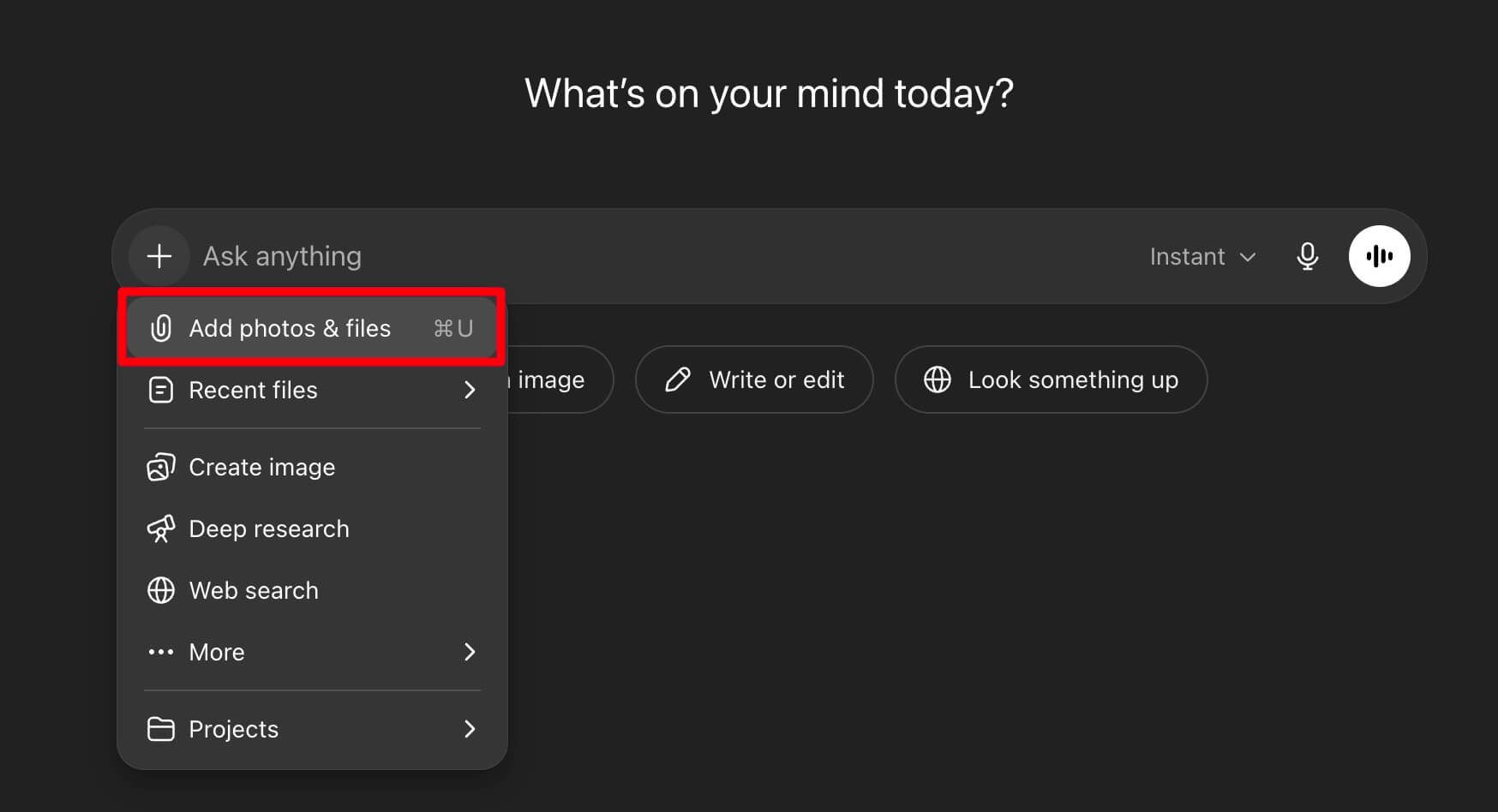
Attach the File: Look for the small paperclip icon (
📎) to the left of the message input box. Click it. -
Upload Your PDF: A file selection window will open. Navigate to your PDF, select it, and click "Open." The file will upload and appear above your message box.
-
Provide Your Prompt: Now, you can give your instructions just as before, but instead of pasting text, you refer to the document. For example:
Please summarize the attached research paper. What was the core methodology, and what were the three key findings?
This method is far superior for maintaining the context of a single document, as the AI can analyze the file's structure more intelligently.
Method 3: Using Third-Party Plugins (The Old Way)
Before direct file uploads were integrated into ChatGPT Plus, the only way to handle PDFs was through third-party plugins available in the GPT Store. While many of these still exist, the native file upload feature has made them largely redundant for simple summarization. They might still offer niche features, but for most users, Method 2 is now the standard for paid subscribers.
Is It Free to Use ChatGPT to Summarize a PDF?
This is a common point of confusion, so let’s clear it up.
- Yes, it can be free. If you use the copy-paste method with the standard GPT-3.5 model, you won’t pay a dime. This is great for short, simple texts where you don't mind losing the formatting.
- No, for the best experience, it is not free. The far more effective method of directly uploading a PDF requires a ChatGPT Plus subscription, which comes with a monthly fee. This subscription gives you access to the more powerful GPT-4 model, file uploads, and other advanced features.
Think of it like this: the free version offers a basic workaround, while the paid version provides a true, integrated feature.
Pros and Cons of Summarizing PDFs with ChatGPT
ChatGPT is an incredible generalist tool, but that’s also its primary weakness. It wasn’t built specifically for academic or professional document analysis. Understanding its strengths and flaws is key to avoiding frustration.
The Pros
- Conversational Summaries: You can ask for the summary in a specific tone, format (bullet points, a paragraph), or for a particular audience. You can also ask follow-up questions like, "Can you elaborate on the section about financial projections?"
- Accessibility: ChatGPT is one of the most widely used AI tools on the planet. Millions of people already have an account and know how to use the interface.
- Language Versatility: It can summarize a document and even translate that summary into another language within the same conversation.
The Cons (and They Are Significant)
- Context Window Limitations: Every AI model has a "context window," which is like its short-term memory. For very long PDFs (think a 100-page dissertation or a dense legal contract), the model might "forget" the beginning of the document by the time it reaches the end, leading to incomplete or inaccurate summaries.
- Formatting Annihilation: As mentioned, the free method destroys visual structure. Tables, charts, footnotes, and multi-column layouts are often misinterpreted or ignored entirely. This is a deal-breaker for technical, academic, or data-heavy documents where context is everything.
- No Batch Processing: This is arguably the biggest bottleneck for serious users. You’re working on a literature review and have 15 research papers to get through. With ChatGPT, you have to upload, prompt, and wait for each one individually. There is no way to feed it a folder of documents and get all the summaries at once. This one-at-a-time workflow is a massive time sink.
- Potential for "Hallucinations": While much improved in GPT-4, the model can still occasionally misinterpret complex or ambiguous text and generate plausible-sounding but factually incorrect statements in its summary.
You might be wondering, if these limitations are so severe, is there a tool designed to fix them?
A Better Way: How to Summarize PDFs in Batch with Lynote
When the one-by-one workflow of ChatGPT becomes a bottleneck, you need a tool built for the job. Unlike ChatGPT, which is a general-purpose conversationalist, a tool like the Lynote AI PDF Summarizer is engineered specifically for the high-volume document analysis that students and researchers face every day. The entire workflow is designed around efficiency and scale.
I remember one project where I had to synthesize findings from a dozen market research PDFs for a client report due the next morning. Dragging them all into Lynote and getting concise, structured summaries back in minutes—instead of spending an hour copy-pasting or uploading one by one into a chatbot—was a genuine game-changer. It let me focus on the actual analysis, not the tedious prep work.
Here’s how simple the process is:
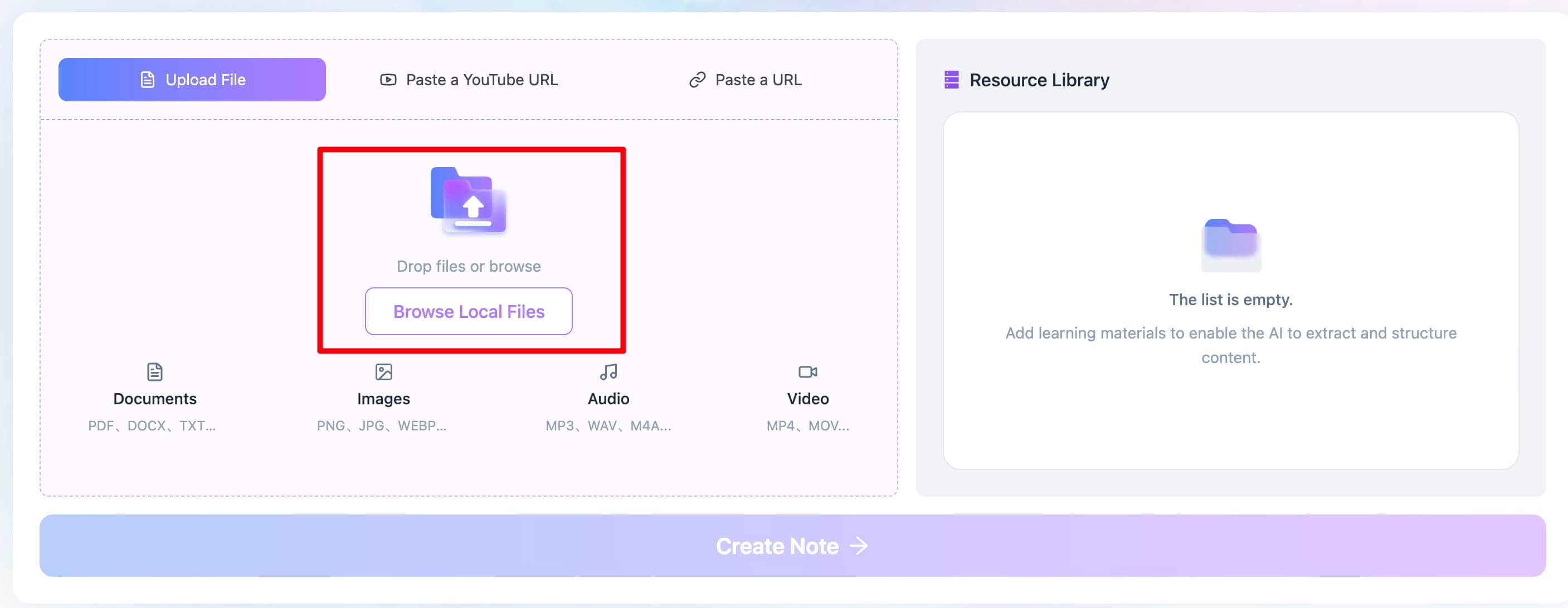
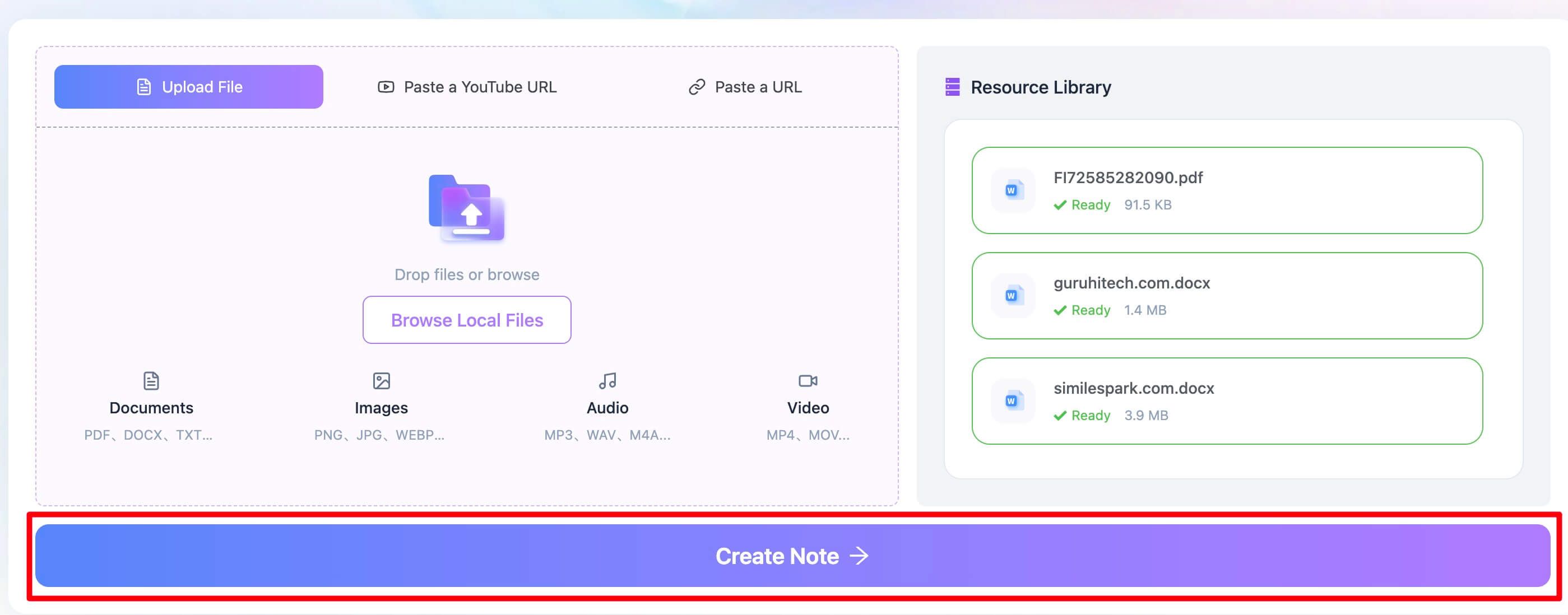
Step 1. Upload Your PDFs—Plural
Navigate to the Lynote AI PDF Summarizer. The interface is clean and purpose-built. You can drag and drop a whole folder of PDFs directly onto the page or click to select multiple files from your computer. This is the batch functionality that ChatGPT lacks.
Step 2. Initiate the AI Summary
Once your files are uploaded, you simply start the process. The tool gets to work, processing each document in parallel. It’s designed to handle academic formatting, preserving the core ideas without getting tripped up by columns or citations.
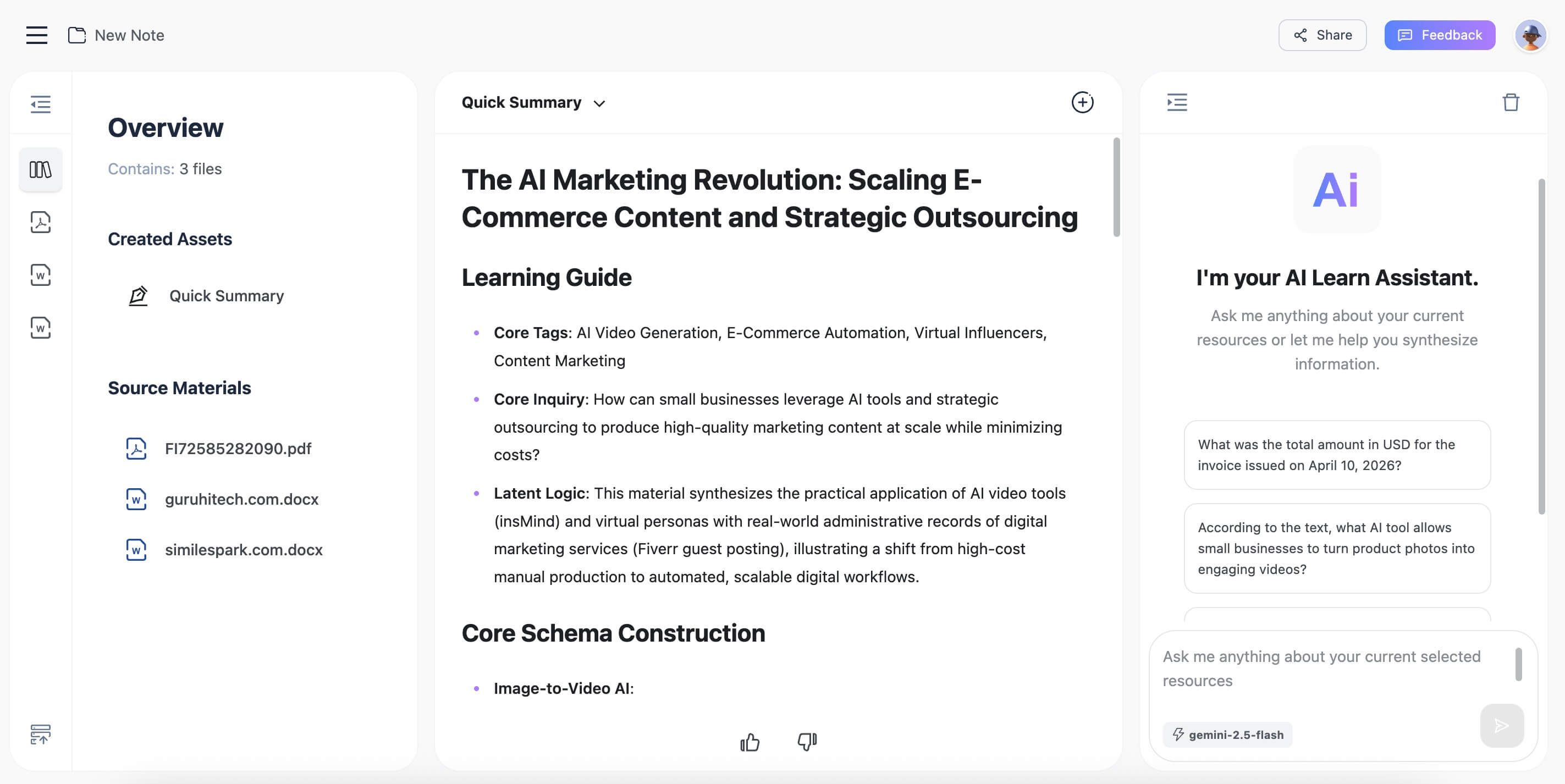
Step 3. Review and Export Your Summaries
In a short time, Lynote presents you with a clear, concise summary for each document you uploaded. You can review them on-screen, copy the text for your notes, or export them for later use. The output is focused and ready for integration into your research, notes, or reports.
Expert Takeaway: The main reason a dedicated tool like Lynote outperforms ChatGPT for academic or professional research is its purpose-built workflow. It replaces a tedious, manual, one-by-one process with an efficient, automated, one-to-many system.
Frequently Asked Questions
Can ChatGPT summarize a scanned PDF?
Not directly. A standard scanned PDF is just an image of text; the AI can't read it. You first need to run the PDF through an Optical Character Recognition (OCR) tool to convert the image into machine-readable text. Some modern scanners do this automatically. While ChatGPT Plus has some OCR capabilities, its performance can be inconsistent, especially with lower-quality scans or complex layouts. For reliable results, use a dedicated OCR program first.
Why is my ChatGPT summary inaccurate or missing details?
This usually happens for two reasons. First, the context window: if your document is extremely long, the model may have exceeded its "memory" and lost track of earlier sections. Second, complexity: if the source material is highly technical, nuanced, or contains dense data in tables, the AI may struggle to grasp the full context and oversimplify or misinterpret key points.
What is the maximum length of a PDF ChatGPT can summarize?
There isn't a hard page limit, but a token limit. Tokens are pieces of words. The free GPT-3.5 has a smaller limit (around 4,096 tokens, roughly 3,000 words), while GPT-4 has a much larger one (up to 128,000 tokens in some versions). For the copy-paste method, you're limited to what you can fit in a single prompt. For file uploads in Plus, you're limited by the model's full context window, but extremely large files can still lead to performance issues or incomplete analysis.
Why did the summary ignore the charts and tables in my PDF?
This is a critical, counter-intuitive point. Large Language Models like ChatGPT primarily process a linear sequence of text. They don't "see" a document visually like a human does. When a PDF is converted for the AI to read, visual elements like charts, graphs, and the structure of tables are often flattened into a confusing stream of text or stripped out entirely. The model gets the words but loses the vital visual context that gives them meaning.
Conclusion: Is ChatGPT the Right Tool for Your PDF Summaries?
ChatGPT is a remarkable piece of technology, and its ability to summarize text is undeniably useful. If your needs are simple—a quick summary of a short, text-based article you can easily copy and paste—it’s a fantastic, free option.
However, the moment your task involves complexity, scale, or critical accuracy, its limitations as a generalist tool become apparent. The broken formatting, the lack of batch processing, and the context window issues make it an inefficient choice for serious students, academics, and professionals.
For those users, the question isn't just "Can AI summarize my PDF?" but "How can AI streamline my entire research workflow?"
Editor's Choice
- Our Pick: For anyone regularly working with multiple documents, the Lynote AI PDF Summarizer is the superior choice.
- Why: Its core strength—batch processing—directly solves ChatGPT's most significant workflow limitation. It’s built from the ground up for the exact task of digesting multiple academic and professional documents efficiently.
- The Tradeoff: It's a specialized instrument. You won't use it to write a poem or debug a line of code. It does one thing—document analysis and summarization—and it does it exceptionally well.
If you're ready to move beyond one-off summaries and adopt a tool that scales with your workload, a dedicated PDF summarizer is the clear path forward.


Written by Janet L. Harris
AI Writing Specialist
Janet reviews AI detectors and humanization tools, with a focus on accuracy, limitations, and responsible use. View all articles →