The 5 Best AI PDF Summarizers (2026 Tested & Reviewed)

Feeling buried under a mountain of PDFs? Whether it's a 70-page academic journal, a dense business report, or a semester's worth of lecture notes, the information overload is real. Manually extracting key points is a slow, painstaking process that kills productivity. AI-powered summarizers are the answer, but with dozens of options flooding the market, finding the right one feels like another research project.
The best AI for summarizing a PDF is Lynote, especially for students and researchers, because it integrates summarization directly into a note-taking and learning workflow. However, the "best" tool truly depends on your specific needs. For professionals embedded in the Adobe ecosystem, Adobe Acrobat's AI Assistant offers seamless integration. For users who need to ask specific questions of their documents, ChatPDF's conversational interface is unparalleled. This guide cuts through the noise, reviewing the top 5 contenders to help you find the perfect fit for your workflow.
Quick Verdict: The Best AI PDF Summarizers at a Glance
For those short on time, here's a high-level comparison of our top picks. We've evaluated them on the quality of their summaries, their ability to handle complex documents, and their overall user experience.
| Tool | Best For | Accuracy & Nuance (1-5) | Layout Handling (1-5) | Key Feature |
|---|---|---|---|---|
| Lynote | Students & Researchers | 4.5 | 4.0 | Integrated Note-Taking |
| NoteGPT | Quick Browser Summaries | 3.5 | 3.0 | Browser Extension |
| ChatPDF | Interactive Q&A | 4.0 | 3.5 | Conversational Interface |
| iLovePDF | All-in-One PDF Tasks | 3.0 | 4.0 | Part of a Full PDF Suite |
| Adobe Acrobat AI | Adobe Power Users | 4.5 | 5.0 | Deep Ecosystem Integration |
Scores are editorial heuristics based on performance with typical academic and business documents, not measured benchmarks.
The takeaway is clear: if your goal is to turn dense material into usable knowledge for studying or research, Lynote is built for that workflow. If you just need a quick gist of a document without leaving your browser, NoteGPT is a solid choice. For deep, interactive interrogation of a single document, ChatPDF shines. And for professionals who already manage their documents in iLovePDF or Adobe Acrobat, the built-in AI tools offer unbeatable convenience.
The 5 Best AI PDF Summarizers (Detail Reviews)
We didn't just look at feature lists. We put these tools to the test with a variety of documents that represent real-world challenges: a multi-column academic paper filled with charts, a poorly scanned contract with stamps and notations, and a lengthy business plan with dense financial tables. Our evaluation focused on four core criteria:
- Summarization Accuracy: Does the summary capture the core arguments and key data points without misinterpretation?
- Handling of Complex Layouts: Can the tool correctly read text from columns, tables, and around images?
- Speed & User Interface: How quickly can you go from uploading a PDF to getting a usable summary? Is the process intuitive?
- Unique Features: What does this tool do that others don't? (e.g., chat, note-taking, integrations).
Here’s the honest breakdown of how each contender performed.
1. Lynote: Best for Integrated Learning and Note-Taking
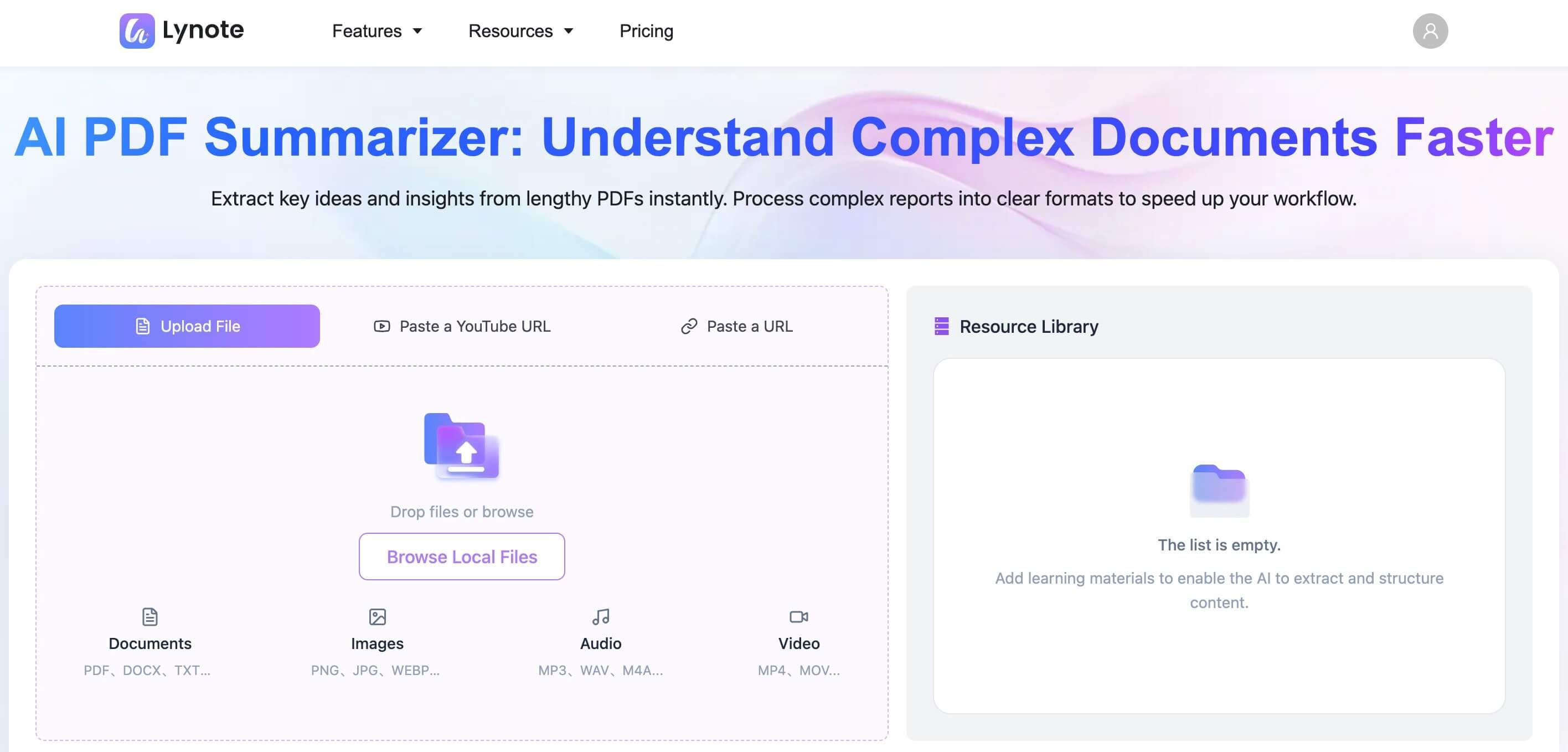
Lynote isn't just a summarizer; it's a full-fledged AI learning assistant designed to be a student's or researcher's co-pilot. Its core philosophy is that a summary isn't the end product—it's the starting point for creating durable knowledge. The tool is built around the idea of turning passive documents into active study materials, which sets it apart from single-task summarizers.
I found this approach particularly effective when preparing for a presentation. Instead of just getting a summary of three different research papers, I uploaded them all at once. Lynote analyzed them and produced a cohesive set of notes, allowing me to see the connections and contradictions between the sources instantly. It transformed a multi-hour task into about ten minutes of review and refinement.
Features
- AI-powered summarization and note generation.
- Ability to upload and analyze multiple documents simultaneously.
- Integrated editor to refine, format, and add to AI-generated notes.
- Upcoming features on the roadmap include chat with documents and auto-generated flashcards.
Pros
- Workflow-Oriented: Goes beyond a simple summary to create a foundation for study notes.
- Multi-Document Analysis: A rare and powerful feature for comparing sources or synthesizing information from a batch of documents.
- Clean & Focused UI: The interface is uncluttered and built for the task of learning, not just processing files.
Cons
- Newer Platform: As a more recent entry, some advanced features like chat are still on the near-term roadmap.
- Focused on Learning: May be more than what's needed for a user who just wants a quick, one-off summary.
Best For: Students, academics, and lifelong learners who need to convert dense reading material into organized, usable study notes.
2. NoteGPT: Best for Quick, Browser-Based Summaries
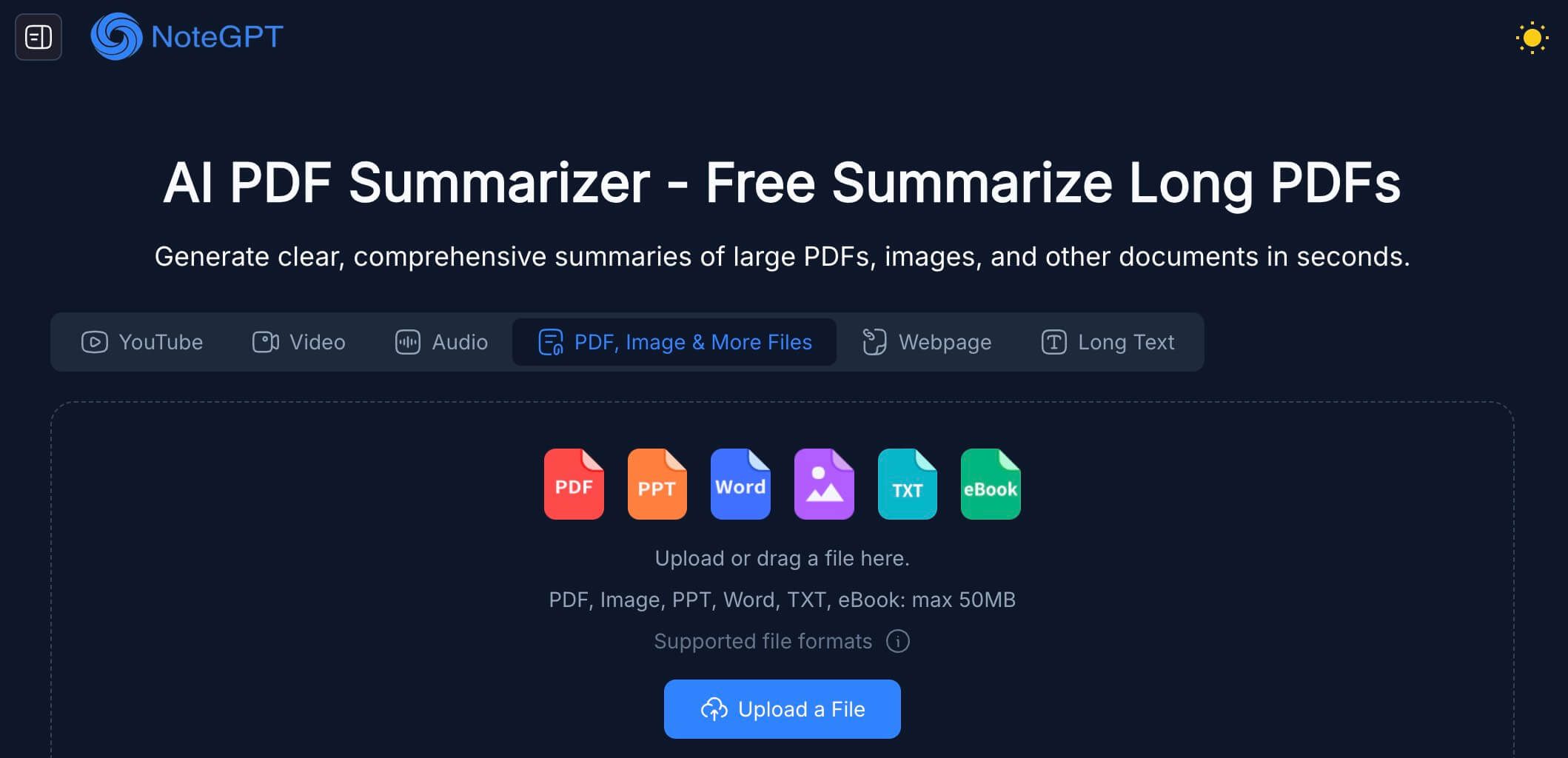
NoteGPT positions itself as a fast and accessible tool for getting the gist of PDFs and articles directly in your browser. Its primary strength is its convenience, often packaged as a browser extension that can be activated on any PDF you're viewing online. It's the digital equivalent of flipping to a book's back cover for a quick synopsis.
It's a straightforward tool that does one thing and does it reasonably well. If you're vetting a dozen articles to see which ones are relevant for your research, NoteGPT can save you a significant amount of time by providing a quick summary before you commit to a full read.
Features
- PDF and article summarization.
- Browser extension for easy access.
- Generates key takeaways in bullet points.
Pros
- Extremely Convenient: The browser extension makes summarizing on-the-fly incredibly easy.
- Fast Results: Delivers summaries quickly, ideal for rapid screening of documents.
- Simple to Use: No complex settings or options to navigate.
Cons
- Limited Depth: Summaries can sometimes be superficial, missing deeper nuance from complex texts.
- Freemium Model Limits: The free version often has constraints on the number or size of documents you can process.
Best For: Users who need to quickly assess the relevance of multiple online articles or PDFs without downloading them.
3. ChatPDF: Best for Conversational Q&A with Documents
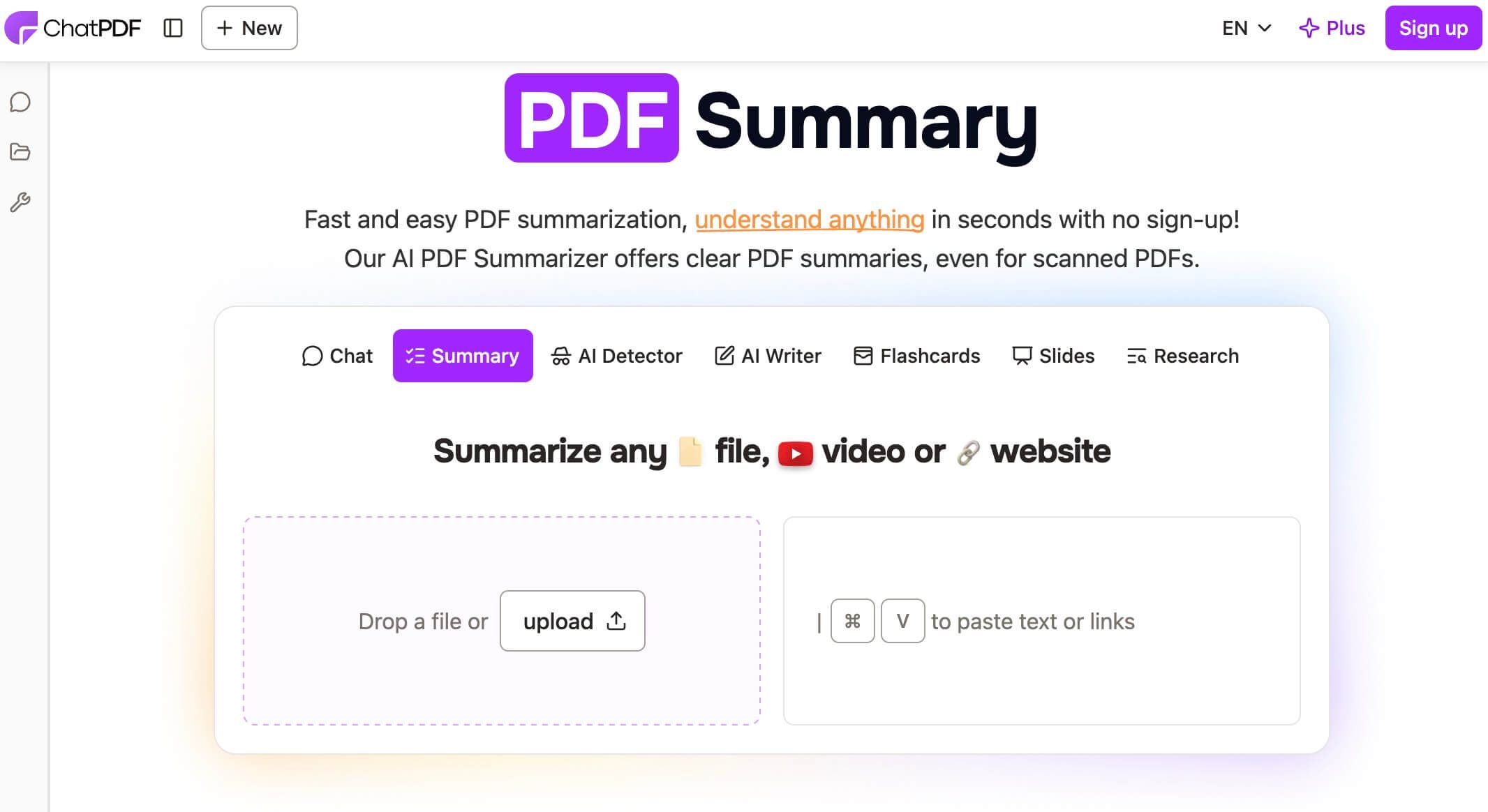
ChatPDF pioneered the "chat with your document" interface, and it remains a leader in this specific niche. Instead of providing a single, static summary, it invites you into a conversation. You upload a PDF, and the AI acts as an expert on that document, ready to answer any question you have about its contents.
This is a game-changer for targeted information extraction. I used it on a 200-page technical manual to find a specific troubleshooting step. Instead of reading through irrelevant sections, I simply asked, "What is the procedure for recalibrating the primary sensor?" and got a direct, page-referenced answer in seconds.
Features
- Interactive chat interface to query documents.
- Provides page numbers for its answers, making verification easy.
- Handles multiple languages.
Pros
- Intuitive and Engaging: The chat format feels natural and makes exploring a document interactive.
- Excellent for Fact-Finding: Perfect for pulling specific data, definitions, or quotes from a dense text.
- Reduces "Skim Reading": You can pinpoint the exact information you need without scanning the whole document.
Cons
- Summary Quality Can Vary: A generated summary might be less coherent than one from a dedicated summarizer, as the model is optimized for Q&A.
- Context is Limited to the Document: It can't synthesize information from outside the uploaded file.
Best For: Researchers, legal professionals, and students who need to find specific answers or facts within a single, lengthy document.
4. iLovePDF Summarizer: Best for All-in-One PDF Management
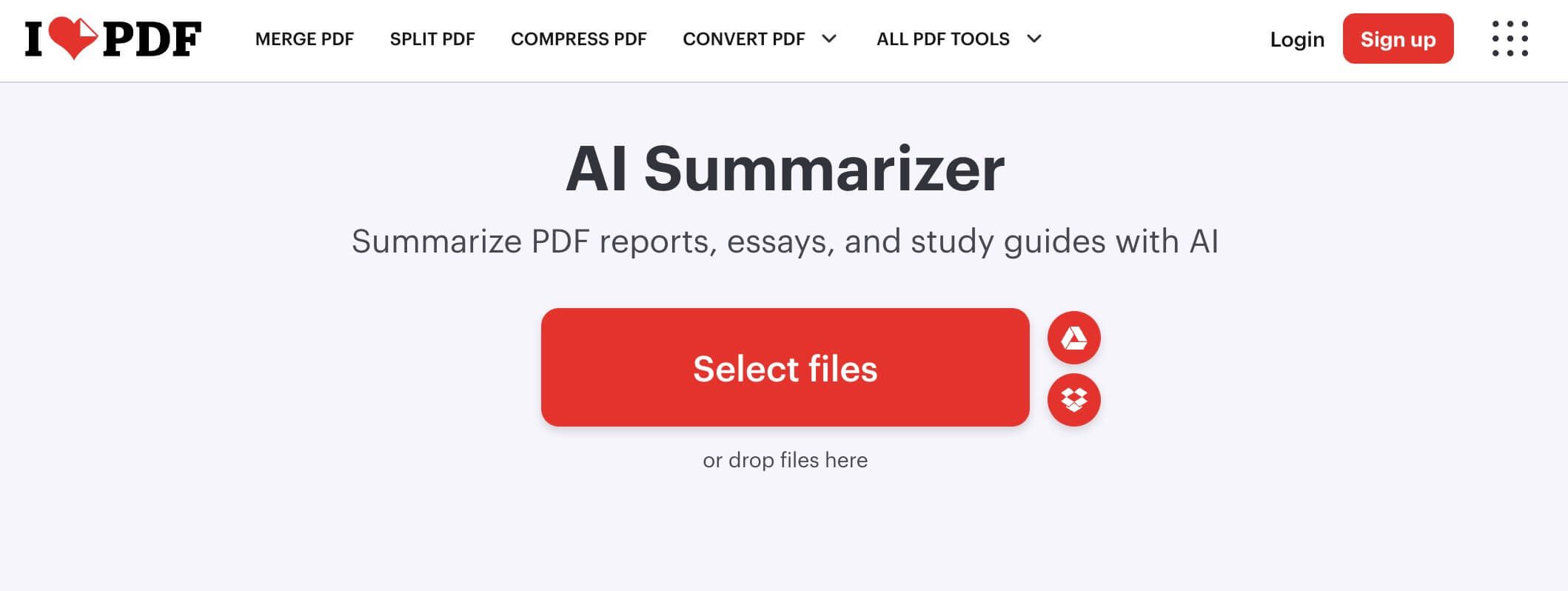
Many people already know and trust iLovePDF for its suite of free online tools—merging, splitting, converting, and compressing PDFs. The AI Summarizer is a logical addition to this toolkit. Its biggest advantage is convenience for existing users. If you're already on the site to convert a DOCX to PDF, you can summarize it in the next tab over.
The summarizer itself is functional and straightforward. It provides a concise summary and can extract key points. While it may lack the advanced capabilities of specialized AI tools, it's a reliable workhorse integrated into a platform that millions already use.
Features
- Part of a comprehensive suite of over 20 PDF tools.
- Simple upload-and-summarize interface.
- Option to choose summary length (short or detailed).
Pros
- The "Swiss Army Knife" Factor: An incredible value proposition if you need other PDF functions.
- Trusted and Reliable: A well-established brand in the PDF space.
- Free and Accessible: The core tools are available for free with generous limits.
Cons
- Summarization Isn't Its Core Focus: The AI may be less sophisticated than dedicated tools like Lynote or Adobe.
- Lacks Advanced Features: No interactive chat or multi-document analysis.
Best For: General business users and individuals who already rely on the iLovePDF ecosystem for various document management tasks.
5. Adobe Acrobat AI Assistant: Best for Adobe Ecosystem Power Users
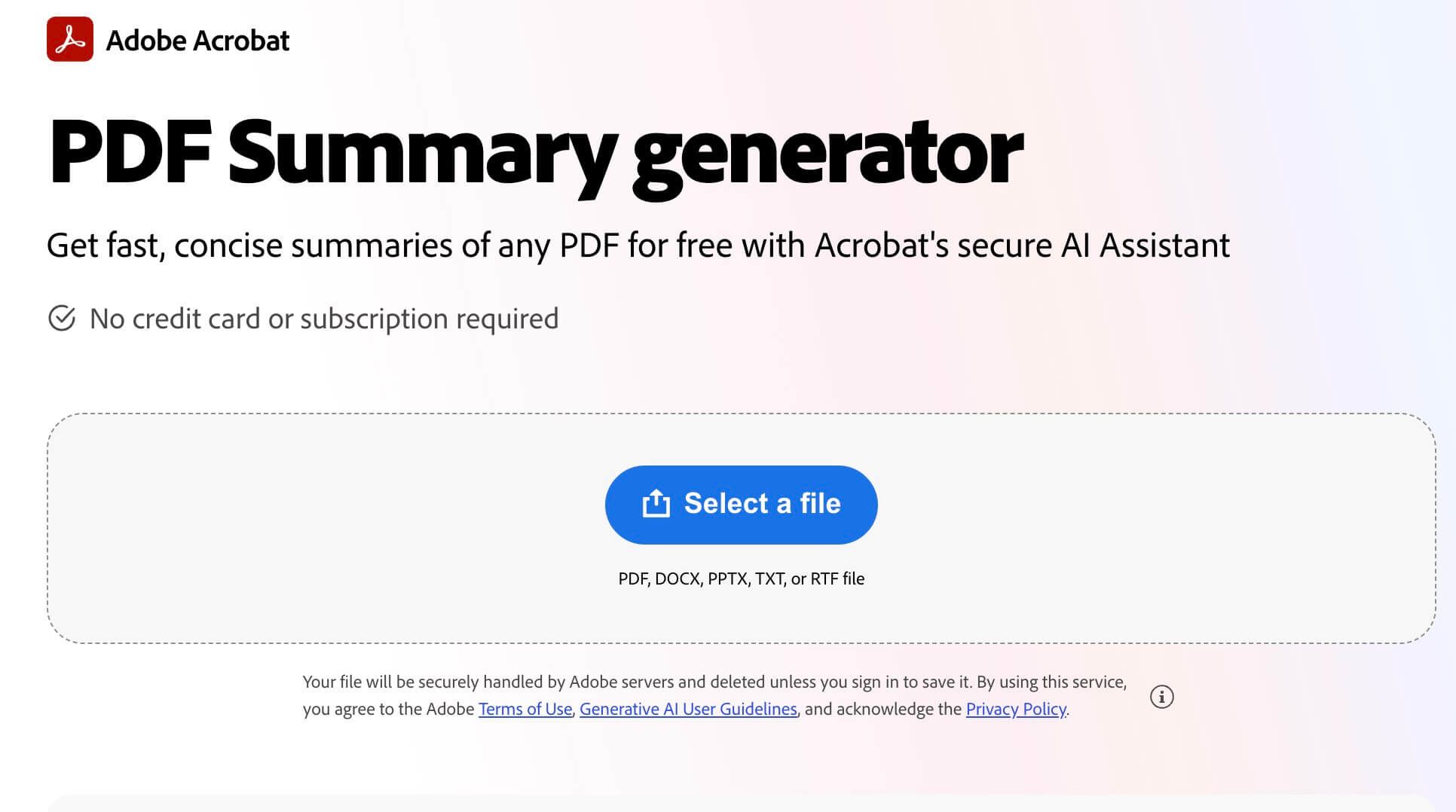
When the creator of the PDF format adds an AI assistant, you pay attention. Adobe's AI Assistant is a powerful, deeply integrated feature for Acrobat Pro subscribers. It leverages Adobe's best-in-class text recognition and document structure analysis to provide highly accurate summaries and insights.
The workflow is seamless. You open a PDF in Acrobat, click the AI Assistant button, and immediately you can get a summary, ask questions, and even get help drafting emails or reports based on the document's content. The part people miss is its incredible ability to understand complex layouts—it almost never gets tripped up by columns, tables, or embedded charts.
Features
- Integrated directly into Adobe Acrobat Reader and Pro.
- High-fidelity summary and Q&A capabilities.
- Generates citations for its answers.
- Can format outputs for emails, presentations, and reports.
Pros
- Unmatched Integration: A flawless workflow for anyone who lives in Adobe Acrobat.
- Superior Layout Recognition: The best in its class for accurately parsing complex, non-standard PDF layouts.
- High Trust and Security: Backed by Adobe's enterprise-grade security standards.
Cons
- Expensive: Requires a paid Adobe Acrobat Pro subscription, which is a significant investment.
- Overkill for Casual Users: The power and price are targeted at business and enterprise professionals.
Best For: Business professionals, corporate teams, and designers who are heavily invested in the Adobe software ecosystem.
Head-to-Head Comparison: Which AI Summarizer Performs Best?
Looking at features is one thing; seeing how they stack up in a direct comparison is another. Here’s our breakdown based on hands-on testing with challenging documents.
| Feature | Lynote | ChatPDF | iLovePDF | Adobe Acrobat AI |
|---|---|---|---|---|
| Summarization Accuracy | 4.5 / 5 | |||
| Excellent nuance, captures thesis well. | 4.0 / 5 | |||
| Better at direct answers than narrative summaries. | 3.0 / 5 | |||
| Functional but can be generic. | 4.5 / 5 | |||
| Highly accurate and context-aware. | ||||
| Complex Layouts | 4.0 / 5 | |||
| Handles columns well; tables are mostly intact. | 3.5 / 5 | |||
| Decent, but can get confused by sidebars. | 4.0 / 5 | |||
| Leverages a strong PDF parsing engine. | 5.0 / 5 | |||
| Industry-leading; rarely makes a mistake. | ||||
| Speed (20-page doc) | ~10-20 seconds | ~5-15 seconds | ~15-25 seconds | ~10-20 seconds |
| Interactive Features | Note-taking & editing | Live Q&A Chat | None | Live Q&A Chat |
| File Size Limit (Free Tier) | Generous | 2 files/day, 120 pages/file | 15 MB / task | Read-only access |
The main reason Adobe Acrobat AI outperforms others in layout handling is its native access to the underlying PDF structure, a benefit of being developed by the format's creators. Unlike tools that have to reverse-engineer the document, Adobe's AI reads it like an open book.
How to Summarize a PDF with Lynote in 3 Steps
Ready to turn that daunting PDF into actionable notes? Here’s how simple the process is with Lynote.
Before you start
- Check your file: Ensure your PDF is not password-protected.
- Scan Quality: If you're using a scanned document, make sure the text is clear and legible for the best OCR (Optical Character Recognition) results.
- File Format: This guide is for PDFs, but Lynote also handles other common document types.
Step 1. Upload Your PDF(s)
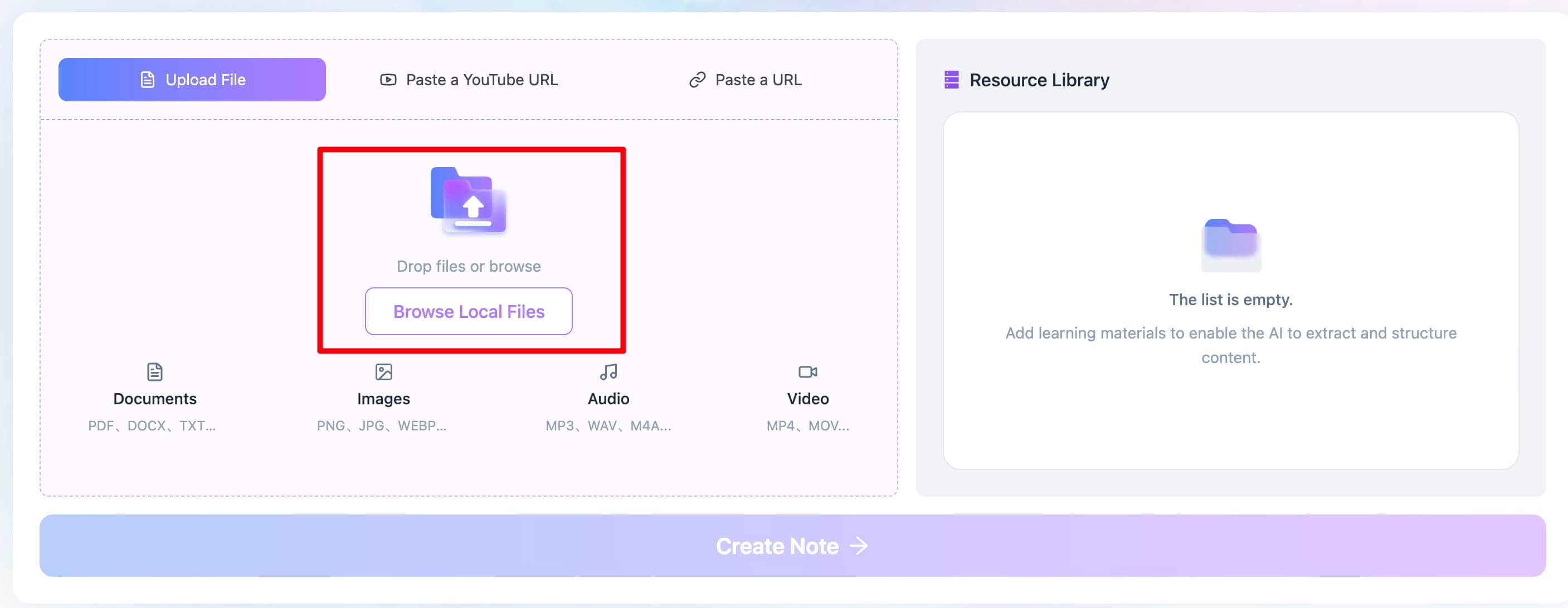
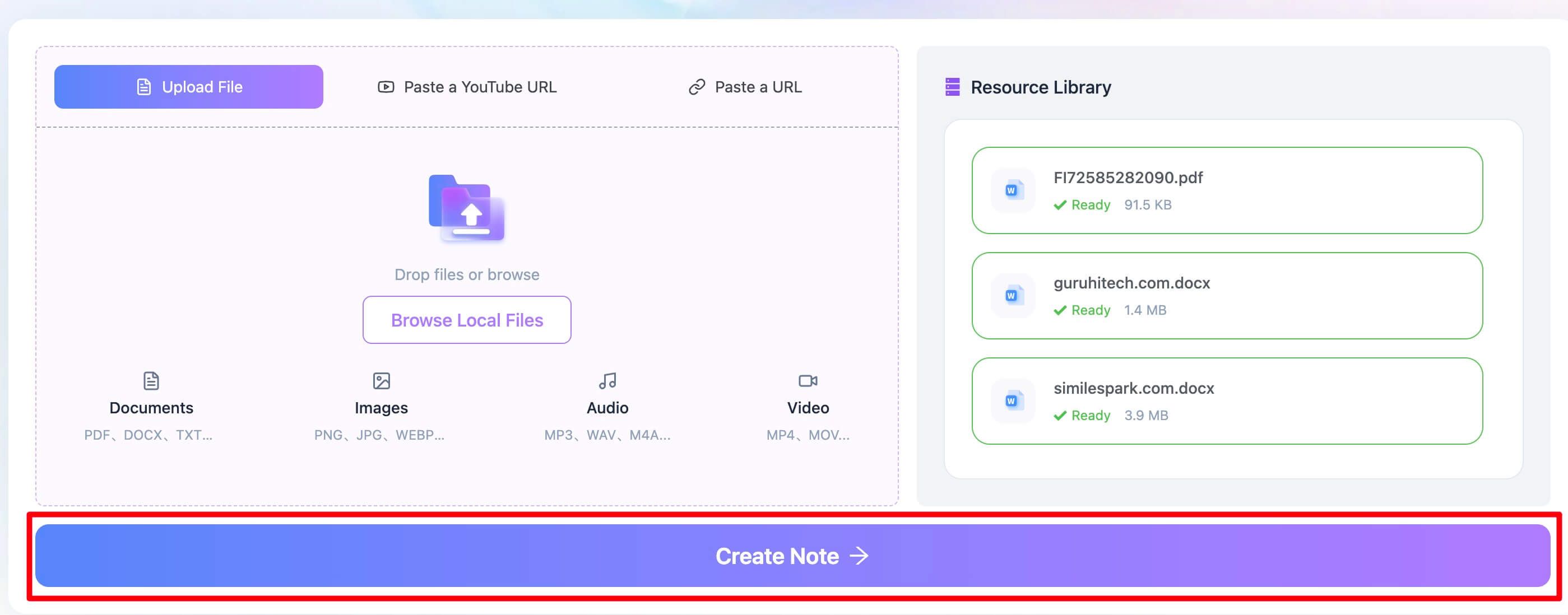
Navigate to the Lynote AI PDF Summarizer platform. You'll see a clear and simple interface for uploading your files. You can either drag and drop your PDF directly onto the page or click to browse your computer. The real power-user move here is selecting multiple PDFs at once—perfect for when you need to synthesize notes from an entire week's readings.
Step 2. Generate the PDF Summary
Once your files are uploaded, simply click the prominent "Create Note" button. This is where the magic happens. Lynote's AI begins analyzing the document's structure, identifying the core arguments, key evidence, and main conclusions. It's not just grabbing random sentences; it's building a coherent, structured summary designed to be a useful starting point for your own notes.
Step 3. Access and Use Your Summary
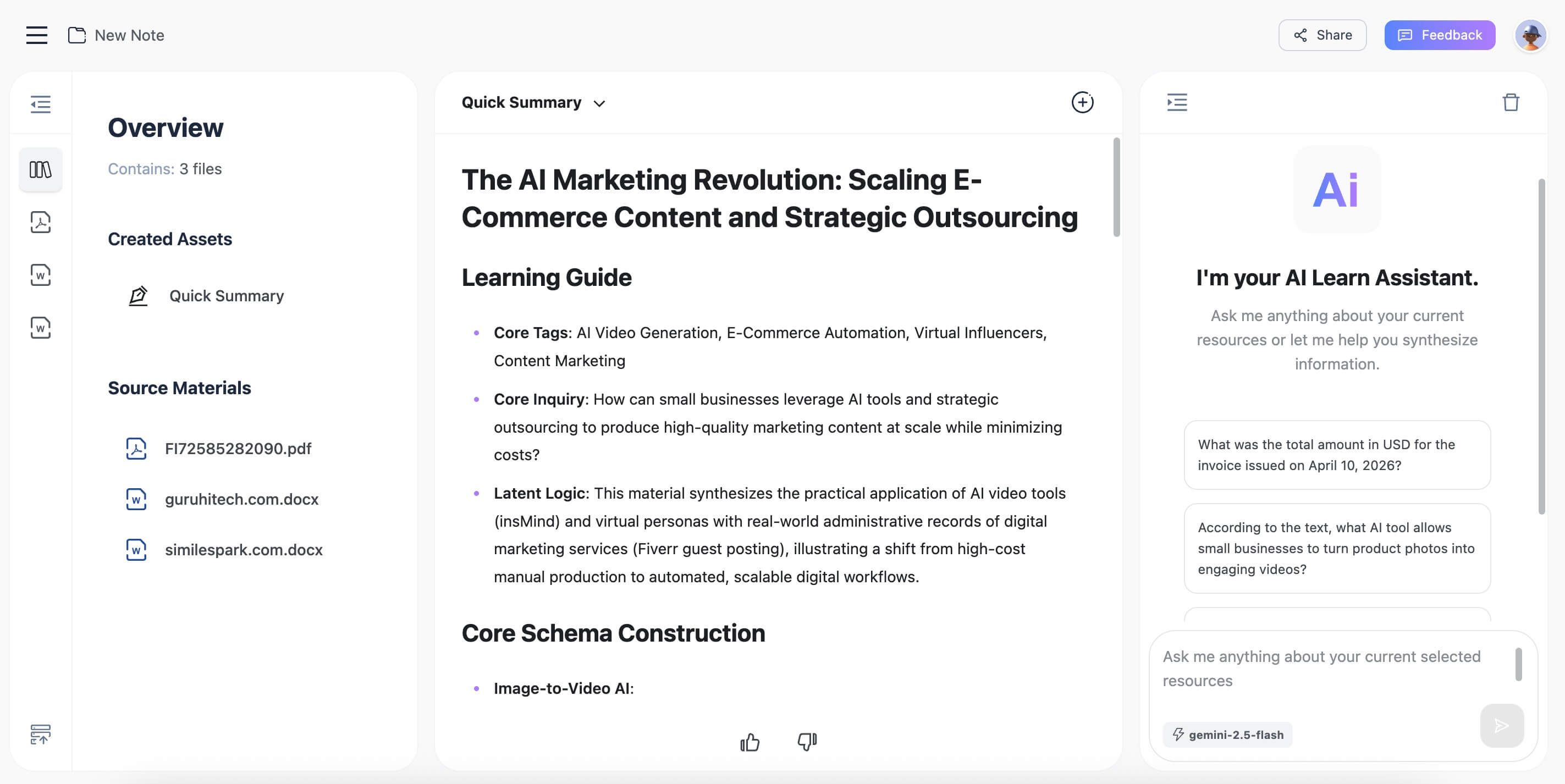
In just a few seconds, the analysis is complete, and your new note appears in the editor. This isn't a static block of text. You can immediately copy the summary, but more importantly, you can edit it. Add your own thoughts, rephrase key points, or integrate it with other notes. When you're done, you can easily export the text for use in your favorite word processor or study app.

Pro Tips: Getting the Most Out of Your AI Summarizer
Using these tools effectively goes beyond just clicking "summarize." Here are a few pro tips to avoid common pitfalls.
- The Scanned PDF Problem: You might be wondering, "Can AI summarize a scanned PDF?" The answer is yes, but with a catch. The AI first needs to perform OCR to convert the image of the text into actual, machine-readable text. If the scan is blurry, skewed, or has handwritten notes, the OCR process can introduce errors, leading to a garbled summary. Always start with the highest-quality scan possible.
- "Garbage In, Garbage Out": An AI summarizer is only as good as the source material. A poorly written, unstructured document will yield a confusing summary. The AI can't create clarity where none exists.
- Context is King: AI models are brilliant at identifying patterns and key phrases, but they can miss subtle sarcasm, irony, or deep domain-specific nuance. For highly technical or philosophical texts, use the AI summary as a guide or an executive brief, not as a complete replacement for a close reading.
- Don't Trust, Verify: Especially when dealing with critical data, names, or dates, always treat the AI summary as a first draft. A great tool like ChatPDF or Adobe will provide page references, making it easy to click back to the source and verify that a specific fact was interpreted correctly.
Frequently Asked Questions
Is it safe to upload my confidential documents to an AI summarizer?
This is a critical question. Reputable services like Adobe and Lynote use secure connections (HTTPS) and have clear privacy policies stating they do not claim ownership of your data. However, for highly sensitive legal, medical, or corporate documents, you should always use a service that explicitly offers enterprise-grade security and data privacy guarantees, like Adobe Acrobat AI. Avoid free, unknown tools for anything confidential.
Can these AI tools summarize PDFs in other languages?
Most of the top-tier tools, including ChatPDF and Adobe's AI Assistant, have strong multilingual capabilities. They can often detect the source language automatically and provide a summary in that same language. However, the quality can vary, with performance generally being best for widely spoken languages like English, Spanish, and Mandarin.
Why did the AI get the summary wrong for my technical paper?
This is a common and important issue. The main reason is a lack of specialized domain knowledge. Large language models are trained on a massive, general corpus of text from the internet. While they know a lot about many subjects, they may not understand the specific jargon, acronyms, or the relative importance of methodologies in a niche field like quantum computing or Byzantine history. The AI might mistake standard background information for a key finding, leading to a summary that is technically correct but functionally useless. The fix is to use the summary as a starting point and refine it with your own expertise.
Final Verdict: Which AI PDF Summarizer Is Right for You?
Choosing the right AI PDF summarizer comes down to understanding your primary workflow. There is no single "best" tool, only the best tool for a specific job.
- If you are a student or researcher, your goal is not just to summarize but to learn. Lynote is the clear winner, with its unique focus on turning documents into integrated, editable study notes.
- If you are a business professional living in the Adobe ecosystem, the convenience and power of the Adobe Acrobat AI Assistant are unmatched, despite the high cost.
- If your daily task involves finding specific facts in long documents, the conversational approach of ChatPDF will save you countless hours.
- If you just need a quick, no-frills summary of an online article, NoteGPT's browser extension is the fastest way to get it done.
Editor's Choice:
For its thoughtful design that goes beyond simple summarization and focuses on the actual goal of learning and knowledge creation, Lynote is our top recommendation**.** It understands that a summary is a means to an end, not the end itself. The ability to process multiple documents at once and integrate the output directly into an editable note is a genuine workflow innovation for anyone serious about their studies or research.
The candid downside: As a newer, more focused tool, it doesn't have the all-in-one feature set of a giant like Adobe or the long-established brand recognition of iLovePDF. But for its core purpose, it excels.
Ultimately, the best way to find your perfect tool is to try one. Take that PDF you've been dreading, upload it, and see how much time you can save.

Written by Janet L. Harris
AI Writing Specialist
Janet reviews AI detectors and humanization tools, with a focus on accuracy, limitations, and responsible use. View all articles →