How to Chat with PDF in Adobe Acrobat (A Step-by-Step Guide)

You're staring at page 3 of a 150-page research paper, and the deadline is looming. You know the answer you need is buried somewhere in the dense text, but finding it feels like a hopeless task. The old way was endless scrolling and CTRL+F searches that rarely hit the mark. The new way? Asking your document a direct question. Yes, you can now chat with your PDFs, and Adobe Acrobat has finally entered the game.

The short answer is yes, you can chat with a PDF using Adobe Acrobat Pro's new "AI Assistant" feature. This tool, integrated directly into the software, allows you to ask questions, get summaries, and find key information within your documents without manual searching. It transforms static PDFs into interactive knowledge bases, promising to save hours for students, legal professionals, and anyone drowning in document overload. This guide will walk you through exactly how to use it—and explore a powerful alternative for those who need a more focused learning tool.
Quick Verdict: Adobe Acrobat AI vs. Lynote for PDF Chat
For readers who need a fast answer, here’s the bottom line. The right tool depends entirely on whether you need an all-in-one PDF editor with AI bolted on, or a dedicated AI-native tool built for learning and research.
| Feature | Adobe Acrobat AI Assistant | Lynote AI Chat |
|---|---|---|
| Primary Use Case | All-in-one PDF editing, creation, and commenting with AI chat as a new feature. | AI-powered learning and note-taking from documents for study and research. |
| Ease of Use (1-5) | 3/5 (Integrated, but nested within a complex professional application). | 5/5 (Clean, minimalist interface focused entirely on the chat/summary workflow). |
| Key Features | Summaries, question-answering, citation links, basic formatting suggestions. | Document chat, AI-generated summaries, batch PDF uploads, future flashcard/note creation. |
| Ideal User | Corporate users, designers, and legal professionals already subscribed to Adobe Acrobat Pro. | Students, academics, researchers, and self-learners needing a fast, efficient study tool. |
Scores are editorial heuristics based on user experience for the specific task of PDF chat, not measured benchmarks.
In short, if you live inside the Adobe ecosystem and already pay for Acrobat Pro, the AI Assistant is a convenient, powerful addition. If your main goal is to quickly upload, understand, and learn from documents without the complexity of a full PDF editor, a specialized tool like Lynote will deliver a more streamlined experience.
How to Chat with a PDF using Adobe Acrobat: The Official Method
Adobe has integrated its AI chat functionality, the "AI Assistant," directly into the latest versions of Acrobat Pro. It’s a powerful feature, but you have to know where to find it. Here’s the step-by-step process.
Before you start:
- Acrobat Pro Subscription: The AI Assistant is a premium feature. You need an active subscription to Adobe Acrobat Pro (desktop or web). It is not available in the free Adobe Reader.
- Latest Version: Ensure your Acrobat application is updated to the latest version, as the AI features are a recent addition.
- Internet Connection: The AI processing happens in the cloud, so a stable internet connection is required.
Step 1: Open Your PDF in Adobe Acrobat Pro
First things first, launch the Adobe Acrobat Pro desktop application. Open the PDF document you want to work with by going to File > Open or by simply dragging and dropping the file into the Acrobat window. This method works for locally stored files as well as those in your Adobe Cloud Storage.
Step 2: Locate and Launch the AI Assistant
Once your document is open, look for the AI Assistant icon. Adobe has placed it in the top-right corner of the global bar, often represented by a blue, sparkling chat-like icon.
Alternatively, you can find it in the All tools panel on the left side of your screen. Scroll down to the "Generative AI" section and select AI Assistant. Clicking this will open a new pane on the right side of your document.
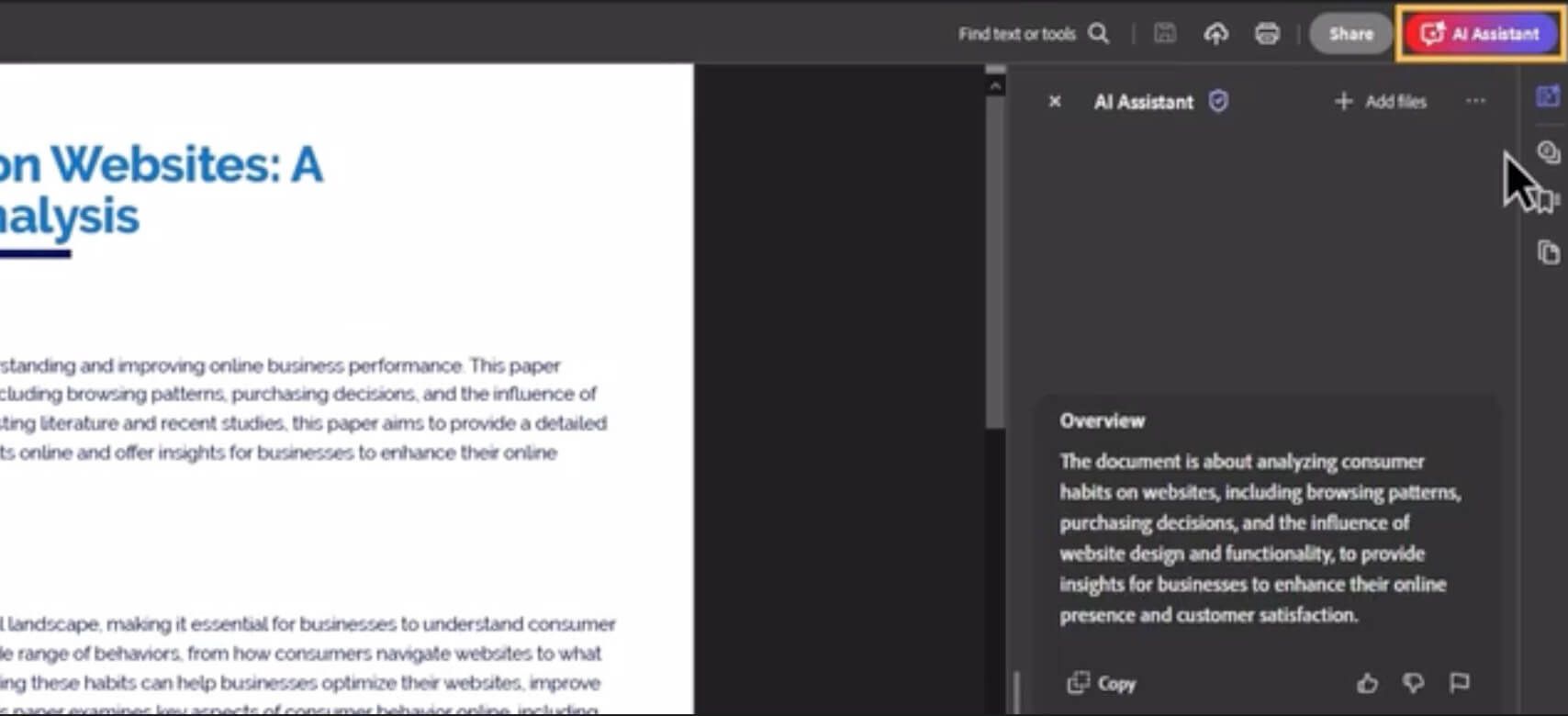
Step 3: Let the AI Generate an Initial Summary
The first thing the AI Assistant will do is process your document. For shorter files, this is nearly instant. For longer, more complex documents (e.g., a 200-page technical manual), it might take several seconds.
Once processed, the assistant will automatically provide a brief, AI-generated summary of the document. This is a great starting point to get the gist of the content before you dive in with specific questions.
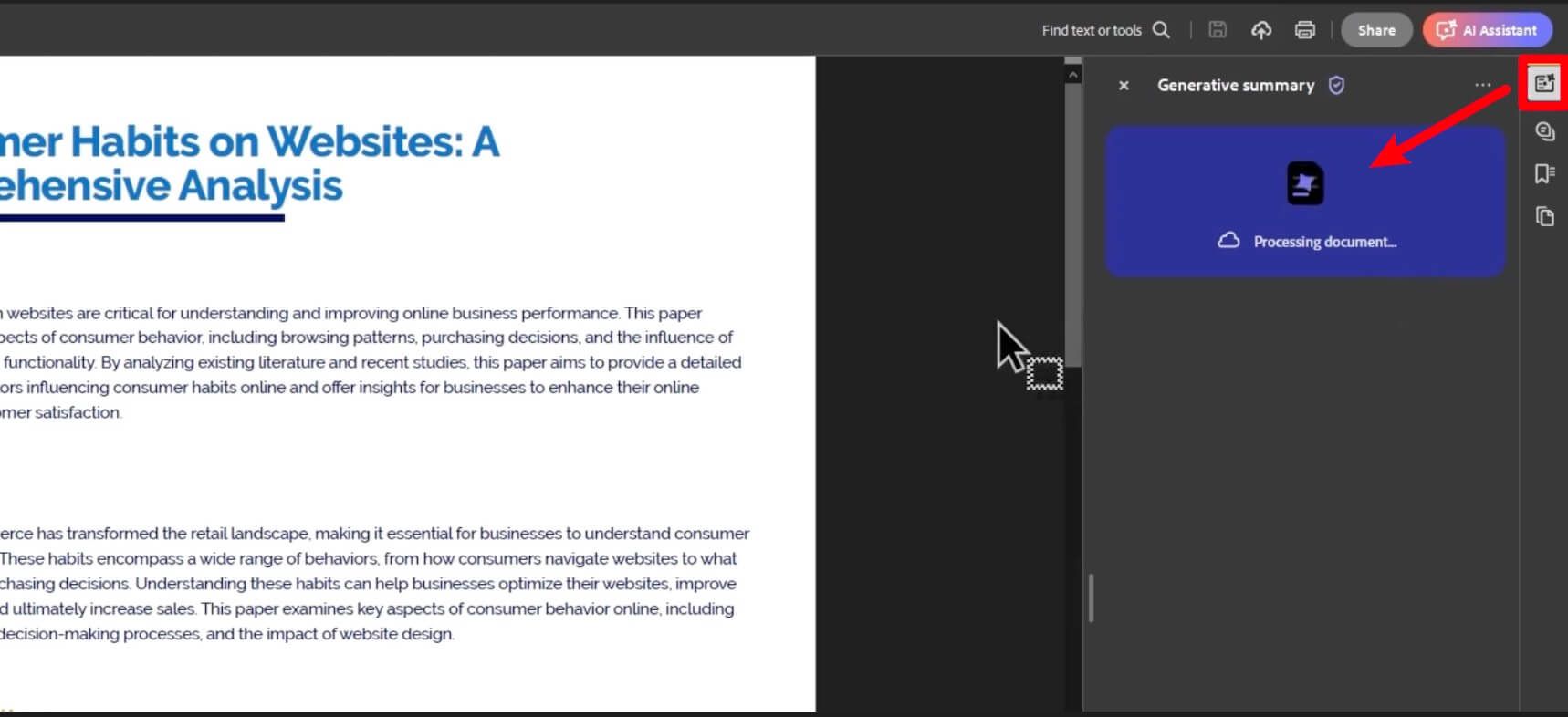
Step 4: Ask Your Questions
This is where the magic happens. In the chat box at the bottom of the AI Assistant pane, you can type any question about the document's content.
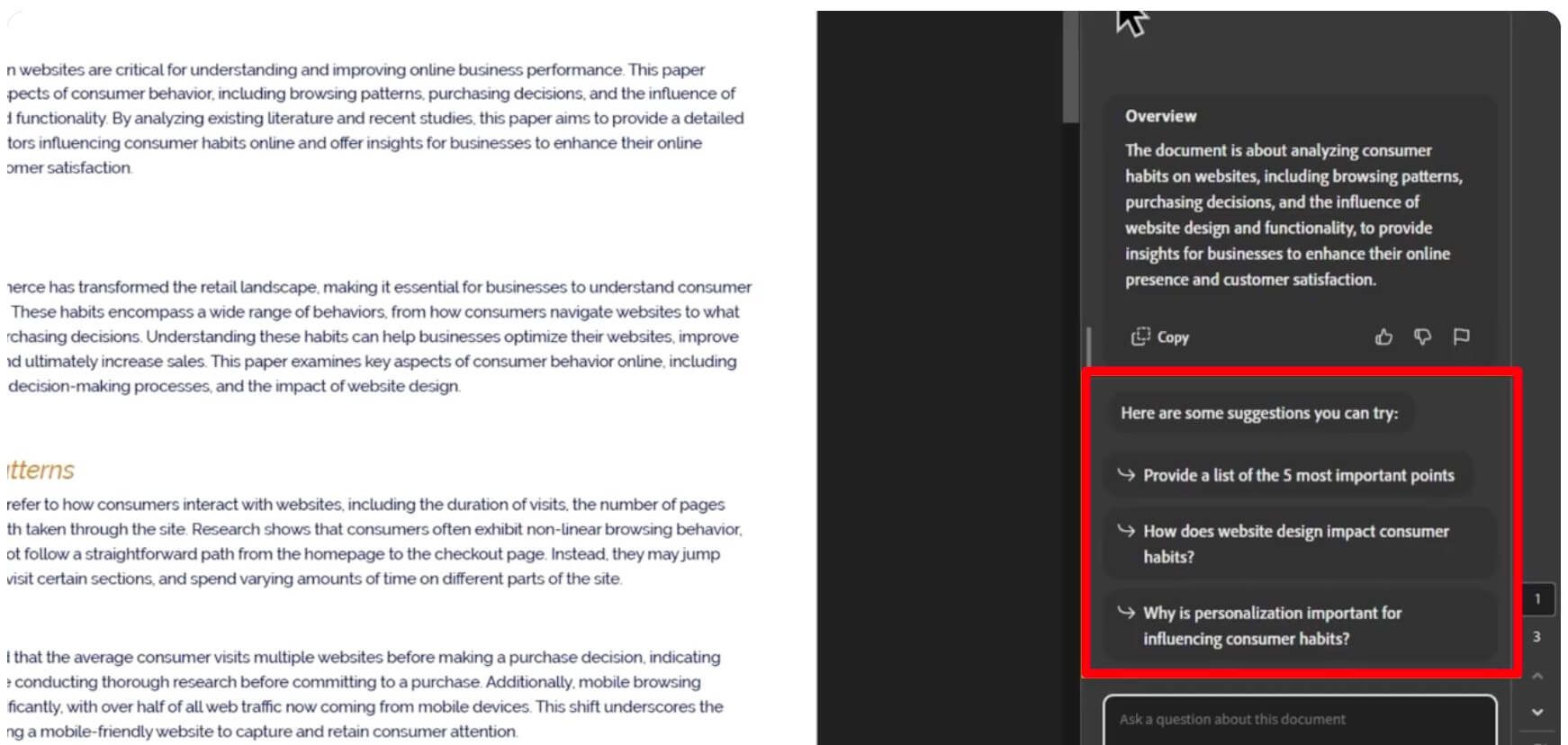
For example, you could ask:
- "What are the main conclusions of this study?"
- "List all references to 'Project Titan' in this report."
- "Explain the methodology used in section 4."
- "Summarize the key arguments on page 32."
The AI will scan the document and provide a concise answer, often with clickable citations that jump you directly to the relevant page in the PDF. This is incredibly useful for verifying information and understanding the context of the answer. You can continue the conversation, asking follow-up questions to dig deeper into the topic.
A Powerful Alternative: How to Use Lynote AI Chat with PDF
While Adobe's tool is great for those already in its ecosystem, it can feel like overkill if all you need is a fast, effective way to chat with your study materials. This is where a dedicated tool like Lynote shines. It’s built from the ground up for one purpose: helping you learn from your documents more efficiently. The interface is clean, the process is simple, and it's optimized for the student and researcher workflow.
Here’s how easy it is to get started.
Step 1. Upload Your PDF Document(s)
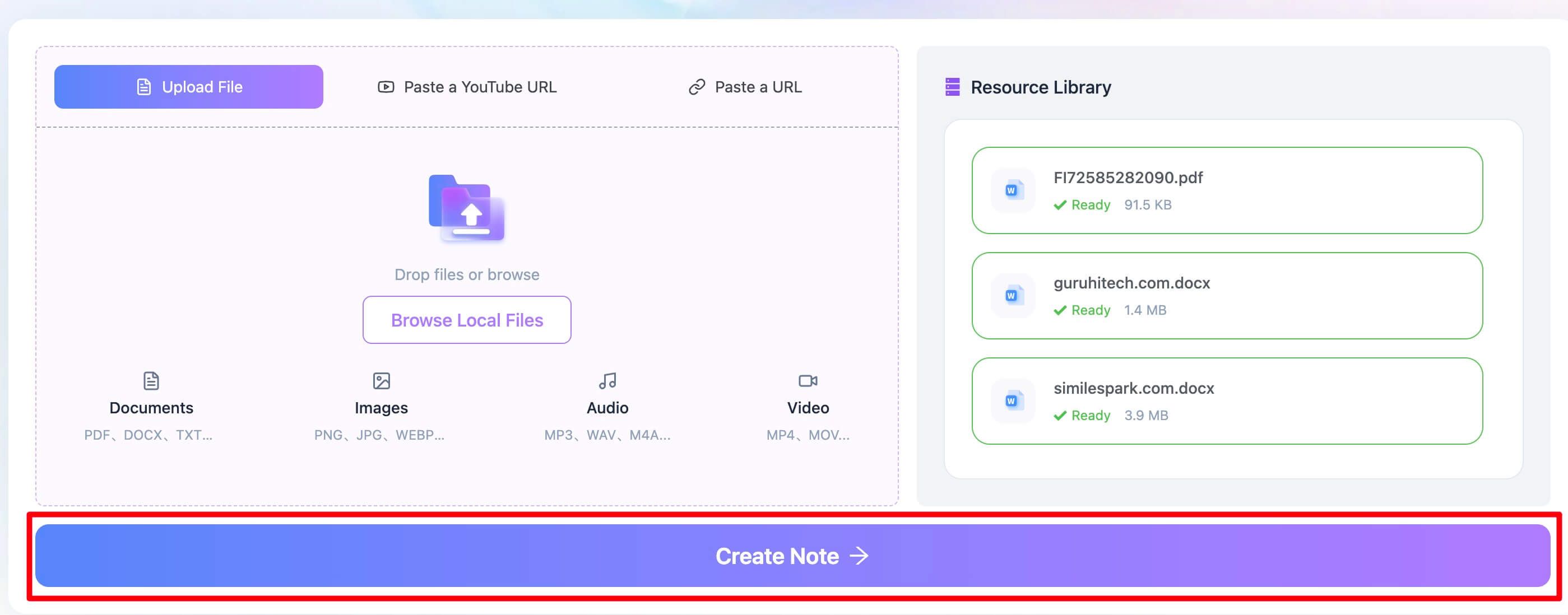
Getting your files into Lynote AI PDF Summarizer is incredibly straightforward. The dashboard presents a clean upload area where you can drag and drop your PDF files directly. There are no complex menus to navigate.
One of the standout features here is batch uploading. If you have a whole week's worth of readings for a class, you can select and upload all of them at once, saving a significant amount of time and getting all your materials ready for analysis in one go.
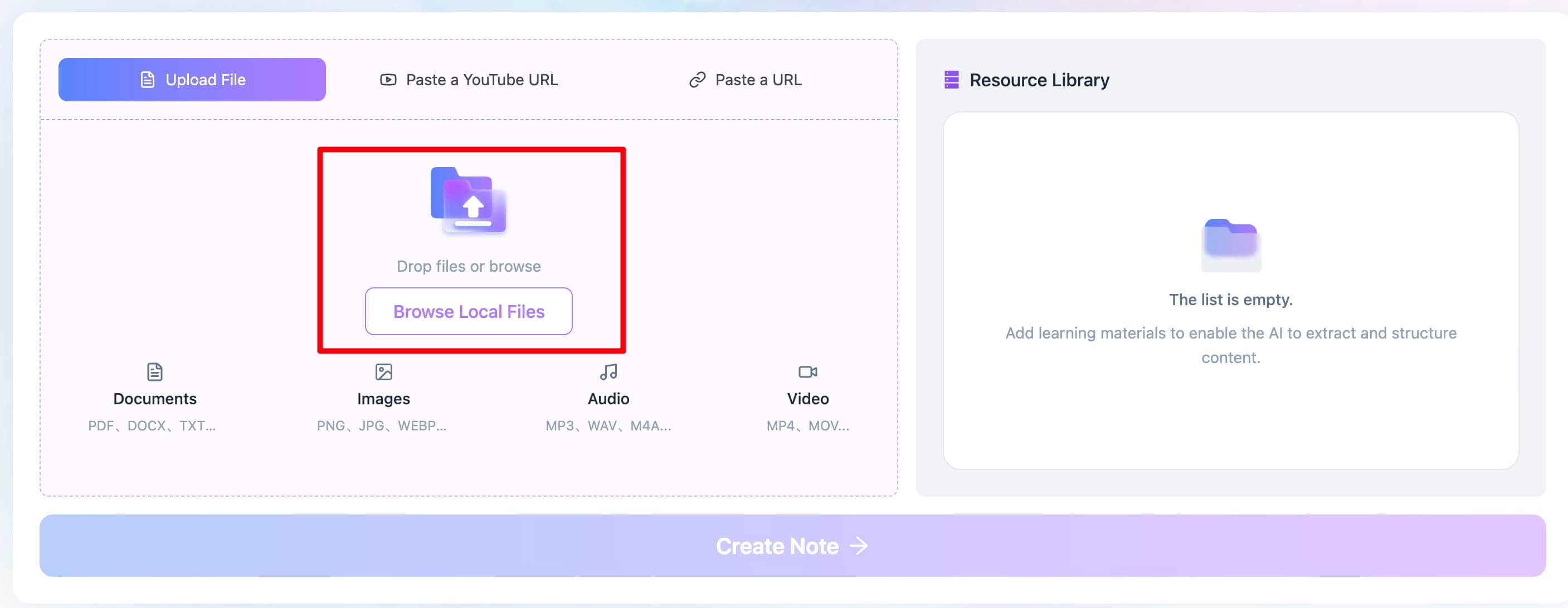
Step 2. Analyze and Summarize the PDF
Once your document is uploaded, you simply click the "Create Note" button. This is the trigger for Lynote's AI engine. It doesn't just prepare the file for chat; it performs a deep analysis of the content to generate a high-quality, structured summary. This initial summary serves as your study guide, giving you the core concepts, key arguments, and main takeaways before you even ask a single question. It’s a crucial step that frames your understanding and helps you formulate more intelligent questions.
Step 3. Chat with Your PDF
With the analysis complete, the chat interface opens up. This is your direct line to the document's knowledge. You can now ask anything you want to know. Stuck on a complex concept in a scientific paper? Ask for a simpler explanation. Need to find a specific character's motivation in a literature text? Just ask. The answers are delivered instantly, helping you build a deeper, more nuanced understanding of the material without friction.
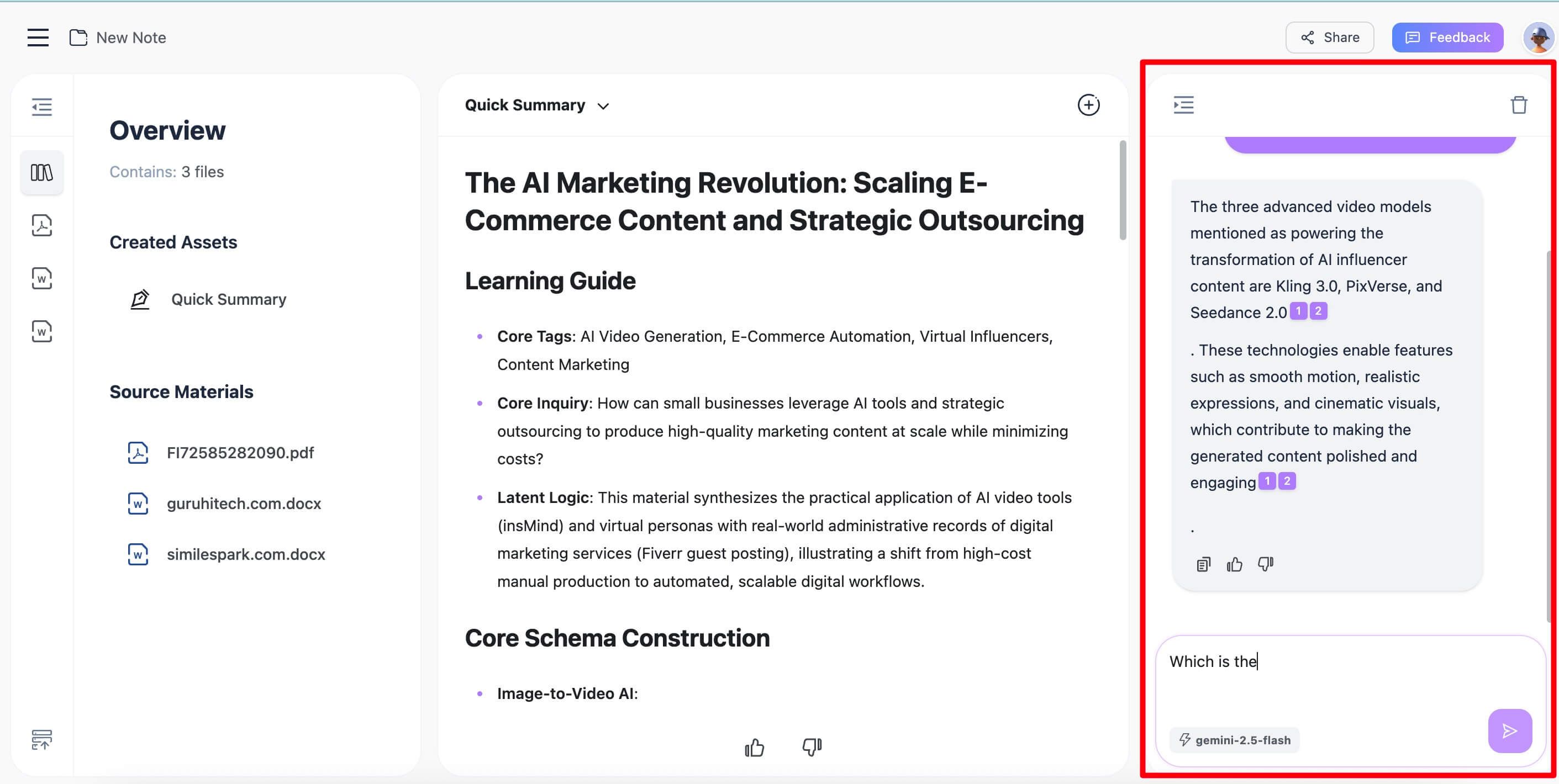
Bottom Line: The process in Lynote is designed to be a straight line from document to understanding. There are no distractions, no unnecessary features—just a powerful engine for learning.
Feature Deep Dive: Adobe AI Assistant vs. Lynote
A quick verdict is helpful, but for a serious decision, we need to look closer at performance. How do these tools handle real-world, complex documents?
Quality of Summaries
Adobe’s AI Assistant provides a solid, high-level summary that’s useful for getting a quick overview of a business report or a legal document. It’s functional and accurate.
Lynote, being purpose-built for learning, often produces more structured and conceptually focused summaries. It’s better at identifying the core thesis, supporting arguments, and conclusions in academic or educational texts. It feels less like a feature and more like the central product.
Handling of Complex Queries & Scanned Documents (OCR)
Here’s where we can see a real difference. Let's take the stress case of a multi-column academic PDF with footnotes and tables.
- Adobe Acrobat, with its deep roots in the PDF format, generally does an excellent job preserving layout integrity. Its AI can usually distinguish between main body text and sidebars. Its OCR (Optical Character Recognition) for scanned documents is industry-leading, meaning it can often turn a fuzzy image of text into a queryable document. However, the AI can sometimes get confused by complex table data.
- Lynote is designed for clean text analysis. It performs exceptionally well on standard, text-based PDFs. For scanned documents, its effectiveness depends on the quality of the initial scan.
The main reason Adobe Acrobat outperforms on poor-quality scans is its mature, built-in OCR engine that pre-processes the document before the AI sees it. However, for clean, digitally-native PDFs, the playing field is much more level, and Lynote’s focused AI can often provide clearer, more direct answers for study-related questions.
User Experience & Workflow
The experience of using the two tools feels fundamentally different.
- Using the Adobe AI Assistant feels like adding a new, powerful tool to a massive Swiss Army knife. It’s right there next to your editing, signing, and form-filling tools. This is perfect for a professional who needs to switch between these tasks frequently.
- Using Lynote feels like picking up a specialized scalpel. The entire interface is designed around the upload-analyze-chat workflow. There are no other menus or features to distract you. This laser focus is ideal for deep work sessions, like studying for an exam or conducting a literature review.
Pricing & Limitations: Is Adobe's AI Chat Feature Free?
Let's be clear: Adobe's AI Assistant is not free. It is a premium feature with several layers of cost.
- Base Subscription: You must have a paid subscription to Adobe Acrobat Pro. A standard individual plan typically costs around $20-$30 per month. The AI Assistant is not available in the free Adobe Reader.
- AI Assistant Add-On: On top of the Acrobat Pro subscription, Adobe has introduced an "AI Assistant add-on" subscription. While there was an initial free beta period, full functionality now requires this extra monthly payment.
- Usage Limits: Generative AI tools consume significant computing resources, so most services have usage limits. Adobe's plans come with a certain number of "generative credits" or queries per month. Heavy users may need to purchase additional credits.
You might be wondering, what about file limitations? Adobe generally handles very large files well, but there may be processing limits on extremely long documents (e.g., 500+ pages) for the AI analysis. Always check Adobe's current fair use policy for the most up-to-date information.
This pricing structure makes sense for businesses that can absorb the cost as a productivity expense. However, for a student or individual researcher, the combined cost can be a significant barrier.
Pro Tips for Getting Better Answers from Your PDF Chatbot
Whichever tool you choose, the quality of your output depends heavily on the quality of your input. Here are some pro tips to get more accurate and useful answers.
- Be Specific, Not Vague: Instead of asking, "What is this document about?", which will give you the general summary again, ask a targeted question. Try: "What are the three key risks identified in the project management section?"
- Ask for Formatted Output: You can often guide the AI to structure its answers. For example, try adding "...list the answers as a bulleted list" or "...present this data in a simple table." This can make complex information much easier to digest.
- Reference Specific Sections: If you know the information is on a certain page or in a specific chapter, mention it. "According to the 'Methodology' chapter, what was the sample size of the study?" This helps the AI focus its search and reduces the chance of pulling irrelevant information.
- Use the AI as a Guide, Not a Guru: This is the most important tip. AI can occasionally "hallucinate" or misinterpret complex sentences. Always use the provided source citations to click back to the original text and verify the information. Treat the AI's answer as a highly intelligent pointer, not as absolute fact.
Frequently Asked Questions
Can Adobe chat with scanned PDFs?
Yes. Adobe Acrobat Pro has a powerful, built-in Optical Character Recognition (OCR) engine. When you open a scanned, image-based PDF, Acrobat will often prompt you to run OCR to recognize the text. Once this is done, the AI Assistant can read and analyze the content just like a regular PDF. The accuracy, however, depends heavily on the quality of the original scan.
Is my data private when I use an AI PDF tool?
This is a critical question. Most cloud-based AI tools, including Adobe's and others like Lynote, send your document's content to their servers for processing. Reputable companies have strict privacy policies stating they do not train their models on your private data without consent. However, you should never upload highly sensitive or confidential documents (e.g., internal company financials, classified legal cases) to any public AI service without first clearing it with your organization's IT security policy.
Why does the AI sometimes give wrong answers from my PDF?
This is a fantastic and counter-intuitive question. The AI doesn't "read" and "understand" in the human sense. It converts the text into mathematical representations (tokens) and finds statistical patterns. A wrong answer can happen for several reasons:
- Layout Confusion: The AI might misinterpret a table, a footnote, or a figure caption as part of the main text, leading to a nonsensical answer.
- Subtle Language: It might miss sarcasm, irony, or highly nuanced arguments that a human reader would catch.
- Hallucination: In rare cases, the AI might combine two separate facts from the document in a way that creates a new, incorrect statement.
The fix: This is why the source-linking feature is so vital. If an answer seems odd, always click the citation to read the original sentence in context.
Conclusion: Which PDF Chat Tool is Right for You?
The ability to chat with your documents is no longer a futuristic concept; it's a practical tool that can dramatically boost productivity and comprehension. The choice between a comprehensive suite like Adobe Acrobat and a focused tool like Lynote comes down to your primary job-to-be-done.
- Adobe Acrobat AI Assistant is the logical choice for professionals already embedded in the Adobe creative and document ecosystem. If you spend your day editing, signing, and collaborating on PDFs in Acrobat Pro, the integrated AI is a powerful, convenient, and worthwhile upgrade.
- Lynote is the clear winner for students, academics, and researchers. Its minimalist design, focus on the core task of learning from documents, and simple workflow remove all friction, allowing you to get from question to understanding faster than any other tool.
Editor's Choice
For the specific task of studying and research, Lynote is our recommended choice.
Reasoning: It's built with a singular purpose, resulting in a faster, more intuitive user experience for learning. The lack of distracting features from a full-blown PDF editor means you can stay focused on what matters: absorbing knowledge.
Candid Downside: Lynote is not a PDF editor. You cannot use it to change text, sign forms, or redesign a document's layout. It is a dedicated learning and analysis tool, and it excels within that lane.

Written by Janet L. Harris
AI Writing Specialist
Janet reviews AI detectors and humanization tools, with a focus on accuracy, limitations, and responsible use. View all articles →