

Perplexity AI Text Detector
Why Choose Lynote for Perplexity AI Text Detection

Fastest
Don't wait minutes for results. Paste your text, press a button and see the results in seconds, even for long essays and full articles.

Accuracy
Lynote claims 99% accuracy for all scans. Get a clear verdict you can act on, not a guess you'll have to second-guess.

Detailed Reports
Every scan shows AI, human and mixed scores for your entire text. Suspicious sentences also get a separate confidence level, so you know exactly which parts to scrutinize.

Detects Latest AI Models
Perplexity may use GPT-5 and Claude models. Lynote detects output from those models, plus Gemini, LLaMA, Mistral and more.

Few False Positives
Nothing is worse than having actual human writing falsely identified as AI. The Perplexity AI detector looks at multiple factors simultaneously instead of relying on one sentence or one unusual phrase. That minimizes false positives and helps avoid flagging legitimate writing.

Used by Teachers
Lynote has a 4.9 rating across over 12,000 reviews. A lot of reviewers are teachers who use it to review student work before they assign grades, and want a tool they can reference and rely on.
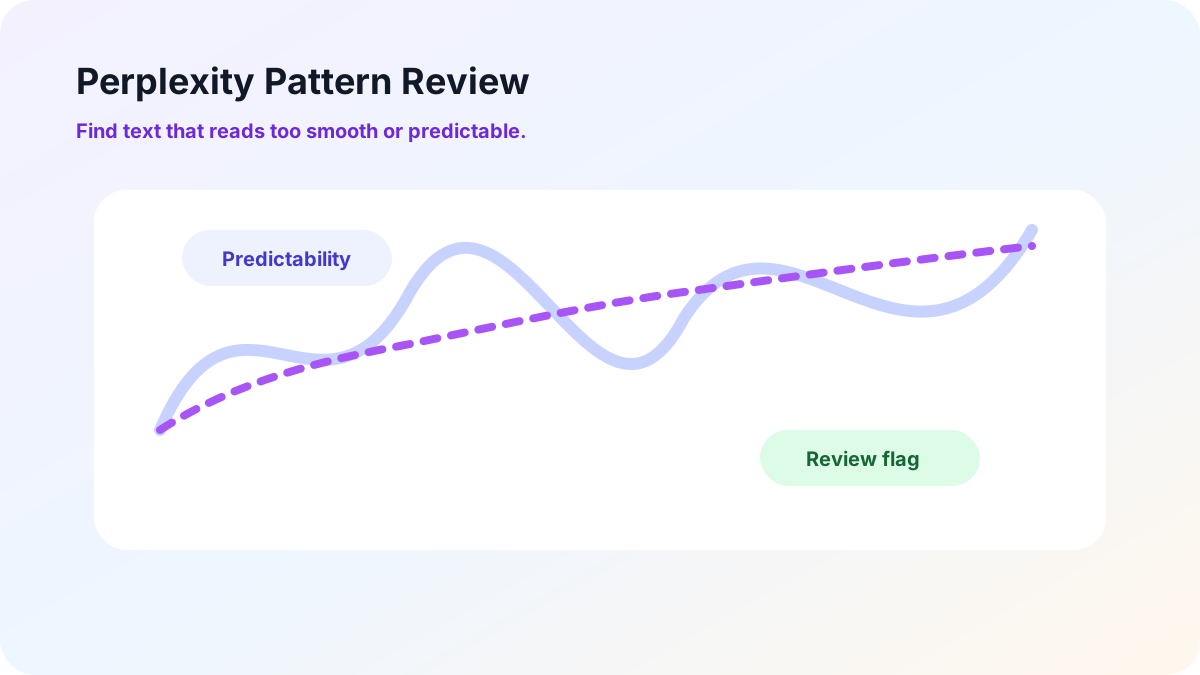
Perplexity Pattern Review
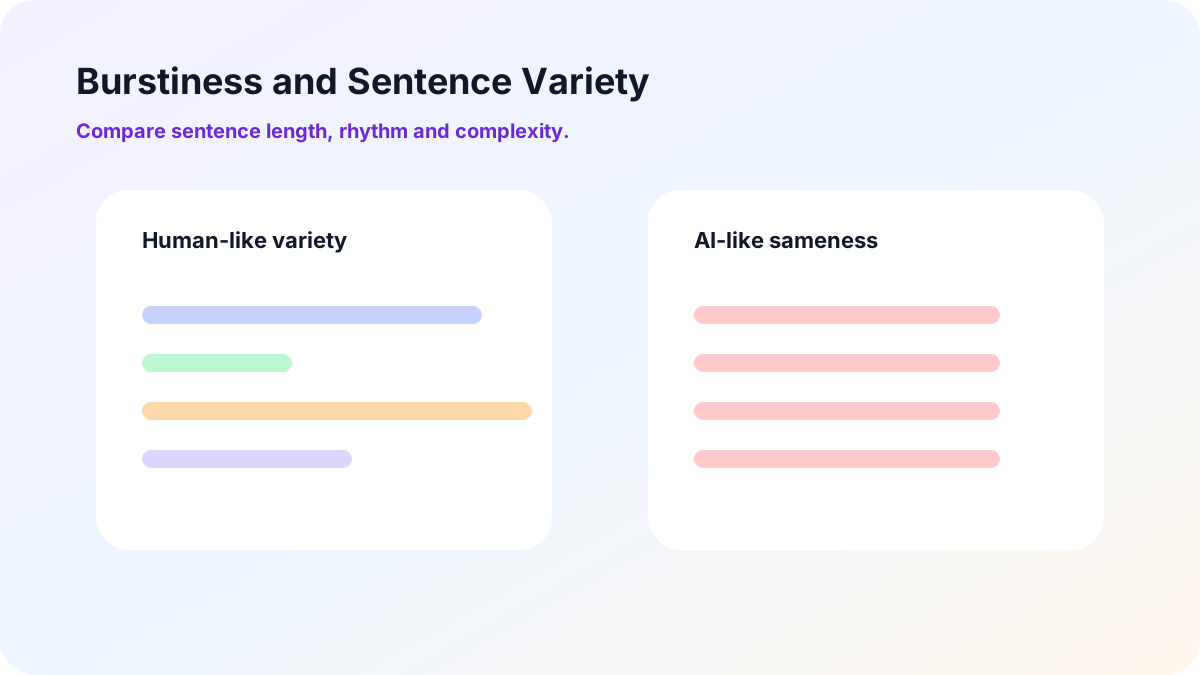
Burstiness and Sentence Variety Perplexity Detector Check
Burstiness refers to the variation in sentence length and complexity within a passage. A human writer might alternate between a long, complicated sentence and a short, punchy one: This. A piece of AI text usually has a consistent sentence length and structure throughout. This check measures how much your sentences vary from one to the next. If there is little variation over the course of several paragraphs, the passage will be flagged for further review.
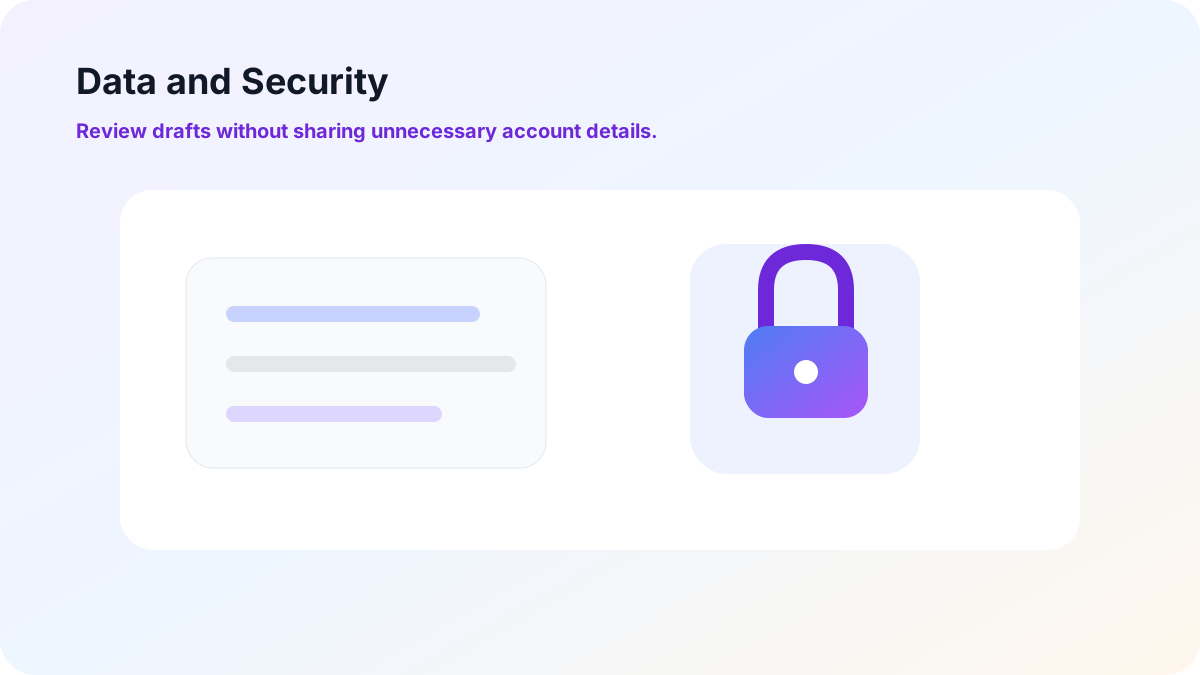
Data and Security When Using the Perplexity Detector
You retain ownership of your drafts. Lynote does not use any content submitted by users to train its AI models, and all submitted text remains private. This is important when reviewing unpublished articles, student papers or company documents. You don’t have to sign up to scan text. There’s no reason to share your email or name just to check a few paragraphs.
Who Uses Lynote Perplexity AI Text Detector?

Teachers
A student submits a paper that isn’t their normal writing style. Teachers run the text through the detector to find out if it’s Perplexity before taking action. Publishers & editors Guest contributions and freelance submissions come in daily.

Editors
Screen submissions to ensure they’re authentic before investing time in editing or paying authors.

Content Managers
When managing a writing staff, new content comes in constantly. Content managers review content before publishing, so AI-heavy content doesn’t make it onto the company blog.

Companies and Professionals
HR departments screen job applications and writing assessments. Others vet proposals, reports, and other business documents to ensure the work being approved was produced by a human.
How to Use a Perplexity AI Text Detector?

Step 1: Paste the Text to Check
Copy the text you want to check into the text box. Alternatively, you can upload a PDF, DOCX or TXT file. The larger your sample, the more accurate the detection will be. It's best to paste entire paragraphs rather than 1-2 lines.


Step 2: Click Detect AI
Press the Detect AI button.The detector analyzes your text and checks for sentence patterns, word choice, and predictability. The results should appear within a few seconds.
Step 3: Review Your Detection Report
Your detection report will show the percentage of AI-generated text, human-written content, and any mixed results. Below the report, the text will be highlighted with its corresponding confidence score. Start by reviewing the most confident text. Carefully read through those sentences to see if they seem written by AI before making your final assessment.

Step 1: Paste the Text to Check
Copy the text you want to check into the text box. Alternatively, you can upload a PDF, DOCX or TXT file. The larger your sample, the more accurate the detection will be. It's best to paste entire paragraphs rather than 1-2 lines.
Step 2: Click Detect AI
Press the Detect AI button.The detector analyzes your text and checks for sentence patterns, word choice, and predictability. The results should appear within a few seconds.
Step 3: Review Your Detection Report
Your detection report will show the percentage of AI-generated text, human-written content, and any mixed results. Below the report, the text will be highlighted with its corresponding confidence score. Start by reviewing the most confident text. Carefully read through those sentences to see if they seem written by AI before making your final assessment.
Frequently Asked Questions
This is a detector that determines whether text was created by Perplexity or another AI. Lynote measures the predictability, word choice, and sentence structure of text to provide a score.
Yes, you can check your text without having to sign up for an account. There are premium plans if you need to check a lot of text.
Lynote says that the Perplexity AI detector is 99% accurate. But remember, there's no such thing as a perfect detector. Treat the report as a guideline and read the highlighted text yourself.
Text written in a formal tone, template-based text, or very heavily edited content might be detected as AI. This is why it's important to read the highlighted text. Determine whether the flagged sentences were really generated by AI.
No, Lynote does not use submitted text for AI training. All submissions are kept confidential, which means you can safely check private documents or content you don't want to publish online.
The detector works in over 50 languages, including English, Spanish, French, German, Portuguese, Chinese, and Arabic. You can even check text written by non-English speakers.
More Lynote Tools for AI Detection, Rewriting, and Review








Helpful Reads on AI Detection, False Positives, and Humanizing
Explore Lynote resources about AI detection, school review workflows, false positives, humanizing AI text, and content authenticity.


