
Convert to JPG
For photos and everyday sharing


Use Lynote’s online image converter to convert JPG, PNG, WebP and HEIC files. Choose an output format, adjust quality where available, and download images individually or together in a ZIP.

Max 50 MB per file · Up to 10 images
Images converted: 0.
Images are processed locally in your browser. HEIC is not supported yet.
For photos and everyday sharing

For graphics and transparency

For images on your website
Click Choose images or drag files into the upload area. You can add up to 10 images at a time.
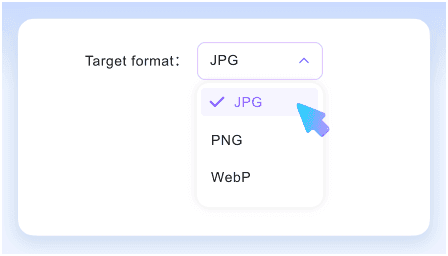
Select an output under Target format and adjust quality if available. Click Convert images to start.
Open the preview to check your converted image. Click the download icon to save it, or Download all to get the converted images in a ZIP.
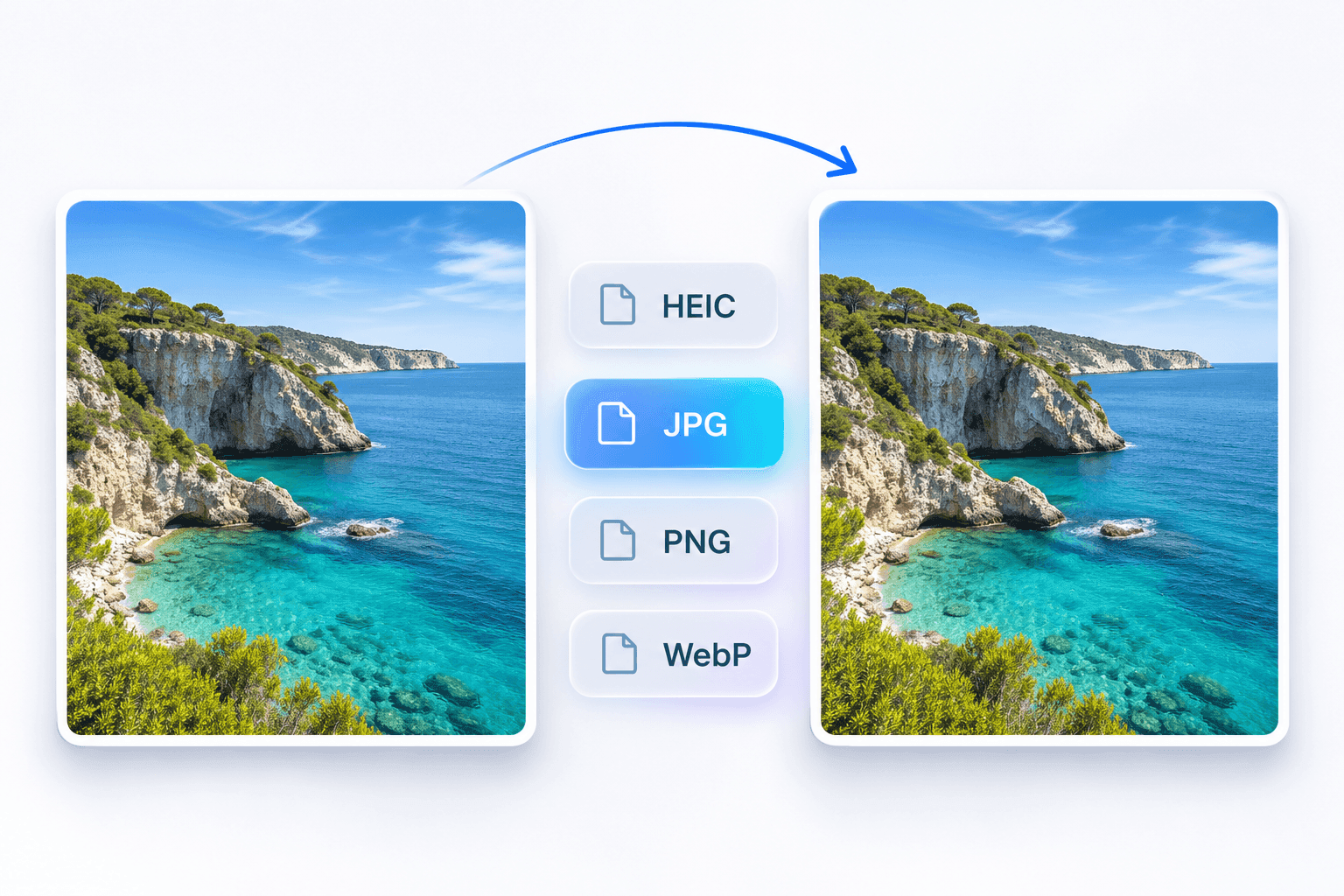
Convert HEIC photos to JPG for sharing, turn WebP files into PNG for editing, or export images in the format your website or app accepts.
This image file converter supports JPG, PNG, WebP and HEIC. Select your output format, adjust quality where available, then convert and download your images.
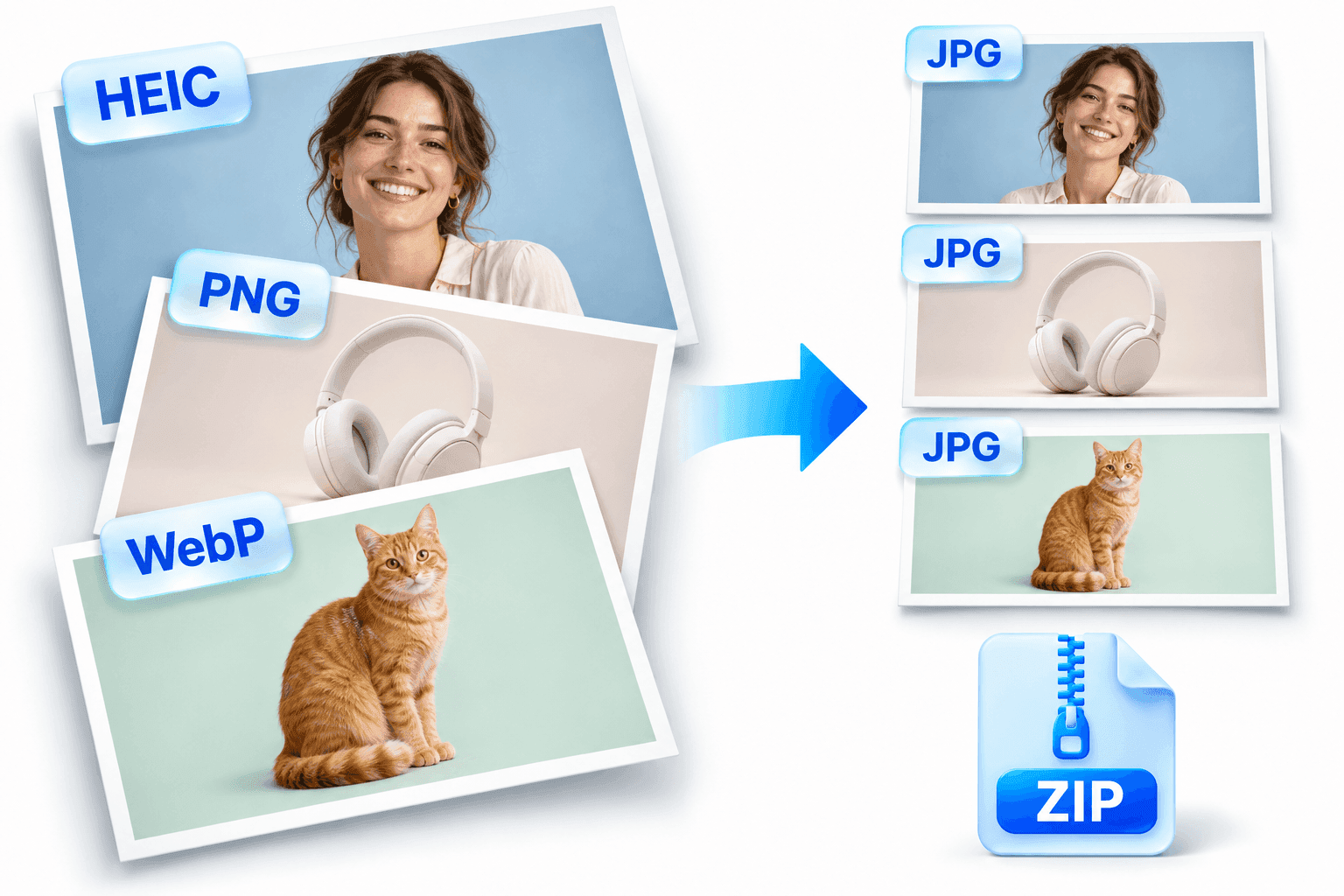
Use Lynote’s batch image converter to change the format of multiple images in one go. Add up to 10 files and apply one output format to the entire batch.
Download images separately or save the converted results together in a ZIP. If one file fails, you can still download the images that converted successfully.
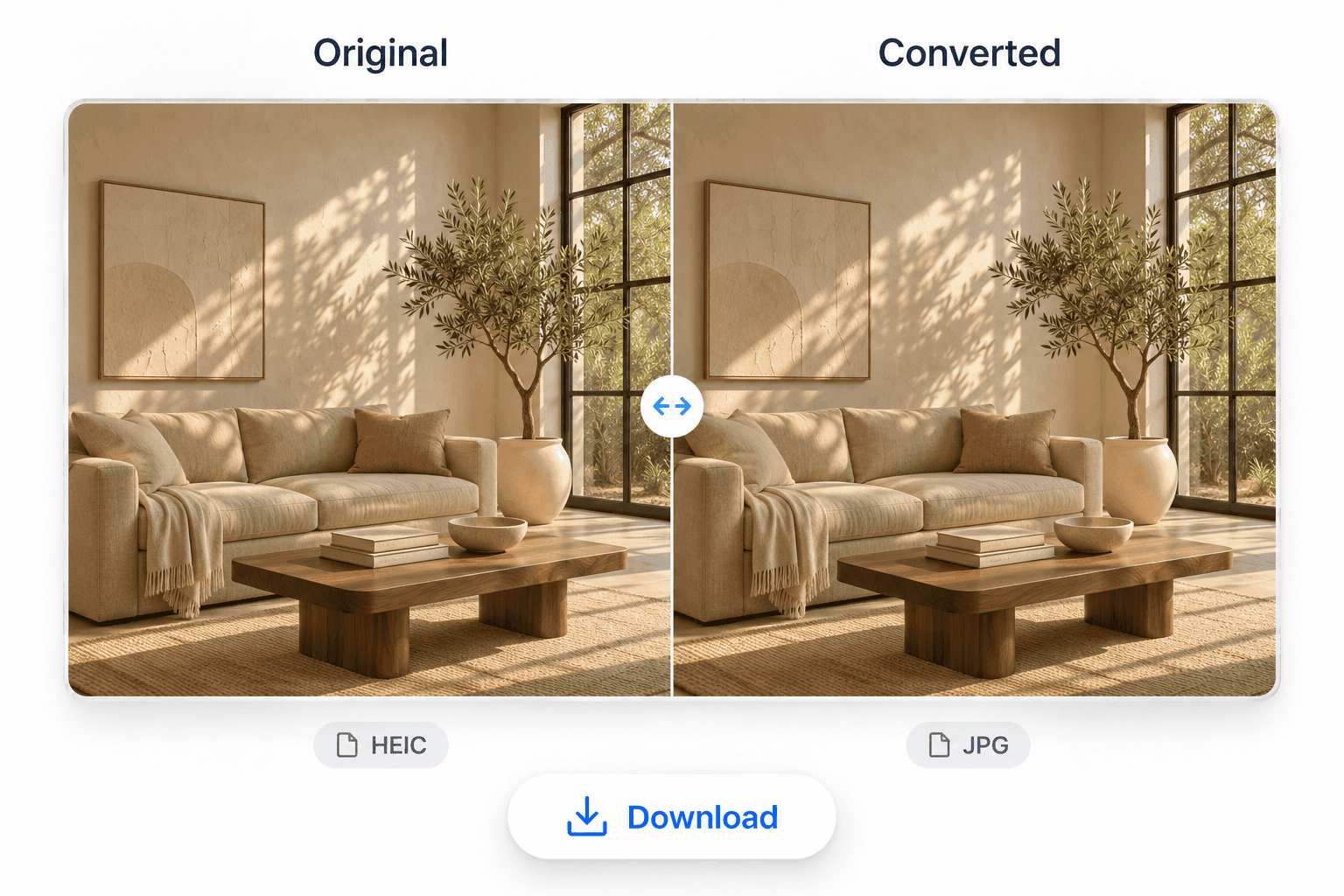
Compare your original and converted image side by side. Use the preview to check detail, color and appearance before downloading.
Review the comparison, then save your converted image. The original file on your device stays unchanged.
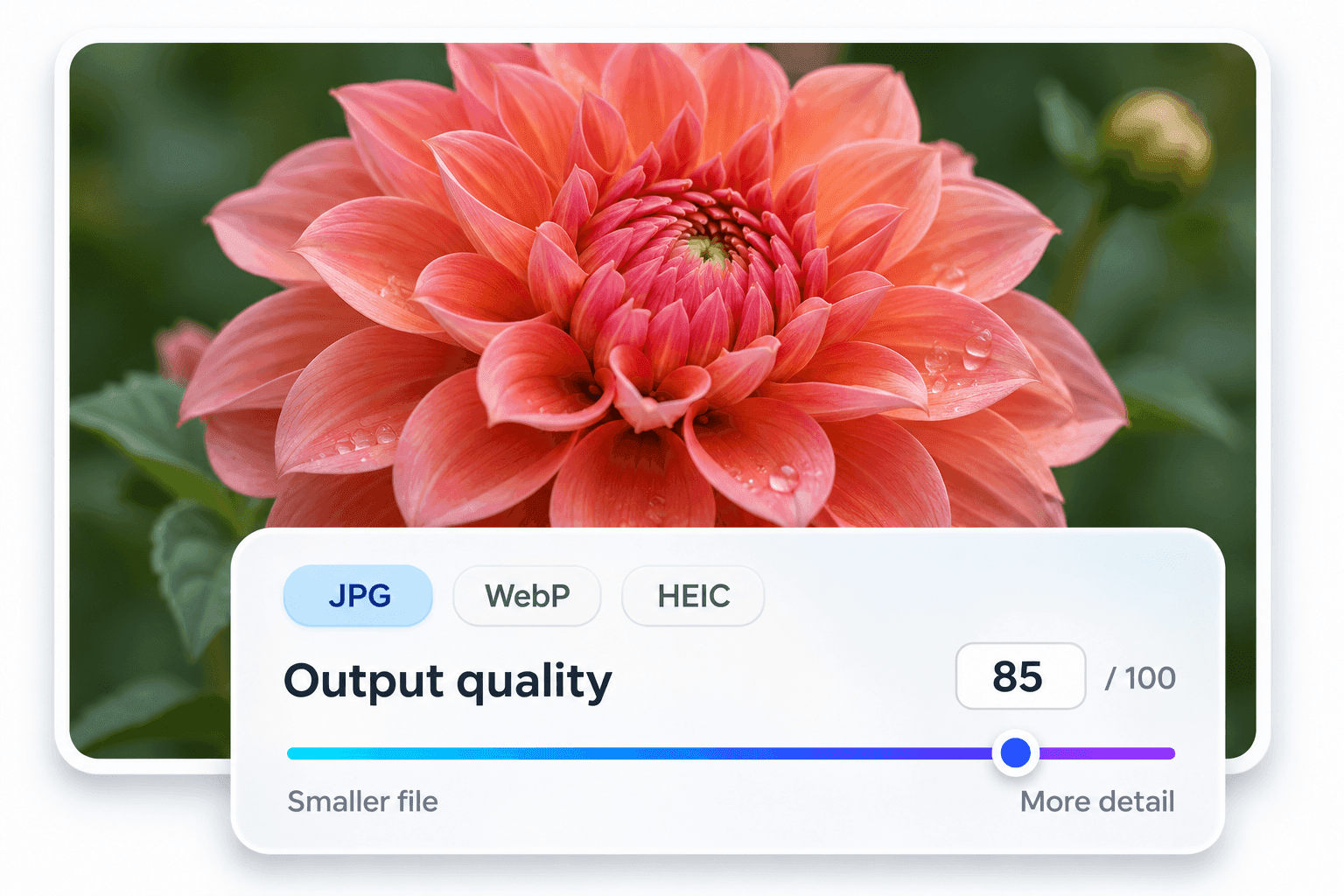
Adjust output quality for JPG, WebP and HEIC before converting. Choose a higher setting to retain more image detail, or a lower setting when file size matters more.
Whether you want to keep product photos clear, share pictures as email attachments, or prepare lighter images for your website, choose a quality level that suits your needs.
Free to use, easy to start and clear enough to understand every result.

Convert between JPG, PNG, WebP and HEIC in one tool.

Convert up to 10 images at once with one output format.

Compare original and converted images before downloading.

Adjust output quality for JPG, WebP and HEIC conversions.

Start with free credits. Successful conversions use one credit per image; failed conversions and downloads do not use credits.

Your images are processed locally in your browser, without uploading them to a server for conversion.
Compare image formats by use case, transparency and compatibility.
Widely supported by websites and apps. Transparent areas need a solid background.
Supports transparency. Saving a JPG as PNG does not recover lost detail.
Supports transparency. Check that your website or publishing tool accepts WebP.
Requires a compatible app or device. Choose JPG or PNG when HEIC is not accepted.
Find answers about image formats, batch conversion and downloads.
An image format converter saves an image as a different file type, such as HEIC to JPG or WebP to PNG. It converts the file itself, rather than just changing the file extension.
You can convert between JPG/JPEG, PNG, WebP and HEIC. JPG and JPEG are the same image format.
Yes. Add up to 10 images and select one output format for the batch. Download the converted images separately or together in a ZIP.
Not necessarily. File size depends on the source image, output format and quality setting. For example, converting a JPG photo to PNG can produce a larger file.
No. Converting JPG to PNG does not recover detail lost in the JPG or make its background transparent.
No. Image conversion runs in your browser, and image contents are processed on your device. Your images are not uploaded to a server for conversion.
The file may be damaged, use an unsupported variation or exceed a limit. Check the message beside the file, then retry or select another image. Successful conversions remain available to download.
No. This tool converts image formats. It does not resize images or remove backgrounds.