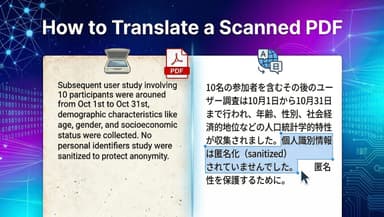
How to Translate Google Slides Without Breaking Your Layout

Google Slides does not have a simple built-in “translate this whole presentation” button like Google Docs. You can translate selected text with add-ons, or you can export the deck as a PowerPoint file and translate the whole presentation with a document translator.
The best method depends on what you care about most. If you only need a quick rough translation, a Google Slides add-on may be enough. If you need the whole deck translated while keeping the layout close to the original, export the file as PPTX first. If the deck is client-facing, legal, academic, or brand-heavy, translate it first and then review every slide manually.
This guide shows the practical workflows, where each one breaks, and how to keep your slide layout from falling apart after translation.

Quick Answer: Best Ways to Translate Google Slides
| Need | Best method | Why |
|---|---|---|
| Translate a few text boxes | Google Slides translator add-on | Fast and stays inside Slides |
| Translate the whole deck | Export to PPTX, then use a document translator | Better for full-file translation and layout preservation |
| Translate a client or brand deck | PPTX translation + manual review | Lets you check terminology, spacing, and design |
| Translate a very small deck | Manual copy/paste translation | Maximum control, but slow |
| Translate confidential decks | Approved internal tool or offline workflow | Avoids uploading sensitive slides to unknown services |
For most people, the cleanest workflow is:
- Open the presentation in Google Slides.
- Go to File > Download > Microsoft PowerPoint (.pptx).
- Upload the PPTX to a document translator.
- Download the translated file.
- Open it and fix layout issues before sharing.
Method 1: Use a Google Slides Translator Add-On
If you want to translate inside Google Slides, use a Workspace Marketplace add-on. This is useful when you only need to translate selected text boxes, a small deck, or a rough classroom/internal version.
The basic workflow is:
- Open your Google Slides presentation.
- Go to Extensions > Add-ons > Get add-ons.
- Search for a Slides translation add-on.
- Install it and grant the required permissions.
- Open the add-on sidebar.
- Select the source and target languages.
- Translate selected text or slides, depending on what the add-on supports.

Add-ons are convenient, but they are not always the best choice for a finished presentation. Some translate text box by text box. Some have free quotas. Some may change line breaks or leave chart labels and image text untouched. You also need to review the permissions before installing any add-on, especially for work or school decks.
Use an add-on when speed matters more than perfect formatting.
Method 2: Export Google Slides as PPTX and Translate the Whole Deck
For full-deck translation, exporting to PowerPoint is usually more reliable. Google Slides can download your presentation as a .pptx file, and PPTX is a standard format that document translators can process.
In Google Slides, go to File > Download > Microsoft PowerPoint (.pptx).

After downloading the file, upload it to Lynote’s Document Translator. Lynote supports PPTX, PDF, DOCX, and XLSX files, auto-detects the source language, translates into 135+ languages, and is designed to preserve fonts, images, tables, and layout where possible. The upload limit is 10 MB per file.

Then choose the target language and run the translation.

When the translation finishes, download the result and open it before sending it to anyone. This review step matters because translated text often expands or contracts. A title that fits in English may overflow in German. A short button label may become longer in Spanish. A dense chart label may wrap onto two lines.

Use this method when you want to translate the full presentation rather than individual text boxes.
Method 3: Translate Manually When Accuracy Matters Most
Manual translation is slow, but it is still the safest choice for short, important decks.
Use it when:
- the deck has legal, medical, or financial claims;
- brand terms must be translated consistently;
- the deck uses many screenshots, image text, charts, or speaker notes;
- a client will see the final version;
- the translation needs cultural adaptation, not just language conversion.
The workflow is simple:
- Duplicate the original Google Slides deck.
- Translate one slide at a time.
- Keep a glossary for brand names, product terms, and repeated phrases.
- Adjust text boxes after translation.
- Ask a fluent reviewer to check meaning, tone, and layout.
This is not the fastest method. It is the method you use when a wrong phrase would be embarrassing or expensive.
How to Keep Formatting When Translating Google Slides
Formatting is where slide translation usually breaks. Translation changes text length, and slides give text very little room.
Before translating, make the original deck easier to localize:
- avoid tiny text boxes packed to the edge;
- use fonts that support the target language;
- leave extra space around headings and buttons;
- keep editable text as text, not flattened images;
- avoid putting important copy inside screenshots;
- simplify crowded tables;
- keep a copy of the original deck for comparison.
After translation, check:
- title slide spacing;
- bullet alignment;
- chart labels;
- image captions;
- speaker notes;
- buttons and callouts;
- line breaks in languages with longer words;
- missing characters in unsupported fonts.
If the deck is design-heavy, expect to do a layout pass after translation. Even a good translation tool cannot know which visual tradeoffs matter most to your audience.
Can Google Translate Google Slides Directly?
Google Translate can translate text, websites, and uploaded documents, but Google Slides itself does not offer a universal full-deck translation button inside the editor. That is why most practical workflows use either a Google Slides add-on or a PPTX export.
If you paste slide text into Google Translate, you may get a quick translation, but you lose layout, speaker notes, images, and chart context. That is fine for a sentence. It is not ideal for a full presentation.
Should You Use ChatGPT to Translate Google Slides?
ChatGPT can help translate or rewrite slide text, but it does not automatically rebuild your Google Slides layout. If you copy text into a chat, you still need to paste it back, resize text boxes, check line breaks, and review terminology.
ChatGPT is useful for:
- improving tone after a first translation;
- creating shorter versions of text that overflows;
- explaining idioms or culturally specific phrases;
- helping build a glossary.
It is weaker as a standalone full-deck translation workflow because it does not preserve the slide file structure by itself.
Common Mistakes to Avoid
The first mistake is assuming the translated deck is ready as soon as the file downloads. Always open the result and check every slide.
The second mistake is forgetting speaker notes. Many presentation tools focus on visible slide text. If your notes contain talking points, export or translate them separately.
The third mistake is translating flattened image text. If a slide contains a screenshot with text inside the image, a normal PPTX translator may not edit that text. You may need OCR or a redesigned slide.
The fourth mistake is ignoring terminology. Product names, course terms, campaign slogans, and legal phrases should be reviewed consistently across the deck.
The fifth mistake is installing an add-on without checking permissions. For confidential presentations, use approved tools only.
FAQ: Translating Google Slides
How do I translate an entire Google Slides presentation?
Download the deck as a PowerPoint file: File > Download > Microsoft PowerPoint (.pptx). Then upload the PPTX to a document translator, download the translated file, and review the layout slide by slide.
Does Google Slides have a built-in translate feature?
Google Slides does not have a simple built-in full-presentation translation feature like users often expect. For in-editor translation, use a Google Slides add-on. For full-deck translation, export to PPTX and translate the file.
Can I keep the formatting when translating Google Slides?
You can usually keep the layout close to the original by translating the deck as a PPTX file, but you still need to review the result. Longer translated text can overflow, wrap, or move design elements.
What is the best free way to translate Google Slides?
For a small amount of text, a free Google Slides add-on or manual copy/paste translation may be enough. For a full deck, export to PPTX and try a document translator that supports PowerPoint files.
Can Lynote translate Google Slides?
Lynote translates uploaded PPTX files, so the workflow is to download your Google Slides presentation as a PowerPoint file first, then upload it to Lynote’s translator. It does not directly edit your live Google Slides file in Drive.
Will charts and images translate too?
Editable text in charts may translate depending on how the file is structured. Text inside screenshots or flattened images usually will not translate like normal slide text. Check charts, captions, and image-based text manually.
What should I check before sending a translated slide deck?
Check titles, bullet alignment, charts, speaker notes, brand terms, dates, numbers, URLs, and any text inside images. Then compare the translated deck with the original before sharing.
Conclusion
The safest way to translate Google Slides is to match the method to the job.
For a few text boxes, use an add-on. For a whole deck, export to PPTX and use a document translator. For important presentations, treat the machine translation as a first draft and do a final human review.
Good slide translation is not just about changing words. It is about keeping the message, layout, and audience experience intact.

Written by Janet L. Harris
AI Writing Specialist
Janet reviews AI detectors and humanization tools, with a focus on accuracy, limitations, and responsible use. View all articles →