

Free WebP to PNG Converter — No Sign-Up Required
Drop in your WebP images, convert them in your browser, and download your PNGs. Conversion and downloads are completely free, with no account or login required.

Drop images here, or click to select
Max 50 MB per file · Up to 10 images
Images converted: 0.
Images are processed locally in your browser. HEIC is not supported yet.
What Is a WebP to PNG Converter?
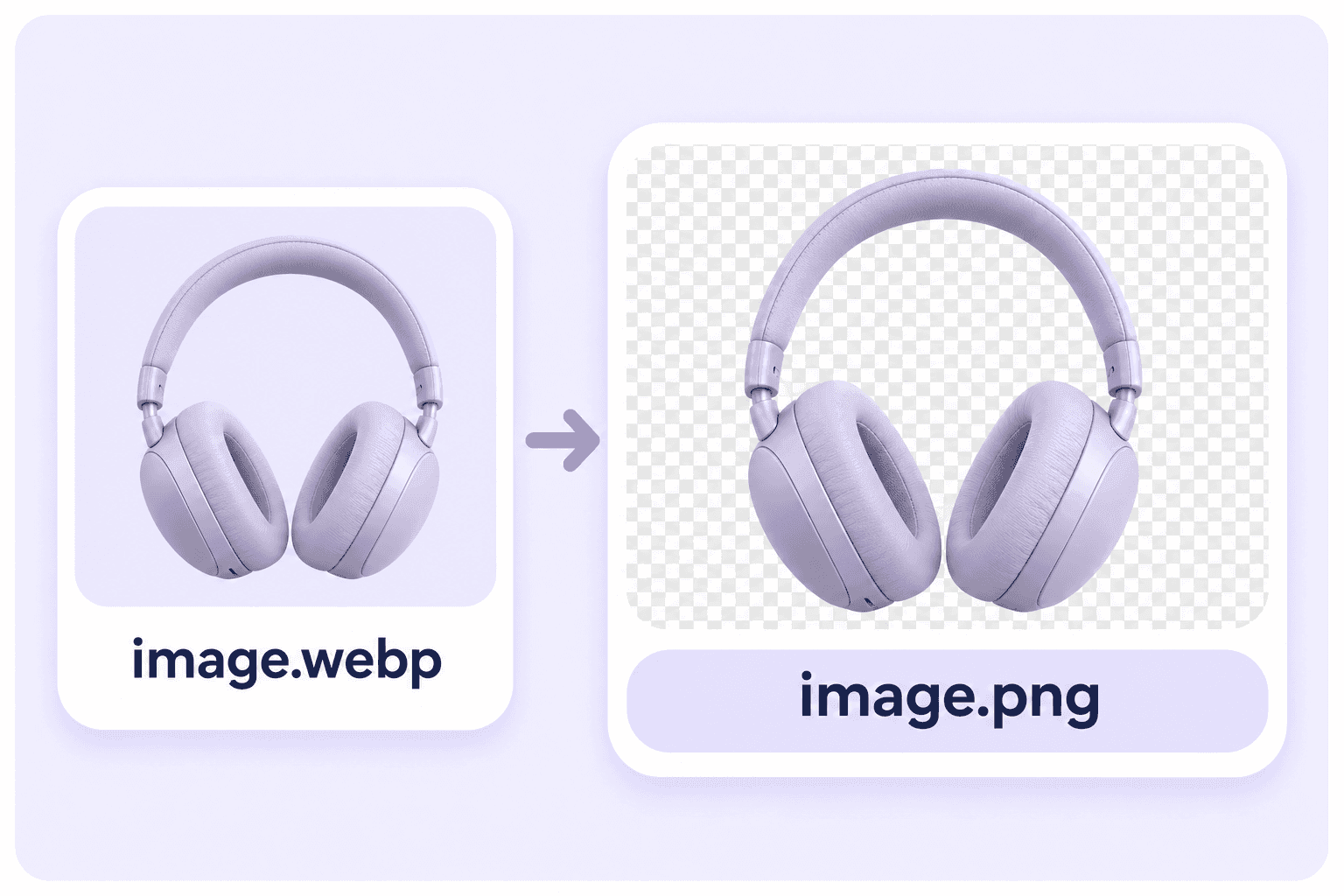
A WebP to PNG converter creates a .png copy of a WebP image. Use it when a design tool, upload form, or presentation workflow requires PNG and the image you have is saved as WebP. Keep the original for your website and use the PNG copy in your next project.
PNG uses lossless compression and supports transparency, making it useful for logos, charts, screenshots, and graphics you want to place over a layout. If the WebP already has transparent areas, check them in the converted preview before downloading.
How to Convert WebP to JPG?
 Step 1
. Choose Your WebP Images
Click Choose WebP Images or drag your .webp files into the converter. Add one file or select up to 10 at once, with a maximum of 50 MB per image.

 Step 2
. Convert to PNG
Click Convert WebP to PNG. Lynote AI processes your images in your browser and creates a separate PNG for each file.
 Step 3
. Preview and Download
Compare the original WebP with the converted PNG. Check the edges, small text, and background, then download the PNG you need or save the batch as a ZIP.

Step 1. Choose Your WebP Images
Click Choose WebP Images or drag your .webp files into the converter. Add one file or select up to 10 at once, with a maximum of 50 MB per image.
Step 2. Convert to PNG
Click Convert WebP to PNG. Lynote AI processes your images in your browser and creates a separate PNG for each file.
Step 3. Preview and Download
Compare the original WebP with the converted PNG. Check the edges, small text, and background, then download the PNG you need or save the batch as a ZIP.
Convert WebP to PNG for Free, No Account Needed
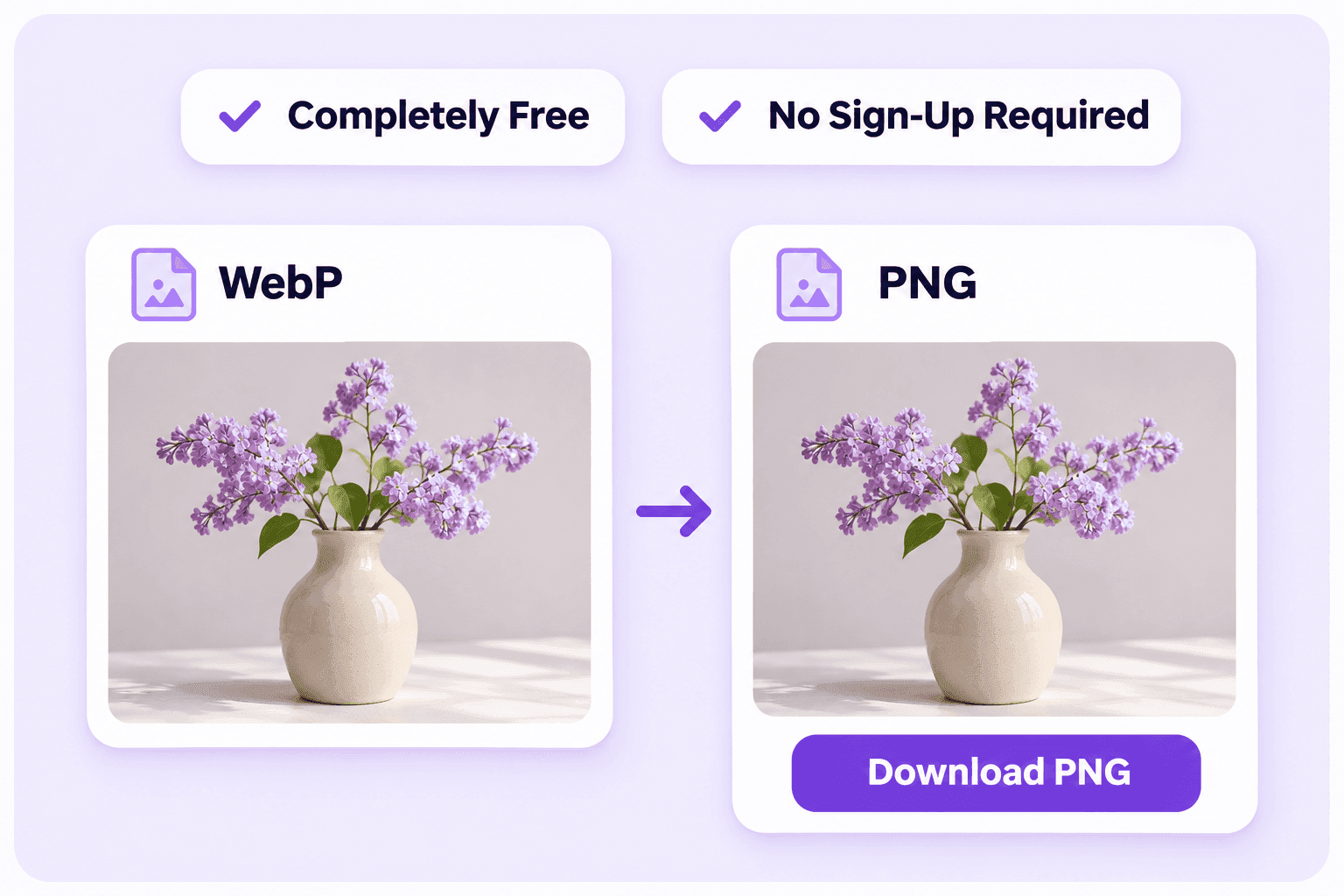
Choose your WebP images, preview the converted PNGs, and download them directly from your browser. Whether you’re converting one logo for a slide or a batch of screenshots for a tutorial, both conversion and downloads are completely free. You can complete the entire process without signing up or logging in.
Keep Small Text and Fine Lines Clear
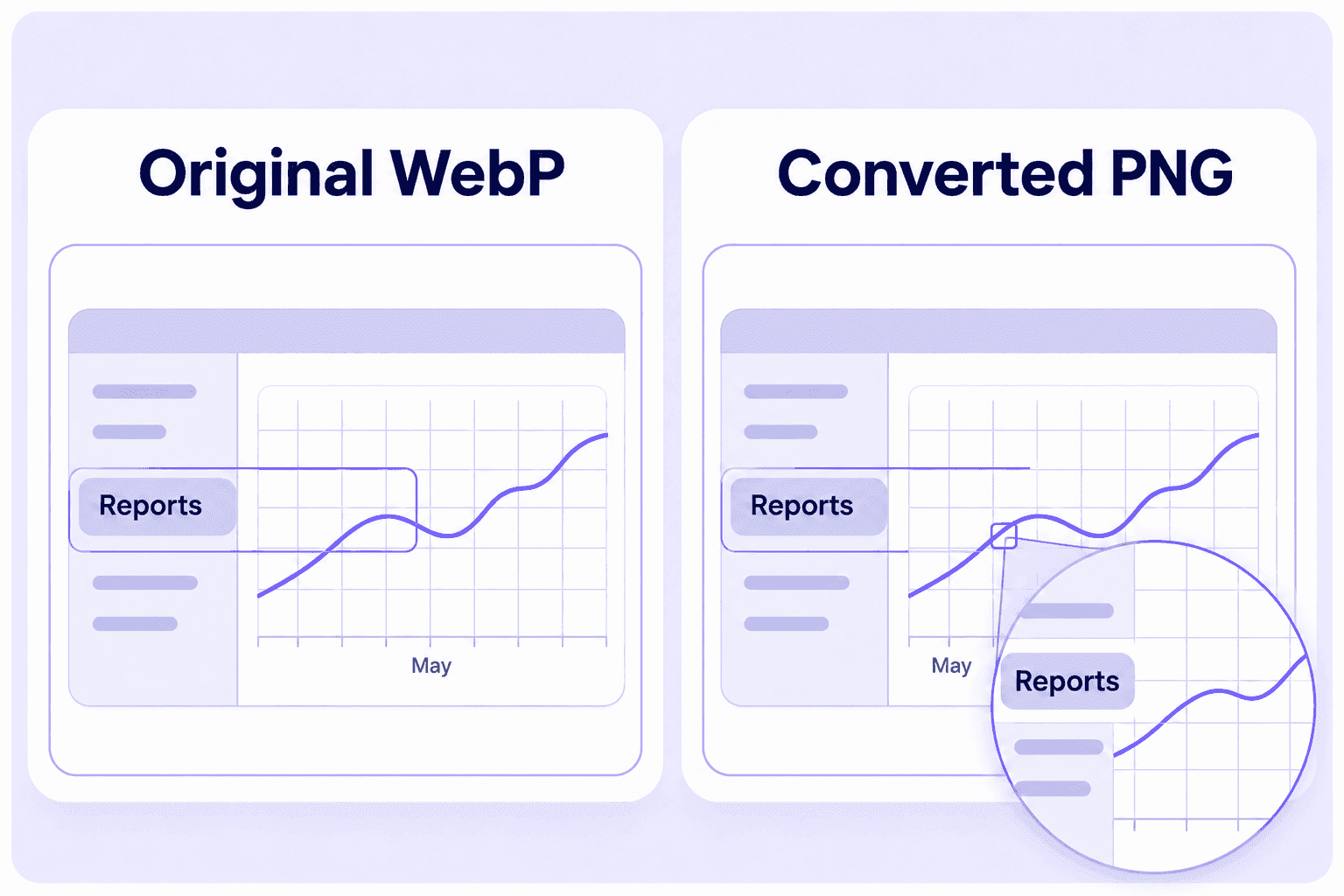
A tutorial screenshot might need to show a menu label, while a chart might have thin gridlines or small annotations. Start with a sharp WebP image and save it as a PNG, which stores the converted pixels using lossless compression. Compare both versions at the size you plan to use and check that the details are readable.
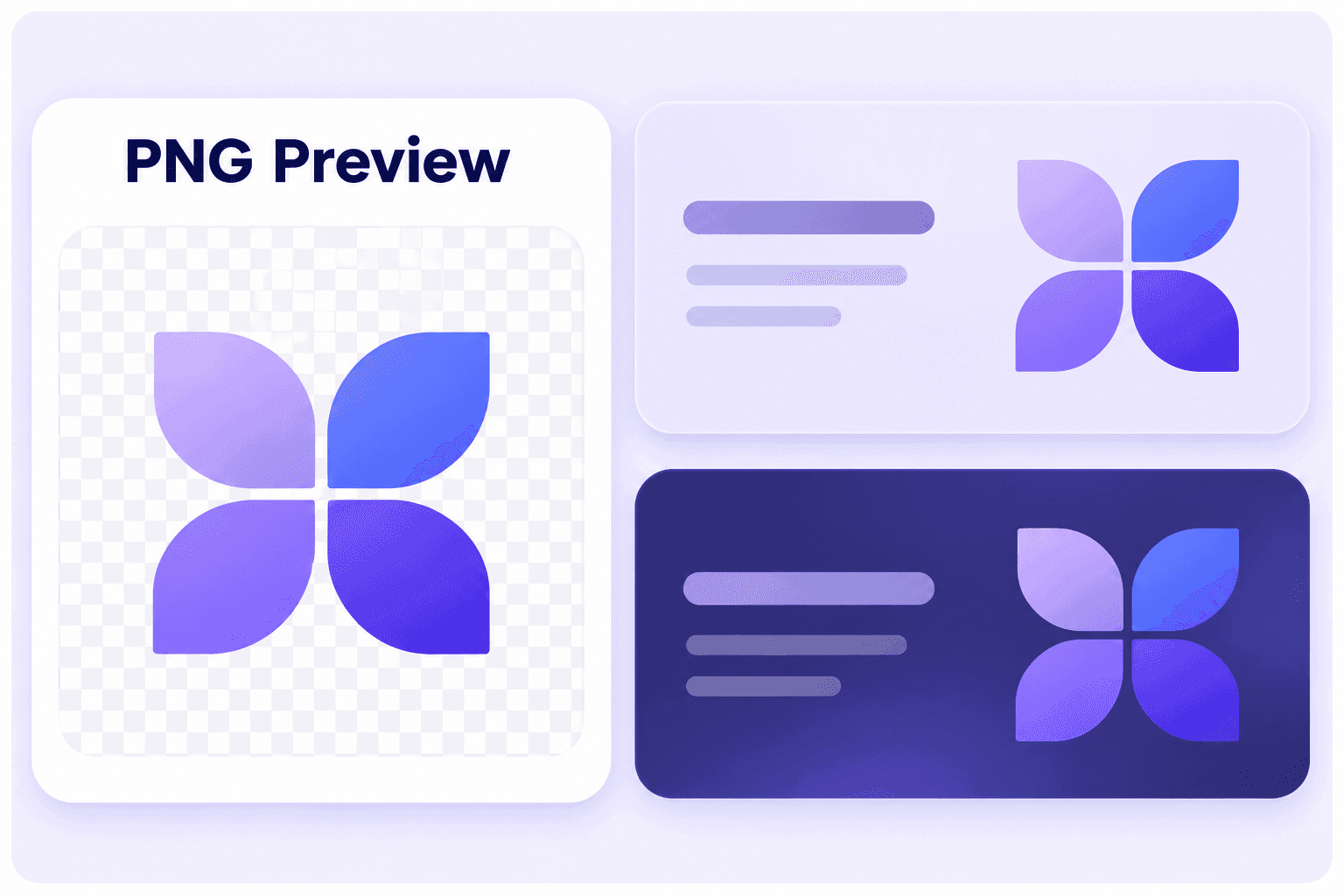
Reuse Transparent Graphics Across Layouts
A logo from your website may also need to appear on a colored slide, a social graphic, or a product mockup. Convert the WebP to PNG and check how the original transparent areas appear in the preview. If the source already has a solid background, remove it first when you need a transparent result.
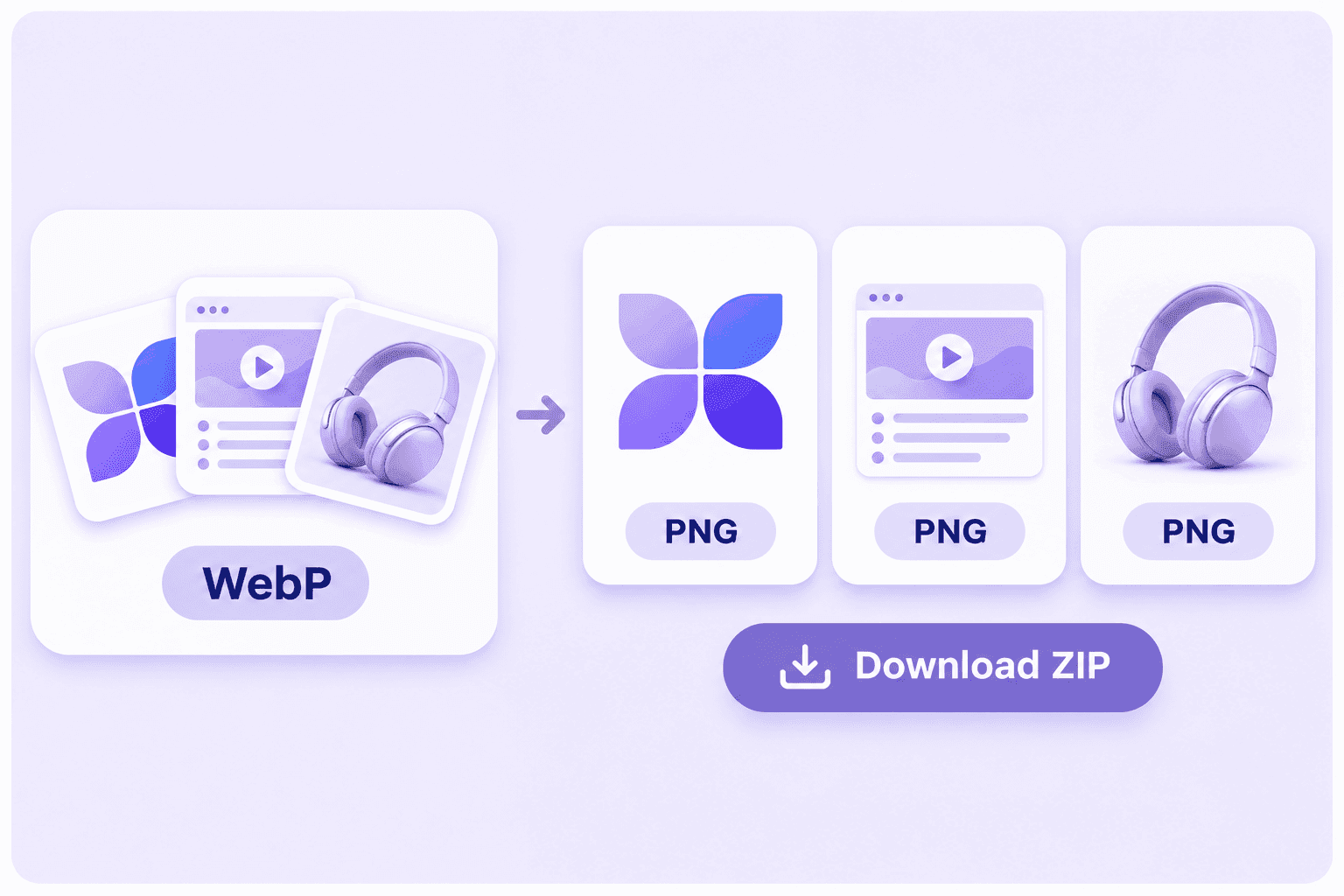
Batch Convert Up to 10 WebP Images to PNG
Prepare a set of icons, tutorial screenshots, or campaign graphics in one batch. Each WebP becomes a separate PNG, so you can save the files you need individually or download the successful conversions together as a ZIP.
WebP to PNG Converter Use Cases
Turn WebP images into PNG files for brand layouts, presentations, tutorials, and uploads that require .png.
Logos and Brand Assets
Convert a WebP logo to PNG for a brand kit, slide deck, or media pack. Preview the edges before placing it on a new background.
Product Listings and Catalogs
Save WebP screenshots as PNG for help articles and training guides. Check menu labels and callouts before publishing.
Charts and Class Materials
Convert WebP diagrams and charts to PNG for lectures, worksheets, or reports. Check labels and thin lines at the final display size.
Stickers and Video Overlays
Prepare PNG copies of WebP stickers or overlays. If the source has transparency, check the edges before placing the graphic over footage.
Design Handoffs
Convert a set of WebP assets to PNG when a client, teammate, or design tool asks for that format.
Forms and Project Submissions
Change WebP to PNG when an upload form requests a .png file. Check the result against the form’s size and dimension requirements.
WebP to PNG for Designers, Creators, and Teams
Use Lynote AI to turn WebP images into PNG files for brand kits, presentations, tutorials, and other projects that require .png.

Brand Designers
Convert WebP logos and icons to PNG for brand kits and templates. Check the edges and any transparent areas before placing them on a new background.

Content Creators
Turn WebP stickers, badges, and overlays into PNG files for video editors or streaming tools that require PNG assets.

Technical Writers
Save WebP screenshots as PNG for help articles and product tutorials. Preview menu labels and annotations before publishing.

Teachers & Students
Convert WebP charts and diagrams to PNG for slides, worksheets, and assignments. Check that axis labels and fine lines are readable at the intended size.

E-Commerce Teams
Create PNG copies of WebP product graphics for campaign templates, retailer portals, or catalog tools that request PNG files.

Agency & Freelance Teams
Batch convert WebP assets to PNG for a client handoff. Download individual files or send the full set in a ZIP.
WebP to PNG Converter FAQs
Choose a .webp file, click Convert WebP to PNG, and check the converted preview. Select Download PNG to save the file to your device.
PNG supports transparency. If your original WebP already has transparent areas, use the preview to check how they appear in the PNG. For a source image with a solid background, use a background removal tool first if you need transparency.
PNG uses lossless compression to store the converted pixels. Blur or compression artifacts already present in your WebP can still appear in the PNG. Start with the clearest source image available.
PNG and WebP use different compression methods. The PNG can be larger, especially for detailed photos. Check the downloaded file size if you’re working with an upload limit.
Yes. Add up to 10 WebP files, with a maximum of 50 MB per image. Download each PNG separately or save the successfully converted files together in a ZIP.
Lynote AI converts your images locally in your browser. Your files stay on your device throughout conversion.
Yes. You can convert WebP images to PNG and download your files for free. No payment or conversion credits are required.
No. You can select your WebP images, convert them to PNG, and download the results without creating an account or signing in to Lynote AI.