

Free Online WebP Converter
Convert photos, screenshots, and graphics to WebP for your website. Adjust image quality, preview the results, and download one file or a whole batch. Free to start.

Drop images here, or click to select
Max 50 MB per file · Up to 10 images
Images converted: 0.
Images are processed locally in your browser. HEIC is not supported yet.
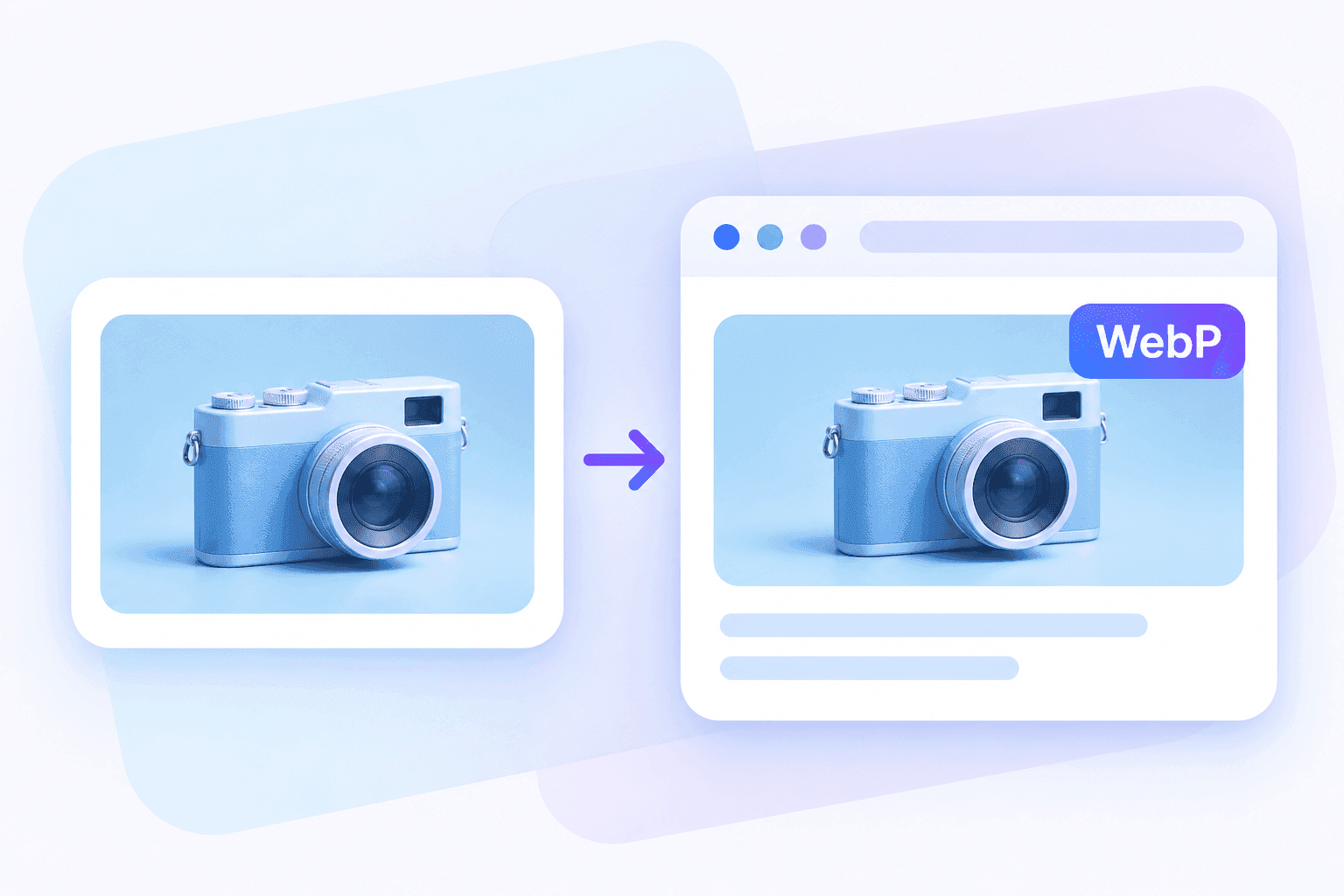
What Is a WebP Converter?
A WebP converter turns images into .webp files for websites, blogs, and online stores. WebP can make photos and graphics smaller while keeping the details you need, which means visitors may have less image data to download.
With Lynote AI, you can convert an image to WebP directly in your browser. Adjust the quality, compare the result with the original, and download a separate WebP copy when you’re happy with how it looks.
How to Convert an Image to WebP?
 Step 1
. Choose Your Images
Click Choose Images or drag your files into the converter. Select one image or add up to 10 files at once. Each file can be up to 50 MB.

 Step 2
. Adjust Quality and Convert to WebP
WebP is already selected as the output format. Choose a quality setting that suits your image, then click Convert to WebP.
 Step 3
. Preview and Download
Compare the original and converted image side by side. Download the WebP file you need or save all successfully converted images in a ZIP.

Step 1. Choose Your Images
Click Choose Images or drag your files into the converter. Select one image or add up to 10 files at once. Each file can be up to 50 MB.
Step 2. Adjust Quality and Convert to WebP
WebP is already selected as the output format. Choose a quality setting that suits your image, then click Convert to WebP.
Step 3. Preview and Download
Compare the original and converted image side by side. Download the WebP file you need or save all successfully converted images in a ZIP.
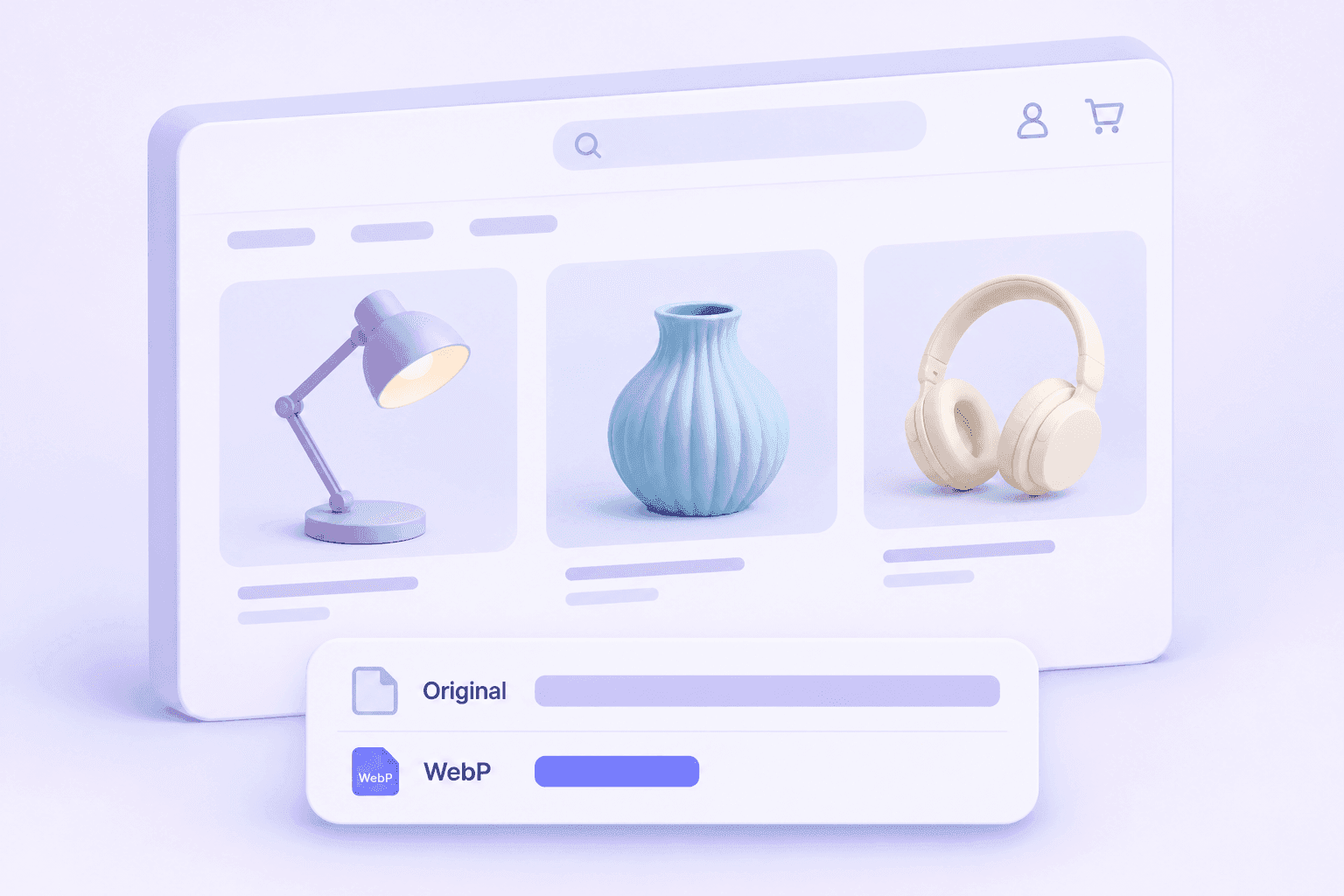
Create Lighter Images for Your Website
A homepage banner or product gallery can add a lot of image data to a page. Use Lynote AI to create WebP copies of the images you plan to publish, then check their file sizes. If the converted files are smaller, visitors have less image data to download.
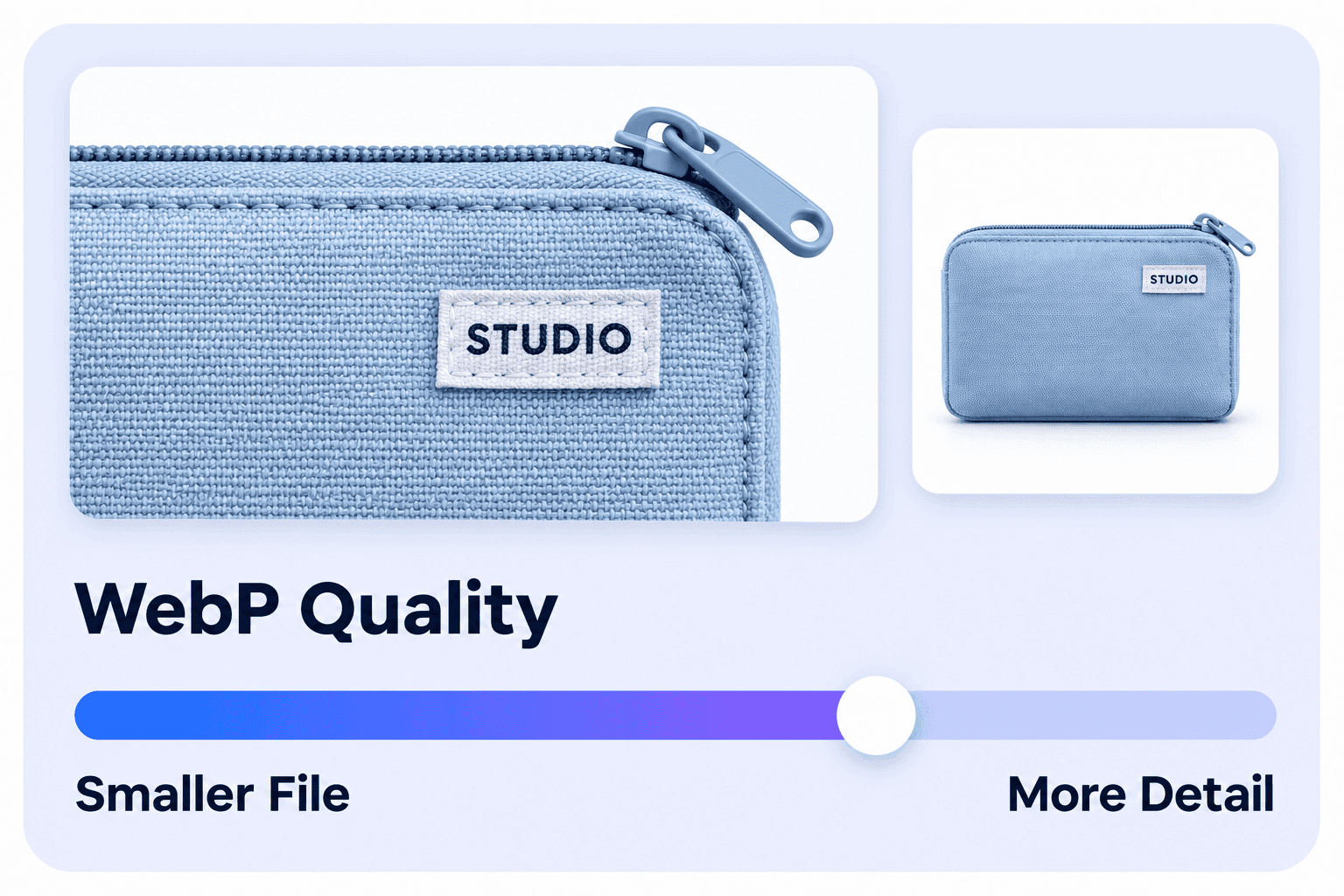
Adjust WebP Quality for the Details That Matter
A product close-up needs to show texture and lettering, while a small thumbnail may look good at a lower quality setting. Adjust the WebP quality for where the image will appear, then check the result at its intended display size.
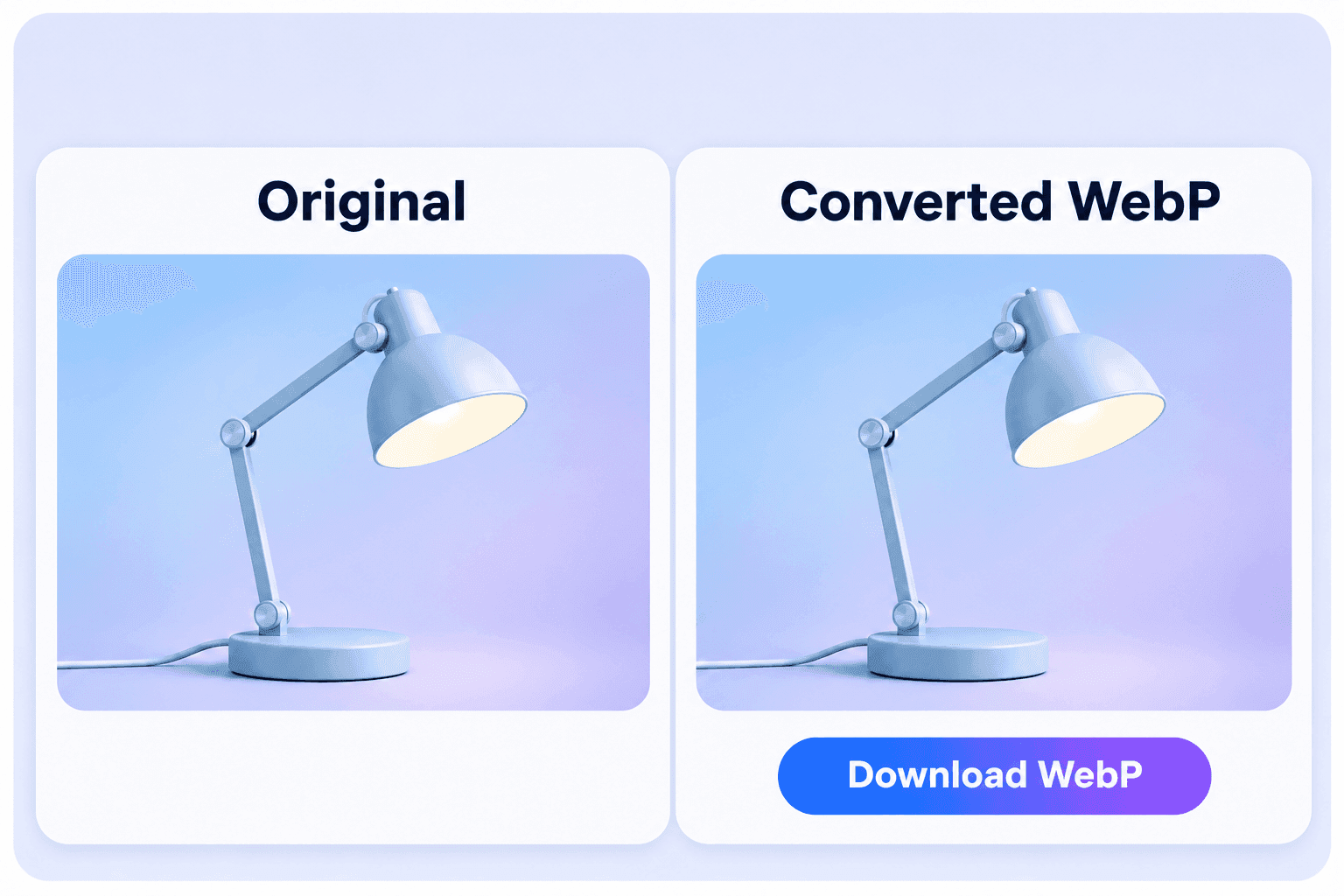
Compare the Original and Converted WebP
Check the original and converted image in one view. Look at the details your readers will see, such as small text on a screenshot, gradients in an illustration, or colors in a product photo. Save the WebP once you’re happy with how it looks.
Why Choose Lynote AI’s WebP Converter?
Convert images to WebP, check the results, and download the files you need.
Fast WebP Conversion
Conversion starts in your browser without waiting for a file upload.
Batch Conversion
Convert up to 10 images at once and download them individually or as a ZIP.
Preview and Compare
See the original and converted WebP side by side before downloading.
Adjustable Quality
Choose a quality setting based on image detail and file size.
Free Credits to Start
Start with free credits. Only successful conversions use credits.
Your Files Stay on Your Device
Your browser processes the images and creates the WebP files locally.
Who Can Benefit from Lynote AI’s WebP Converter?
From online stores to personal portfolios, convert images to WebP to help reduce the amount of image data visitors need to download.

Website Owners
Convert homepage banners and landing page images to WebP. Compare file sizes before publishing to see how much image data visitors can save.

Online Store Owners
Batch convert product photos for listings and galleries. Preview colors, textures, and labels before updating your store.

Bloggers & Publishers
Save article covers and in-post graphics as WebP. Check how images look on the article page and in smaller preview cards.

Web Designers & Developers
Prepare WebP assets for websites and client projects. Adjust quality for full-width visuals and smaller UI images, then check each at its intended display size.

Photographers & Portfolio Creators
Create WebP copies for your online gallery. Review fine details and color tones before publishing, and keep the originals for editing.

Technical Writers & Support Teams
Convert screenshots and diagrams for help centers and tutorials. Check that menu labels, annotations, and thin lines stay readable.
WebP Converter FAQs
Choose your image, adjust the quality if needed, and click Convert to WebP. Preview the result, then download the file to your device.
It can. The final file size depends on the original format, image content, dimensions, and quality setting. Compare the file sizes after conversion to see how much space you saved.
Yes. Add up to 10 supported images at once, with a maximum of 50 MB per file. Download each WebP separately or save the batch as a ZIP.
Yes. WebP supports transparency. If the source already has transparent areas, check those areas in the converted preview before using the file in your layout.
WebP is widely supported by modern browsers. Check that your CMS, marketplace, or media library accepts .webp files before converting a large batch.
Your browser processes the images and generates the WebP files on your device. The conversion runs without sending your images to a server.
You can start with free conversion credits. Each image that converts successfully uses one credit. Failed conversions and downloads use no credits.