

Translate Video to Text Online

Drop files or browse

Add study materials to enable the AI to extract and structure content.



Why Choose Our Translate Video to Text Tool?

Fast Video Speech Extraction
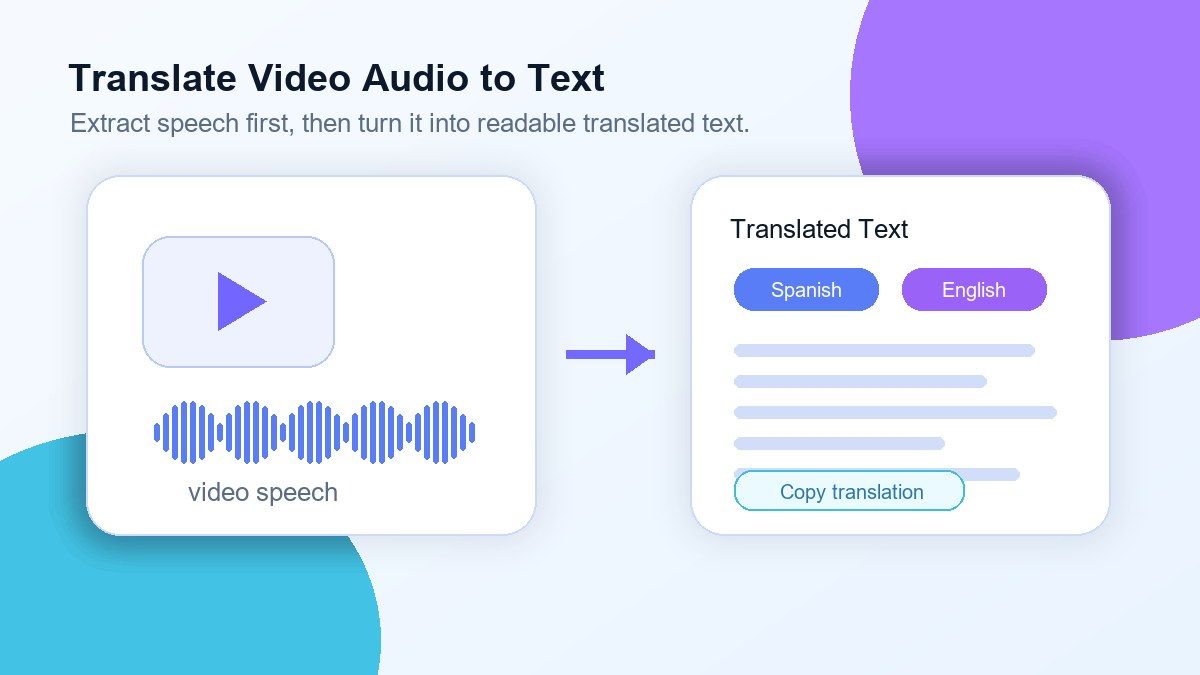
Turn video audio into text without replaying every sentence. Upload a video file or paste a link, and Lynote helps capture spoken content as editable text you can review and translate.

Video Translation Workflow
Use Lynote when you need to translate video to text online, not just create a same-language transcript. Extract the video voice, review the transcript, and prepare the text for translation or multilingual reuse.

YouTube and MP4 Support
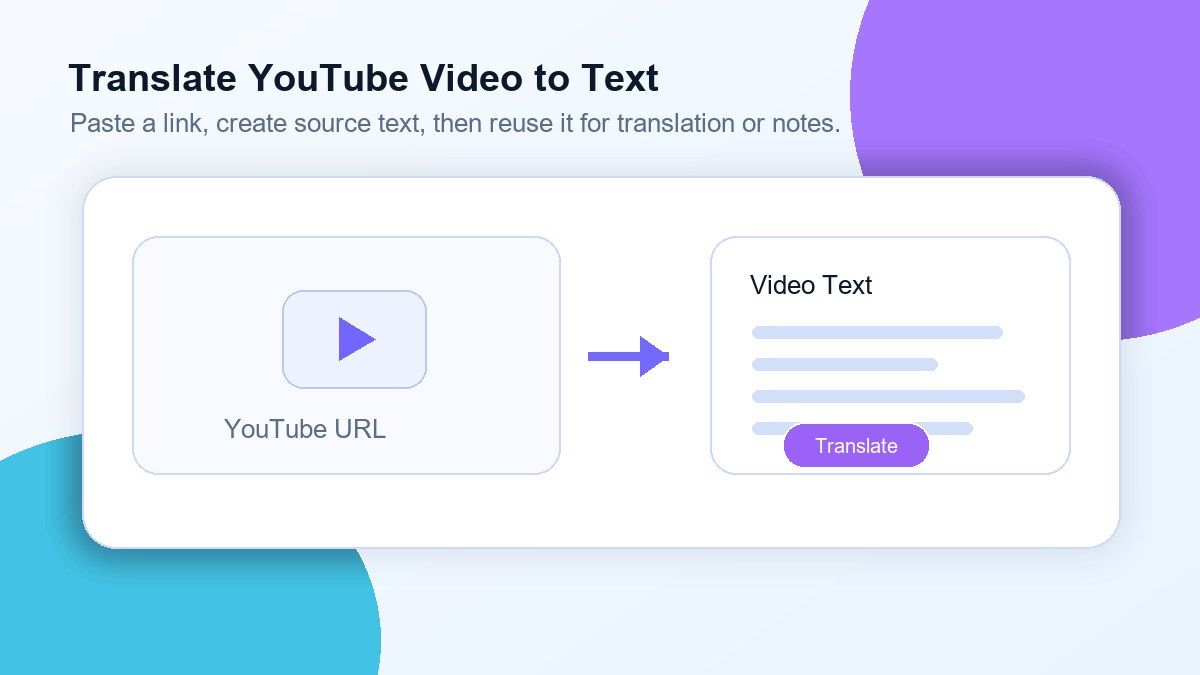
Translate YouTube video to text or translate MP4 to text from uploaded files. This gives you one workflow for public video links, saved lessons, interviews, training recordings, and downloaded video materials.

Editable Text Output
Video translation should not be locked inside a player. Lynote gives you text you can copy, clean up, format, summarize, translate, or reuse in study notes, captions, articles, reports, or documentation.

Useful for Foreign-Language Videos
Understand tutorials, lectures, product demos, interviews, news clips, and educational videos in another language. Extract the spoken text first, then translate it into the language you need.

From Transcript to Notes
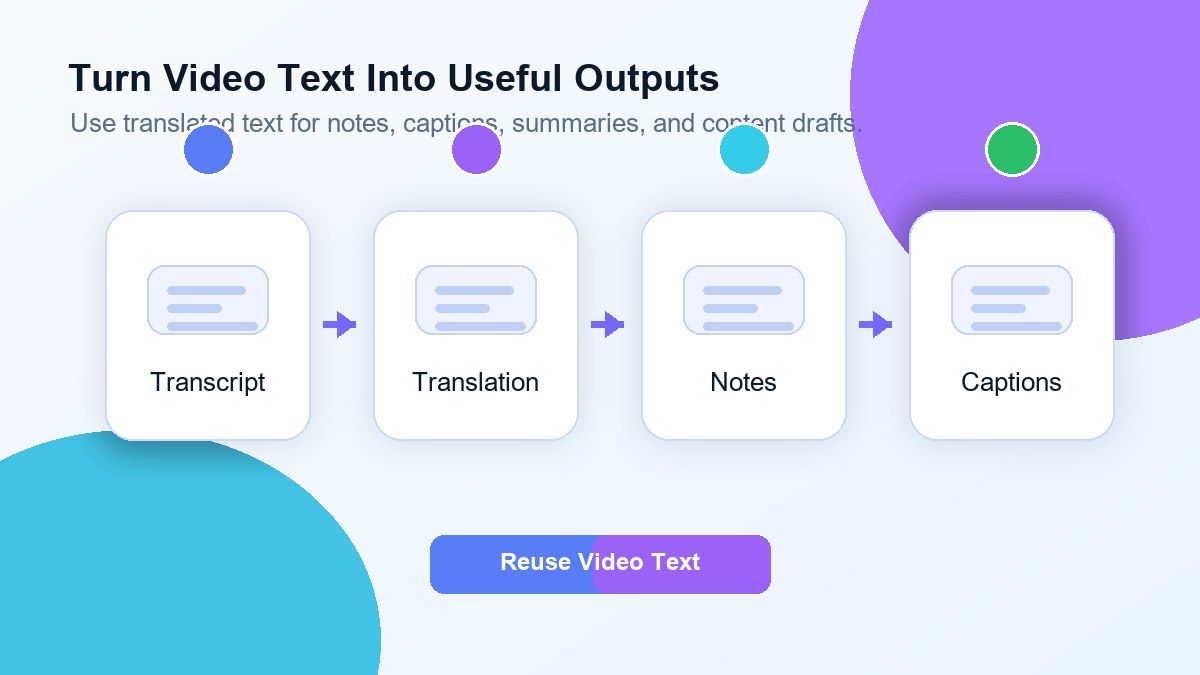
Once the video text is ready, you can turn it into notes, summaries, study guides, captions, content briefs, or translation drafts. The result is easier to search and reuse than the original video.
Translate Video Audio to Text Without Rewatching
Translate YouTube Video to Text From a Link
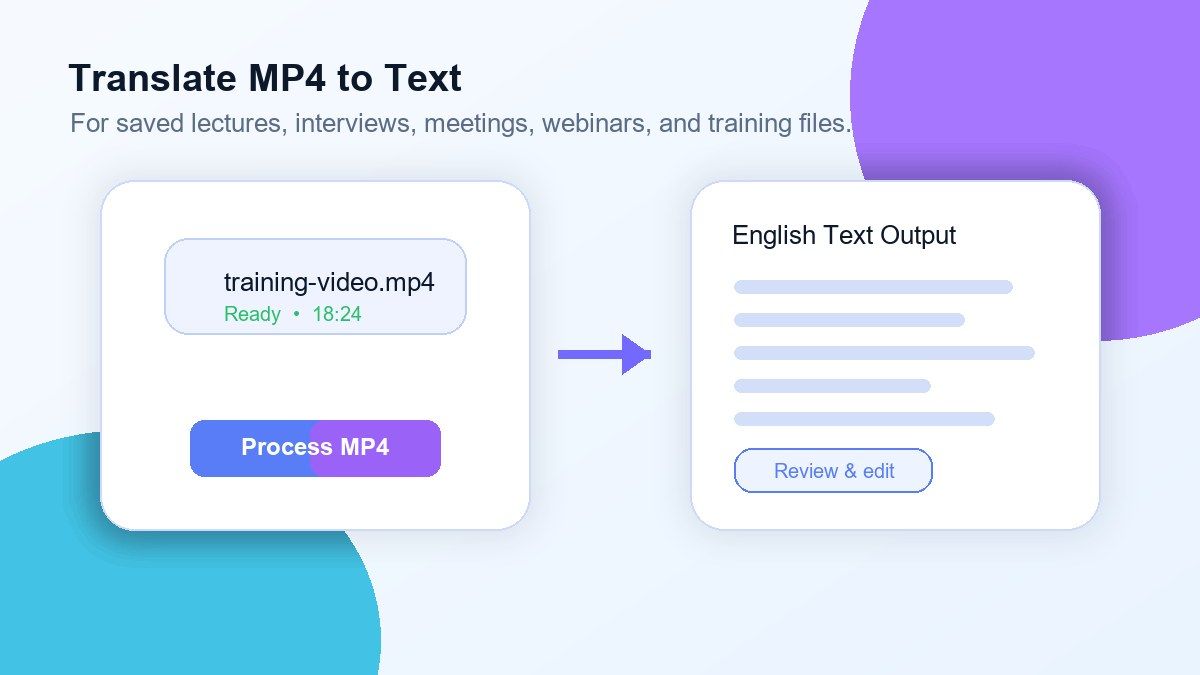
Translate MP4 to Text for Files You Already Have
Turn Video Text Into Notes, Captions, and Drafts
How to Translate Video to Text Online
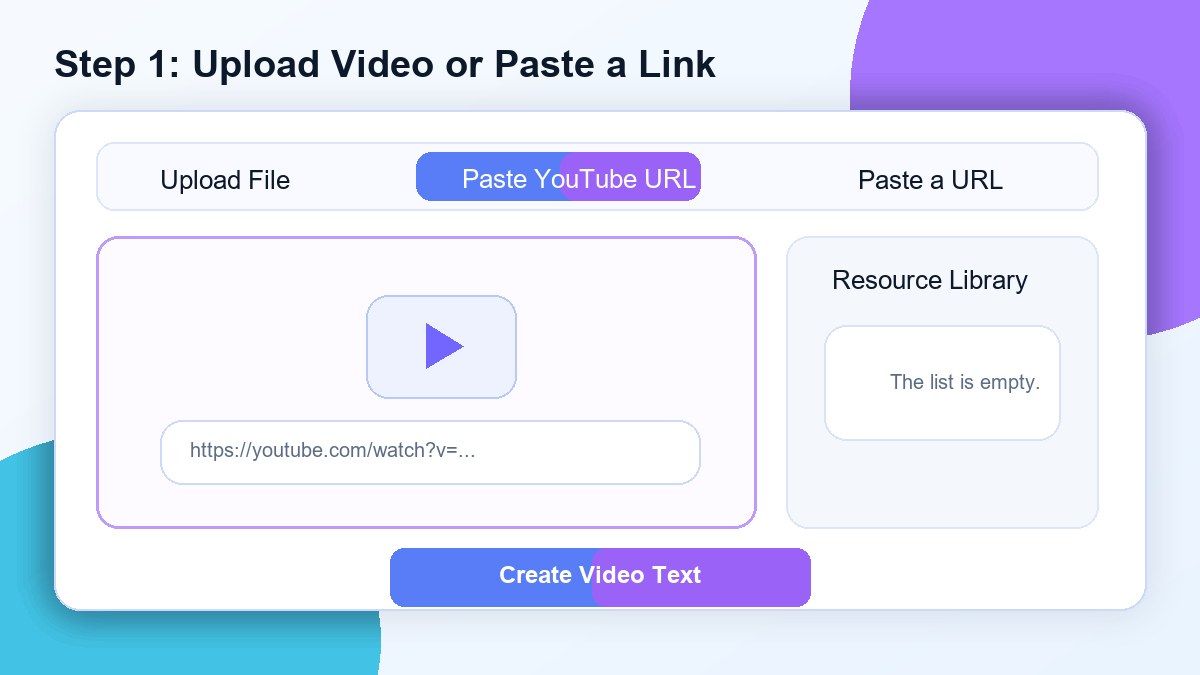
Step 1. Upload a Video or Paste a Link
Upload an MP4 video from your device or paste a YouTube video URL. Lynote can help extract spoken content from video files, video links, tutorials, lectures, interviews, webinars, and other video sources.
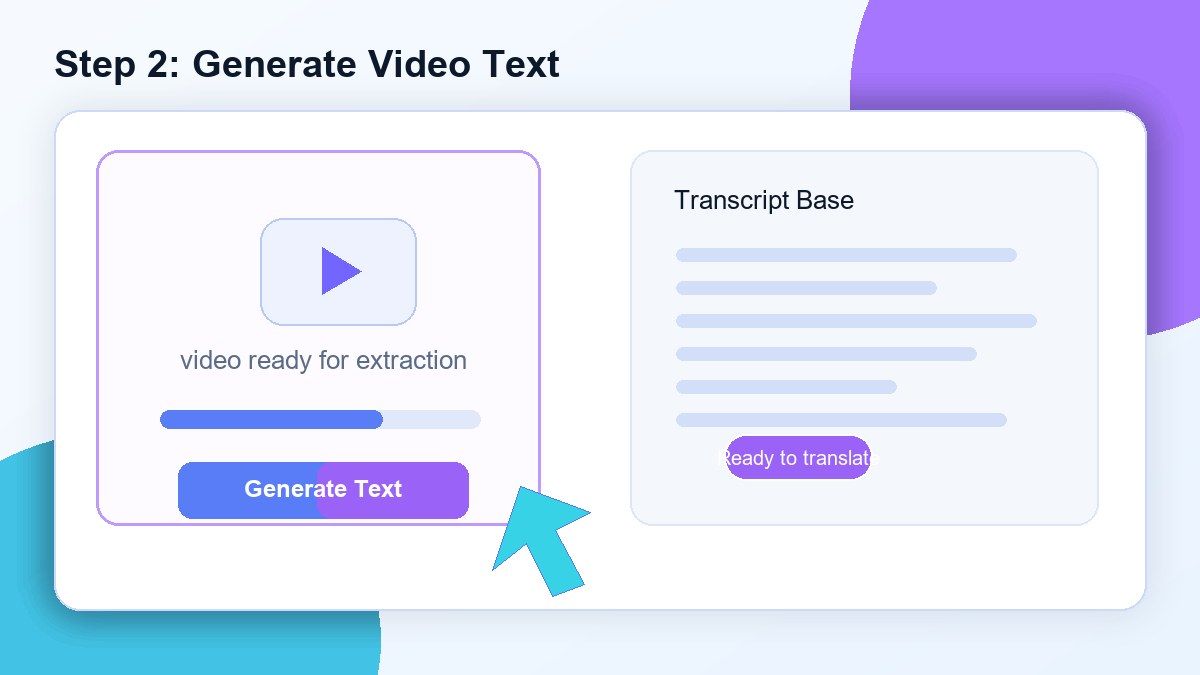
Step 2. Generate Video Text
Click the create or convert button and Lynote will process the video audio into editable text. The output gives you a readable transcript base before translation, editing, summarizing, or note creation.
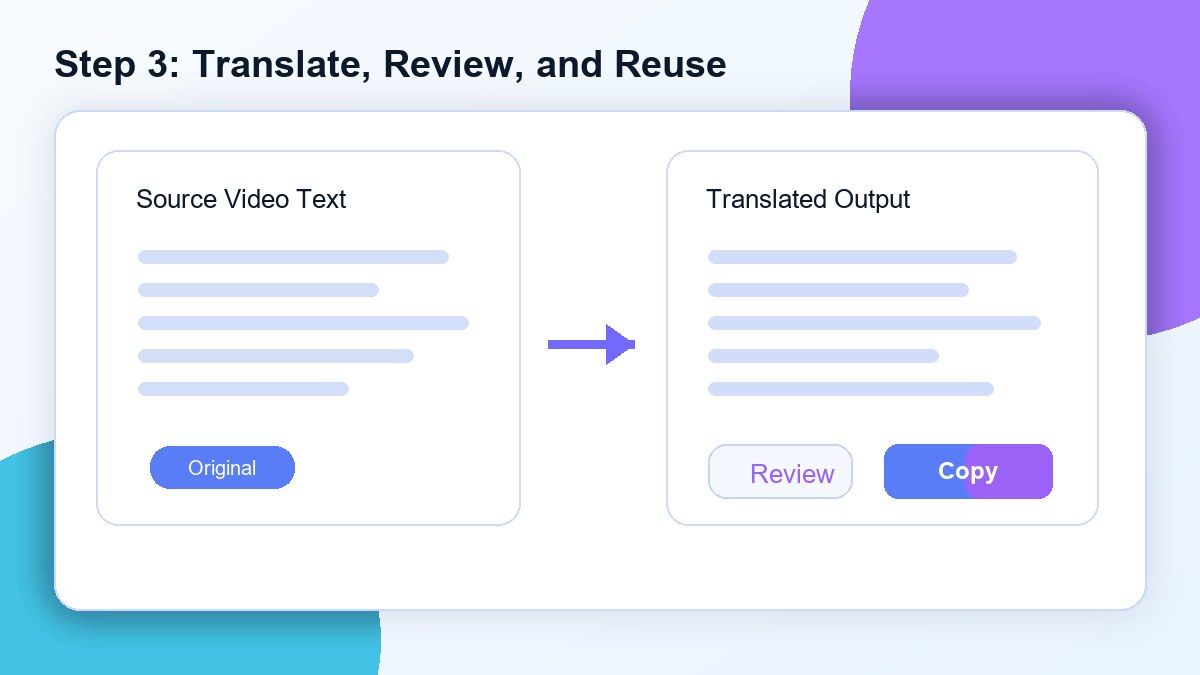
Step 3. Translate, Review, and Reuse
Review the generated text, correct names or technical terms, and translate the content into the language you need. Then copy the result for notes, captions, documents, research, or content workflows.
Who Is This Translate Video to Text Tool For?

Students
Translate foreign-language lectures, online classes, recorded lessons, and educational videos into text that is easier to review and study.

Researchers
Extract and translate video interviews, documentaries, conference recordings, public talks, and source materials for analysis or citations.

Content Creators
Translate video text from YouTube, MP4 files, interviews, or tutorials and reuse it for scripts, captions, summaries, blog posts, and social content.

Language Learners
Turn video speech into readable text so you can compare phrases, review vocabulary, and understand pronunciation or sentence structure.

Marketers
Translate product demos, customer videos, webinars, and training clips into text for localization, summaries, and campaign planning.

Teams and Trainers
Convert multilingual training videos, meeting recordings, onboarding videos, and internal tutorials into translated text documentation.
What Users Say About Lynote Translate Video to Text

Graduate Student

I use Lynote to translate video lectures into text before exams. It helps me review foreign-language course material without replaying the whole video.

Content Strategist
I paste YouTube links and turn video speech into text for content research. The workflow is much faster than copying captions manually.

Language Learner
Lynote helps me turn video voice into text so I can study phrases and translate difficult parts. It makes language practice much easier.

Research Assistant
I use it for interviews and documentary clips. Getting the video text first makes translation and note-taking much cleaner.

Training Coordinator
Our team works with multilingual training videos. Lynote helps us extract and translate the spoken content into reusable documentation.

Video Creator
I use it when I need captions or translated drafts from MP4 files. It gives me editable text I can clean up and reuse.
Frequently Asked Questions
Translate video to text means extracting spoken content or available video text from a video and turning it into readable text that can be translated, edited, copied, summarized, or reused.
Yes. Lynote lets you start online without installing video editing software. Upload a video or paste a supported link, generate text, and review the output before using it.
Yes. You can paste a YouTube video link and use Lynote to extract the spoken content into text. After that, you can translate, summarize, copy, or turn it into notes.
Yes. Upload an MP4 video and Lynote will process the video audio into editable text. This is useful for saved lectures, meetings, interviews, tutorials, and training files.
Yes. A normal video to text converter focuses on transcription in the source language. This page focuses on the translation workflow: extract video speech, prepare readable text, then translate or reuse it.
Lynote is best for extracting spoken video content into text. If your video includes embedded subtitles or on-screen text, results may depend on the source quality and available text data.
Clear speech, limited background noise, and good audio quality produce better text. Lectures, tutorials, interviews, webinars, product demos, and training videos usually work well.
You can copy it into notes, create captions, build study guides, summarize the content, prepare multilingual drafts, document meetings, or reuse it in research and content workflows.