

Riverside Video to Text Converter

Drop files or browse

Add study materials to enable the AI to extract and structure content.



Why Choose Our Riverside Video to Text Converter?

Built for Riverside Recordings
Riverside is often used for interviews, podcasts, webinars, and remote conversations. Lynote helps convert Riverside video to text so you can review what was said without replaying a full recording.

Download First, Then Upload
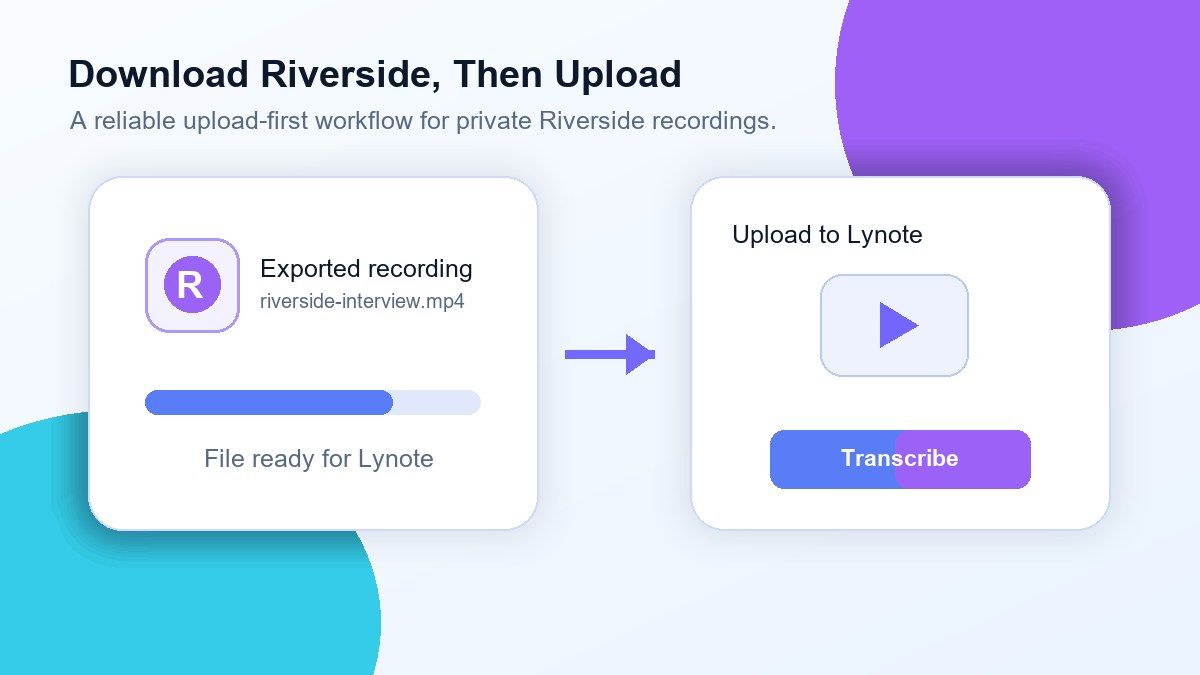
For reliable transcription, download your Riverside video from your Riverside account and upload the file to Lynote. This avoids access issues from private recording links, workspace permissions, or expired share links.

Cleaner Text for Podcasts and Interviews
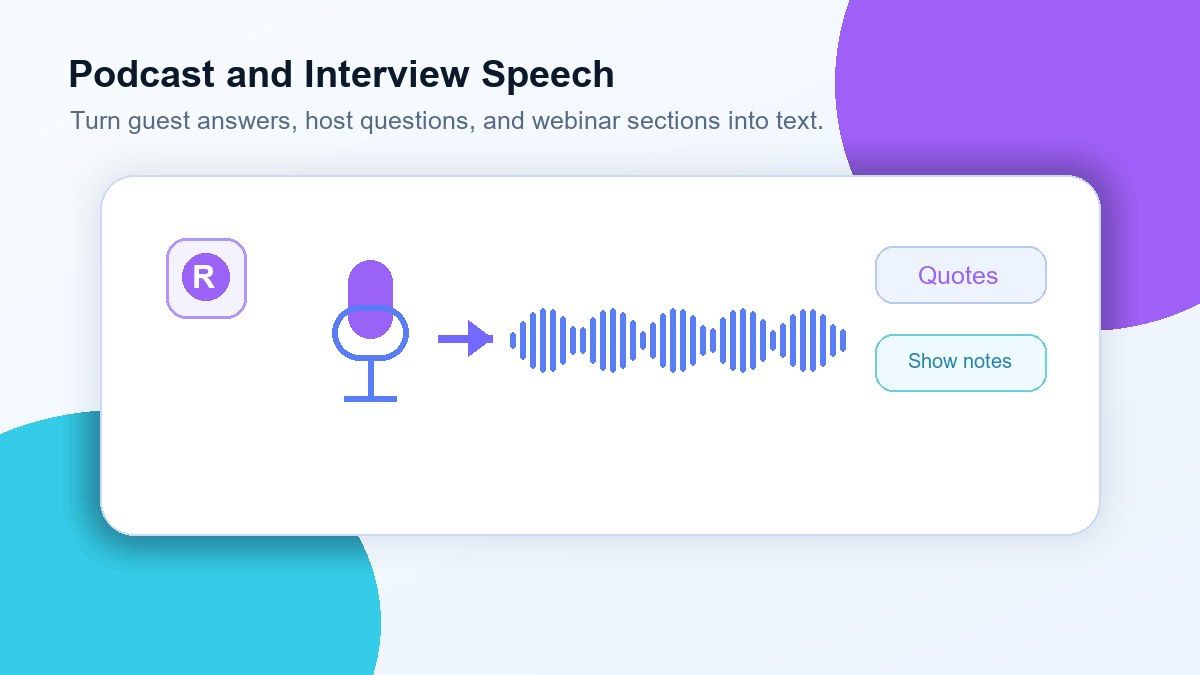
Turn long Riverside conversations into readable text you can edit, search, summarize, and quote. This is useful for podcast show notes, guest interviews, meeting documentation, and content production.

Useful for Content Repurposing
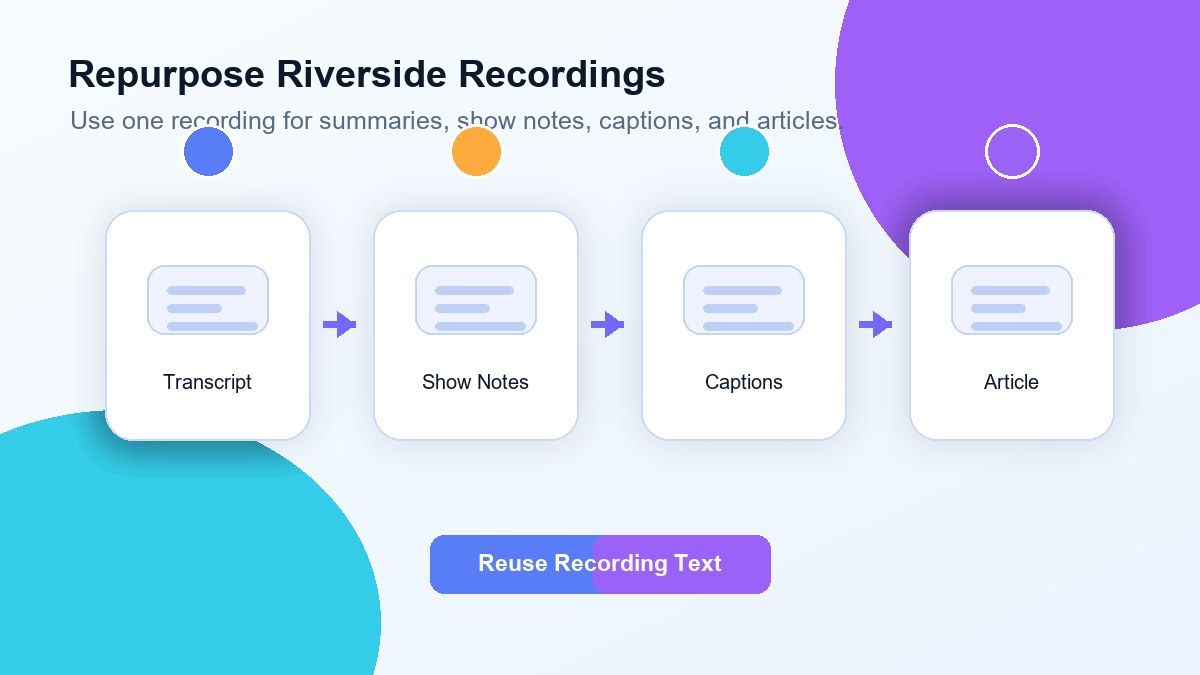
A Riverside recording can become a blog post, newsletter, transcript, subtitle draft, social media clip brief, or research note. Lynote helps you move from raw video to usable written content faster.

Works With Downloaded Video Files
After exporting your Riverside recording, upload the saved video file to Lynote. MP4 is usually the easiest option for Riverside video to text transcription.

More Than Basic Transcription
Once the transcript is ready, you can copy it, clean it up, summarize it, translate it, or turn it into notes. The result is easier to organize than a long video file.
Download Riverside, Then Upload to Lynote
Convert Podcast and Interview Speech Into Text
Repurpose Riverside Video Into Notes and Content
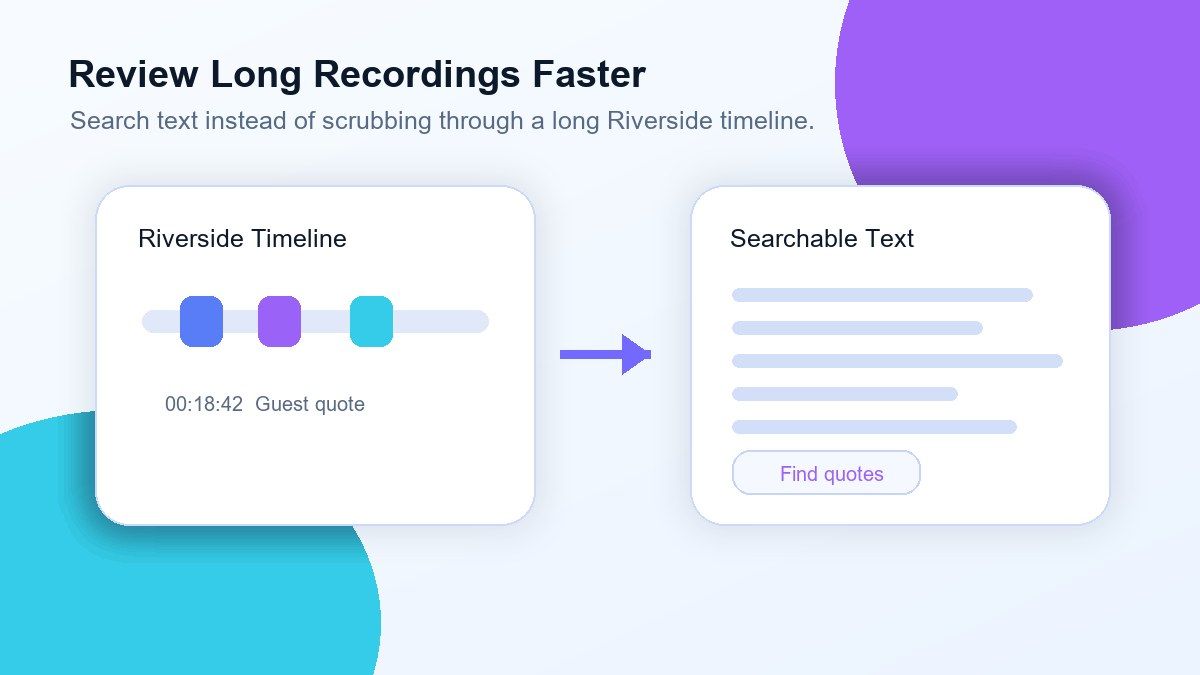
Review Long Interviews Without Rewatching Everything
How to Convert Riverside Video to Text Online
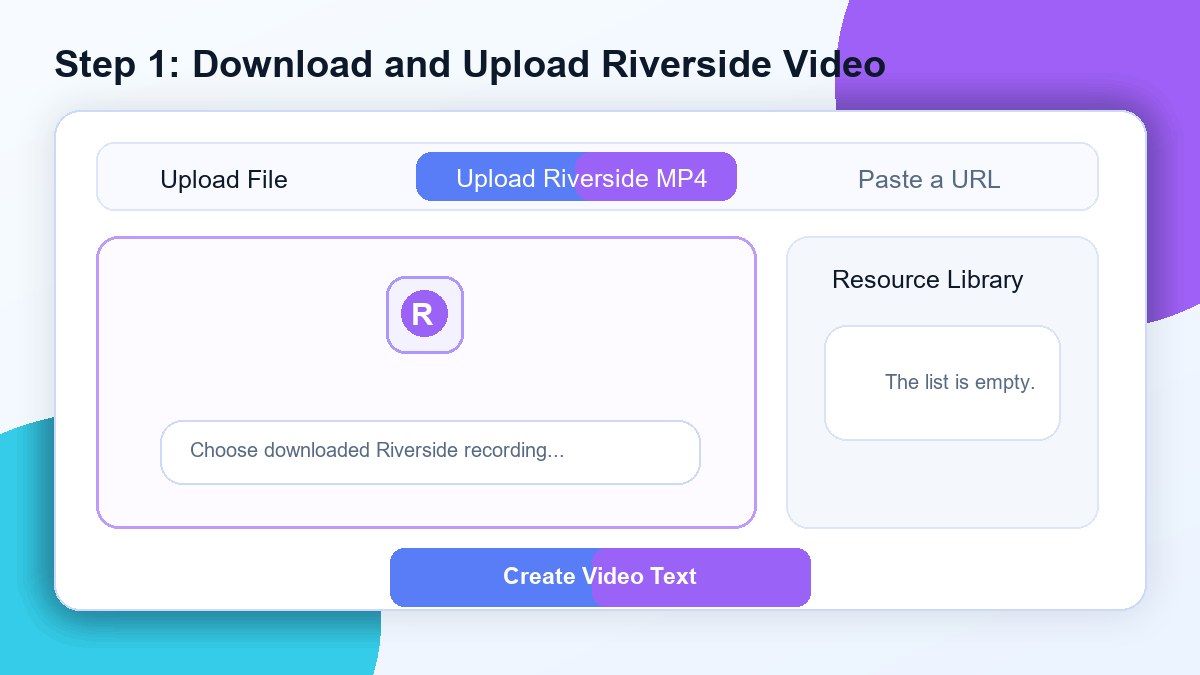
Step 1. Download Your Riverside Video
Open Riverside, choose the recording you want to transcribe, and download the video file to your device. For best results, use the final exported recording or the track that contains the clearest audio.
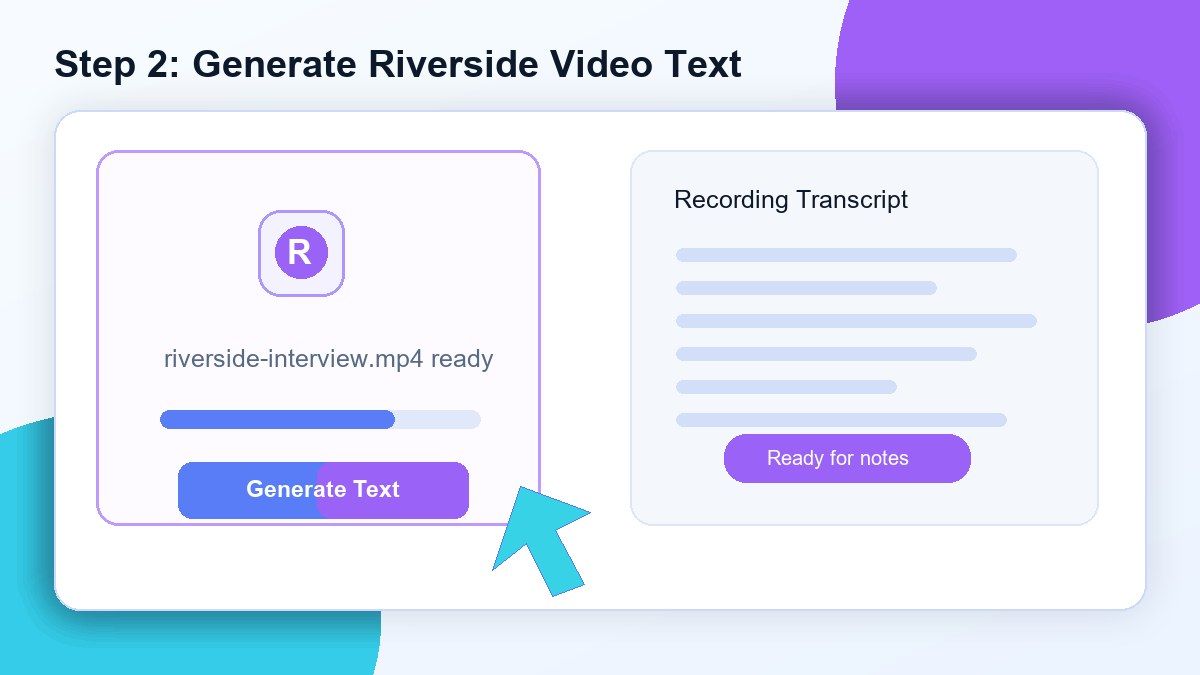
Step 2. Upload the Video to Lynote
Upload your downloaded Riverside video file to Lynote. The tool will process the recording audio and generate editable text from the conversation.
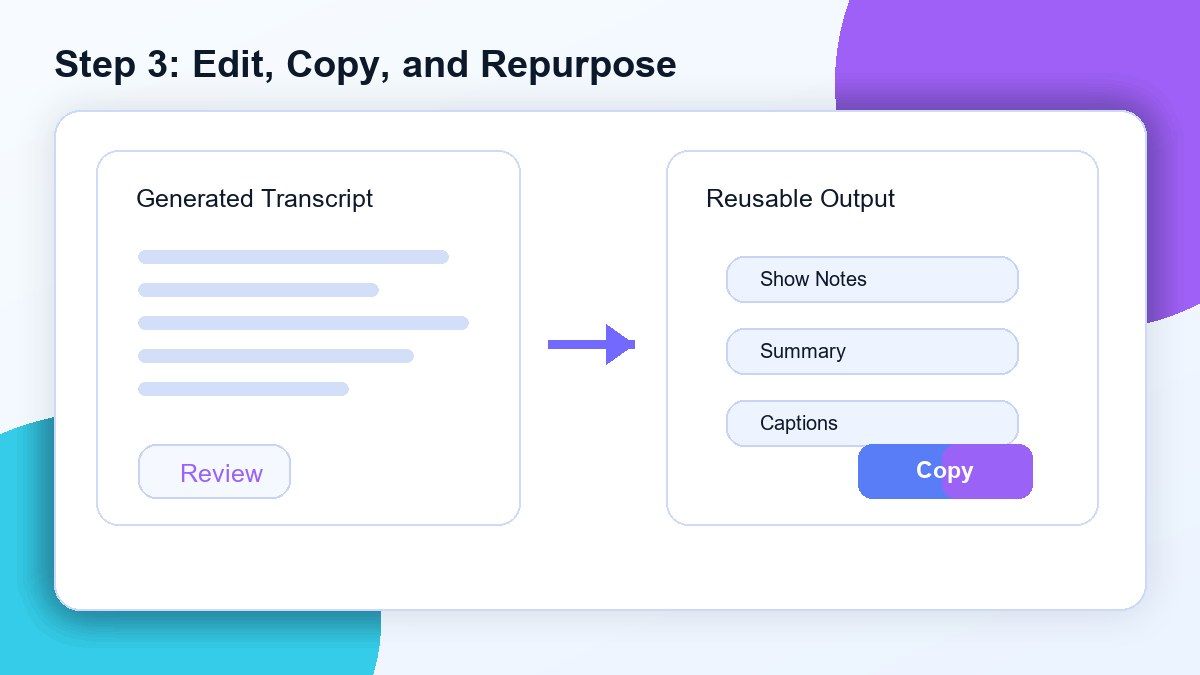
Step 3. Copy, Edit, or Repurpose the Transcript
Review the generated transcript and correct any names, product terms, or speaker-specific details. Then copy the text into notes, captions, blog drafts, show notes, summaries, or research documents.
Who Is This Riverside Video to Text Tool For?

Podcast Hosts
Turn Riverside podcast recordings into transcripts, show notes, episode summaries, and quote banks.

Video Editors
Review interviews in text form before cutting clips, writing captions, or finding highlight moments.

Content Marketers
Repurpose Riverside recordings into blogs, newsletters, social posts, and campaign material.

Researchers
Convert recorded interviews and qualitative sessions into searchable text for analysis.

Webinar Teams
Turn Riverside webinars into written recaps, training notes, and follow-up resources.

Founders and Creators
Save time by turning long recorded conversations into structured written assets.
What Users Say About Lynote Riverside Video to Text

Podcast Producer

I download Riverside recordings and upload them to Lynote before editing. Having the transcript makes it much easier to find the best guest quotes.

Content Marketer
Our Riverside interviews become blog outlines and social posts much faster now. Lynote saves us from manually reviewing every minute.

Research Assistant
I use Lynote to convert Riverside video to text for customer interviews. It gives me searchable notes that are easier to analyze.

Video Editor
Before editing long interview recordings, I generate a transcript in Lynote. It helps me spot the important moments without watching the whole file twice.

Podcast Host
Riverside gives me the recording, and Lynote helps me turn it into usable text. I use the transcript for show notes and email summaries.

Founder
We record expert calls on Riverside and upload them to Lynote afterward. The transcript helps our team capture insights and action items quickly.
Frequently Asked Questions
Yes. Download your Riverside recording first, then upload the video file to Lynote. Lynote can process the audio and generate editable text.
For best results, upload the downloaded video file. Riverside links may require account permissions, so direct link transcription may not work reliably.
MP4 is usually the easiest option. If Riverside gives you separate tracks, choose the version that contains the audio you want to transcribe.
Yes, it can support a Riverside FM transcription video to text workflow when you download the Riverside recording and upload the video file to Lynote.
Yes. After transcription, you can copy the text and turn it into show notes, summaries, episode descriptions, quotes, or article drafts.
Yes. Clear audio and a clean exported file usually produce better results, especially for interviews, podcasts, webinars, and remote meetings.
Yes. Once you have the transcript, you can translate the text or reuse it in multilingual notes, captions, or content workflows.
No. Lynote works online. Download your Riverside video, upload it in your browser, and convert the recording into editable text.