Choose Your Images
Drag your PNG files into the converter or click Choose PNG Images. Add one image or up to 10 per batch, with a maximum of 50 MB per image.


Convert PNG to WebP quickly in your browser. Choose a single image or a batch, check the quality, and download your WebP files. Every conversion is free, with no account required and no total conversion limit.

Max 50 MB per file · Up to 10 images
Images converted: 0.
Images are processed locally in your browser. HEIC is not supported yet.
Drag your PNG files into the converter or click Choose PNG Images. Add one image or up to 10 per batch, with a maximum of 50 MB per image.
Choose a WebP quality setting, then click Convert PNG to WebP. Conversion runs directly in your browser.
Compare the WebP with the original PNG. Download an individual file or save the successfully converted batch as a ZIP.
Open Lynote AI, add your PNG files, and download the converted WebP images directly from your browser. You can finish the whole process without signing in or using conversion credits.
Convert one logo for a quick website update, or add up to 10 screenshots, illustrations, or product graphics in a single batch. If you have more files, start another batch whenever you’re ready. Every conversion is free, with no limit on the total number of images you can convert.

Convert transparent PNG logos, icons, and product cutouts to WebP for your website. Use a logo in your site header or place a product cutout over a colored banner so the background shows through around the edges.
Before publishing, compare the converted WebP with the original PNG. Check that the edges look clean against your page’s background, then compare file sizes to see whether the WebP gives visitors less image data to download.
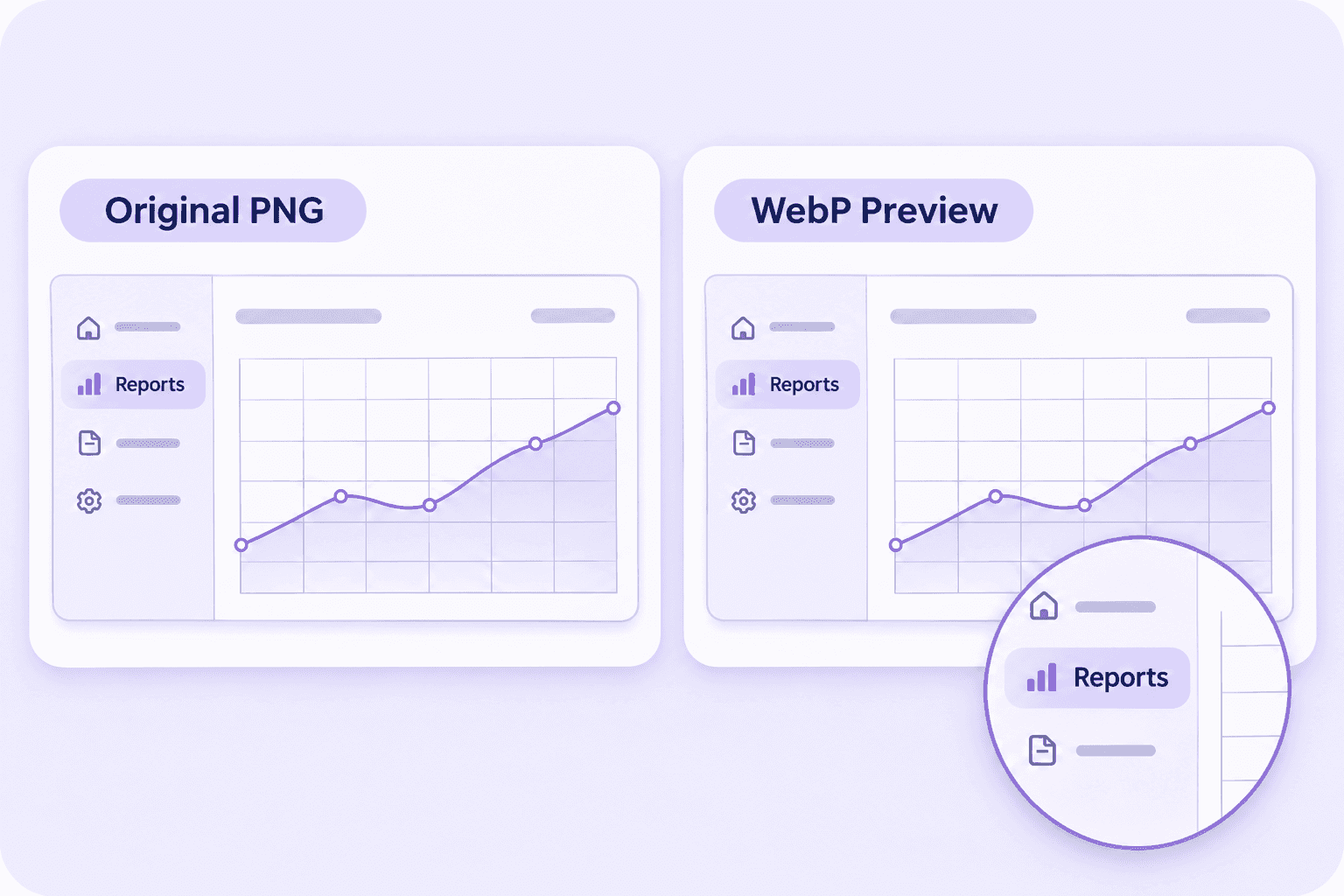
Readers need to make out the menu labels in a tutorial screenshot, the axis labels on a chart, and the small annotations in a diagram. When you convert PNG to WebP with Lynote AI, choose a higher quality setting for images that rely on those details.
Compare the converted WebP with the original PNG side by side before downloading. Check the smallest text and thinnest lines at the size they’ll appear on your page. If a label is hard to read or a gridline fades into the background, increase the quality and preview the result again.
Convert and download WebP files for free, with no credits required.
Convert PNGs right in your browser, with no upload wait.
Start converting as soon as you open the page.
Adjust quality to keep small text, fine lines, and graphic edges clear.
Convert up to 10 PNGs at once. Save files individually or together as a ZIP.
Your images stay on your device throughout conversion.
Prepare WebP images for landing pages, product listings, help centers, and other places where you publish PNG graphics.

Create WebP copies of PNG logos and icons for headers and footers. Check how any transparent areas look against the site background.

Batch convert PNG product cutouts and mockups for category pages and galleries. Check edges and colors before publishing.

Convert PNG screenshots for help articles and product guides. Make sure menu labels and callouts are readable at the size readers will see.

Create WebP versions of homepage illustrations and campaign artwork. Compare file sizes and check gradients in the preview.

Convert PNG charts for web reports and blog posts. Use the preview to check labels, gridlines, and small annotations.

Turn PNG covers into WebP files for blog grids and resource hubs. Preview them at their intended display size before downloading.
A PNG to WebP converter creates a .webp copy of a PNG image. Use it to prepare logos, screenshots, illustrations, or product graphics for a website while keeping the original PNG for future edits.Compare the file sizes and check the converted image before replacing it on your site. If your PNG already has transparent areas, check how they appear in the WebP preview.
Yes. PNG to WebP conversion and downloads are free. You can convert as many images as you need without buying credits, creating an account, or signing in.
Choose a PNG image, adjust the WebP quality if needed, and select Convert PNG to WebP. Check the result against the original, then select Download WebP.
Add up to 10 PNG files per batch, with a maximum of 50 MB per image. Each PNG becomes a separate .webp file. Download individual files or save the successful conversions together in a ZIP. For more images, start another batch.
Conversion starts in your browser when you click Convert PNG to WebP. The time it takes depends on your device, image dimensions, and the number of files in the batch.
WebP supports transparency. If your PNG already has transparent areas, check them in the converted preview before downloading. If the source has a solid background and you need transparency, remove the background before converting.
It can. The result depends on the image and the WebP quality setting. Compare the original PNG and converted WebP file sizes before choosing which version to publish.
That depends on the source image and the quality setting. Try a higher setting for screenshots, diagrams, and graphics with small text. Compare the finished WebP with the original at the size visitors will see.
Your browser processes the PNG files and generates the WebP copies on your device. The converter runs without sending your images to a server for processing.