

Non-Breaking Space Copy & Paste
Copy a non-breaking space to keep a number with its unit or a title with a name.
Copy a Non-Breaking Space
Choose the first row to keep two words together with a normal-sized gap.
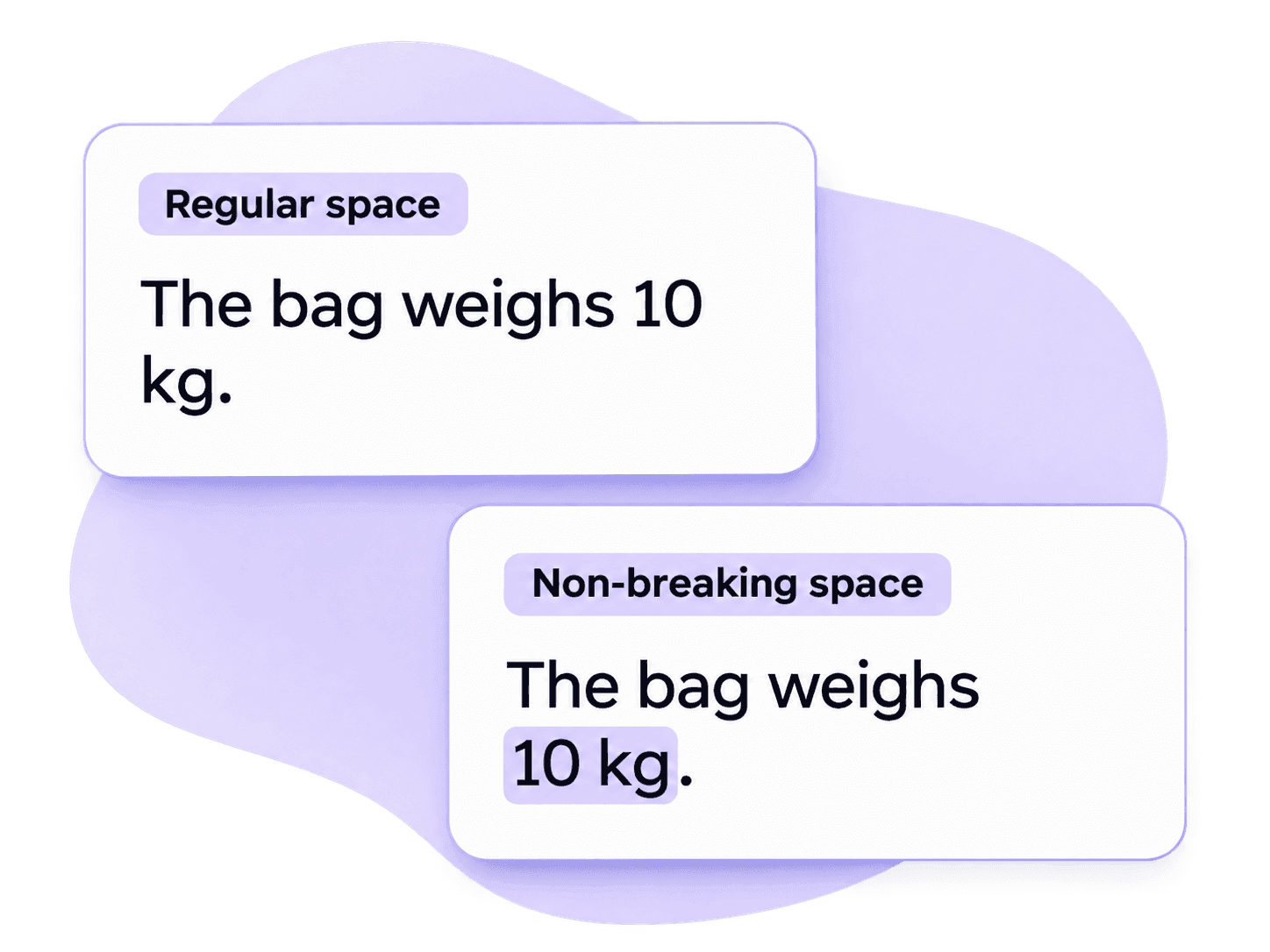
Keep Numbers and Units on the Same Line
A non-breaking space, also called a no-break space, looks like a regular space. The difference shows up at the end of a line. If “10 kg” won’t fit, the number and unit move to the next line together.
Use the same trick between a title and a name, like Dr. Chen, or in a reference like Figure 2.
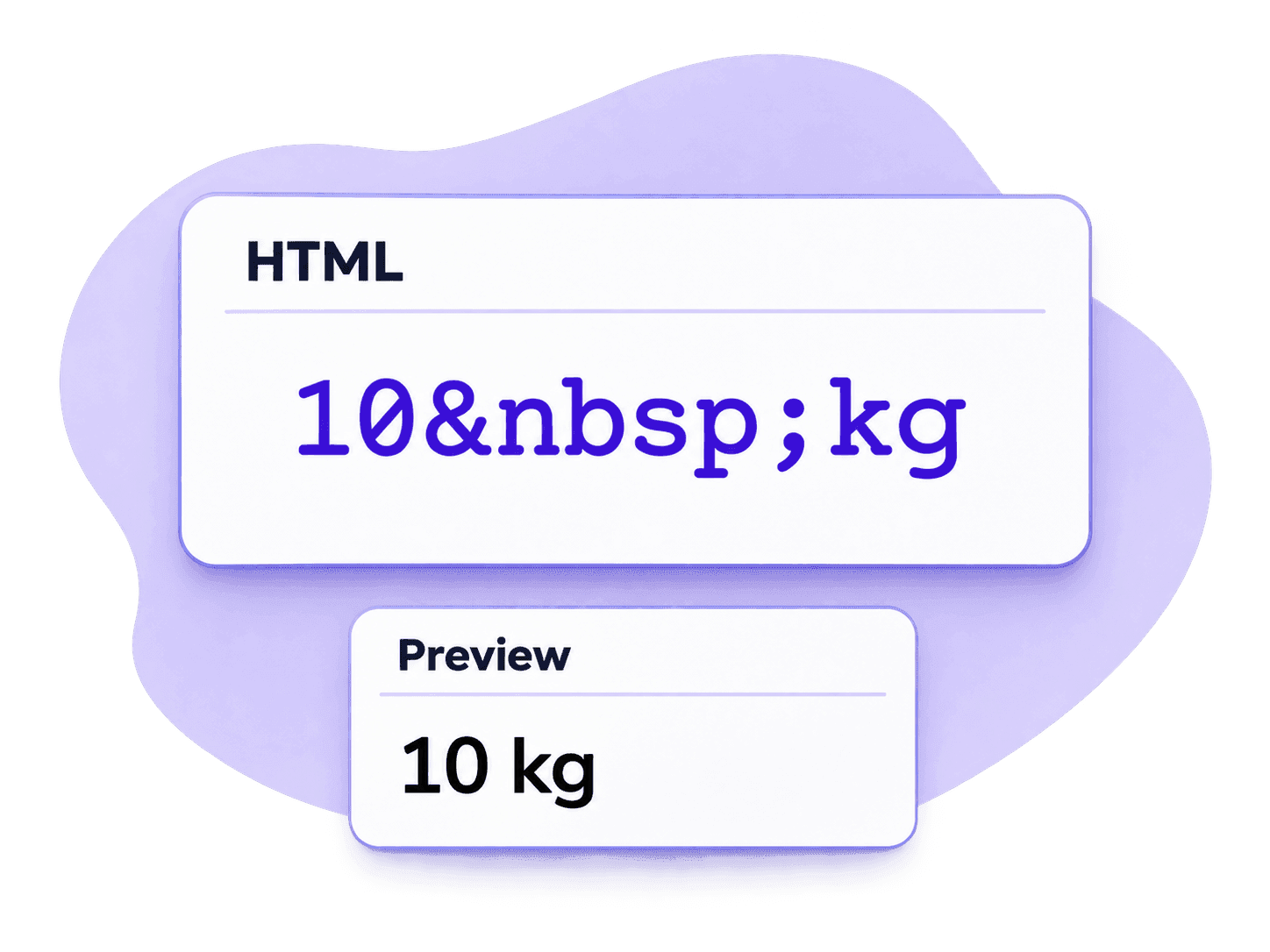
How to Write a Non-Breaking Space in HTML
Write 10 kg in your HTML source. The browser displays 10 kg and keeps the number beside its unit. The numeric form   gives the same result.
Working in a document or plain-text field? Paste the space itself there.
How to Insert a Non-Breaking Space
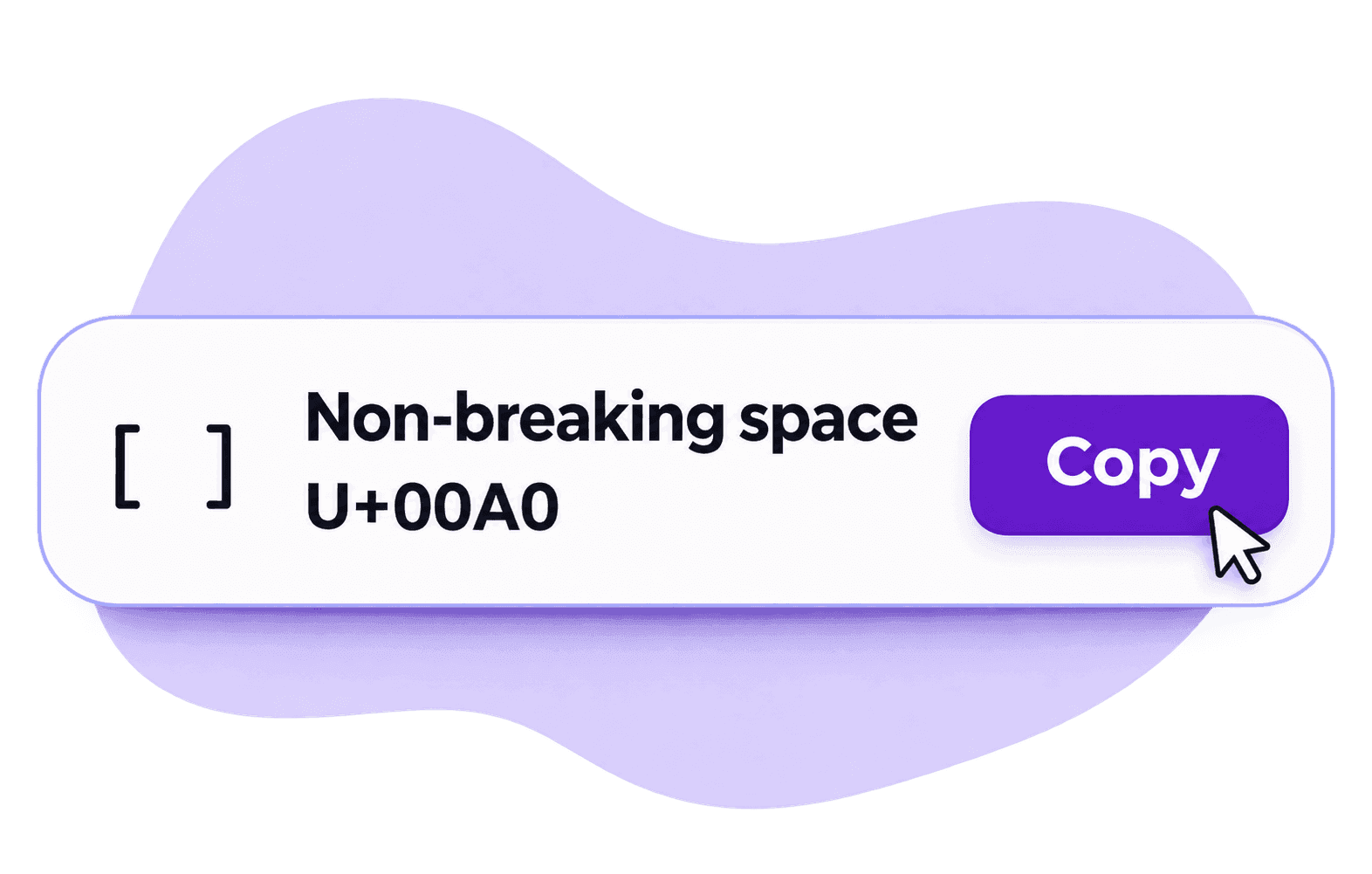
Step 1. Copy the Space
Choose Copy next to Non-breaking space (U+00A0) in the first row.

Step 2. Replace the Regular Space
In your document, select the existing space between 10 and kg, then paste. The two parts can now wrap together.
Non-Breaking Space FAQ
Your editor is showing the HTML code as ordinary text. Select those six characters and paste the non-breaking space from the first row in their place.
Select the entire gap and paste again. A regular space left beside the new one can still allow a break. If the pair still splits, your editor may have converted the pasted space to a regular one.
Use it for short pairs that belong together, like 9 AM or Chapter 4. Keep ordinary spaces elsewhere so the sentence can wrap on a phone.
Select the gap and press the space bar once. The words stay separated and can break across lines again.