Choose Your JPG Images
Click Choose JPG Images or drag your .jpg or .jpeg files into the converter. Add one image or select up to 10 at once, with a maximum of 50 MB per image.


Convert JPG and JPEG images to WebP quickly, right in your browser. Drop in your files, click Convert, and download your WebP images. Every conversion is free, with no account or login required.

Max 50 MB per file · Up to 10 images
Images converted: 0.
Images are processed locally in your browser. HEIC is not supported yet.
Start converting JPGs in your browser without waiting for a server upload.
Convert and download WebP files for free, with no credits required.
Adjust WebP quality to keep textures, lettering, and other important details visible.
Open the converter and start right away, with no account required.
Convert up to 10 images at a time. Download individual WebP files or save the batch as a ZIP.
Your images stay on your device during conversion.
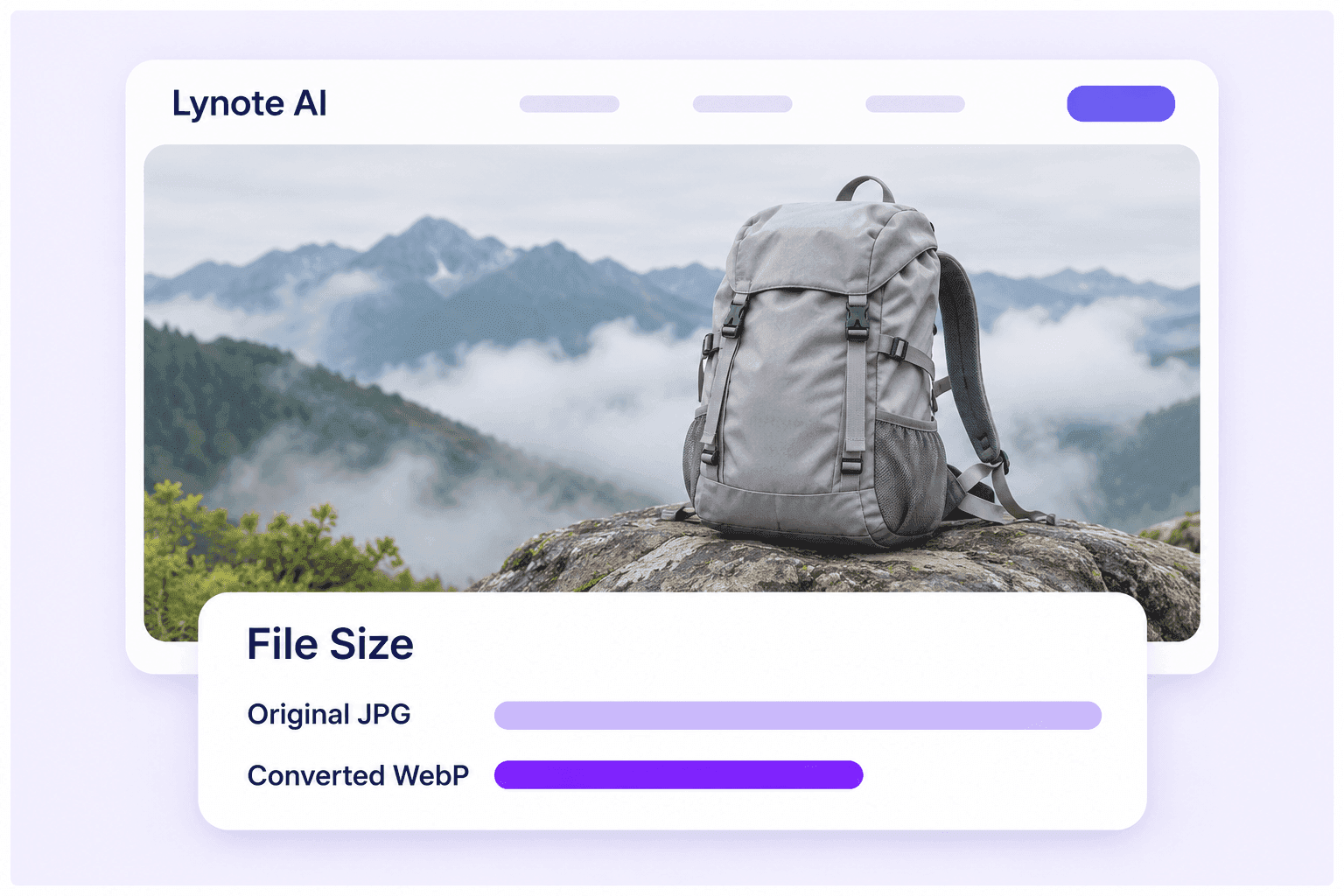
Large JPG banners and product galleries can add a lot of image data to a page. Create WebP copies with Lynote AI and compare their file sizes before publishing. When the WebP files are smaller, visitors have less image data to download.
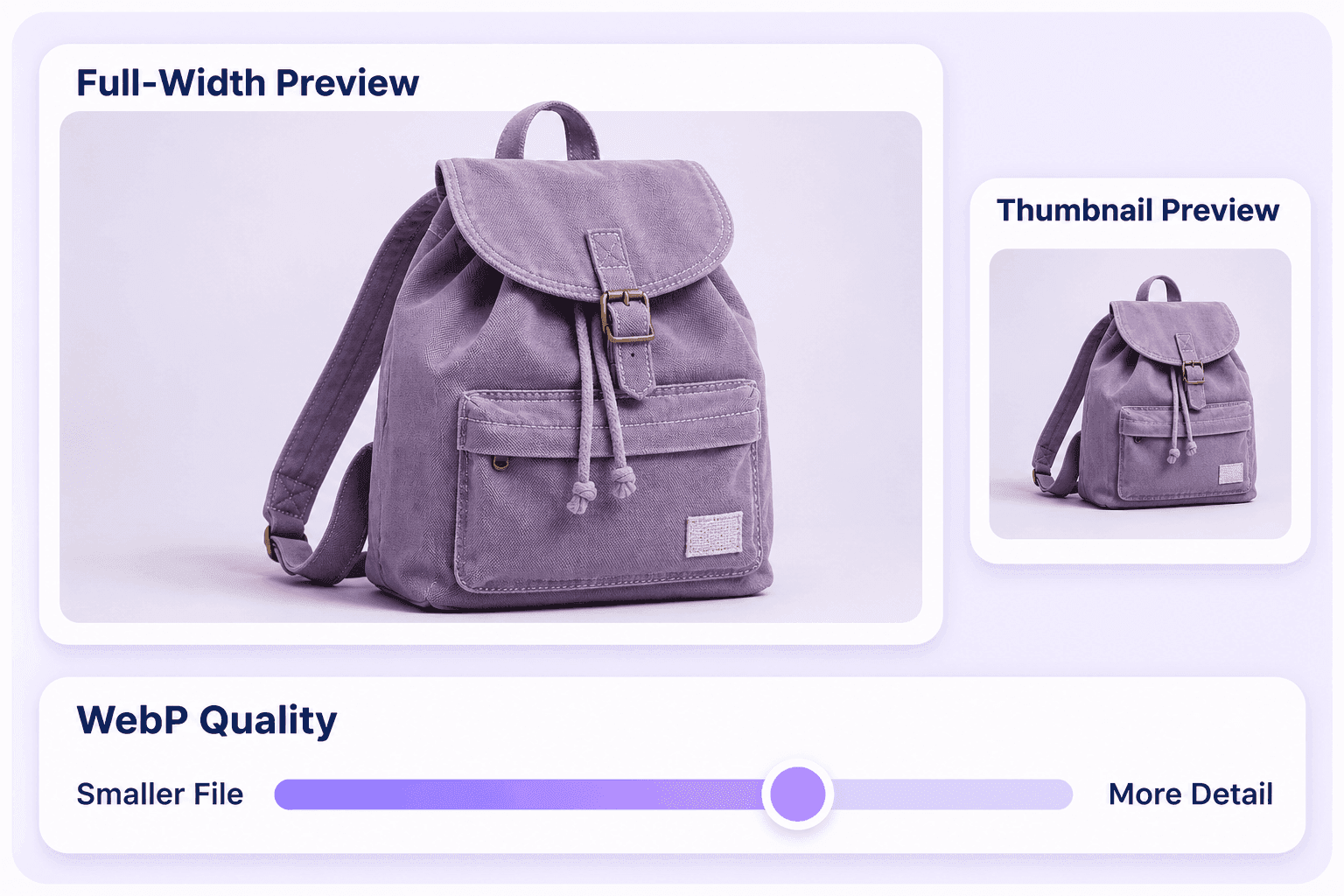
Use a higher quality setting for full-width images that need to show details like stitching, product labels, or smooth gradients. For small thumbnails, try a lower setting and check the converted WebP at the size visitors will actually see.
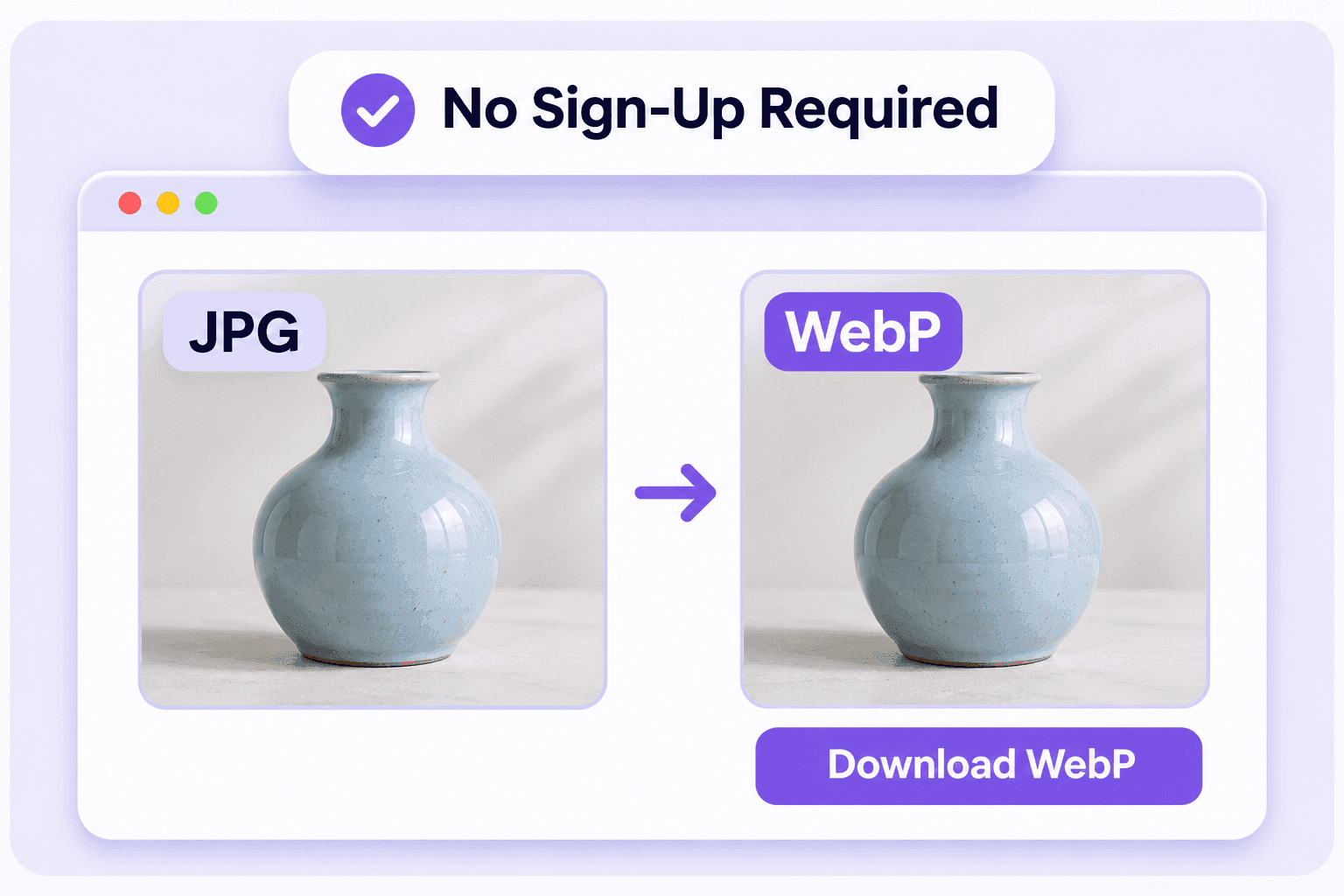
Open the converter, choose your JPGs, and download the WebP files when they’re ready. The entire workflow is available without creating an account or signing in.
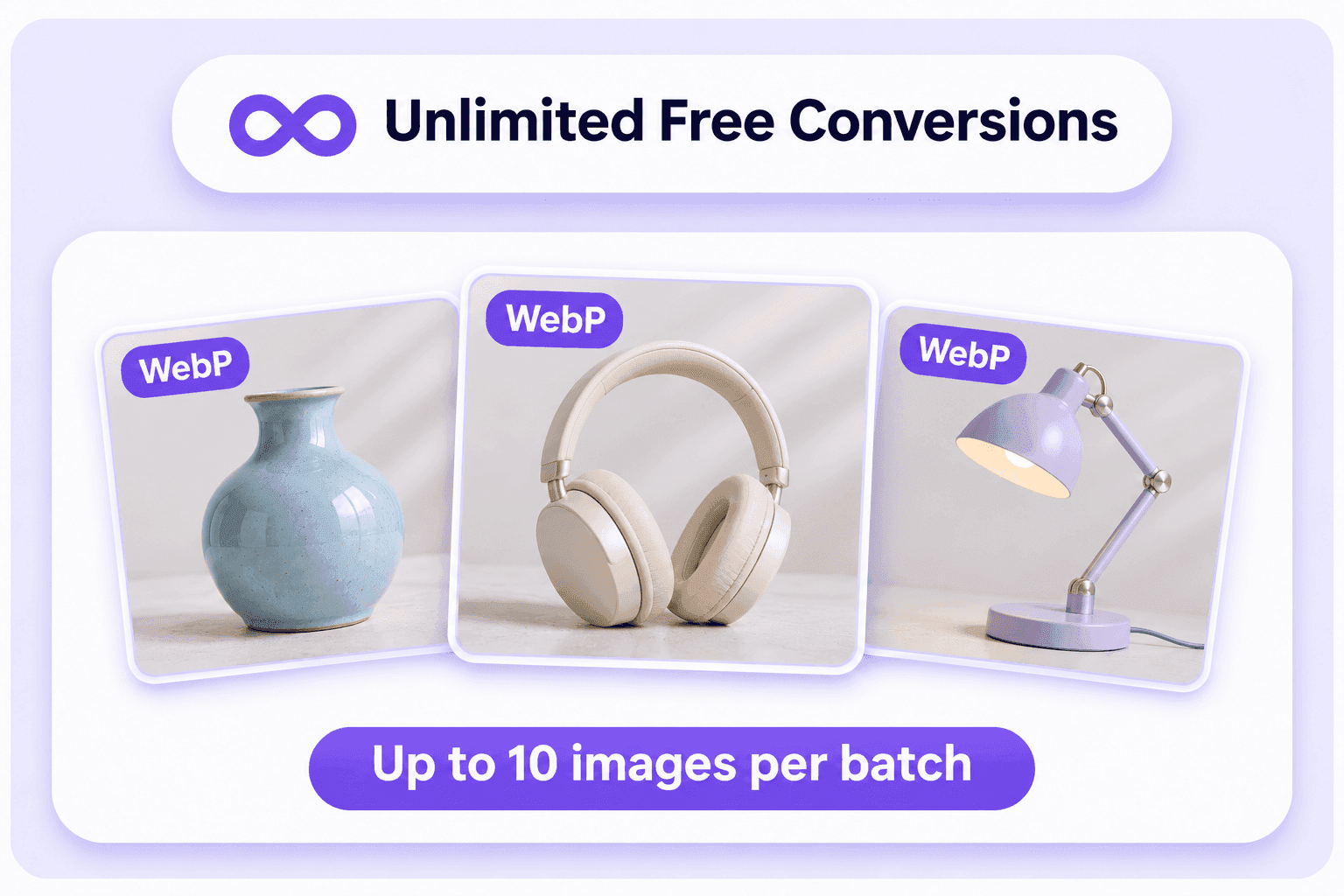
Convert JPG to WebP for free whenever you need it. Process one image or up to 10 at a time. If you have a larger gallery to convert, start another batch. There’s no limit on the total number of conversions.
Click Choose JPG Images or drag your .jpg or .jpeg files into the converter. Add one image or select up to 10 at once, with a maximum of 50 MB per image.
WebP is already selected as your output format. Choose a quality setting that suits your image, then click Convert JPG to WebP. The conversion runs directly in your browser.
Compare the original JPG and converted WebP side by side. Download the WebP files individually or save the successful conversions together in a ZIP.

Blogger

I used it to convert the cover photos for a few posts. It was quick, and I could check how each one looked before downloading.

Photographer
I liked being able to compare the WebP with my original JPG. I went with a higher quality setting for the close-ups and kept my original files for editing.

Freelance Web Designer
I needed a WebP version of a homepage banner. I dropped in the JPG and downloaded the new file without having to create an account.

E-Commerce Store Owner
I converted a batch of JPG product photos for my store. I could still read the labels in the previews, and downloading everything as a ZIP saved me a few clicks.

Content Marketer
I had several batches of campaign images to convert. I could keep going without signing in or buying credits.

Web Developer
I was updating a client’s homepage and needed WebP versions of three JPG banners. I checked the file sizes after converting and used the smaller versions that still looked good at full width.
A JPG to WebP converter creates a .webp copy of a JPG or JPEG image. Use Lynote AI to prepare product photos, homepage banners, and blog images for the web while keeping the original JPG for future edits.Compare the file sizes and preview the converted image before publishing so you can choose the version that works for your page.
Yes. You can convert JPG and JPEG images to WebP and download the results for free. You don’t need to buy or use conversion credits.
No. Choose your JPG images, convert them, and download your WebP files without signing up or logging in.
There’s no limit on the total number of conversions. You can add up to 10 images per batch, with a maximum of 50 MB per image. If you have more files, convert them in additional batches.
Choose a .jpg or .jpeg image, adjust the WebP quality if needed, and click Convert JPG to WebP. Compare the result with the original, then click Download WebP.
Conversion starts in your browser as soon as you click Convert JPG to WebP, so there’s no upload wait. Processing time depends on your device, the image dimensions, and the number of files in the batch.
Yes. .jpg and .jpeg are two filename extensions for the same image format. You can select either and download a .webp file.
It can. File size depends on the source image, its dimensions, and the quality setting you choose. Compare the original and converted file sizes before replacing an image on your website.
The result depends on the source image and the quality setting. Choose a higher setting when fine textures or small text matter, then compare the converted WebP with the original at its intended display size.
Your browser processes the JPGs and creates the WebP files locally. Your images stay on your device during conversion.
Yes. Use Download All as ZIP to save the successfully converted files together. You can also download each WebP separately.