Choose Your Images
Drag an image into the converter or click Choose Images to select it from your device. Add one image for a quick conversion or select up to 10 files for a batch. Each file can be up to 50 MB.


Convert images to JPG for uploads, websites, and everyday sharing. Select one image or add a batch, adjust the JPG quality, and preview your results before downloading.

Max 50 MB per file · Up to 10 images
Images converted: 0.
Images are processed locally in your browser. HEIC is not supported yet.
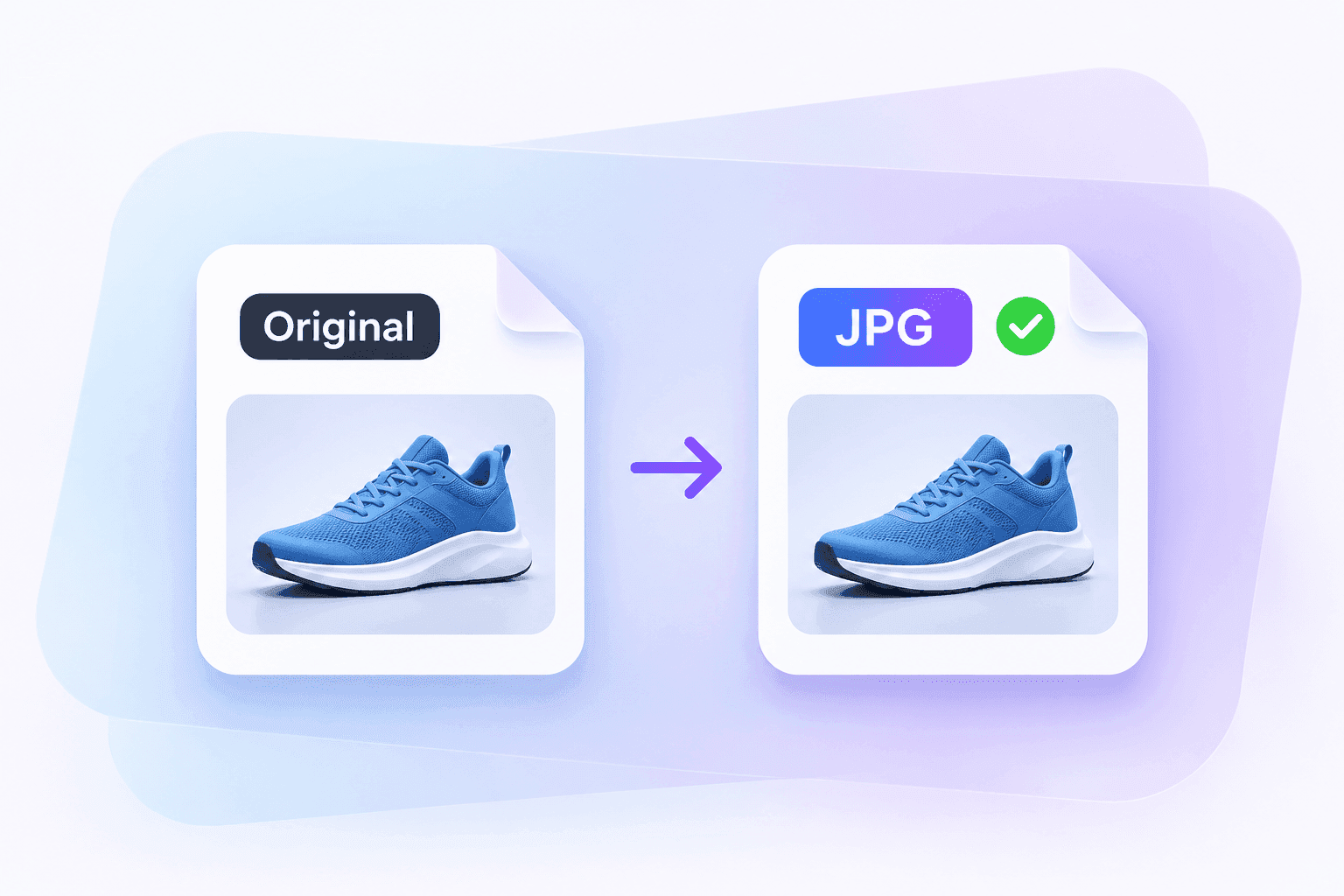
When an application, marketplace, or editor asks for a JPG, use Lynote AI to create a .jpg copy from your existing image. It’s useful for form attachments, product photos, or screenshots you need to submit in a specific format. The original file stays available for future edits.
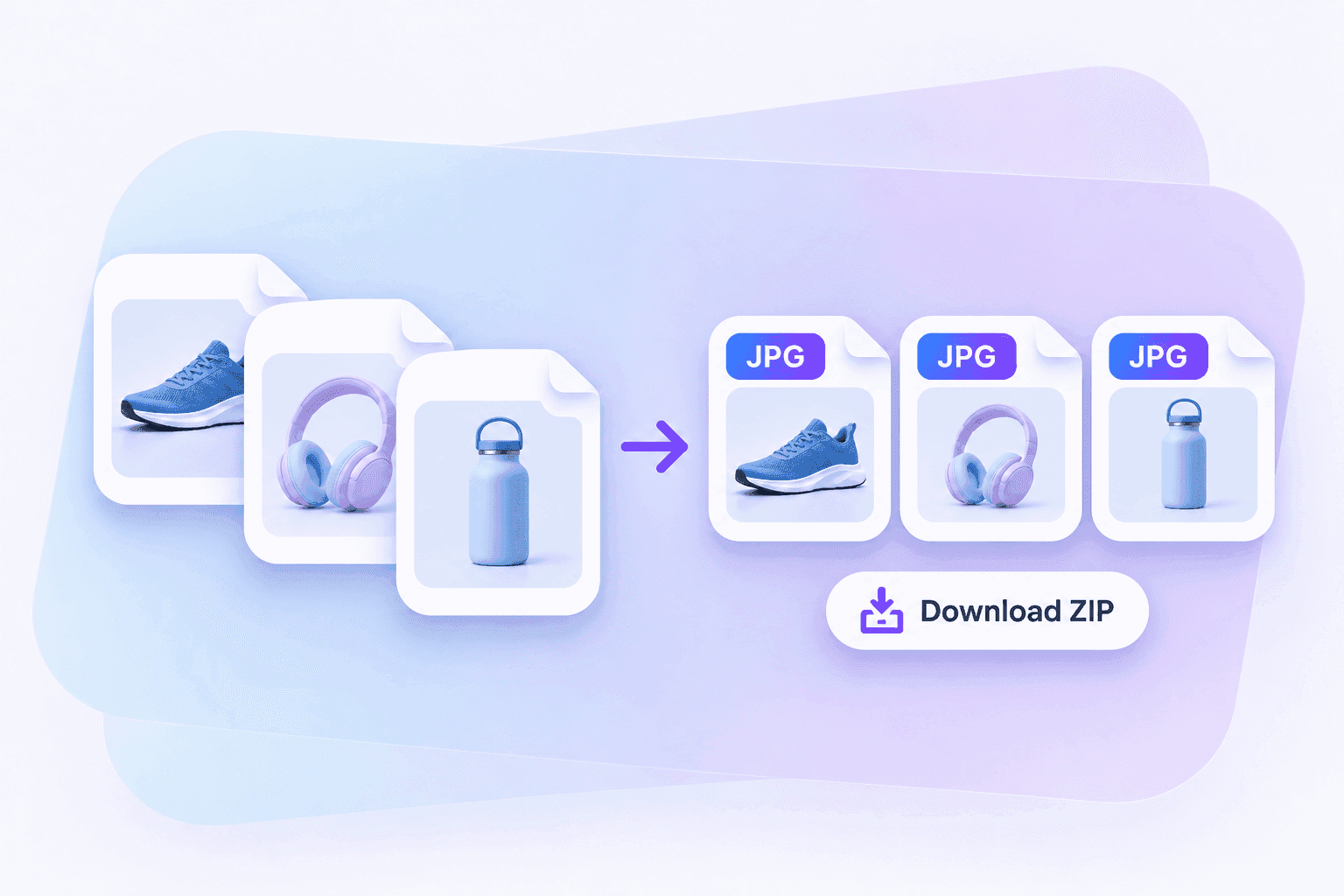
Add up to 10 images and export them together as JPGs. This is useful when product photos come from different sources or a submission requires several attachments in the same format. Each image becomes a separate JPG, so you can save the ones you need or download the batch as a ZIP.
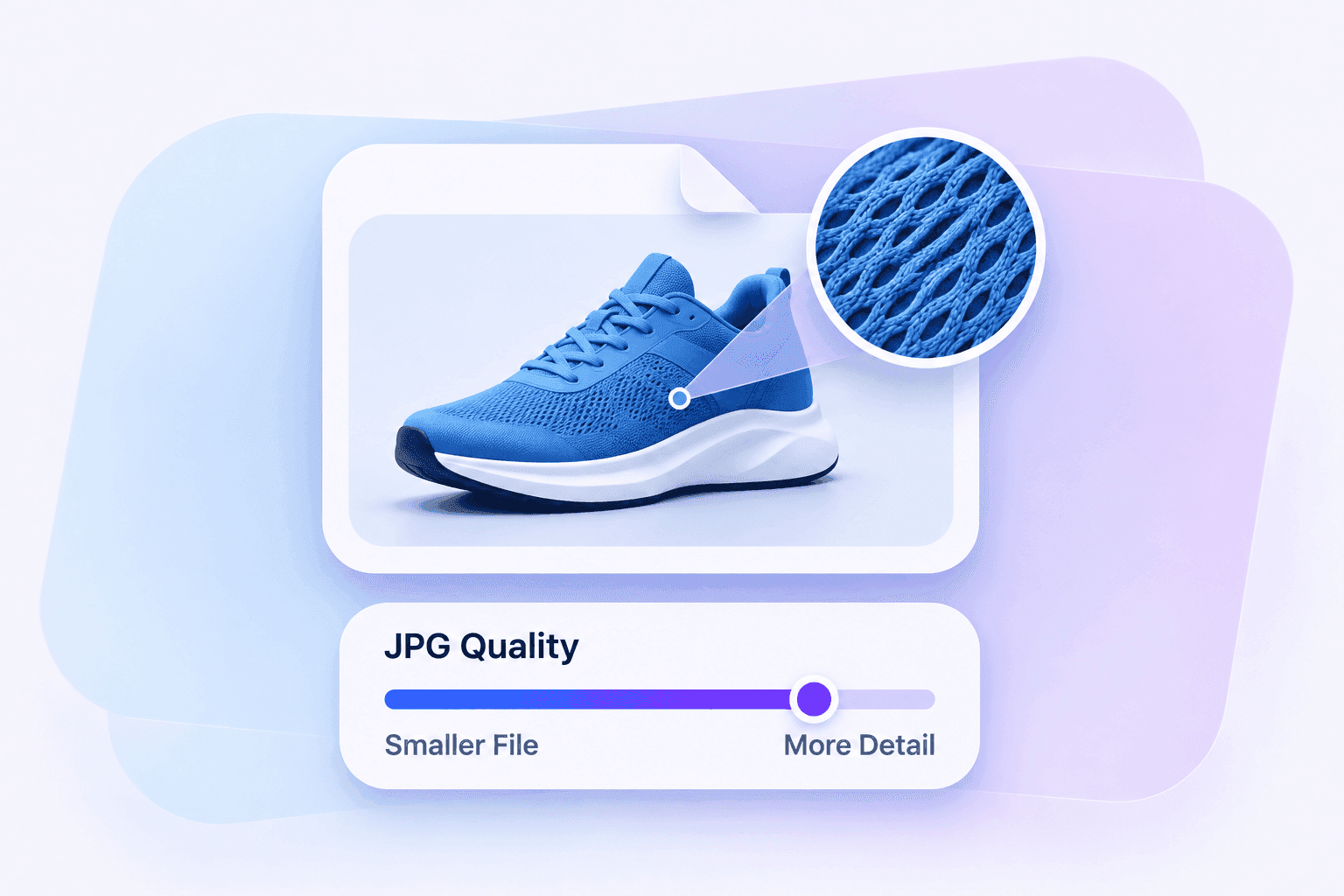
Choose a higher quality setting when you want to keep details such as fabric texture, product labels, or lettering in a screenshot visible. If you’re working with an upload size limit, try a lower setting and check the result. The final file size depends on the image and the quality you choose.
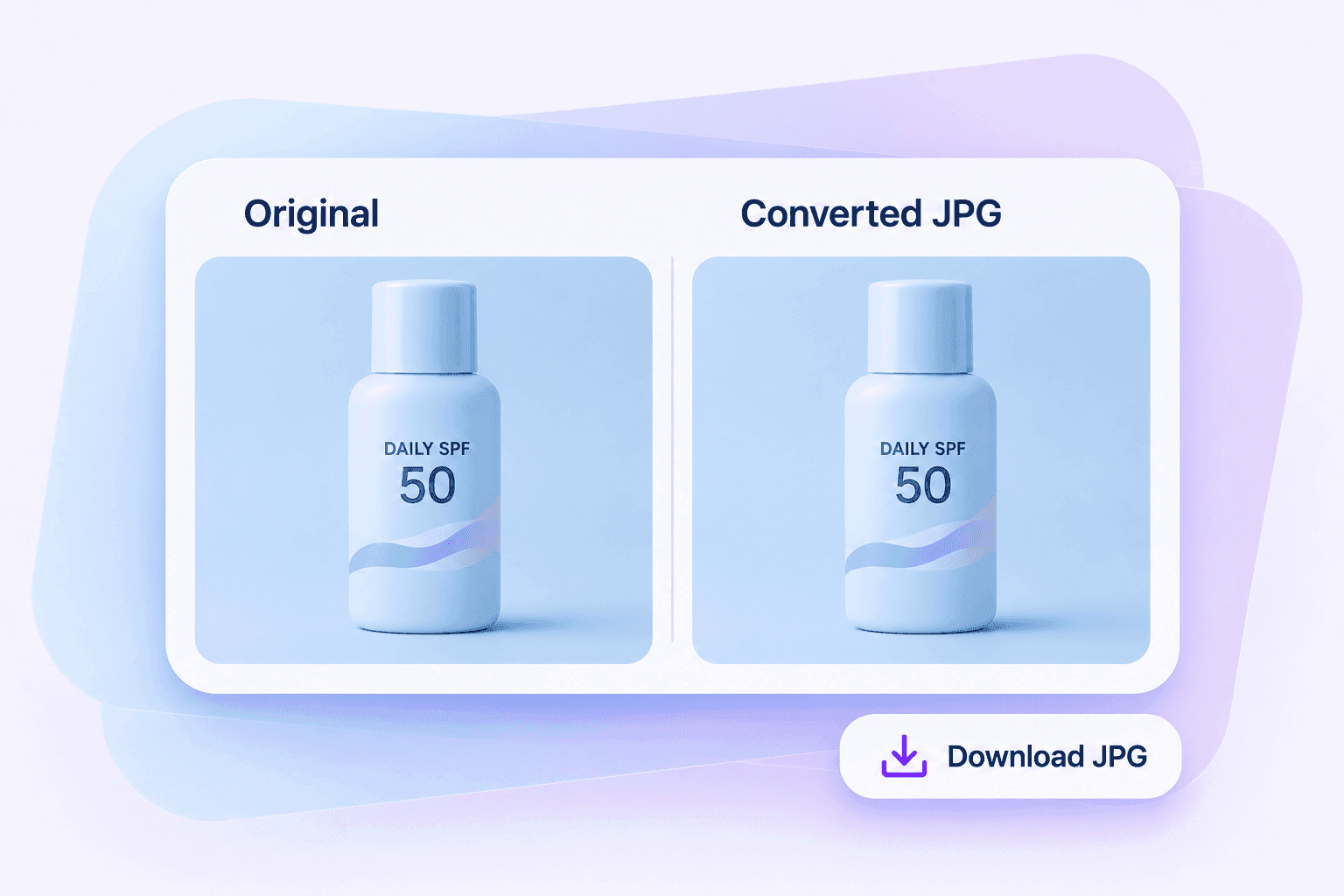
Open the preview and look at the parts of the image that matter for your next step. Check whether small text is still readable, colors look right, and the background suits the final use. Once you’re happy with the result, download the JPG.
Drag an image into the converter or click Choose Images to select it from your device. Add one image for a quick conversion or select up to 10 files for a batch. Each file can be up to 50 MB.
JPG is already selected as the output format. Choose a higher quality setting for images with fine details, or try a lower setting when file size matters more. Click Convert to JPG to create your files.
Compare the original image with the converted JPG. Check text, colors, and edges before saving. Download an individual JPG or save the converted batch in one ZIP file.
Open the converter, add your images, and go straight to JPG.
Choose a quality setting that suits a detailed product photo, a screenshot, or a smaller email attachment.
Compare the original with the converted JPG to check text, color, and image details before downloading.
Download individual JPG files or save all successfully converted images together in a ZIP.
Lynote AI processes your images and creates the JPG files in your browser. Your files stay on your device during conversion.
Try the JPG converter with free credits. Each successful conversion uses one credit per image.

Save a scan or screenshot as a JPG when a form specifies JPEG. Check the finished file against the portal’s size and dimension requirements.
Save a scan or screenshot as a JPG when a form specifies JPEG. Check the finished file against the portal’s size and dimension requirements.

Prepare a set of JPG product photos for a marketplace or catalog. Use the preview to check colors, textures, and labels before publishing.
Prepare a set of JPG product photos for a marketplace or catalog. Use the preview to check colors, textures, and labels before publishing.

Create a JPG copy for a media library, editor, or publishing workflow that accepts JPEG. Keep the original if you plan to edit it again.
Create a JPG copy for a media library, editor, or publishing workflow that accepts JPEG. Keep the original if you plan to edit it again.

Save a photo as a JPG for an attachment. If file size matters, adjust the quality setting and preview the result before sending.
Save a photo as a JPG for an attachment. If file size matters, adjust the quality setting and preview the result before sending.
An image to JPG converter re-encodes an image as JPEG and saves it with a .jpg extension. You can use it when you have an image in another format and need a JPG file.
Select your image in Lynote AI, adjust the quality if needed, and click Convert to JPG. Preview the converted image and download it to your device.
Check the supported input formats shown in the file picker. Every successfully converted image is saved as a .jpg file.
Yes. Add up to 10 supported images in a batch, with a maximum of 50 MB per file. Download each JPG separately or save the converted batch as a ZIP.
Yes. .jpg and .jpeg are both file extensions for JPEG images. Lynote AI saves converted images with the .jpg extension.
JPG uses a solid background in areas that were transparent in the source image. Check the preview to see how the converted background looks.
The output size depends on the original image, its dimensions, and the quality setting. If you have a strict upload limit, check the size of the converted JPG before submitting it.
Your browser processes the images and creates the JPG files on your device. The conversion runs without uploading your images to a server.
You can start with free conversion credits. Each successfully converted image uses one credit. Failed conversions and downloads use no credits.