My class portal only takes one file, and I had seven photos of my homework. I put them into one PDF, and I could still read the little notes I’d written in the margins.
Maya T.
College Student


Convert a JPG image to PDF or combine up to 20 photos into one document. Mix portrait and landscape images without choosing a fixed paper size. Your files stay on your device.
PDF files must be smaller than 50 MB.
Files are converted locally in your browser. No files are uploaded.
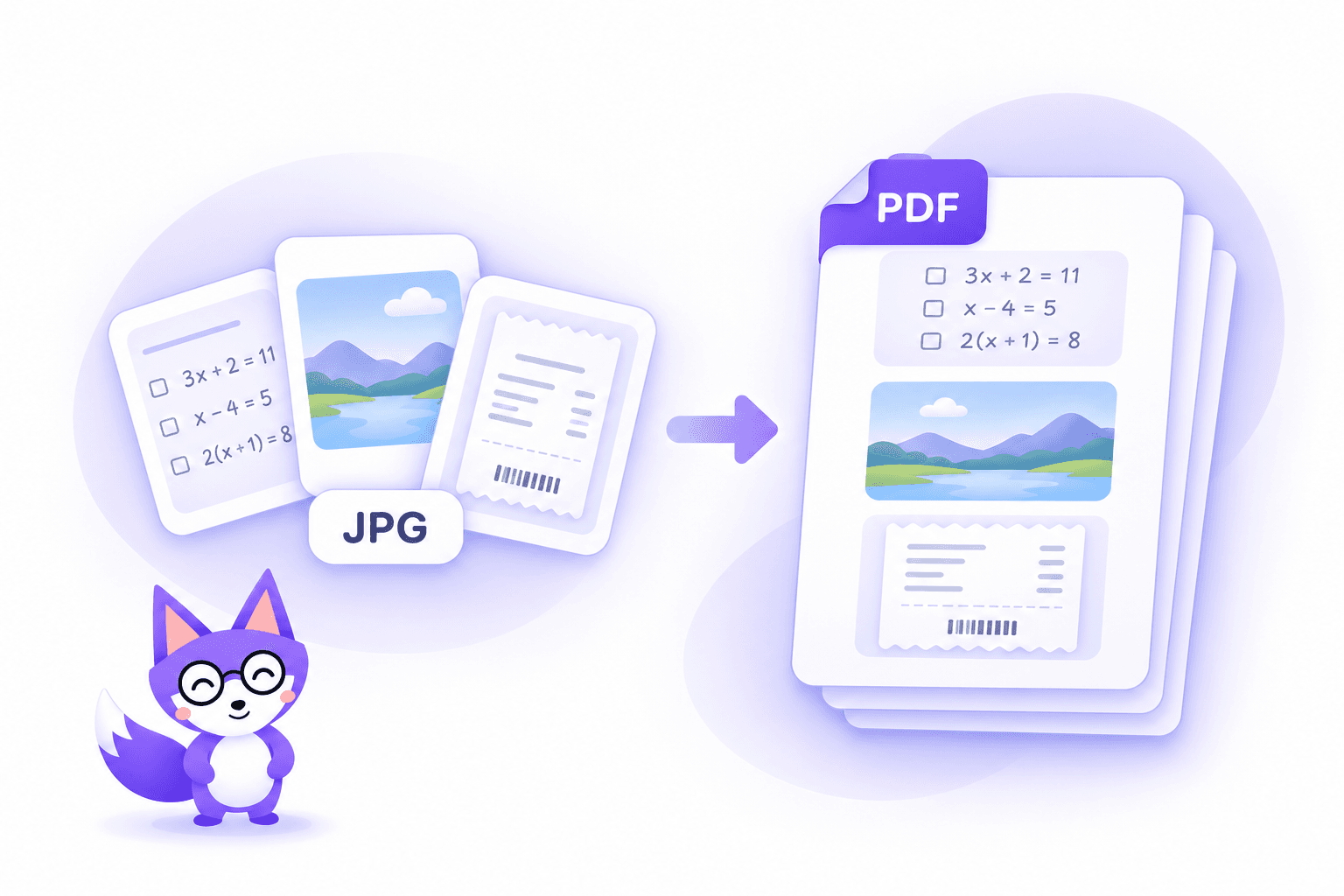
An image to PDF converter takes one or more image files and puts them into a PDF document. A single photo becomes a one-page PDF. Add several images and each one gets its own page in the same file.
This is useful when you have photos of a document but need to submit it as a PDF. For example, if you photographed five pages of handwritten work and your class portal accepts one attachment, you can turn those five photos into a single file and submit the whole assignment together.
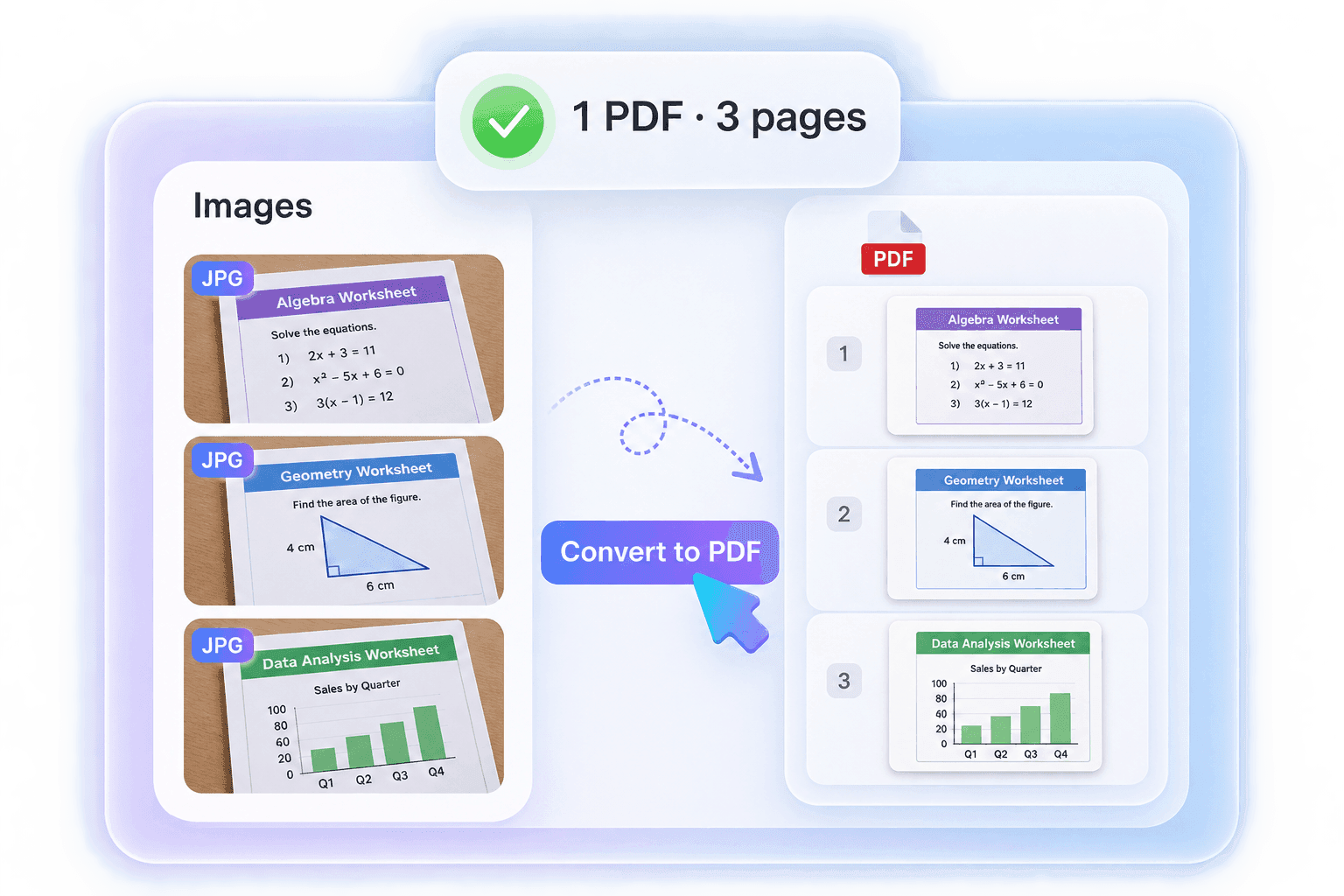
Turn a series of photos, scans, or screenshots into one document. If you’ve photographed several pages of a worksheet, add them to the converter in one batch. Each photo becomes a separate page, so the person opening your PDF can read through the whole set in one file.
You can also convert just one photo when you need to submit a receipt, a signed page, or a scan as a PDF.
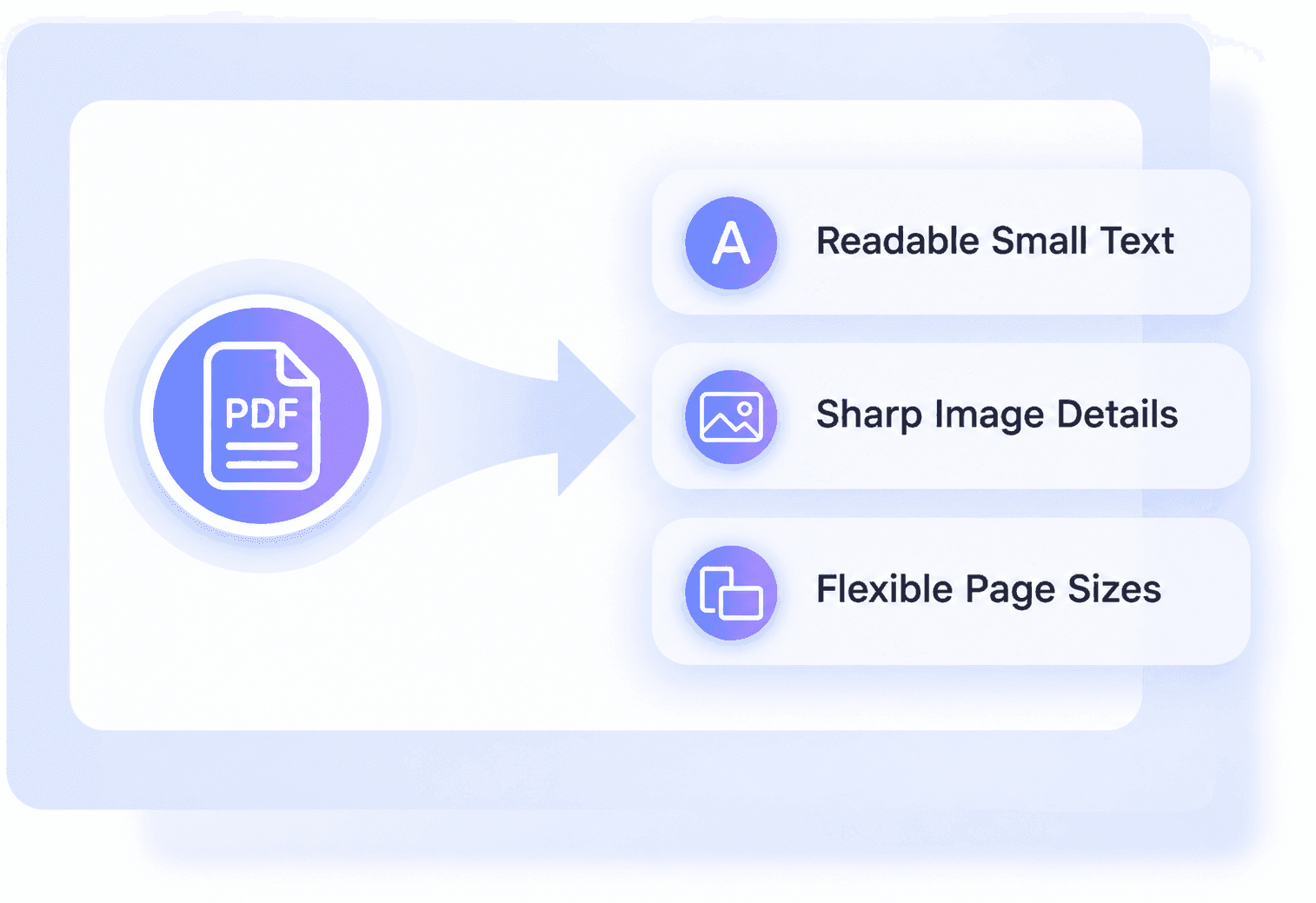
A receipt is only useful if you can read the total. A photo of a worksheet still needs to show the handwriting and diagrams. Start with a sharp JPG or JPEG to keep those details readable in the finished PDF.
You can combine portrait photos, wide screenshots, and images of different dimensions in the same document without choosing a fixed paper size such as A4 or US Letter. That’s useful when a set includes both camera photos and screenshots.
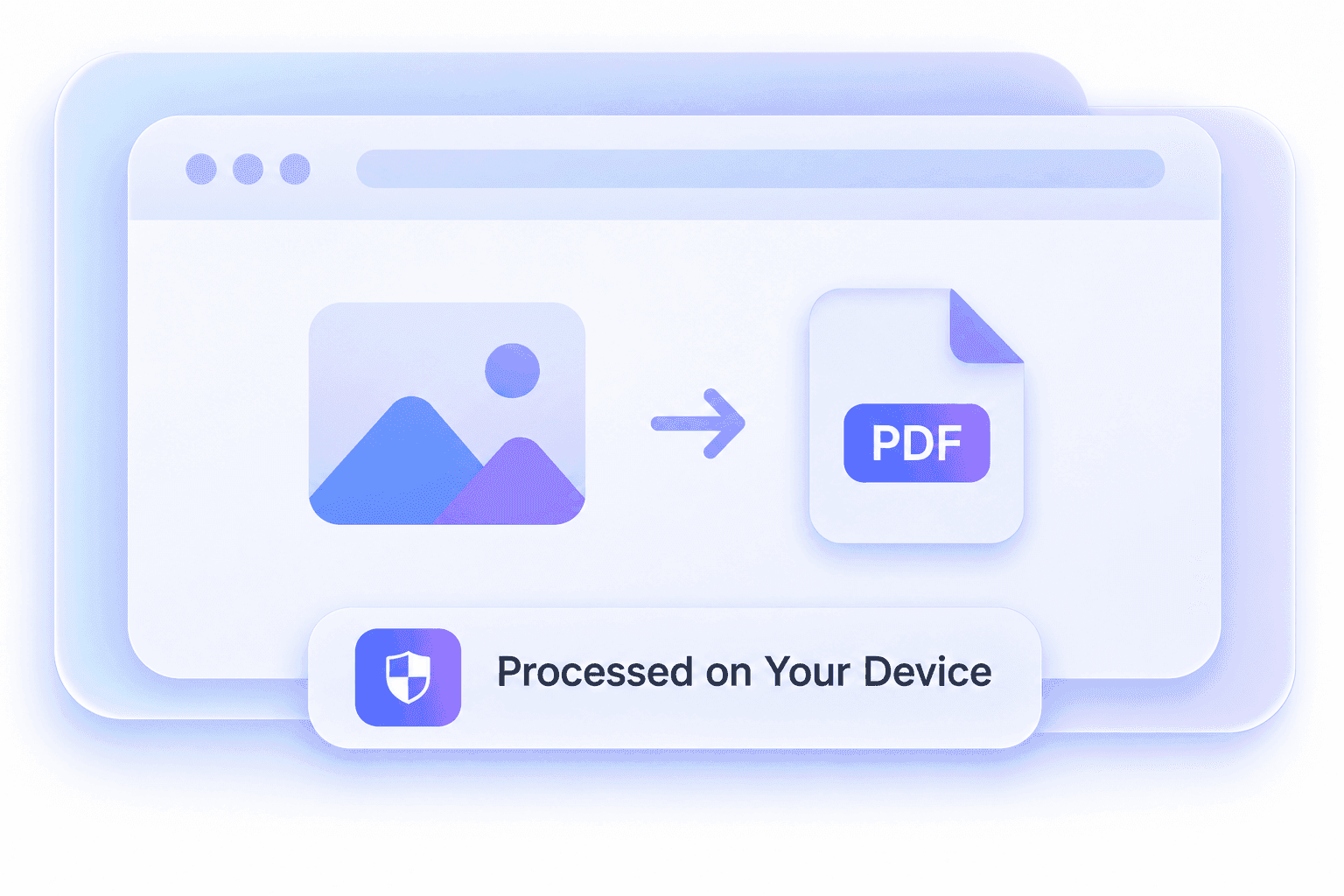
Lynote’s conversion engine reads your images and builds the PDF entirely in your browser. From the moment you select your files to the moment you download the finished PDF, the whole conversion happens on your device. This works whether you’re turning a photo of a signed form into a PDF or combining several receipts into one document. Your images and the finished PDF stay on your device, so you can choose when and with whom to share them.
 Step 1
. Choose Your Images
Click Choose Images to select JPG or JPEG files from your device, or drop them into the converter. Add one photo for a single-page PDF or select up to 20 images for a multi-page document. Each image can be up to 50 MB.

 Step 2
. Convert Your Images to PDF
Click Convert to PDF. Lynote processes your images in your browser and places each one on a separate page in the finished document. You can include portrait and landscape images in the same file.
 Step 3
. Download and Check Your PDF
Click Download PDF to save the file. Open it to make sure all the pages are included and the text is readable, then attach it to an email, upload it to a portal, or print it.

Click Choose Images to select JPG or JPEG files from your device, or drop them into the converter. Add one photo for a single-page PDF or select up to 20 images for a multi-page document. Each image can be up to 50 MB.
Click Convert to PDF. Lynote processes your images in your browser and places each one on a separate page in the finished document. You can include portrait and landscape images in the same file.
Click Download PDF to save the file. Open it to make sure all the pages are included and the text is readable, then attach it to an email, upload it to a portal, or print it.
Start with the images you already have and get a PDF you can use right away.
Start converting images to PDF for free. Try the converter with a single photo or a set of pages.
Choose your images and start converting without creating an account first.
Add up to 20 images at once. Turn a full set of scanned pages, assignment photos, or screenshots into one PDF.
Use JPG and JPEG files up to 50 MB each, including high-resolution phone photos and detailed scans.
Use portrait and landscape images in the same document. You can convert without selecting a fixed paper size.
Convert images to PDF while keeping photos natural, layouts intact, and fine details like handwriting and small print easy to read.
Photograph each page of your homework and combine the images into one PDF. Submit a complete problem set or worksheet as a single attachment in your class portal.
Put whiteboard photos, diagrams, and handwritten notes for one topic into a single document. Keep the key material together when you review for a quiz or share notes with a study group.
Turn photos of signed forms and supporting pages into one PDF for a portal that asks for a single file. Check that signatures and small print are readable before you submit it.
Group receipt photos from the same trip or project into one PDF. Keep dates, totals, and merchant names visible so the reviewer can check each receipt.
Bundle screenshots of a bug, a design review, or a product workflow into one PDF. Send the whole set to a teammate who needs to see each screen in context.
Combine product photos, mockups, or work samples into a PDF you can email to a client. Include close-ups and full-width images in the same document.
Choose a JPG or JPEG image, click Convert to PDF, and download the file. If you select one image, Lynote creates a single-page PDF.
Yes. Select up to 20 JPG or JPEG photos in one batch. Lynote creates one PDF with a separate page for each photo.
No. The converter works without a fixed paper size. You can add images of different sizes and orientations to the same PDF without choosing a paper preset. If you plan to print the document, check the paper size and scaling in your print settings.
The readability of the PDF depends on the original photo. If the writing or small print looks blurry in the image, retake the photo in better light before converting it.
The converter accepts JPG and JPEG files up to 50 MB each. If your file is a PNG, WebP, or HEIC image, save a JPG copy first and choose it in the converter.
Yes. Open Lynote in your mobile browser, tap Choose Images, and select JPG or JPEG photos from your device. Convert them and download the finished PDF.
No. The conversion runs locally in your browser. Your images stay on your device while the PDF is generated.
The converter places each image on a PDF page. If you need editable text from a photo or scan, use Lynote’s Image to Text tool to extract it.
A PDF made from several high-resolution photos can still be large. If an application or school portal has a file size limit, check the PDF after downloading it. You can use Lynote’s PDF Compressor if the finished file is over the limit.