How to Translate a PDF from Spanish to English (Step-by-Step Guide)
Struggling to understand a Spanish PDF? Whether it's a crucial research paper, a legal contract, or a captivating novel, language barriers can be frustrating. You're not alone. Many users face challenges like garbled formatting, inaccurate translations, and the inability to process scanned documents.

This guide cuts through the noise, presenting four of the most effective methods to translate a PDF from Spanish to English. We'll focus on solutions that prioritize preserving the original formatting, ensuring high accuracy, and handling even scanned PDFs with ease. What's the best way to get that Spanish PDF into readable English? Keep reading to find out.
When Do You Need to Translate a Spanish PDF to English?
The need to translate a PDF from Spanish to English arises in various scenarios, impacting people from all walks of life. Here are some common examples:
- Students: Academic research often involves consulting sources in multiple languages. Translating Spanish-language research papers, articles, and books is essential for students to gather comprehensive information for their studies.
- Professionals: In the business world, contracts, business proposals, and market research reports frequently originate from Spanish-speaking regions. Accurate translation is critical for international collaborations and informed decision-making. Imagine a deal hinging on the fine print of a contract you can't read!
- Content Creators: Bloggers, journalists, and other content creators may want to repurpose valuable information from Spanish sources for an English-speaking audience, expanding their reach and providing unique insights.
- Cross-Border Users: Individuals dealing with immigration processes, legal matters, or international adoptions often encounter essential documents in Spanish. Translating these documents accurately is crucial for navigating complex procedures and ensuring legal compliance.
Key Challenges When Translating Spanish PDFs
Translating a PDF from Spanish to English isn't always a smooth process. Several technical challenges can impact the quality and usability of the translated document:
- ❌ Format Loss: PDFs are designed to preserve formatting, but many translation methods strip away this crucial aspect. Tables, images, complex layouts, and specific fonts can be distorted or lost entirely during the translation process.
- ❌ Scanned PDF Recognition (OCR Issues): Scanned PDFs are essentially images of text, not actual text. Standard translation tools can't process these files without Optical Character Recognition (OCR) technology, which converts the image into editable text. Without OCR, the translation will fail.
- ❌ Machine Translation Inaccuracies (Contextual Nuances): While machine translation has improved significantly, it still struggles with nuances of language, idiomatic expressions, and context-dependent meanings. A literal translation can sometimes miss the intended meaning, leading to misunderstandings.
- ❌ Large File/Complex File Limitations: Many free translation tools impose limitations on file size or complexity. Large PDFs with numerous images or intricate layouts may exceed these limits, forcing you to find alternative solutions.
The part people miss is that a broken translation is worse than no translation. You're better off not guessing what the contract says.
Therefore, choosing the right translation method is paramount to overcome these challenges and ensure an accurate and usable result.
Method 1: Use an AI PDF Translator (Best Overall Solution)
AI-powered PDF translators have emerged as the leading solution for translating Spanish PDFs into English, offering a blend of accuracy, speed, and format preservation. These tools leverage advanced machine learning algorithms to understand the context and nuances of the Spanish language, delivering more accurate and natural-sounding translations.
Why This Is the Best Method
Here's why AI PDF translators stand out:
- Automatic Spanish Detection: AI translators automatically detect the source language (Spanish, in this case), eliminating the need for manual selection.
- One-Click Translation to English: With a single click, you can initiate the translation process, making it incredibly user-friendly.
- Original Format Preservation: AI translators are designed to retain the original formatting of your PDF, including fonts, images, tables, and layouts. This ensures that the translated document looks as close as possible to the original.
- Scanned PDF Support (OCR): Many AI translators incorporate OCR technology, allowing them to process scanned PDFs and extract the text for translation.
- Extensive Language Support: Leading AI translators support a wide range of languages, often exceeding 100, providing versatility for various translation needs.
Let's walk through an example using Lynote AI PDF Translator.
Step-by-Step Guide
Step 1. Upload Your Document
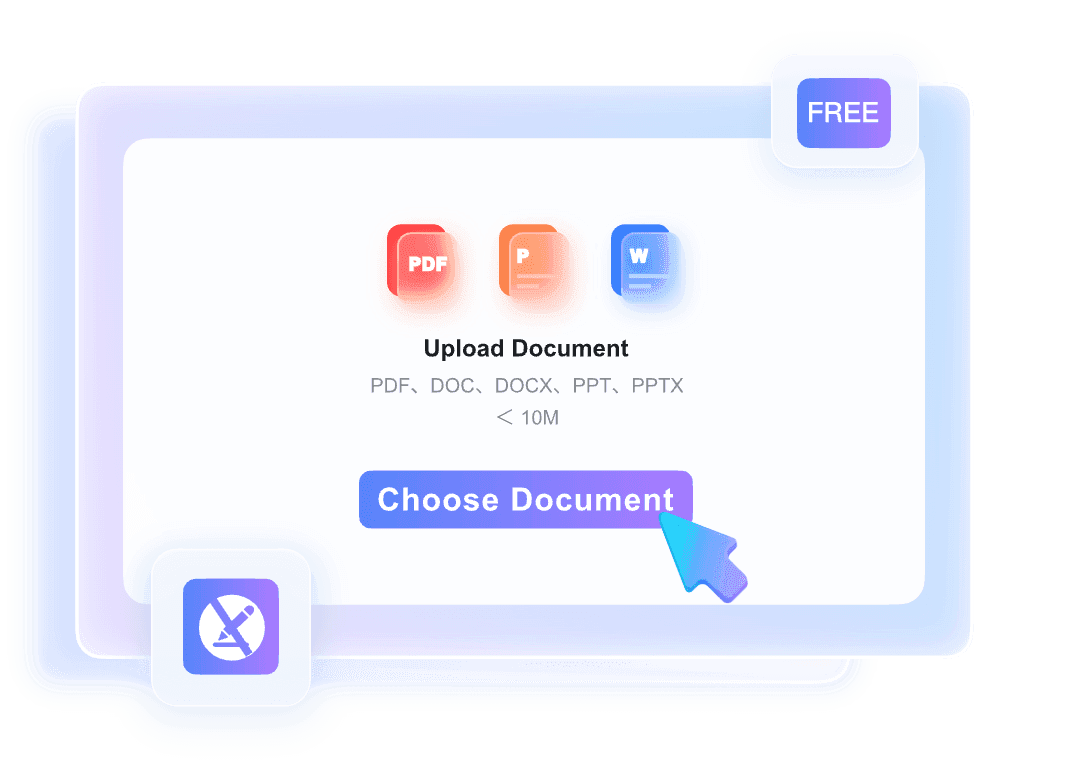
First, navigate to the Lynote Document Translator. You'll see a clear upload area. You can either drag and drop your Spanish PDF directly into this space, or click the "Choose Document" button to browse your computer's files. Lynote supports PDF, DOCX, PPTX, and XLSX formats, with a file size limit of 10 MB. The best part? No account creation or sign-up is required to use this tool.

Step 2. Select Languages and Translate
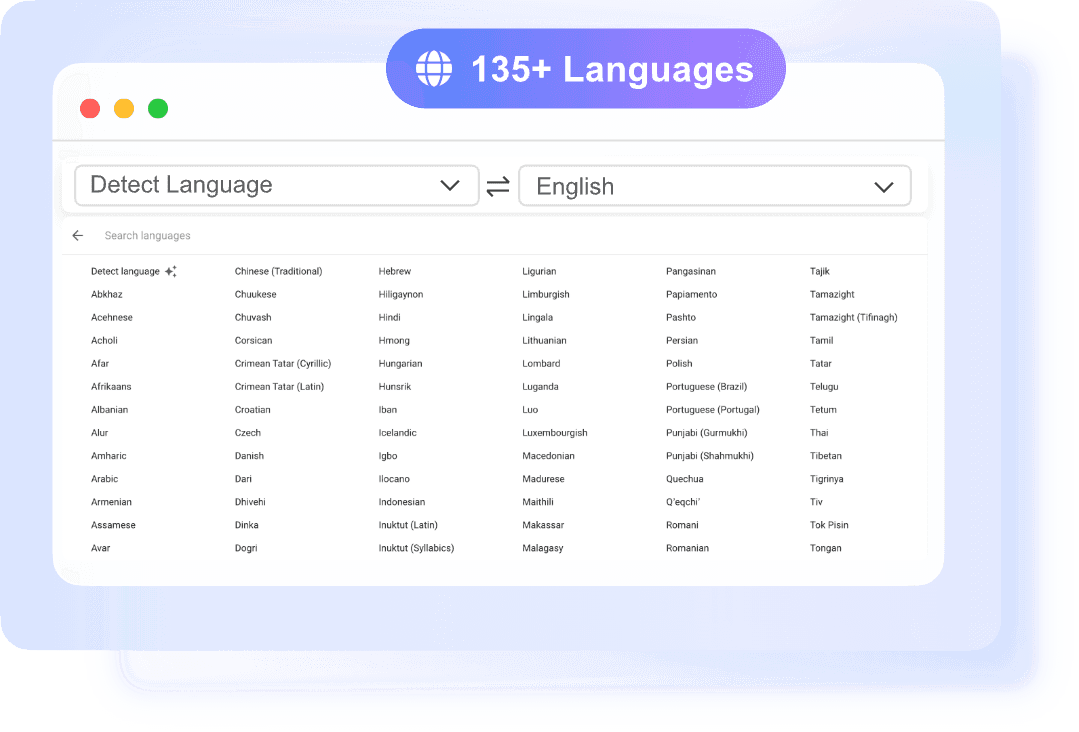
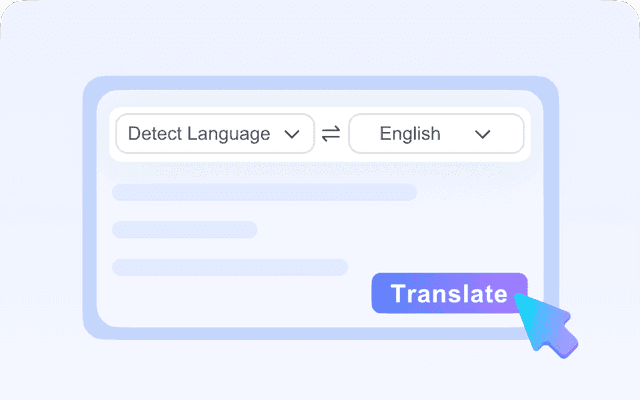
Once your document is uploaded, Lynote will automatically detect the source language – in this case, Spanish. Next, simply select "English" as your target language from the dropdown menu. Then, click the translate button to initiate the process. Lynote's Google-powered AI translation engine will begin processing your file.

Step 3. Download the Translated File
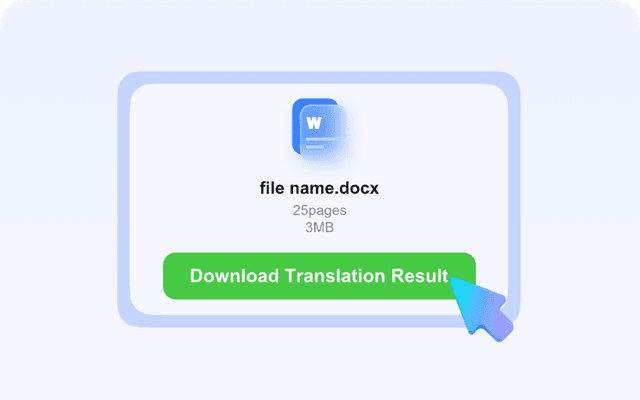
After a short processing time, your translated document will be ready for download. Click the download button, and you'll receive a translated PDF file with the original layout preserved. That means your fonts, images, tables, and alignment will remain intact, so the file is ready to use immediately.
Pros & Cons
Pros:
- Fast translation speed (often completed in seconds)
- Excellent format retention
- High accuracy due to AI-powered translation
Cons:
- Requires an internet connection
Method 2: Use Google Translate (Free but Limited)
Google Translate offers a free and readily accessible way to translate PDFs from Spanish to English. While it's a convenient option for quick translations, it comes with significant limitations.
How to Translate a Spanish PDF with Google Translate
- Go to the Google Translate website.
- Click on the "Documents" tab.
- Upload your Spanish PDF file.
- Ensure that the source language is set to "Spanish" (it usually detects automatically).
- Select "English" as the target language.
- Click the "Translate" button.
Limitations
- ❌ Format Loss: Google Translate is notorious for stripping away the original formatting of PDFs. Tables, images, and complex layouts are often distorted or removed entirely.
- ❌ File Size Limits: Google Translate imposes restrictions on the size of the PDF file you can upload. Large documents may exceed these limits.
- ❌ Poor Performance with Scanned PDFs: Google Translate struggles with scanned PDFs because it lacks built-in OCR capabilities. The translation will likely be inaccurate or fail altogether.
Google Translate is fine if you only need the general idea, but don't trust it for legal or academic work.
This method is best suited for translating simple, text-based PDFs where format retention is not a primary concern.

Method 3: Use Adobe Acrobat (Professional Option)
Adobe Acrobat, a leading PDF editing software, provides professional-grade translation capabilities through its built-in features and integration with translation services.
Steps to Translate a Spanish PDF in Adobe Acrobat
- Open your Spanish PDF in Adobe Acrobat.
- Use the built-in "Translate" feature (if available in your version) or copy the text to a separate document.
- Utilize a translation plugin or service integrated with Adobe Acrobat.
Pros & Cons
Pros:
- Professional-grade tool with advanced features
- Suitable for handling complex documents with intricate layouts
Cons:
- High cost associated with Adobe Acrobat subscriptions
- Can be complex to operate, requiring technical expertise
Method 4: Convert Spanish PDF to Word, Then Translate Manually
Another approach involves converting the PDF to a Word document and then using a translation tool to translate the Word file.
How It Works
- Convert the Spanish PDF to a Word document using a PDF converter tool.
- Open the Word document and use a translation tool (such as Microsoft Translator) to translate the text.
- Save the translated document as a PDF file.
Pros & Cons
Pros:
- Offers some flexibility in terms of translation tools
Cons:
- ❌ High risk of format corruption during the PDF-to-Word conversion process
- ❌ Cumbersome and time-consuming process involving multiple steps
Quick Verdict: Comparison Table of All Methods
Choosing the right method to translate your Spanish PDF hinges on your specific needs and priorities. Do you need perfect formatting? Is the document scanned? Here's a quick rundown to help you decide:
| Method | Accuracy | Format Retention | Ease of Use | Best For |
|---|---|---|---|---|
| AI PDF Translator | ⭐⭐⭐⭐⭐ | ⭐⭐⭐⭐⭐ | ⭐⭐⭐⭐⭐ | All users |
| Google Translate | ⭐⭐⭐ | ⭐ | ⭐⭐⭐⭐ | Simple files |
| Adobe Acrobat | ⭐⭐⭐⭐ | ⭐⭐⭐⭐ | ⭐⭐ | Professional users |
| Convert PDF to Word | ⭐⭐⭐ | ⭐⭐ | ⭐⭐ | Temporary solutions (not recommended) |
Scores are editorial heuristics, not measured benchmarks.
If you need a fast, accurate, and format-preserving translation, an AI PDF translator is your best bet. Google Translate is suitable for quick and dirty translations of simple text, while Adobe Acrobat offers professional-grade features at a premium price. Converting to Word should be avoided if possible due to the high risk of format loss.
How to Translate a Scanned Spanish PDF to English
A scanned PDF is essentially an image of a document, not a text-based file. That's why standard translation tools often fail to process them correctly. To translate a scanned Spanish PDF to English, you must use Optical Character Recognition (OCR) technology.
OCR software analyzes the image and converts the characters into editable text, which can then be translated.
The main reason AI-powered tools outperform basic translators for scanned PDFs is their integrated OCR.
For example, to translate a scanned PDF with Lynote, you can follow these steps:
- Open the Lynote Document Translator. Drag and drop your scanned PDF into the upload area, or click “Choose Document” to browse. Lynote's OCR will automatically detect the text in the image.
- The source language auto-detects by default. Choose "English" as your target language. Start the translation. The AI engine processes your file, using the OCR layer to understand the scanned text.
- Once processing is complete, download your translated document. Lynote preserves the original layout as much as possible, even with scanned documents.
Tips for Accurate Spanish to English PDF Translation
To ensure the most accurate and reliable translation, consider these tips:
- Use a Tool with OCR: If your PDF is scanned, choose a translation tool that supports Optical Character Recognition (OCR) technology.
- Maintain Original Formatting: Select a method that preserves the original formatting of your PDF to avoid distortions and ensure readability.
- Avoid Sentence-by-Sentence Translation: Translate entire paragraphs or sections at once to provide context and improve accuracy.
- Proofread Technical Terms: Pay close attention to technical terms and jargon, and consult specialized dictionaries or resources to ensure accurate translations.
- Translate Long Documents in Sections: Divide long documents into smaller sections to improve processing speed and reduce the risk of errors.
Frequently Asked Questions
Can I translate a Spanish PDF to English for free?
Yes, you can use free online translation tools like Google Translate. However, be aware of the limitations, such as format loss and file size restrictions.
How do I translate a scanned PDF from Spanish to English?
You need a translation tool with Optical Character Recognition (OCR) capabilities. These tools can convert the scanned image into editable text, which can then be translated.
What is the best tool to translate PDFs from Spanish to English?
AI-powered PDF translators, like Lynote, generally offer the best balance of accuracy, format retention, and ease of use.
Will the formatting stay the same after translation?
Only advanced translation tools are capable of preserving the original formatting of PDFs. Free tools often strip away formatting elements.
How long does it take to translate a PDF?
AI-powered tools can typically translate a PDF in a matter of seconds, depending on the size and complexity of the document.
Final Thoughts
Translating a PDF from Spanish to English doesn't have to be a headache. By understanding the challenges and exploring the available methods, you can choose the best approach for your specific needs. Whether you prioritize speed, accuracy, or format retention, there's a solution for you.
For most users, an AI-powered PDF translator offers the most comprehensive and user-friendly experience. Give Lynote AI Document Translator a try and experience the difference!