
Your Workspace
AI Note Taker: Turn Meetings, Videos, and PDFs Into Notes
Create Note
Import your materials, get AI-powered notes instantly, and study more efficiently.
Drop files or browse
Add study materials to enable the AI to extract and structure content.
Example



Why Choose Our AI Note Taker?

Everything in One Workspace
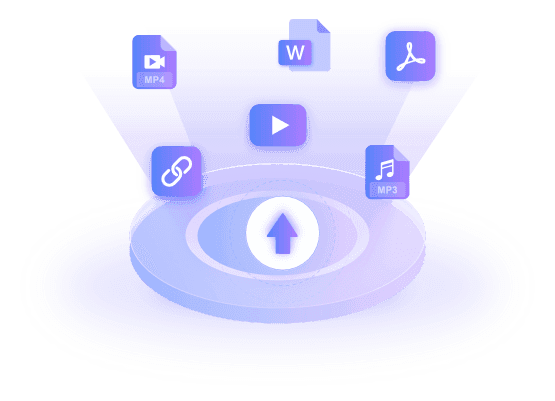
Keep documents, images, recordings, videos, YouTube links, and webpages together in one workspace instead of scattering them across different apps.

Clear, Structured Notes
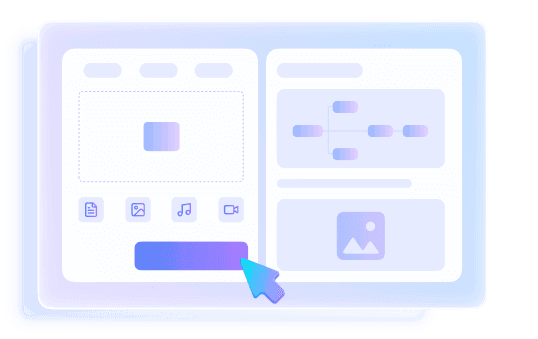
Long source? Lynote turns it into AI notes with clear headings, useful bullet points, and sections that are easy to scan.

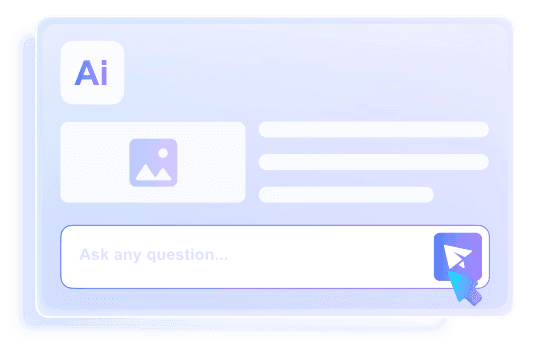
Source-Grounded Q&A
Something unclear? Ask a follow-up and get an answer tied to the source, without reading the whole thing again.

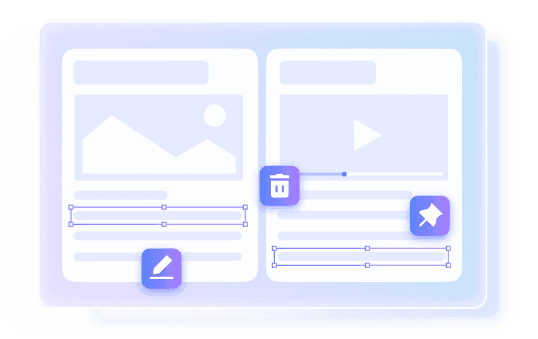
Edit Without Starting Over
Fix a detail, add what only you know, or move a section around—the note stays fully editable.

Visual Context Included
Images, timestamps, and other visual references stay close to the written takeaways they support.

Ready for Reuse
Reuse a finished AI note as revision material, a shared brief, an export, or a set of flashcards.

Built From Your Sources
Each AI note is built from your sources—the file, recording, or link you supplied—so it stays focused on the original material.

Private by Design
Your files and notes are processed securely, kept private, and never used to train AI models.
Turn Meeting Recordings Into Actionable Notes
Convert Lectures and Classes Into Study Notes
Build Research Notes From Interviews and PDFs
Take Notes From Videos, Podcasts, and Web Content
How to Use the AI Note Taker
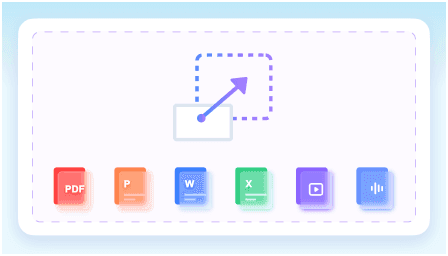
Step 1. Add a Source to Your Workspace
Start with the material you actually use: upload a document, image, audio file, or video, or paste a YouTube or webpage URL.
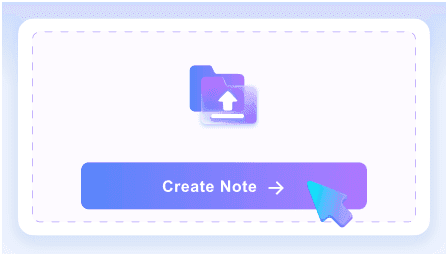
Step 2. Create and Organize AI Notes
Choose Create Note. Lynote pulls out the key ideas and arranges them into sections you can scan.
Step 3. Edit, Ask, and Reuse
Then make the AI notes yours—correct details, add context, ask questions tied to the source, and reuse the result for sharing, export, review, or flashcards.
Who Is This AI Note Taker For?

College & University Students
Build notes each week from lectures, readings, slide decks, and course videos, then bring them back when it is time to revise or make flashcards.

Researchers
Keep papers, recorded interviews, webpages, and research media in source-based notes that are easier to find again later.

Educators
Make editable notes from lesson materials and recorded explanations, whether you are preparing for class, creating a handout, or helping students review.

Video & Podcast Creators
Save references, quotes, and rough ideas from videos, podcasts, articles, and webpages before you start shaping the next piece.

Knowledge Workers
Pull the useful points from reports, webinars, training material, and uploaded meeting recordings when you need to catch up quickly.
Project Teams
Use the AI note taker for teams to create consistent notes from shared files and meeting recordings, then export or share the context with whoever needs it.
How People Use Lynote for AI Note Taking

Graduate Student

“I incorporate my daily reading, lecture videos, and recorded lectures into the same process of taking notes. Being able to edit the initial draft and ask questions at the end helps when I’m revisiting my notes.”

UX Researcher
“Once I upload an audio file from an interview, I can look over my structured notes and ask questions about specific details instead of listening to the full conversation again. I still double-check critical quotes against the source.”

High School Teacher
“I have an editable version to begin with after going through course materials or recorded lectures. I can insert my own examples before creating a study guide for my students.”

Content Strategist
“Videos, podcast episodes, and research links are all in one spot. I use the AI notes to gather my best ideas before drafting an outline.”

Project Coordinator
“We upload a meeting recording or project docs and tidy up the note before distributing it. It gives us a consistent reference without trying to replace the actual review.”

Independent Learner
“The real value comes after the note is created. I can edit individual sections in my own words, ask for another explanation, and then turn the finished material into flashcards.”
AI Note Taker FAQs
Wondering how Lynote works, what it can take notes from, or whether the free AI note-taking app fits your routine? Start here.
An AI note taker uses artificial intelligence to create and store notes. With Lynote, you bring your own document, image, audio file, video, YouTube link, or webpage. The AI extracts key insights, assembles them into a formatted note, and lets you edit, question, and repurpose the content. You keep oversight and refine the result as needed.
An AI note generator, sometimes called an AI notes maker, is usually used to create one note from one source. The best AI note taker covers the wider process: collecting multiple sources, keeping notes in a workspace, editing them, asking follow-up questions, and reusing the material for study, collaboration, or flashcards.
You can begin with Lynote's AI note taker at no cost. Sign up to store and sync notes in your workspace, then use the free AI allowance provided. Usage limits may change, so check your account or the latest pricing information if you need higher-volume note taking.
Download or export a meeting recording from Zoom, Google Meet, Microsoft Teams, or another platform and upload the compatible audio or video file to Lynote. Lynote does not join your live call; you add the recording afterward. It converts the file into organized notes you can read, revise, export, and share after the meeting.
Lynote supports over 20 formats across documents, images, audio, and video, as well as YouTube and website URLs. Examples include PDF, DOCX, TXT, PPTX, XLSX, PNG, JPG, MP3, WAV, M4A, MP4, and MOV. The quality of the output may vary with the source and the quality of the file.
Once the note is ready, skim it before doing anything else. Fix details, add your own take, move sections around, or ask a question that can be answered from the source. From there, you can export it, share it, or turn the right material into flashcards. Keeping the note editable gives you room to check important points before you rely on it.
The result depends on how clear, complete, and well-produced the original material is. AI notes make long content easier to navigate, but they can still miss context, technical nuance, unclear audio, or details hidden in complex visuals. Compare important facts, quotations, numbers, and specialized terms with the source, then correct or add context in the editable note.
Your files and notes are processed securely and are not used to train AI models. Creating an account lets you save and sync notes. You should still be careful when uploading confidential information, regulated material, or content that belongs to someone else.