 Add to Chrome - It's Free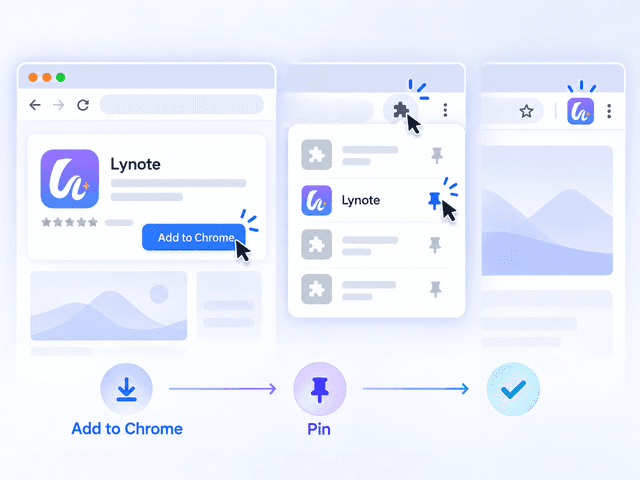
Step 1
Step 1. Install and Pin
Add Lynote from the Chrome Web Store, then pin it to your toolbar so it stays one click away.


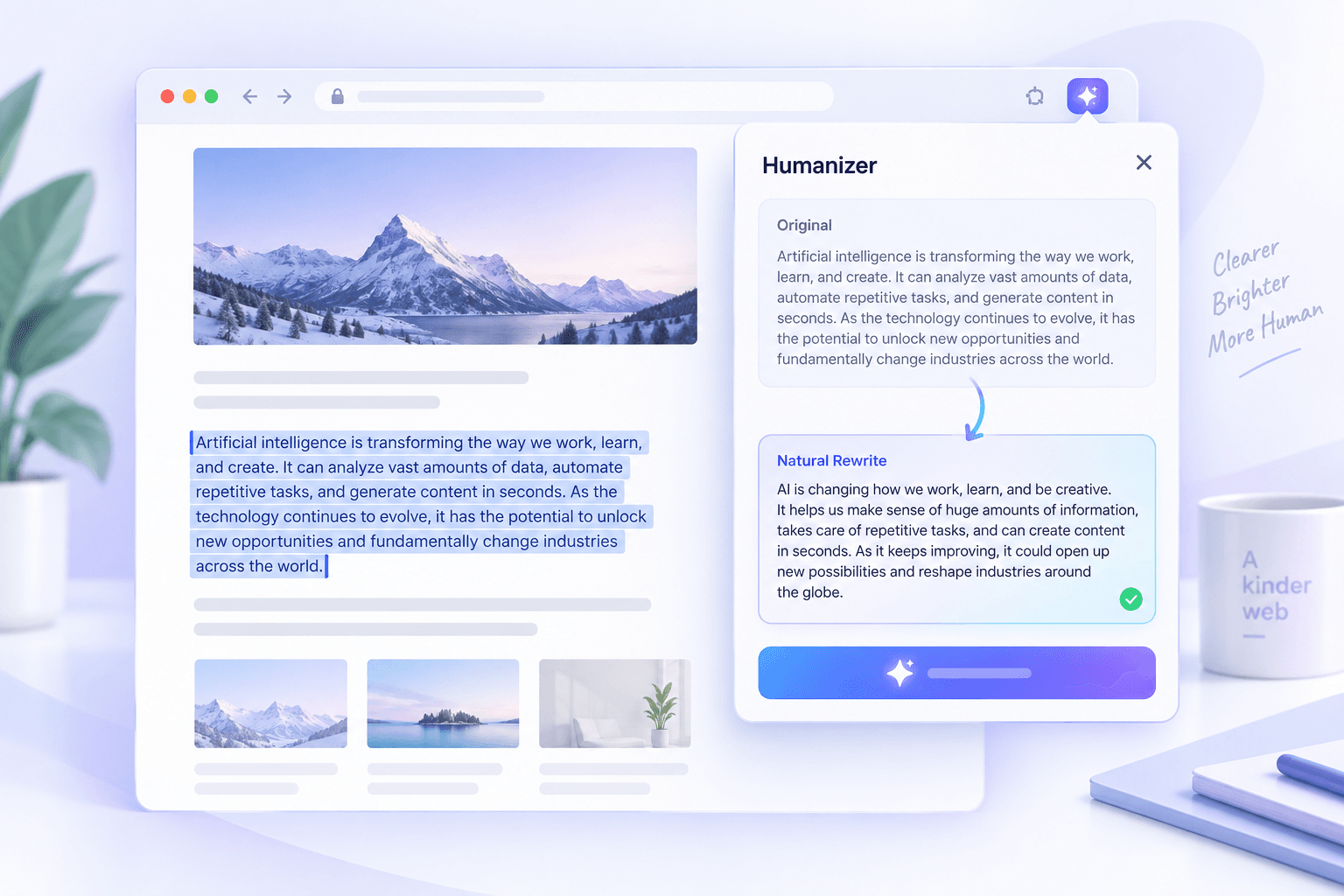
Select AI-written text on any page and turn it into natural writing in seconds. The AI humanizer extension improves the phrasing while keeping your original point in view.




Try the humanize AI plugin for free before choosing a paid plan for more consistent use.

Install the extension, pin it, and begin humanizing selected text without a registration wall before your first rewrite.

Highlight the text and choose Humanizer. There are no complicated settings to configure before you get a useful rewrite.

Humanize drafts in more than 80 languages, with phrasing and tone adapted to the language you are writing in.

The extension changes how a passage reads while aiming to retain its facts, message, and intent. Review the result before publishing or submitting it.

Use the same installation to humanize, detect, and translate selected text without managing separate browser tools.
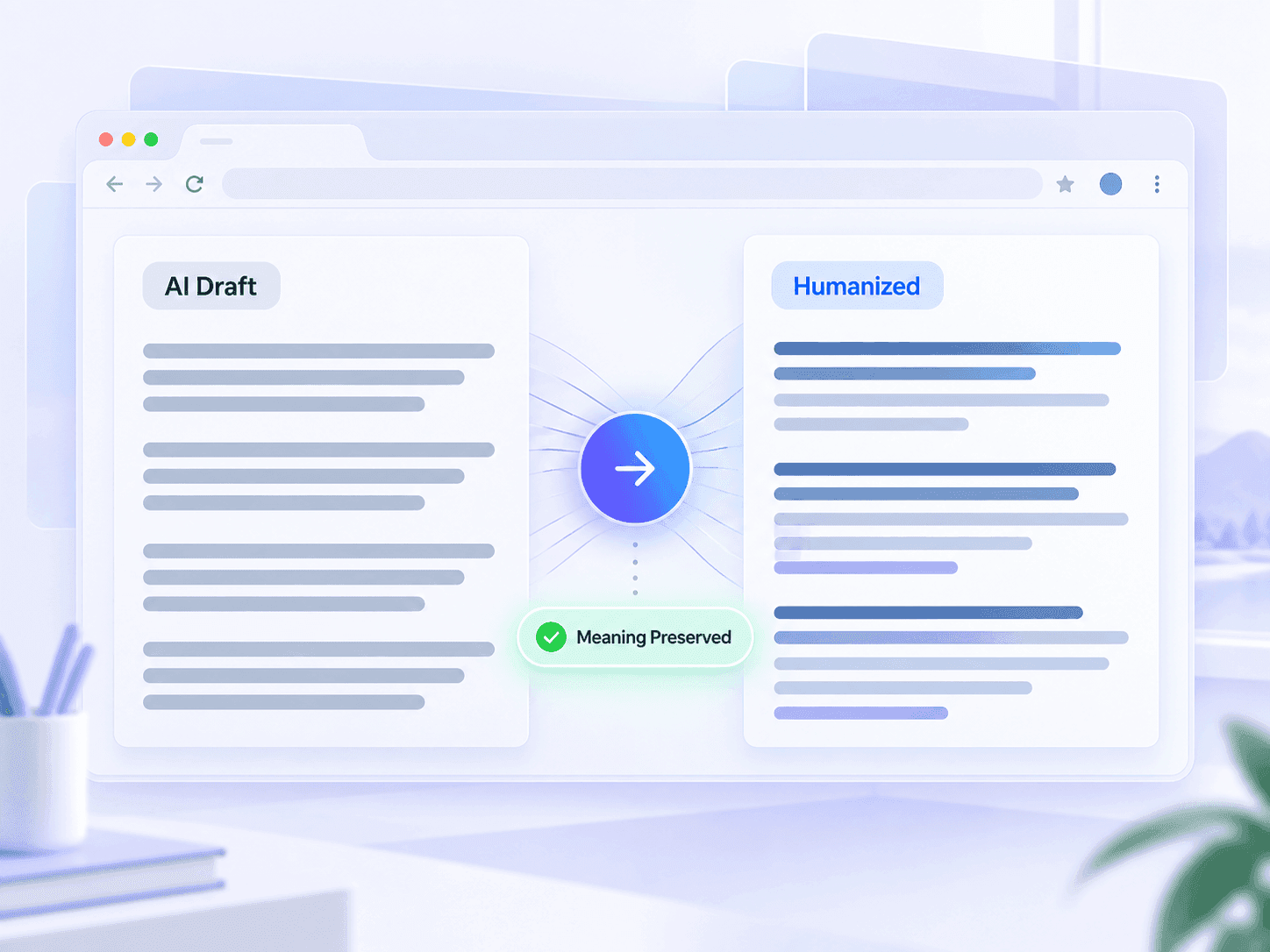
AI drafts can repeat the same sentence patterns even when the information is correct. The AI humanizer plugin rewrites at sentence and paragraph level, helping the result read more naturally than a simple synonym swap while retaining the intended message.
Add Lynote from the Chrome Web Store, then pin it to your toolbar so it stays one click away.
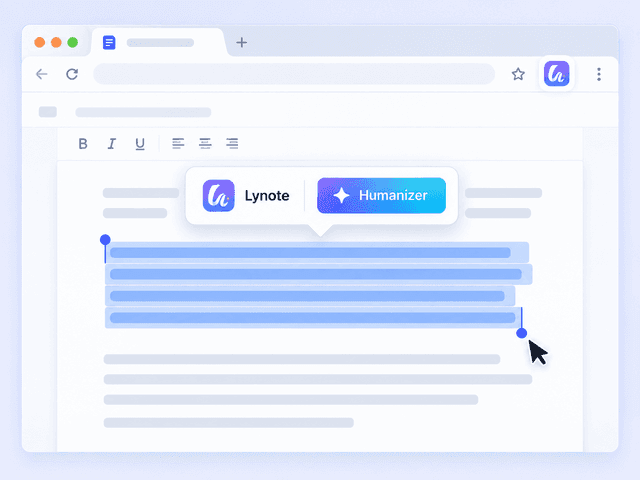
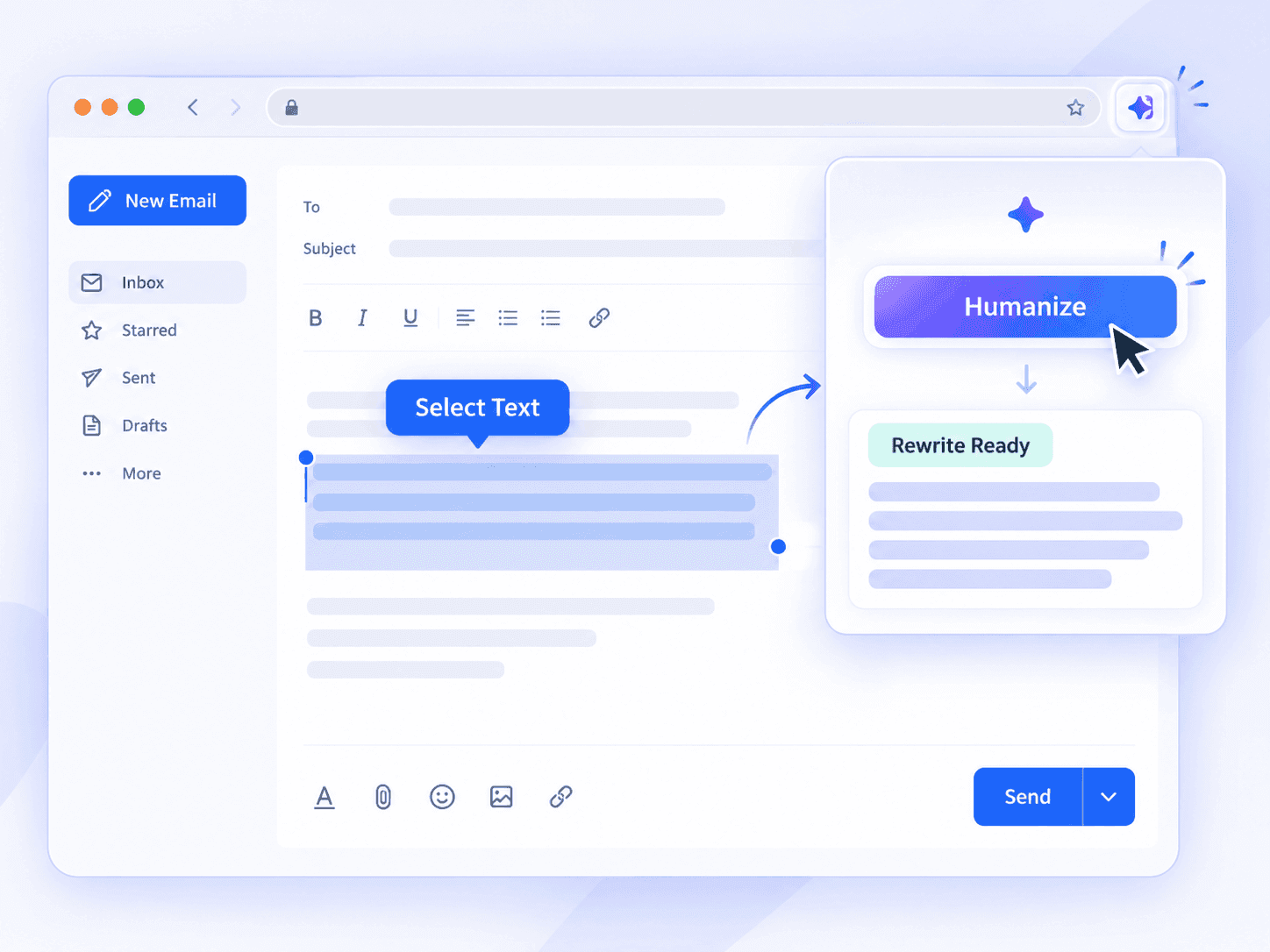
Highlight the AI-assisted text you want rewritten on any webpage, such as an email, essay, product description, or CMS draft.
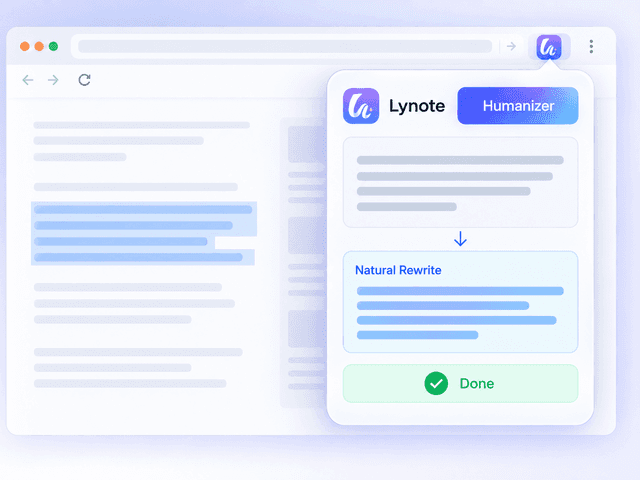
Choose Humanizer and review the natural rewrite, checking that your meaning and any required keywords remain intact.

Humanize AI-assisted blog drafts while keeping target terms visible and the copy easy to read.

Turn AI-assisted study notes and rough drafts into more natural writing, then review the result before submitting.

Rewrite social captions and ad drafts so they better match the intended brand voice instead of sounding templated.

Polish AI drafts for different clients without moving every passage into a separate website first.

Improve the flow of AI-assisted English drafts without losing the point you intended to make.

Refine AI-assisted resumes and cover letters so each application reads more personally and specifically.

Blogger

I run every AI-assisted draft through this before it goes live. It keeps my target terms in view and makes the phrasing much easier to edit.

Freelance Writer
I juggle several client voices at once. Selecting text where I am already writing is the part that actually saves me time.

Graduate Student
It cleaned up my thesis draft without losing the argument I was making. I still reviewed the result, but the first pass was much faster.

Marketing Coordinator
It is useful for a first pass on ad copy. I still read everything before it ships, but it cuts down the mechanical editing.

Non-Native English Speaker
It helps my English drafts sound more natural without losing what I meant to say. The workflow is simple and quick.

Job Seeker
My cover letters stopped sounding like copies of the same template. It is easy to rewrite a selected paragraph for each application.
Using the Lynote AI humanizer extension in Chrome.
You can use limited free access to try the extension. Paid plans are available if you need more consistent use.
Yes. The humanizer supports more than 80 languages and adapts its phrasing to the language you are writing in.
The rewrite is designed to retain your facts, message, and intent while changing the phrasing. Always review the result before publishing or submitting it.
The extension aims to keep important terms while rewriting the surrounding language. Review the result to confirm every required keyword remains where you need it.
No. The same installation also includes an AI detector and a translator for selected text.
Install and pin Lynote, select the text you want to rewrite on a webpage, then choose Humanizer to receive a natural rewrite.
It works on webpages where Chrome lets you select text, including email editors, CMS platforms, school portals, listings, and general web pages.
No account is required to install the extension and try the select-and-humanize workflow.