How to Make Notes from YouTube Videos Fast (AI & Manual Methods)

If you are trying to figure out how to make notes from YouTube video content efficiently, you likely know the struggle: pausing every five seconds to type, rewinding to catch a missed word, and ending up with a messy document.

Whether you are a student crunching for an exam or a creator repurposing content, the "pause-and-type" method is obsolete. Today, you can automate the heavy lifting using AI tools, browser extensions, or even YouTube's hidden features.
Quick Verdict: What is the Best Way to Take Notes?
If you want to save hours of manual work, the right method depends on your workflow. Do you need a full transcript instantly, or do you want to highlight specific quotes while watching?
Here is a quick comparison of the three most effective methods.
| Method | Best For... | Speed | Cost | Ease of Use |
|---|---|---|---|---|
| Online AI Tools (Lynote) | Instant Study Notes. Getting the full, clean text with timestamps immediately without installing software. | Fastest | Free | High (No Sign-up) |
| Browser Extensions | Active Research. Highlighting specific quotes and saving snippets while you watch the video. | Medium | Freemium | Medium (Requires Install) |
| Manual / Native | Quick Checks. Finding a single sentence or checking context without using third-party tools. | Slow | Free | Low (Messy Formatting) |
Which Method Should You Choose?
- Choose Online AI Tools (Lynote) if: You need the entire video converted to text immediately. This is the best option if you need to feed a transcript into ChatGPT or study offline. Since it is web-based, there is no software to install—you simply paste the URL and get the text.
- Choose Browser Extensions if: You prefer to "watch and collect." If your goal is to curate a list of specific insights rather than digest the whole video, an extension that sits in your sidebar is ideal.
- Choose the Native Method if: You are on a public computer or restricted network where you cannot access external sites. It is clunky, but it works for occasional use.
Part 1: The Best Online Tools (Instant & No Install)
For most users, speed is the priority. You don't want to install a browser extension that slows down Chrome, and you certainly don't want to create an account just to grab text from one video.
Web-based tools are the superior choice here. They work on any operating system (Windows, Mac, iOS, Android) because they run entirely in your browser.
The Champion: Lynote YouTube Transcript Generator

Lynote stands out because it removes the friction. Unlike other tools that hide features behind paywalls or require email registration, Lynote is designed for immediate use.
Here is the fastest workflow to turn a video into notes:
- Copy the URL: Open the YouTube video you want to study. Highlight the link in the address bar and press Ctrl+C (Cmd+C on Mac).
- Paste & Generate: Go to Lynote.ai, paste the link into the input box, and click "Get Transcript." There is no sign-up required and the tool is 100% free.
- Review with Timestamps: The AI instantly extracts the spoken content. Crucially, it aligns the text with precise timestamps. This allows you to verify quotes or jump back to specific moments in the video if the context is unclear.
- Export Your Notes: Once generated, you have two options:
- One-Click Copy: Hit the copy button to paste the clean text directly into Notion, Obsidian, or Google Docs.
- Download TXT: Save the file locally for offline study.

Note on Mobile: Because this is a website, you can use this method on your smartphone just as easily as your desktop. It is ideal for students or commuters who need to grab notes on the go.
Alternative Options
If Lynote doesn't fit your specific needs, there are other tools available, though they often come with more friction (like sign-ups or installation).
- Tactiq: Great for live meetings (Zoom/Google Meet) but requires a browser extension and an account. The free tier often limits how many transcripts you can save.
- Generic Subtitle Downloaders (e.g., DownSub): Good for downloading raw subtitle files (.SRT) for video editing, but the websites are often cluttered with ads and aren't designed for reading text.
Part 2: The Best Browser Extensions (For Power Users)
If you spend hours every day researching on YouTube, switching back and forth between tabs can kill your momentum. Browser extensions solve this by embedding note-taking tools directly into the YouTube interface.
Top Recommendation: Glasp (Social Web Highlighter)

Glasp treats YouTube transcripts like a digital book. Instead of just copying a wall of text, you can "highlight" specific sentences in the transcript sidebar.
Here is how to use it to build a library of video notes:
- Install the Extension: Go to the Chrome or Edge Web Store and install Glasp. You will need to create a quick account to save your highlights.
- Open Your Video: Navigate to any YouTube video. You will see a new Glasp Sidebar appear on the right side of the screen.
- Highlight to Note: As the video plays, the transcript in the sidebar will scroll. Click and drag your cursor over any sentence to highlight it. Glasp saves that specific quote and the timestamp to your profile.
Alternative Options

If highlighting isn't your style and you prefer having a conversation with the content, consider an AI automation agent.
- Harpa AI: This integrates ChatGPT and Claude directly into your browser. You can open Harpa while watching a video and ask it to "Summarize this video" or "Extract key takeaways."
- Trade-off: It is a heavier extension that can slow down your browser performance on older computers.
Part 3: The Official Method (YouTube Native Feature)


If you are on a public computer or cannot access third-party tools, you can use YouTube’s built-in transcript feature. This method requires no external software, as it pulls the data directly from the creator’s subtitles.
While it is the most accessible method, be aware that it is designed for reading along with the video, not necessarily for exporting notes.
How to Use YouTube's "Show Transcript"
- Open the Description: Go to the video page and click "…more" in the description box below the video title.
- Locate the Transcript Button: Scroll down to the bottom of the description text. Click the button labeled "Show transcript."
- View the Sidebar: A sidebar will open displaying the full text synced with the audio.
- Toggle Timestamps: By default, every line of text includes a timestamp. If you want to hide these for easier reading, click the three vertical dots in the top-right corner of the transcript box and select "Toggle timestamps."
The Copy-Paste Problem:
While this method is free, copying the text is frustrating. If you highlight the text in the sidebar and paste it into a document, you typically lose all formatting. You end up with a "wall of text" filled with hard line breaks that are difficult to read. For clean, formatted text, the Lynote method (Part 1) is significantly faster.
Part 4: The "AI Summary" Workflow (Using ChatGPT/Claude)
Getting the raw text is only half the battle. If you are dealing with a 2-hour lecture or a dense webinar, you don't just need a transcript—you need a summary.
By combining a transcript tool with a Large Language Model (LLM) like ChatGPT, Claude, or Gemini, you can turn a video into a structured study guide in seconds.
Turning Transcripts into Study Notes with AI
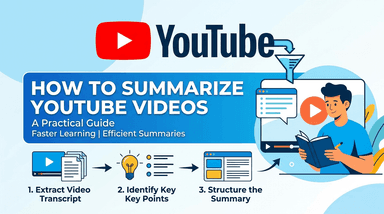
1. Extract Clean Text (The Foundation)
To get the best results from an AI, you need clean input data. Copying directly from YouTube’s native interface often results in broken line breaks that waste your AI’s "token" limit.
- Go to Lynote.ai.
- Generate the transcript.
- Click "Copy Transcript" (without timestamps) to get a clean block of text.
2. The "Super-Prompt" for Summarization
Open your preferred AI tool (ChatGPT-4o and Claude 3.5 Sonnet are currently the best for this). Paste your transcript text along with the following prompt:
"I am pasting a transcript from a YouTube video below. Please act as an expert researcher and process this text into a structured summary.
Output Requirements:
- Executive Summary: A 3-sentence overview of the video's main argument.
- Key Takeaways: Bullet points of the most critical concepts (bold the key terms).
- Actionable Steps: If the video offers advice, list step-by-step instructions.
- Notable Quotes: Extract 3 direct quotes that capture the essence of the talk.
[PASTE TRANSCRIPT HERE]"
3. Refine and Format
Once the AI generates the summary, review it for accuracy. If a quote looks too perfect, use the Ctrl+F function on your original Lynote transcript to verify the speaker actually said it.
Comparison Guide: Which Method Fits Your Workflow?
Choosing the right method depends entirely on your immediate goal. Are you looking for a quick quote, a deep research session, or a full transcript to feed into an AI summarizer?
Quick Verdict Matrix
| Feature | Lynote (Online Tool) | Browser Extensions | YouTube Native |
|---|---|---|---|
| Primary Use Case | Full Study Notes & AI Summaries | Highlighting specific quotes | Quick fact-checking |
| Speed | Instant (Copy/Paste) | Fast (Once installed) | Slow (Manual scrolling) |
| Requires Login? | No (100% Anonymous) | Yes (Usually requires account) | Yes (Google Account) |
| Formatted Text? | Yes (Clean Line Breaks) | Varies (Often plain text) | No (Messy timestamps) |
| Mobile Friendly? | Yes (Works in Browser) | No (Desktop only) | Yes (App feature) |
| Installation? | None | Required | None |
Critical Pro Tips for Content Extraction
Extracting text from video is a massive time-saver, but relying blindly on automation can lead to errors. Follow these best practices to ensure your notes are accurate and safe.
Verify AI Accuracy Against Audio
Speech-to-text technology is advanced, but not perfect. AI often struggles with:
- Homophones: Words that sound alike but have different meanings (e.g., "their" vs. "there").
- Technical Jargon: Industry-specific acronyms.
- Accents: Multiple speakers talking at once can confuse the transcription engine.
The Rule: If you are using a quote for academic research or a professional report, always listen to the source audio at the specific timestamp to verify the text matches exactly.
Prioritize Web-Based Tools for Privacy
Be careful when downloading desktop software (.exe files) specifically for downloading subtitles. Many "free" desktop converters come bundled with unwanted software.
Tools that run in your browser (like Lynote) operate within a restricted environment ("sandboxing"), preventing them from accessing your local hard drive or personal files. Plus, there is no software to uninstall later.
A Note on Copyright
Extracting a transcript does not give you ownership of the creator's intellectual property. The text is still subject to copyright laws.
If you plan to repurpose these notes for public content (such as a blog post or LinkedIn article):
- Add Value: Ensure you are adding your own analysis or commentary.
- Cite Sources: Always credit the original video creator and provide a link back to the video.
- Don't Plagiarize: Do not copy-paste large blocks of the transcript and publish them as your own work.
FAQ: Making Notes from YouTube
Can I get a transcript from a video that doesn't have CC?
It depends. Most tools rely on the caption data provided by YouTube.
- Auto-Generated Captions: Yes. If YouTube has automatically generated captions (which it does for most videos), extraction tools can pull this text.
- Disabled Captions: No. If the content creator has explicitly turned off all captions, or if the video is silent, there is no text data to extract.
How do I convert a YouTube video to Word or Google Docs?
The fastest method is to extract the clean text first.
- Extract: Paste the video URL into Lynote to generate the full transcript.
- Copy: Click the "Copy Text" button (this ensures you get clean paragraphs without weird line breaks).
- Paste: Open a blank Word document or Google Doc and paste (Ctrl+V or Cmd+V).
Is there a limit on video length for extraction?
With the native YouTube interface, scrolling through a transcript for a 3-hour podcast is slow and laggy. However, dedicated tools like Lynote are designed to handle long-form content efficiently. Whether it is a 10-minute tutorial or a 4-hour lecture, the tool processes the data instantly.
Conclusion
Taking notes from video content shouldn't feel like a chore. While the YouTube Native Transcript feature is a useful backup for quick checks, relying on it for serious study often leads to frustration with poor formatting.
To truly save time and focus on learning rather than typing, dedicated automation tools are the standard. They bridge the gap between watching a video and actually retaining the information.
If you want the fastest route from "Video" to "Study Notes," start with Lynote. It removes the friction of sign-ups and installations, giving you clean, timestamped text in seconds.
Ready to save hours of manual typing?

Written by Janet L. Harris
AI Writing Specialist
Janet reviews AI detectors and humanization tools, with a focus on accuracy, limitations, and responsible use. View all articles →