How to Download YouTube Playlist to MP3 (Free & No Install)

Downloading a single song from YouTube is easy, but what happens when you want an entire album, a full podcast series, or a curated list of "Lo-Fi Beats"? Clicking "download" fifty times in a row is nobody's idea of fun. You need a way to automate the process.
If you are looking for how to download YouTube playlist to mp3 efficiently, you generally have three paths: online tools, desktop software, or the command line. This guide covers the safest, fastest methods for each, starting with the easiest solution that requires no installation.

The Quick Verdict: Which Method Should You Choose?
It comes down to two things: how many songs you need to convert, and whether you need actual MP3 files or just offline playback.
Here is the fast breakdown to help you decide immediately:
| Method | Best For... | Key Advantage | Key Limitation |
|---|---|---|---|
| Online Tools (Lynote) | Most Users. Quick conversions of playlists (10–50 songs). | Zero setup. Works instantly in your browser. Completely free. | Dependent on internet speed; browsers may struggle with massive (100+) lists. |
| Desktop Software | Archivists. Downloading massive lists (100+ items) or 4K video. | Stability. Can process huge queues in the background. | Requires installation. Often restricts features unless you pay. |
| YouTube Premium | Mobile Streamers. Legal listening inside the YouTube app. | Official & Easy. One-tap downloads within the app. | No MP3s. You cannot move files to other devices, USB drives, or edit them. |
The "Collection Builder" Cheat Sheet
- Choose an Online Tool (Lynote) if you want to grab an album right now and put it on your laptop or phone. It is the fastest path from URL to MP3.
- Choose Desktop Software if you have a slow internet connection or need to download an entire channel's history overnight.
- Choose YouTube Premium if you don't care about owning the files and just want to listen on your commute without ads.
Part 1: The Best Online Tools (No Installation Required)
For most people, installing dedicated software just to grab a few songs is a hassle. Online tools live directly in your browser, process conversions in the cloud, and take up no hard drive space. They are the fastest bridge between a YouTube URL and a folder full of MP3s.
The Champion: Lynote YouTube Downloader
Lynote is the best choice for the "Collection Builder." While many free tools force you to copy-paste links one by one—a nightmare if you are archiving a 50-track album—Lynote is built to read the entire playlist structure instantly.
It balances speed and audio quality perfectly, offering a clean interface without the aggressive ads found on competitor sites. Because it runs in your browser, it works on Google Chrome (Windows), Safari (macOS), and mobile browsers equally well.
How to Convert a Playlist with Lynote:
- Copy the URL: Go to YouTube and open the playlist you want to save. Copy the full address from your browser's address bar.

- Paste & Parse: Open Lynote YouTube Downloader and paste the link into the main search box. The tool will recognize that the link is a playlist, not just a single video.
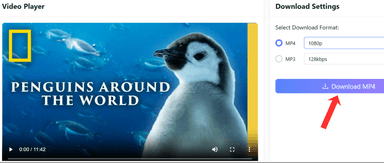
- Select Format: Choose MP3 from the menu.
- Pro Tip: Always pick the highest available bitrate (usually 320kbps or 192kbps). This keeps the audio crisp, even on good headphones.

- Batch Download: Click the convert button. Lynote will process the list. Once finished, you can usually download the whole collection as a ZIP archive, saving you from clicking "Save" fifty times.

Alternative Option: Loader.to
If you need a backup, Loader.to is a well-known alternative.
- The Good: It supports a huge variety of formats, including lossless options like WAV and FLAC, which is rare for online tools.
- The Bad: The site can be slower during peak hours, and the pop-up ads are often more intrusive than Lynote's. Use this only if you specifically need a format other than MP3.
Part 2: The Best Desktop Software (For Bulk Power Users)
While online tools like Lynote are great for speed, browser-based converters can sometimes time out if you try to process a playlist with 500+ videos at once.
If you are archiving an entire channel or have a massive library to download, dedicated desktop software gives you better stability—at the cost of disk space and installation time.
The Champion: 4K Video Downloader+
This software is the industry standard for desktop downloading. It handles large lists well and supports high-quality audio extraction. However, you do have to install a heavy program on your computer.
How to use it:
- Download & Install: Visit the official website and download the installer for your OS (Windows, macOS, or Ubuntu).
- Copy Playlist Link: Go to YouTube and copy the URL of the playlist.

- Paste Link: Open the software and click the green "Paste Link" button.
- Configure Output: A pop-up will appear. Change the dropdown from "Download Video" to "Extract Audio" and select "MP3".

- Start Download: Click "Extract".
⚠️ The Major Caveat:
The "Free" version of 4K Video Downloader+ is limited. It often caps you at 10 to 25 videos per playlist or sets a daily limit. If you hit this paywall and don't want to buy a license, stick to a truly free unlimited tool like Lynote.
Alternative Option: MediaHuman Audio Converter
If you are deep in the Apple ecosystem, MediaHuman is a strong runner-up. Its standout feature is the ability to automatically add downloaded tracks directly to Music.app (iTunes).
This saves you the step of manually importing files. However, the interface looks a bit dated, and it still requires you to install software just to grab a few songs.
Part 3: The Mobile & Extension Options (Android/iOS/Browser)

Not everyone wants to sit at a desktop to curate their music. If you are on the go or prefer browser extensions, here is how to do it safely.
For Android Users (TubeMate vs. Browser Method)
For years, Android users have "sideloaded" apps like TubeMate. These aren't in the Google Play Store, so you have to lower your phone's security settings to install them. This exposes your device to potential malware and privacy risks.
The Safer, Faster Alternative:
Instead of installing a sketchy app, simply use Lynote directly in your mobile browser (Chrome, Samsung Internet, or Brave). It requires zero installation and works exactly like the desktop version.
How to do it on Mobile:
- Open the YouTube App: Find your playlist and tap Share > Copy Link.
- Switch to Browser: Open Chrome (or Safari on iOS) and go to Lynote.
- Paste & Go: Paste the link, select MP3, and tap Download.
This keeps your phone storage clean and your security settings intact.
For Browser Extensions (Firefox vs. Chrome)
You might look for a "Download" button directly under the YouTube video player. There is a catch here.
The Chrome Web Store Problem:
Because Google owns YouTube, they block any extension on the Chrome Web Store that downloads from YouTube. If you see a Chrome extension claiming to do this, it's likely a scam or will stop working immediately.
The Solution:
If you absolutely need a browser extension, you must use Mozilla Firefox or Microsoft Edge.
- Firefox Add-ons: The Firefox store is less restrictive. Tools like Video DownloadHelper work well here.
- The Trade-off: Extensions can slow down your browser. A lightweight online tool is usually faster.
Part 4: The Official Method (YouTube Premium)
For users who want to support creators and don't need to move files between devices, YouTube Premium is the smoothest option.
Using YouTube Music Premium
If you have a Premium subscription, you can "download" playlists for offline listening inside the mobile app. This is great for subways or planes where you have no signal.
How to save a playlist for offline playback:

- Open the App: Launch YouTube Music on your phone.
- Locate Your Playlist: Find the playlist in your Library.
- Tap the Menu: Look for the three-dot menu icon (⋮).
- Select Download: Tap the Download arrow.
The Big Catch: "Offline" vs. "MP3"
It is vital to understand that YouTube Premium does not give you MP3 files.
When you download via Premium, YouTube saves an encrypted cache file hidden deep in your phone. You cannot:
- Transfer these songs to a USB drive for your car.
- Use the audio in video editing software.
- Play the files on an old iPod.
- Keep the music if you cancel your subscription.
If you need the file permanently, you must use a converter tool like Lynote (Part 1).
Part 5: The Technical Method (Command Line / yt-dlp)

For developers or data archivists, the open-source tool yt-dlp offers total control. This method isn't for the average user; it uses text commands and requires some setup.
However, if you are building a massive local archive and want to run scripts, this is the gold standard.
Prerequisites
You need Python installed on your computer. You also need to install yt-dlp and ffmpeg (for audio conversion) using your terminal.
The Command Snippet
Once set up, run this command in your terminal to download a playlist as MP3s:
yt-dlp -x --audio-format mp3 [playlist_url]
What this does:
- yt-dlp: Runs the program.
- -x: Extracts audio only (removes video).
- --audio-format mp3: Forces the file to be an MP3.
- [playlist_url]: The link to your playlist.
Is This Right for You?
This tool has a steep learning curve. If you type a command wrong, it fails. Use this only if you are comfortable with coding. Otherwise, stick to Lynote.
Comparison Guide: Why Choose Lynote?
With hundreds of YouTube converters filling the search results, it's hard to tell the good tools from the bad ones. Most users get stuck between heavy desktop software that asks for money, or sketchy websites that ruin the audio quality.
Lynote sits in the sweet spot: the power of a desktop tool with the convenience of a browser tab.
Here is how it compares:
| Feature | Lynote (Online Tool) | Desktop Software (e.g., 4K Downloader) | Generic Online Converters |
|---|---|---|---|
| Installation | None (Browser-based) | Required (Heavy files) | None |
| Cost | 100% Free | Freemium (Pay to unlock playlists) | Free (but ad-heavy) |
| Playlist Limit | High Capacity | Limited (often caps at 10-25 items on free tier) | Single file only (usually) |
| Audio Quality | High Bitrate (up to 320kbps) | High Quality | Low (often compressed to 128kbps) |
| Safety | High (No Malware) | Medium (Risk of bundled adware) | Low (Aggressive popups) |
| Login Required | No | Sometimes | No |
1. True "No-Strings" Access
Desktop software often has a "Freemium Trap." You install it, paste your link, and then get hit with a popup saying the "Free Version" only downloads 10 songs. Lynote removes these barriers. No login, no credit card, no arbitrary limits.
2. High Quality Audio
Most online converters crush audio files to save server space. This results in "crunchy" sounding MP3s that lack bass. Lynote extracts the highest available bitrate from the source, so your offline library sounds just as good as the stream.
3. Safety and Cleanliness
The "YouTube to MP3" world is full of bad actors.
- No .EXE Files: Because Lynote runs in your browser, there is zero risk of downloading a virus disguised as an installer.
- Clean UI: We don't use deceptive "Download" buttons that trick you into clicking ads.
Critical Safety & Legal Warnings

The world of converters can be risky. While tools like Lynote are safe, the broader internet is full of pitfalls. Here is how to stay safe.
Avoiding Malware and "Notification Spam"
The most common threat isn't a virus that destroys your computer—it’s adware.
- The "Allow Notifications" Trap: Many low-quality sites will ask you to click "Allow" on browser notifications to "verify you are human." Never do this. If you click allow, the site will spam your desktop with ads even when the website is closed.
- The "Wrong Button" Trick: Sketchy sites often place five different "Download" buttons on the screen, but four of them are ads. Always look for the button that matches the site's design.
- File Types: If you are using an Online converter, the file you download should end in .mp3 or .zip. If the site tries to give you an .exe or .msi file, delete it immediately. That is a program, not a song.
Copyright & Fair Use
Is downloading YouTube videos legal? It depends on what you download and how you use it.
To stay out of trouble, follow these rules:
- Personal Use Only: Downloading a playlist to listen to offline while hiking is generally considered personal archiving. Do not use these files for commercial projects.
- Do Not Redistribute: You cannot re-upload these MP3s to Spotify or sell them. That is piracy.
- Stick to Safe Categories: You are safest when downloading Public Domain content, Creative Commons media, or Royalty-Free music.
Disclaimer: This is not legal advice. Always respect the rights of content creators.
Frequently Asked Questions (FAQ)
Can I download an entire YouTube playlist at once?
Yes. You don't need to do it one by one. Tools like Lynote YouTube Downloader are designed for batch processing. Paste the playlist URL, and the tool will let you convert and download every song in the collection at once.
Is it legal to convert YouTube playlists to MP3?
Downloading copyrighted music for commercial use or distribution is illegal. However, downloading content for personal offline use falls into a gray area often called "time-shifting." Always check your local laws.
What is the best bitrate for MP3?
Bitrate determines quality.
- 128kbps: Okay for speech, but music sounds flat.
- 192kbps: Good balance of size and quality.
- 320kbps (Recommended): High fidelity. If you are archiving music or use good headphones, always choose 320kbps.
Do I need to create an account to download?
No. Modern tools like Lynote do not require registration. Be wary of any site that asks for your email just to convert a video—that usually leads to spam.
Conclusion
Saving your favorite music shouldn't be hard. While desktop software is good for massive archives and YouTube Premium is great for the official app, neither offers the flexibility of a browser-based converter.
For most people, the goal is simple: get the audio files onto your device without installing suspicious software. An Online Tool is the perfect bridge, offering speed, safety, and quality.
Ready to build your offline library? Paste your playlist link into Lynote YouTube Downloader above and start converting in seconds—no signup required.

Written by Janet L. Harris
AI Writing Specialist
Janet reviews AI detectors and humanization tools, with a focus on accuracy, limitations, and responsible use. View all articles →