logo
menu

Lossless Image Compression: Formats, Quality, Tools

著者 Janet | 2026年7月30日

Lossless image compression reduces image file size while preserving the original visual data. It is useful when you need smaller files but cannot afford visible quality loss, such as screenshots, diagrams, product images, charts, and archival photos. The challenge is knowing when lossless compression is enough and when a practical quality-controlled image compressor is a better fit.

What Is Lossless Image Compression cover illustration

What Is Lossless Image Compression?

Lossless image compression is a method of making an image file smaller without permanently discarding image data. When the image is opened again, the file can be restored to its original data state. This makes it different from lossy compression, which removes some data to achieve a smaller file.

People often search what is lossless image compression because they want smaller images without blurry text or visible artifacts. The idea sounds simple, but real results depend on the file format, the original image, and how much repeated or unnecessary data exists. Some images shrink well, while others only get a modest reduction.

How Lossless Image Compression Works

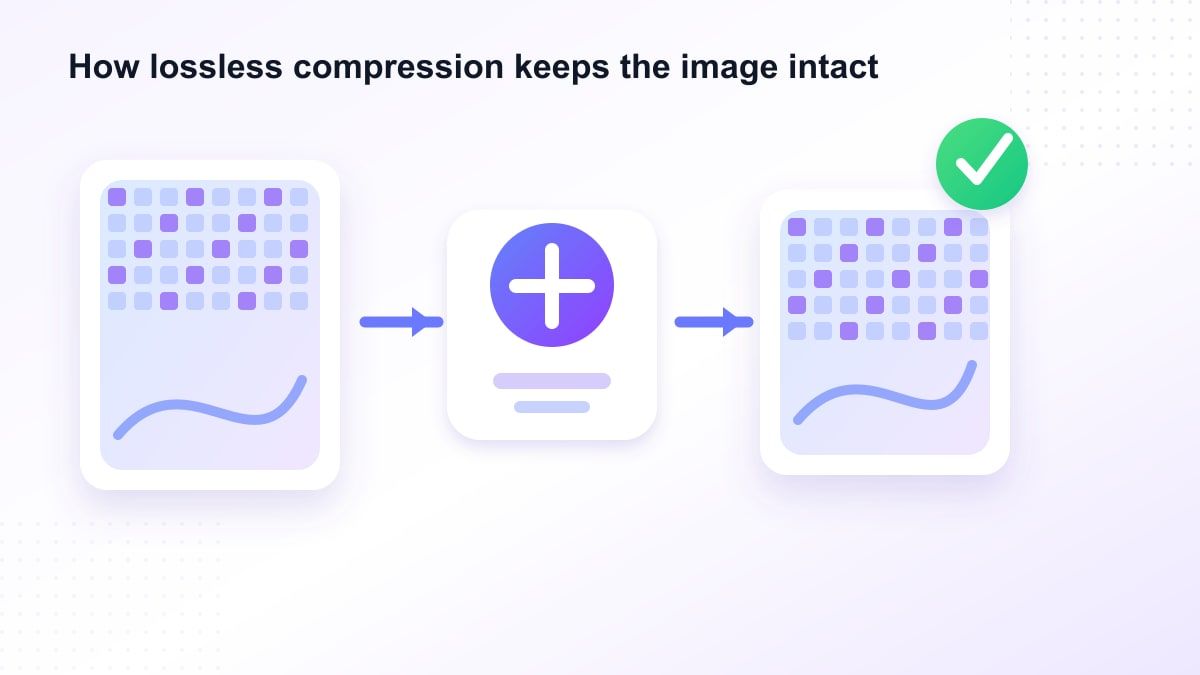
How lossless image compression works illustration

Lossless image compression looks for patterns inside the image file. Instead of storing every repeated value separately, the file stores the same information more efficiently. This is common in digital image processing, where compression reduces redundancy without changing the underlying image.

For example, a simple screenshot with flat backgrounds and repeated colors can compress well. A complex photograph with many tiny color changes may not shrink as dramatically. That is why by what percentage can lossless compression reduce image file size has no single answer.

What You Will Learn

This guide explains lossless image compression in plain language. It covers lossless vs lossy image compression, common formats, practical limitations, and when an online image compression tool makes more sense. It also explains how Lynote Compress Image helps you reduce image size while checking the result before download.

You will also see why "lossless" is not always the same as "smallest possible." A lossless compress image workflow protects data, but the final file may still be too large for websites, forms, emails, or sharing limits. That is where controlled compression and preview-based review become useful.

Lossless vs Lossy Image Compression

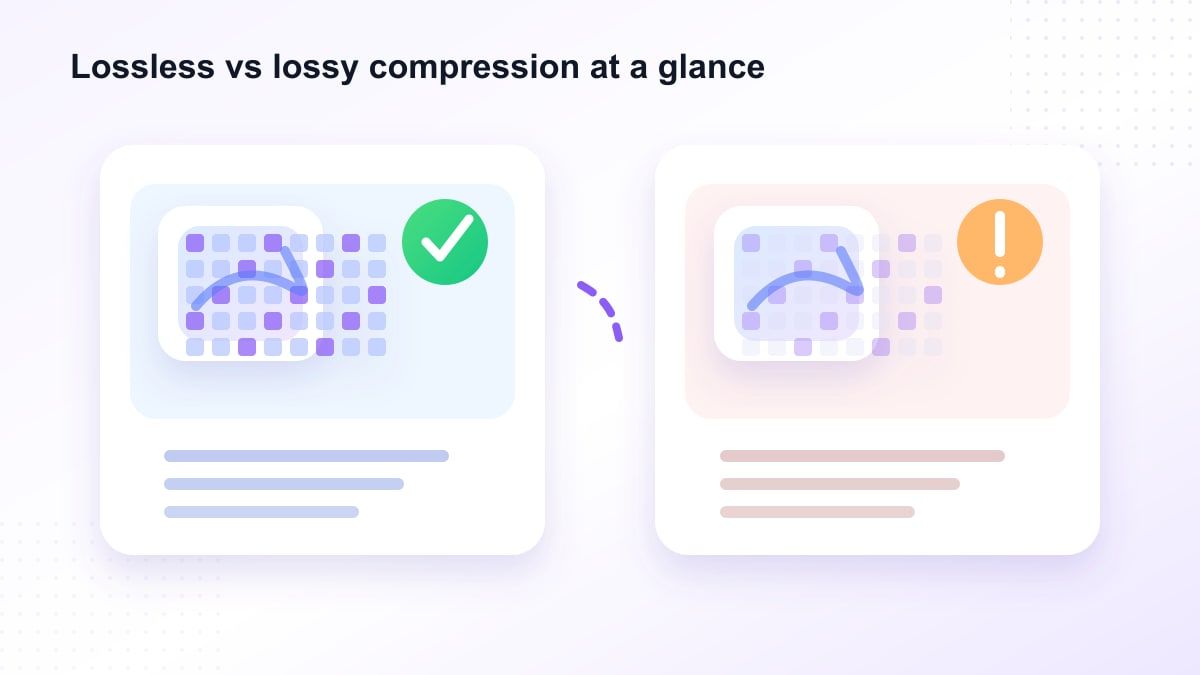
Lossless vs lossy image compression comparison illustration

Lossless vs lossy image compression is the main decision. Lossless compression keeps the original image data, while lossy compression removes some information to make the file smaller. Lossy methods can reduce size more aggressively, but they may create blur, artifacts, or color changes.

Lossy vs lossless image compression is not about good versus bad. It is about the job. If the image contains small text, UI details, charts, or line art, lossless image compression formats may be safer.

For photos, lossy compression is often acceptable when the quality setting is careful. A large photo can shrink dramatically with little visible difference for web use. For technical visuals, however, compress images lossless when clarity matters more than maximum reduction.

Common Lossless Image Compression Formats

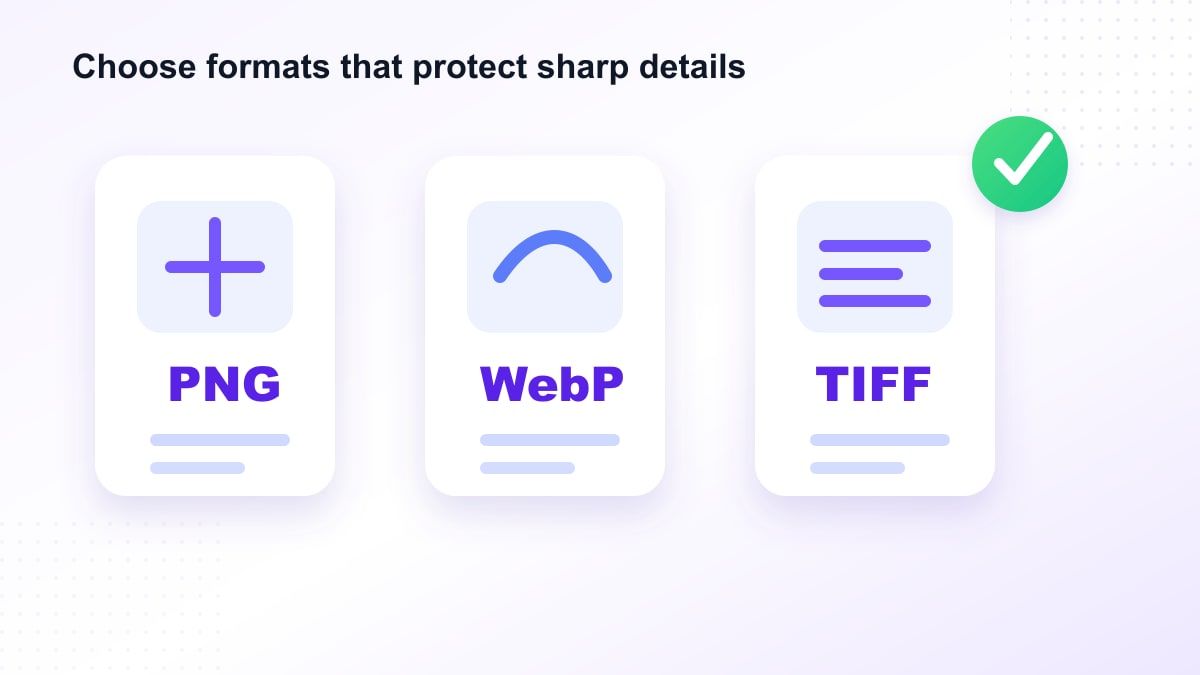
Lossless image compression formats illustration

Lossless compression image formats include PNG, GIF, TIFF, and some WebP settings. PNG is one of the most popular lossless image compression format choices for screenshots, interface captures, and graphics with sharp edges. It keeps text and flat-color visuals clean.

TIFF can support lossless compression for professional and archival workflows. It is common in publishing, scanning, and image preservation, but files can remain large. GIF also uses lossless compression, but it is limited in color depth and is not ideal for modern high-quality images.

WebP can support both lossy and lossless modes. This makes it flexible for web workflows, but compatibility and platform support should be considered. When choosing image format compression lossless quality 2026 workflows, think about where the image will be uploaded and viewed.

Is JPEG Lossless?

Standard JPEG is usually lossy, not lossless. It reduces image size by removing information that may be less noticeable to the human eye. This is why repeated JPEG exports can slowly degrade quality.

However, JPEG can still be useful when the image is a photo and the goal is practical sharing. Many users searching compress image lossless actually want "no visible quality loss," not mathematically perfect data preservation. That distinction matters.

If you need true lossless image compression, use formats and settings that support it. If you need a smaller image that still looks clean, use a preview-based compressor and compare the result before saving. Lynote supports that practical review workflow.

Advantages of Lossless Image Compression

The main advantage of lossless image compression is quality preservation. It is especially useful for screenshots, icons, charts, scanned text, medical-style visuals, documentation, and design references. These image types can suffer when lossy artifacts appear.

Another benefit is editability. If you plan to reopen and edit the image later, lossless compression helps avoid gradual quality damage. This is useful for designers, developers, educators, and researchers who reuse the same visuals.

Lossless compression images are also useful for archiving. When the original content matters, keeping the image data intact can be more important than reaching the smallest possible size. That makes image lossless compression a good fit for source files.

Disadvantages of Lossless Image Compression

The biggest limitation is file-size reduction. Lossless image compression usually cannot shrink files as much as lossy compression. If the image is already optimized, the reduction may be small.

This matters for upload limits. A website, email system, form, or content management platform may require a much smaller file than lossless methods can produce. In that case, a practical compressor with preview and target-size control can be more helpful.

Another issue is format compatibility. Some lossless image compression formats may not be accepted everywhere. For everyday use, users often need a balance between quality, file size, and platform support.

Best Uses for Lossless Compression for Images

Lossless compression for images is best when clarity matters. Screenshots with interface text, charts, spreadsheets, diagrams, and instructional graphics should often be compressed carefully. These visuals lose value if small details become blurry.

It is also useful for images that will be edited again. If you are building a design system, product documentation, or course material, preserving the source quality helps. Lossless compression image online tools can be useful when the goal is safe reduction.

For web thumbnails, blog photos, or social images, pure lossless may not always be necessary. A carefully compressed image can look clean while being much smaller. The best lossless image compression choice depends on the final use case.

How to Compress Images with Lynote

Lynote lossless image compression workflow illustration

Step 1. Choose a Target Size

Open Lynote Compress Image and choose a target size before uploading. This helps when you need an image to fit a website, form, email, or sharing limit. Instead of guessing, you start with the size goal.

This is not the same as promising pure lossless image compression. It is a practical workflow for reducing file size while checking quality. For many users, that is the real goal behind searching lossless compress image.

Step 2. Upload One or Multiple Images

Drag images into the upload area or choose files from your device. Lynote can handle one image or multiple images when you need batch compression. After upload, compression starts automatically.

This is useful for teams preparing blog images, product visuals, screenshots, classroom materials, or documentation. A fast lossless image compression search often comes from the same need: make files lighter without wasting time. Lynote keeps the workflow simple.

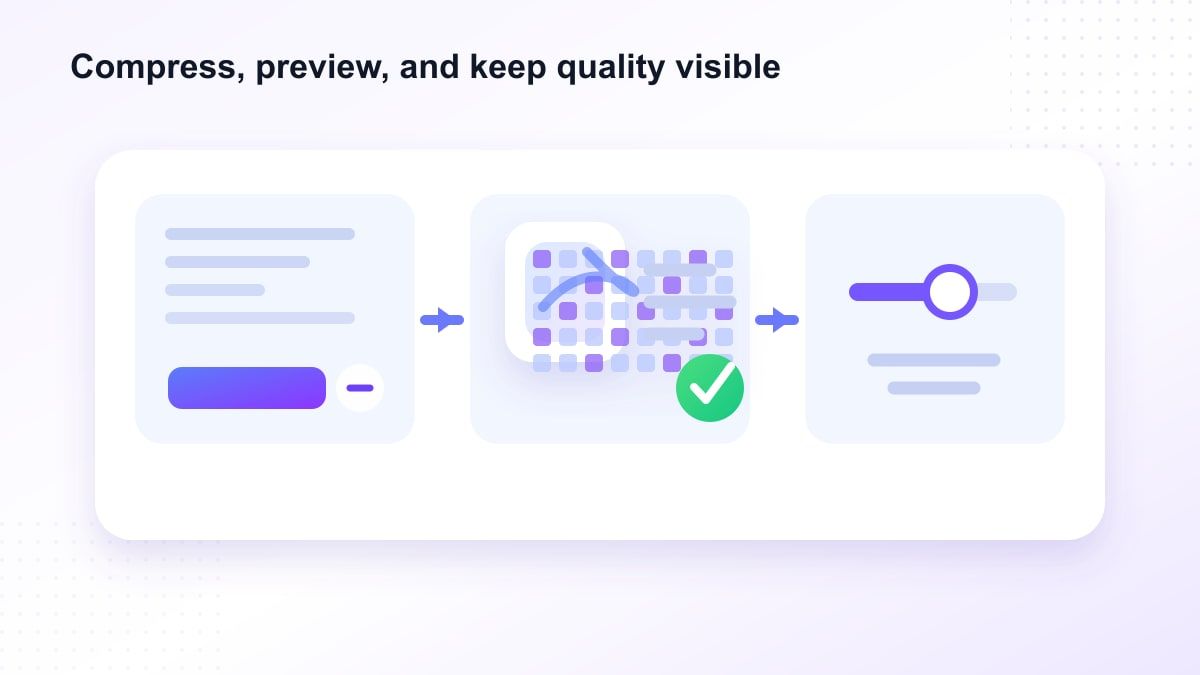
Step 3. Compare the Result

After compression, review the before-and-after preview. Check whether small text, lines, faces, product details, or charts still look clear. This step matters because visible quality is often more important than the compression label.

The result view also helps compare original and compressed file sizes. If the image still looks good and meets your target, download it. If it looks too soft, use a less aggressive target.

Lossless Image Compression Tools vs Practical Compressors

Lossless image compression tools are ideal when the image data must remain fully preserved. Developers may use lossless image compression Python libraries or lossless image compression GitHub projects for automated pipelines. Researchers may explore lossless image compression algorithms for technical experiments.

But everyday users often need a simpler answer. They want to upload a smaller image, keep it readable, and avoid manual settings. That is where Lynote fits as a practical image compression tool.

The difference is intent. A pure algorithm protects every bit of image data. A practical compressor helps you meet real-world limits while reviewing visual quality before download.

What About AI and New Compression Research?

Modern research includes learned lossless image compression based on bit plane slicing, fitted neural lossless image compression, and even large language model for lossless image compression with visual prompts. These topics are interesting, but they are not always what everyday users need. Most people simply need smaller images that still look clear.

Lossless compression in image processing is a deep technical field. Algorithms may improve over time, and image compression format lossless quality 2026 discussions will keep evolving. Still, the practical question remains the same: does the compressed image work for your task?

For day-to-day work, use a tool that lets you check the result. A before-and-after preview is easier to trust than a technical claim alone. This keeps the workflow grounded.

Tips for Better Image Compression

First, choose the right format. Use PNG for screenshots, UI captures, charts, and text-heavy graphics. Use JPG carefully for photos when smaller size matters more than exact pixel preservation.

Second, compress from the best available original. Recompressing a low-quality image rarely improves results. If you have the original file, start there.

Third, test the output. Zoom in on small text, edges, color gradients, and important details. Good image compression lossy and lossless workflows always include review.

FAQs About Lossless Image Compression

What is lossless image compression?

Lossless image compression reduces file size without permanently removing image data. The image can be restored to its original data state when decoded. It is useful when quality preservation matters.

What is the difference between lossy and lossless image compression?

The difference between lossy and lossless image compression is data removal. Lossless keeps the original data, while lossy removes some information to reduce size further. Lossy can create smaller files, but quality may change.

What are the best lossless image compression formats?

Common lossless image compression formats include PNG, TIFF, GIF, and lossless WebP. PNG is popular for screenshots and graphics. TIFF is often used for archival or professional workflows.

Can I compress images lossless online?

Yes, you can use lossless compression image online tools when the format supports it. However, pure lossless reduction may be limited. If you need a specific target size, a visual preview workflow may be more practical.

What is the best lossless compression for images?

The best lossless compression for images depends on the file type and use case. PNG works well for screenshots and graphics, while TIFF may suit archival workflows. For everyday sharing, review quality and file size together.

Does Lynote offer lossless image compression?

Lynote Compress Image helps you reduce image file size, choose a target size, compare before-and-after previews, and download the compressed result. It should be used as a practical quality-control workflow, not as a guarantee of mathematically lossless compression. Always review the result before final use.

Final Verdict

Lossless image compression is the right concept when you need smaller files without losing original image data. It is valuable for screenshots, charts, diagrams, and archival visuals, but it may not always reduce size enough for upload limits. For practical compression, Lynote Compress Image helps you choose a target size, preview quality, compare file sizes, and download a smaller image with more confidence.