Komprimiert Slack Bilder? 4 Wege zur Qualitätskontrolle

Komprimiert Slack Bilder, wenn Sie sie hochladen? In vielen alltäglichen Arbeitsabläufen kann Slack die Anzeige, Vorschau oder den Upload von Bildern optimieren, insbesondere bei mobilen Einstellungen, die auf Dateneinsparung ausgelegt sind. Das bedeutet nicht immer, dass Ihre Originaldatei ruiniert wird, aber es kann dazu führen, dass geteilte Bilder weicher, kleiner oder für die Überprüfung weniger zuverlässig aussehen.
Wenn Sie Screenshots, Produktfotos, Design-Vorschauen, Social-Media-Grafiken oder mobile Bilder in Slack teilen, ist die Dateiqualität wichtig. Eine kleine Änderung der Schärfe kann dazu führen, dass Text schwerer zu lesen, UI-Details weniger klar und Genehmigungen verwirrender werden. Der intelligentere Ansatz ist, Ihr Bild vor dem Hochladen vorzubereiten, damit Slack zum Übertragungskanal wird, anstatt zum Ort, an dem Qualitätsentscheidungen zufällig getroffen werden.
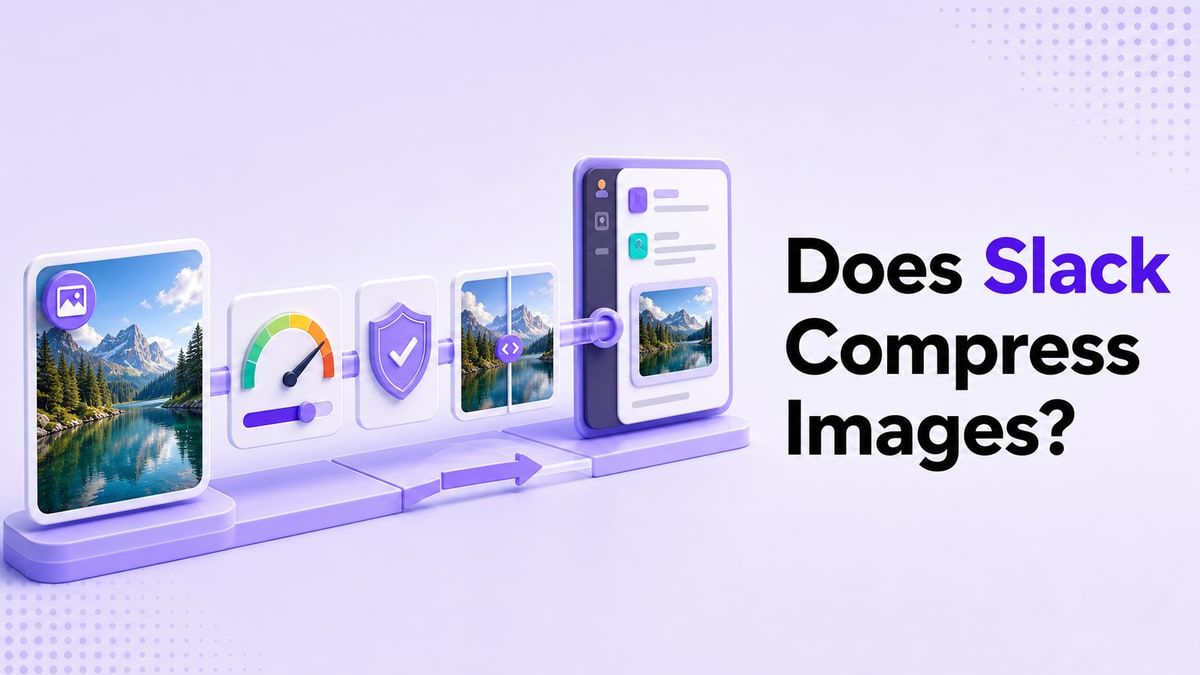
Kurze Antwort: Komprimiert Slack Bilder?
Ja, die Frage, ob Slack Bilder komprimiert, ist berechtigt, da Slack Bilder für schnelleres Teilen, Vorschauen und mobile Dateneinsparungen optimieren kann. Das genaue Ergebnis kann davon abhängen, woher Sie hochladen, vom Dateityp, den App-Einstellungen und wie Teammitglieder die Datei ansehen oder herunterladen.
Der entscheidende Punkt ist, dass Slack für Kommunikation und nicht für fortgeschrittene Bildoptimierung entwickelt wurde. Wenn Sie eine vorhersehbare Dateigröße und eine sauberere Bildqualität benötigen, komprimieren Sie Bilder, bevor Sie sie hochladen. Dies gibt Ihnen mehr Kontrolle über das Gleichgewicht zwischen Qualität, Ladegeschwindigkeit und Speicherplatz.
Warum sich die Bildqualität in Slack ändern kann
Slack verarbeitet Medien auf eine Weise, die Teams hilft, schnell voranzukommen. Bilder erscheinen oft als Vorschauen in Kanälen, Threads und mobilen Chats, und Slack kann sie anders anzeigen als die Originaldatei auf Ihrem Gerät. Deshalb fragen sich Nutzer, ob Slack die Bildqualität komprimiert, nachdem ein Screenshot unscharfer aussieht als erwartet.
Dieses Problem ist auf Mobilgeräten stärker ausgeprägt. Ein Telefon kann datensparende Einstellungen, kleinere Vorschauen oder optimierte Uploads verwenden, um die Bandbreite zu reduzieren. Wenn eine Designdatei, ein kommentierter Screenshot oder ein hochauflösendes Foto auf diese Weise geteilt wird, kann die Vorschau weniger scharf wirken als das Original.
Es gibt auch ein Workflow-Problem. Wenn jede Person Rohbilder direkt in Slack hochlädt, werden Kanäle mit großen Dateien, langsameren Vorschauen und wiederholten Versionen überladen. Ein kontrollierter Komprimierungsschritt vor dem Hochladen hält die Datei leichter und hilft gleichzeitig, das Bild nützlich zu halten.
1. Prüfen Sie, ob Sie eine Vorschau oder das Original benötigen
Bevor Sie fragen, ob Slack Bilder komprimiert, entscheiden Sie, wofür das Bild verwendet werden soll. Ein schnelles Meme, ein Teamfoto oder ein einfacher Screenshot benötigt nicht die gleiche Qualität wie ein Produkt-Mockup, ein Fehlerbericht oder eine kundenorientierte Grafik. Das richtige Qualitätsniveau hängt von der Aufgabe ab.
Wenn das Bild nur in einem Thread sichtbar sein muss, kann eine leichtere, komprimierte Version ausreichen. Wenn das Bild zur Genehmigung, Bearbeitung oder Archivierung benötigt wird, bewahren Sie die Originaldatei an einem sicheren Ort auf und teilen Sie eine komprimierte Kopie in Slack. So erhalten Teammitglieder eine schnelle Vorschau, ohne den Zugriff auf die Quellversion zu verlieren.
Diese Unterscheidung ist besonders hilfreich für Marketing- und Designteams. Slack eignet sich hervorragend für schnelles Feedback, sollte aber nicht der einzige Speicherort für finale kreative Assets sein. Behandeln Sie Slack als Konversationsebene und verwenden Sie dann eine kontrollierte Bildkomprimierung für die Dateien, die Sie tatsächlich teilen.
So wenden Sie diesen Schritt an
Beginnen Sie damit, den Zweck des Bildes zu benennen: Überprüfung, Referenz, Genehmigung, Fehlerberichterstattung oder gelegentliches Teilen. Wählen Sie dann, ob der Slack-Upload eine leichte Vorschau oder ein hochauflösendes Asset sein soll.
Wenn das Bild winzigen Text, UI-Elemente, Tabellenkalkulationsdetails oder Anmerkungen enthält, vermeiden Sie eine übermäßig aggressive Komprimierung. Wenn es sich um ein großes Foto oder ein einfaches visuelles Element handelt, können Sie die Dateigröße in der Regel stärker reduzieren. Diese kleine Entscheidung verhindert unnötigen Qualitätsverlust.

2. Bilder vor dem Hochladen in Slack komprimieren
Der beste Weg, mit der Frage „Komprimiert Slack Bilder, die ich hochlade?“ umzugehen, ist, die Datei vorzubereiten, bevor Slack sie verarbeitet. Wenn Sie das Bild selbst komprimieren, können Sie eine Zielgröße wählen, die Vorher-Nachher-Vorschau überprüfen und entscheiden, ob das Ergebnis klar genug ist. Dies ist vorhersehbarer, als zu hoffen, dass die App-Einstellung das richtige Ergebnis liefert.
Sie können Lynote Compress Image für diesen Workflow verwenden. Es ermöglicht Ihnen, vor dem Hochladen eine Zielgröße zu wählen, ein oder mehrere Bilder in den Upload-Bereich zu ziehen und das Original- und das komprimierte Bild vor dem Herunterladen zu vergleichen. Dies ist nützlich, wenn Sie ein Bild an Slack, E-Mail, ein Formular, einen Website-Upload oder eine andere Freigabebeschränkung anpassen müssen.
Der Vorteil ist die Kontrolle. Anstatt einen riesigen Screenshot hochzuladen und sich zu fragen, ob Slack ihn anders aussehen lässt, erstellen Sie zuerst eine Slack-taugliche Version. Sie behalten die Originaldatei, aber die in Slack geteilte Version ist kleiner und für Teammitglieder einfacher zu öffnen.
So komprimieren Sie Slack-Bilder mit Lynote
Öffnen Sie Lynote Compress Image und wählen Sie vor dem Hochladen eine Zielgröße. Wählen Sie eine praktische Dateigröße basierend auf dem Bildtyp, z. B. ein leichteres Ziel für gelegentliche Screenshots oder ein größeres Ziel für detaillierte Design-Vorschauen.
Ziehen Sie Ihr Bild in den Upload-Bereich oder wählen Sie es von Ihrem Gerät aus. Nach dem Hochladen beginnt die Komprimierung automatisch, sodass Sie keine komplizierten Einstellungen anpassen müssen.
Überprüfen Sie den Vorher-Nachher-Vergleich und prüfen Sie die Original- und komprimierten Dateigrößen. Wenn das Bild immer noch lesbar aussieht, laden Sie die komprimierte Datei herunter und laden Sie diese Version in Slack hoch.

3. Verwenden Sie das richtige Bildformat für die Slack-Freigabe
Die Frage, ob Slack Bilder komprimiert, kommt oft auf, weil verschiedene Bildformate sich unterschiedlich verhalten. Ein PNG-Screenshot kann scharfen Interface-Text bewahren, aber auch eine größere Datei erzeugen. Ein JPG-Foto ist normalerweise kleiner, aber wiederholte Komprimierung kann Kanten und Text weniger sauber aussehen lassen.
Für Screenshots, Dashboards, App-Oberflächen und textlastige Visuals kann PNG nützlich sein, wenn Klarheit wichtig ist. Für Fotos, Eventbilder, Social-Media-Vorschauen und große visuelle Assets ist JPG oft die bessere Wahl. Das Ziel ist nicht, ein Format für immer zu wählen, sondern das Format an das Bild anzupassen.
Slack-Konversationen bewegen sich schnell, daher laden Teams oft die einfachste Datei hoch. Das ist bequem, kann aber zu Qualitätsüberraschungen führen. Eine schnelle Formatprüfung vor dem Hochladen hilft, die Wahrscheinlichkeit zu verringern, dass Teammitglieder ein unscharfes oder unnötig großes Bild sehen.
Formatleitfaden für Slack-Bilder
| Bildtyp | Besseres Format | Warum es hilft |
|---|---|---|
| UI-Screenshot | PNG | Hält kleinen Text und Interface-Linien sauberer |
| Produktfoto | JPG | Reduziert die Dateigröße für fotobasierte Bilder |
| Social-Media-Vorschau | JPG oder PNG | Hängt davon ab, ob Textklarheit oder Dateigröße wichtiger ist |
| Annotierter Fehlerbericht | PNG | Hilft, Beschriftungen, Pfeile und Kommentare lesbar zu halten |
| Großes Eventbild | JPG | Normalerweise einfacher, schnell in Slack zu teilen |
Wenn Sie unsicher sind, vergleichen Sie beide Versionen vor dem Posten. Das Komprimieren des Bildes und die Überprüfung des Ergebnisses gibt Ihnen eine praktische statt einer theoretischen Antwort. Das ist wichtiger, als einer einzigen universellen Formatregel nachzujagen.

4. Slack Mobile-Medieneinstellungen anpassen
Die Referenzstruktur für diesen Artikel konzentriert sich auf die mobilen Slack-Einstellungen, da mobile Daten und Speicherplatz häufige Probleme darstellen. Wenn Sie Slack auf einem Telefon verwenden, können Einstellungen wie das Zusammenklappen von Bildern, das Optimieren von Uploads oder die Steuerung des Medienspeicherns das Verhalten von Bildern beeinflussen. Diese Einstellungen sind nützlich, wenn Sie möchten, dass Slack weniger Daten verbraucht.
Hier wird die Frage, ob Slack die Bildqualität komprimiert, zu einem Kompromiss. Eine mobile Einstellung, die Daten spart, kann für die Geschwindigkeit hilfreich sein, ist aber möglicherweise nicht ideal für eine detaillierte visuelle Überprüfung. Wenn Ihr Team häufig Designentwürfe, Diagramme oder App-Screenshots teilt, lohnt es sich, diese Präferenzen zu überprüfen.
Die praktische Regel ist einfach: Verwenden Sie Slack-Einstellungen für den mobilen Komfort und Bildkomprimierungstools für die Dateiqualitätskontrolle. Slack-Einstellungen helfen, den Datenverbrauch innerhalb der App zu reduzieren. Lynote hilft, Bilder vorzubereiten, bevor sie in die App gelangen.
Zu überprüfende mobile Einstellungen
Prüfen Sie, ob Slack auf Ihrem Mobilgerät so eingestellt ist, dass Bilder für den Upload optimiert werden. Wenn diese Einstellung aktiviert ist, verbrauchen Uploads möglicherweise weniger Daten, aber die Bildqualität entspricht möglicherweise nicht in jedem Workflow dem Original.
Überprüfen Sie auch, ob Slack Medien automatisch in Ihrer Kamerarolle speichert. Das Deaktivieren unnötiger Medienspeicherungen kann die Unordnung auf dem Telefon reduzieren und verhindern, dass doppelte Bilder den Speicher füllen.
Klappen Sie schließlich Bilder zusammen, wenn Sie eine sauberere mobile Kanalansicht wünschen. Dies löst die Bildqualität nicht direkt, kann aber das Scannen von belebten Kanälen erleichtern.

5. Erstellen Sie eine Teamregel für die Bildfreigabe
Eine Teamregel ist oft besser, als jedes Mal zu fragen, ob Slack Bilder komprimiert, wenn eine Datei anders aussieht. Wenn alle den gleichen Ansatz zur Bildfreigabe verfolgen, werden Ihre Slack-Kanäle einfacher zu verwalten. Designer, Marketingexperten, Support-Teams und Studenten können alle von einer einfachen Dateirichtlinie profitieren.
Teams können sich beispielsweise darauf einigen, komprimierte Vorschauen in Slack zu teilen und finale Originale in einem gemeinsamen Laufwerk zu speichern. Sie können auch unterschiedliche Ziele für Screenshots, Fotos und kundenfertige Visuals festlegen. Dies hält Slack schnell und bewahrt gleichzeitig die Dateien, die langfristige Qualität benötigen.
Die Regel muss nicht kompliziert sein. Sie kann so einfach sein wie: große Bilder zuerst komprimieren, Originale außerhalb von Slack aufbewahren und die Lesbarkeit vor dem Posten überprüfen. Dieser kleine Workflow kann die meisten Qualitätsbeschwerden verhindern.
Ein einfacher Slack-Bild-Workflow
- Bewahren Sie das Originalbild auf Ihrem Gerät oder in Ihrem Cloud-Speicher auf.
- Komprimieren Sie eine Slack-taugliche Kopie mit einer Zielgröße.
- Überprüfen Sie das komprimierte Ergebnis vor dem Senden in der Vorschau.
- Laden Sie die komprimierte Version in Slack hoch.
- Teilen Sie das Original nur, wenn Teammitglieder die Datei in voller Auflösung benötigen.
Dieser Workflow ist besonders nützlich, wenn Sie Bilder mit externen Partnern teilen. Ein sauberes, leichtes Bild öffnet sich schneller und reduziert Reibung. Gleichzeitig vermeiden Sie es, sich darauf zu verlassen, dass Slack entscheidet, wie viel Optimierung akzeptabel ist.
Slack Bildkomprimierung: Was Sie kontrollieren können
| Faktor | Was Slack beeinflussen kann | Was Sie vor dem Hochladen kontrollieren können |
|---|---|---|
| Vorschau-Erscheinungsbild | Anzeigegröße und In-Channel-Vorschau | Exportabmessungen und visuelle Klarheit |
| Upload-Größe | Mobile Optimierungseinstellungen | Ziel-Dateigröße und Komprimierungsgrad |
| Textlesbarkeit | Vorschau-Skalierung | PNG/JPG-Wahl und Vorher-Nachher-Überprüfung |
| Speicherplatz-Unordnung | Automatisches Speichern und geteiltes Medienvolumen | Ob Sie komprimierte Kopien hochladen |
| Teamkonsistenz | Unterschiedliche Benutzereinstellungen | Ein gemeinsamer Bild-Workflow |
Diese Tabelle zeigt, warum die Frage, ob Slack Bilder komprimiert, die ich hochlade, nur ein Teil des größeren Problems ist. Slack kann beeinflussen, wie Bilder hochgeladen oder angezeigt werden, aber Sie kontrollieren immer noch die Vorbereitung. Je sauberer Ihre Eingabedatei ist, desto vorhersehbarer wird Ihr Slack-Freigabe-Workflow.
Wann Sie Bilder vor Slack komprimieren sollten
Komprimieren Sie Bilder vor Slack, wenn die Datei groß ist, der Kanal stark frequentiert ist oder Teammitglieder hauptsächlich mobil sind. Dies hilft, Ladehemmnisse zu reduzieren und Konversationen am Laufen zu halten. Es ist auch nützlich, wenn Sie mehrere Screenshots hintereinander teilen.
Sie sollten auch zuerst komprimieren, wenn das Bild in einer Aufgabe, einem Ticket, einem Bericht oder einer Inhaltsprüfung wiederverwendet wird. In diesen Fällen ist die Dateigröße wichtig, aber auch die Lesbarkeit. Eine Vorher-Nachher-Vorschau ermöglicht es Ihnen zu entscheiden, ob die komprimierte Version sicher geteilt werden kann.
Überkomprimieren Sie jedoch keine Bilder, die kleinen Text oder wichtige Details enthalten. Wenn das Bild ein Vertragsscreenshot, ein Analysebericht, eine Designanmerkung oder ein Schritt zur Fehlerreproduktion ist, bewahren Sie genügend Qualität für die Überprüfung. Die Komprimierung sollte das Teilen erleichtern, nicht das Bild weniger nützlich machen.
Häufige Fehler, die Slack-Bilder schlechter aussehen lassen
Der erste Fehler ist das wiederholte Hochladen desselben Bildes nach der Bearbeitung in verschiedenen Apps. Jeder Export kann zu weiterer Komprimierung führen, insbesondere bei JPG-Dateien. Beginnen Sie wann immer möglich mit dem saubersten Original.
Der zweite Fehler ist das zu starke Verkleinern der Abmessungen. Eine kleine Dateigröße ist hilfreich, aber ein winziges Bild kann in der Slack-Vorschau unleserlich werden. Behalten Sie genügend Auflösung für den tatsächlichen Betrachtungskontext bei.
Der dritte Fehler ist die Annahme, dass Slack das Archiv ist. Wenn Ihr Team später finale Assets benötigt, speichern Sie Originale außerhalb von Slack und nutzen Sie Slack für Diskussionen. Dies hält Ihren Kanal schlank, ohne wichtige Dateiversionen zu riskieren.
FAQs zur Slack-Bildkomprimierung
Komprimiert Slack Bilder automatisch?
Slack kann die Bildverarbeitung für Uploads, Vorschauen und die mobile Datennutzung optimieren, weshalb viele Nutzer berechtigterweise fragen, ob Slack Bilder komprimiert. Das genaue Verhalten kann von der App, dem Gerät, den Einstellungen und der Art und Weise abhängen, wie das Bild angesehen oder heruntergeladen wird. Wenn die Qualität wichtig ist, komprimieren und überprüfen Sie die Datei selbst, bevor Sie sie teilen.
Komprimiert Slack die Bildqualität auf Mobilgeräten?
Mobile Workflows sind der Bereich, in dem die Frage, ob Slack die Bildqualität komprimiert, am deutlichsten wird. Einstellungen, die den Datenverbrauch reduzieren, können Uploads beschleunigen, aber sie können auch eine Vorschau erzeugen, die sich vom Original unterscheidet. Für wichtige Screenshots oder kreative Überprüfungen bereiten Sie das Bild zuerst vor.
Komprimiert Slack Bilder, die ich vom Desktop hochlade?
Desktop-Uploads können in Slack immer noch anders in der Vorschau angezeigt oder dargestellt werden, auch wenn die Originaldatei verfügbar bleibt. Wenn jemand nur die Vorschau ansieht, könnte er denken, dass sich die Qualität geändert hat. Eine Slack-taugliche komprimierte Kopie kann das Vorschau-Erlebnis vorhersehbarer machen.
Ist Lynote Compress Image nützlich für Slack-Uploads?
Ja, Lynote Compress Image ist nützlich, wenn Sie die Bildgröße vor dem Hochladen in Slack reduzieren möchten. Es hilft Ihnen, eine Zielgröße zu wählen, ein oder mehrere Bilder hochzuladen, das Vorher-Nachher-Ergebnis zu vergleichen und das komprimierte Bild herunterzuladen. Die ehrliche Einschränkung ist, dass eine sehr aggressive Komprimierung immer noch Details reduzieren kann, daher sollten Sie das Ergebnis vor dem Teilen überprüfen.
Welche Bildgröße sollte ich für Slack verwenden?
Es gibt keine einzige beste Größe für jedes Slack-Bild. Ein gelegentliches Foto kann kleiner sein, während ein UI-Screenshot oder eine Designprüfung genügend Auflösung für Text und Details behalten sollte. Wählen Sie die kleinste Datei, die in der Vorher-Nachher-Vorschau noch klar aussieht.
Fazit
Also, komprimiert Slack Bilder? Slack kann Bild-Uploads, Vorschauen und das mobile Medienverhalten optimieren, weshalb die Bildqualität nach dem Teilen anders aussehen kann. Der zuverlässigste Workflow ist, Bilder vor Slack mit einem kontrollierten Tool wie Lynote Compress Image zu komprimieren, das Ergebnis zu überprüfen und dann eine leichtere Datei hochzuladen, die immer noch klar aussieht.

Verfasst von Janet L. Harris
KI-Schreibspezialistin
Janet überprüft KI-Detektoren und Humanisierungstools, wobei sie sich auf Genauigkeit, Einschränkungen und verantwortungsvollen Gebrauch konzentriert. Alle Artikel ansehen →