

Your Ultimate Guide to English to Swahili Translation (Text & Documents)
Whether you need to translate a few lines for an email, a school assignment, or a full business document, getting a reliable translation from English to Swahili is more accessible than ever. The key is choosing the right tool for the job. For quick text snippets, a free online text translator offers instant results. For entire files like PDFs or Word documents where formatting is critical, a dedicated document translator is the superior choice, as it preserves the original layout, images, and tables, saving you hours of manual rework.

This guide covers both scenarios. We'll walk through the best free methods for translating everything from a single sentence to a multi-page report. We'll compare the approaches, explain the technology, and give you the practical steps to get clean, accurate Swahili translations today.
Quick Verdict: Best Translation Methods for English to Swahili
Before diving deep, here’s a quick comparison to help you choose the right path. The best method depends entirely on what you're translating: a few words or a full, formatted file.
| Method / Tool Type | Best For | Layout Preservation | Speed (Illustrative) | Our Score (1-5) |
|---|---|---|---|---|
| Online Text Translator | Emails, chats, sentences, social media posts | None (Plain text only) | Instant (< 2 sec) | 4.0 / 5 |
| Document Translator | PDFs, Word docs, reports, presentations | High Fidelity | ~5-30 sec for ~20 pages* | 4.8 / 5 |
| Browser Extension | Website content, on-page text | Moderate (Can break complex layouts) | Instant | 3.5 / 5 |
| Manual (Human) Translation | Legal contracts, marketing copy, official use | Perfect (Professional DTP) | Days | 5.0 / 5 |
Scores are editorial heuristics, not measured benchmarks. Speed varies widely based on file complexity, server load, and OCR requirements.
The takeaway is simple: for casual text, any good text translator will do. But if your file has any formatting you want to keep—tables, headers, images, columns—you need a tool built specifically for documents.
Method 1: For Quick Text (Emails, Sentences, and Social Media)
This is the most common use case: you have a block of English text and need the Swahili equivalent right now. It could be for a WhatsApp message, an email to a colleague, or just understanding a comment online. Speed and simplicity are the priorities.
Here, an online text translator is your best friend. These tools are designed for one thing: converting a string of text from a source language to a target language instantly.
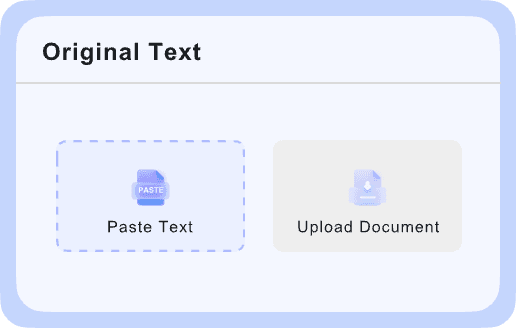
A great example is the Lynote AI Text Translator. It's built for exactly this scenario. You paste your English text—up to 5,000 characters—and it provides the Swahili translation in a clean side-by-side view. There’s no sign-up, and it uses a powerful AI engine to produce more natural-sounding phrases than older, word-for-word translators.
How to Use a Text Translator:
- Paste Your English Text: Open the tool and simply paste or type your content into the source text box.
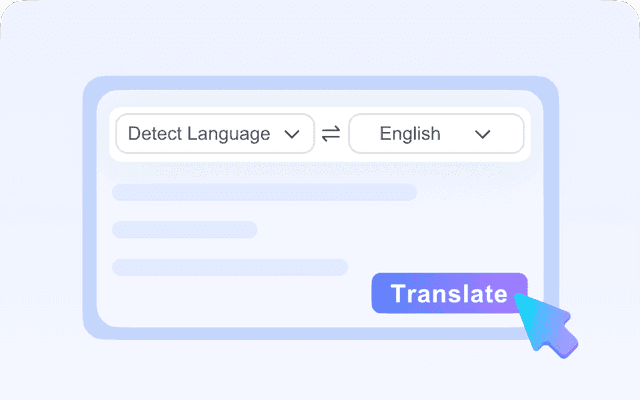
- Choose Your Target Language: While many tools auto-detect English, you'll need to select Swahili from the dropdown menu of target languages.
- Copy and Use: The Swahili translation appears instantly. A one-click copy button lets you grab the text and paste it wherever you need it.

This method is ideal for informal communication, learning support, and getting the gist of a piece of content quickly. It’s the definition of a fast, free translation from English to Swahili.
Method 2: For Full Documents (PDF, Word, DOCX) with Layout Preservation
What happens when you need to translate more than just a snippet of text? Imagine you have a 20-page PDF report, a Word document with tables and images, or a PowerPoint presentation. Copying and pasting the text block by block would take forever and, more importantly, destroy all your formatting.
This is where a dedicated document translator becomes essential. These tools are engineered to parse the entire file—text, images, columns, and all—and then reconstruct it in the target language while keeping the layout intact.
The main reason a dedicated document translator outperforms a simple text translator for PDFs is its ability to parse and reconstruct the file's underlying structure, not just its text content. This preserves the visual context, which is often crucial for comprehension.
The Lynote Document Translator is a standout free option here. It handles common office formats (PDF, DOCX, PPTX, XLSX) and uses a Google-powered neural translation engine for high accuracy. Crucially, it focuses on layout preservation, so your translated document looks like the original.
Step 1. Upload Your Document
Navigate to the Lynote Document Translator. The interface is designed for simplicity—no sign-up required. You can either drag your file from your computer directly onto the upload area or click the "Choose Document" button to browse your files. It’s a single-step process to get your file into the system.

Step 2. Select Languages and Translate
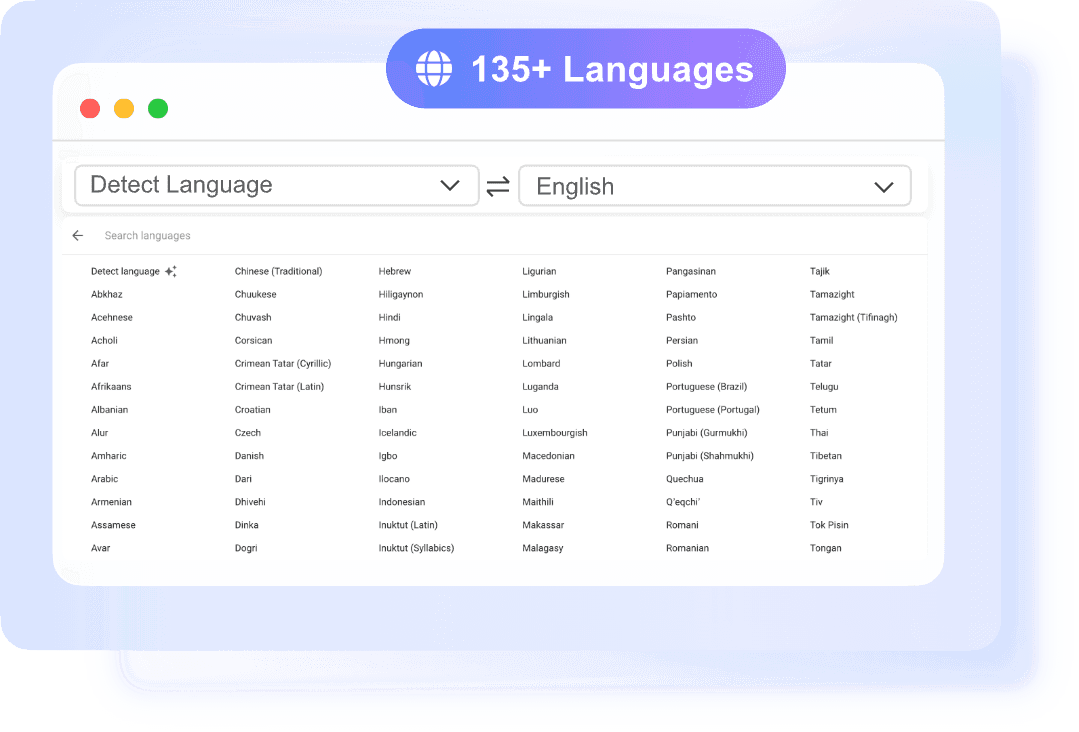
Once your document is uploaded, the tool will typically auto-detect the source language as English. Your only job is to select Swahili from the extensive list of target languages. After selecting your language pair, click the translate button. The AI engine gets to work, processing the text while mapping out the original document's structure.

Step 3. Download the Translated File
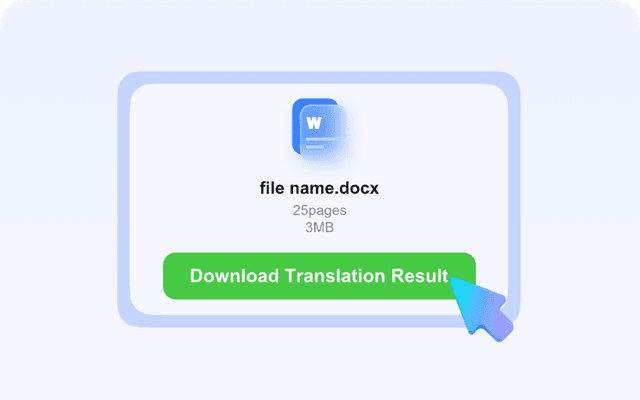
After a few moments (depending on the file size and complexity), your translated document will be ready. A download button will appear. Click on the button to download the translated file.
Expert Takeaway: For any professional or academic work, layout preservation is non-negotiable. A translated report with broken tables or misplaced images is unusable. Always opt for a document-specific tool for these files.
Method 3. How to Translate from English to Swahili with Google Translate
Google Translate is a fast and free option for translating English into Swahili. It works best for everyday text and simple documents, and only takes a few steps to get results.
Steps to translate English text to Swahili
- Step 1: Go to Google Translate (web or app) and make sure the interface is fully loaded
- Step 2: Set the source language to English and the target language to Swahili (avoid auto-detect for better accuracy)
- Step 3: Paste or type your English text into the input box on the left
- Step 4: Wait for the Swahili translation to appear instantly on the right side
- Step 5: Read through the result and fix any unnatural phrases, missing context, or incorrect terms
- Step 6: Copy the final Swahili text and use it in your message, document, or project

Steps to translate a document from English to Swahili
- Step 1: Open Google Translate and switch to the Documents tab
- Step 2: Upload your file (such as PDF, DOCX, or TXT) directly instead of copying content manually
- Step 3: Choose English as the source language and Swahili as the target language
- Step 4: Click the Translate button to start processing the file
- Step 5: Review the translated output carefully, especially headings, tables, and key terms
- Step 6: Download or copy the translated document for further editing or use

Tips to improve translation quality
- Use complete, clear sentences instead of fragments
- Avoid idioms, slang, or highly informal expressions
- Break long paragraphs into shorter sections before translating
- Double-check names, numbers, and domain-specific terms
- For important documents, always review or refine the translation manually
This method is ideal if you need quick, free translation from English to Swahili. For longer documents or more accurate results, combining it with manual editing or AI-based tools can significantly improve quality.
How Accurate is AI Translation from English to Swahili?
You might be wondering: Can I really trust a machine for this? The honest answer is: it depends on the context. Modern AI-powered neural machine translation (NMT) is light-years ahead of the clunky, literal translations of the past.
What AI Translation Does Well:
- Common Phrases and Sentences: For standard conversational or business language, AI is remarkably accurate. It understands grammar and sentence structure, producing fluid, readable output.
- General Meaning: It excels at conveying the core message of a text, making it perfect for understanding articles, reports, and emails.
- Factual Content: Translating technical manuals or instructional content is a strong suit, as the language is typically direct and unambiguous.
Where It Still Struggles (and Requires Human Review):
- Idioms and Cultural Nuance: Phrases like "bite the bullet" don't translate literally. While AI is getting better at recognizing these, it can still miss the mark, leading to confusing or comical errors.
- Highly Formal or Legal Language: The precision required for contracts, legal disclaimers, or academic papers is immense. AI provides an excellent first draft, but a human expert is essential for final verification.
- Marketing and Creative Copy: Tone, brand voice, and persuasive language are deeply cultural. A direct translation of a clever English slogan might fall flat or even be offensive in Swahili.
The bottom line? For most daily tasks—understanding documents, communicating with colleagues, or academic research—AI translation is a powerful and reliable tool. For anything that is high-stakes or public-facing, use the AI translation as a high-quality first draft and have a native speaker review it.
Advanced Tips & Common Mistakes to Avoid
Getting a great translation isn't just about picking a tool; it's about how you use it. Here are some pro tips and common pitfalls to avoid.
1. The Scanned PDF Problem (OCR is Key)
A common mistake is trying to translate a scanned document (an "image PDF") directly. A standard translator sees no text to translate, only a picture. You first need Optical Character Recognition (OCR) to convert the image of the text into actual, machine-readable text.
- The Pitfall: Uploading a blurry, low-quality scan of a contract with stamps and handwritten notes and expecting a perfect translation.
- The Fix: Ensure your document translator has a built-in OCR engine. When you upload a scanned PDF to a tool like Lynote, it automatically performs OCR before translation. For best results, use a clean, 300 DPI scan.
2. Ignoring Formatting Checks Post-Translation
Even the best document translators can face challenges with hyper-complex layouts, like a scientific paper with multi-column text, floating charts, and intricate footnotes.
- The Pitfall: Translating a 50-page annual report and sending it directly to the printer without a final review.
- The Fix: Always do a quick visual spot-check of the downloaded file. Pay close attention to tables, charts, and page breaks. A five-minute review can catch any minor formatting shifts and save you from an embarrassing error.
3. Using a Text Translator for Confidential Information
Free online tools are convenient, but you should be mindful of privacy, especially with sensitive business or personal data.
- The Pitfall: Pasting a confidential client email or internal memo into a random online translator with unclear data policies.
- The Fix: Use trusted services that have clear privacy statements. Many professional-grade tools, including Lynote, state that they do not store your files or text permanently and use secure connections (SSL) for all uploads.
4. Forgetting the Audience and Tone
English can be direct and informal. Swahili, like many languages, has different levels of formality. A casual translation might be inappropriate for a formal business proposal.
- The Pitfall: Translating a formal apology letter to a client with an AI tool that defaults to an informal, conversational tone.
- The Fix: If the tone is critical, use the AI translation as a base and ask a native speaker to review it for appropriateness. Providing context in your source text can also help (e.g., using "Dear Mr. Smith" instead of "Hey John").
Frequently Asked Questions
How can I translate from English to Swahili for free?
You can use free online tools. For short text, an AI Text Translator is perfect. For full documents like PDFs or Word files, a free Document Translator like Lynote's will translate the entire file while preserving the format.
What is the best free translation from English to Swahili?
The "best" tool depends on your needs. For speed and convenience with text, a simple copy-paste translator is best. For accuracy and preserving the layout of professional documents, a dedicated document translator is the superior choice.
How do I translate a document from English to Swahili and keep the formatting?
Use a document translator specifically designed for this purpose. These tools read the original file's structure (including images, tables, and headers) and work to replicate it in the translated version. Simple text translators cannot do this.
Why did my fonts change or images shift after translating my PDF?
This happens because a PDF is a fixed-layout format, almost like a digital printout. When a tool translates the text, the new Swahili sentences might be longer or shorter than the original English ones. To make them fit, the software has to "reflow" the content, which can cause fonts to substitute or visual elements to shift. A good document translator minimizes this, but complex layouts are always challenging.
Is machine translation from English to Swahili accurate enough for business use?
For internal communication, drafting reports, or understanding documents, yes—it's incredibly useful. For external, client-facing, or legally binding documents, it's best practice to use the AI translation as a first draft and have it reviewed by a professional human translator.
What file types can I translate from English to Swahili?
Most modern document translators support a wide range of formats, including PDF, Microsoft Word (.docx), PowerPoint (.pptx), and Excel (.xlsx). Always check the specific tool's supported file types before uploading.
Conclusion: Choosing the Right Swahili Translation Tool
Navigating the world of translation from English to Swahili is straightforward once you identify your core need. Let's boil it down to a simple decision path:
- If you need to translate a sentence, an email, or a few paragraphs, a free online text translator is the fastest and most efficient solution. It's built for speed and simplicity.
- If you need to translate a complete document—a PDF report, a DOCX file, a presentation—and the original layout must be maintained, a dedicated document translator is the only reliable choice. It will save you from the painstaking process of reformatting everything manually.
By choosing the right tool for the task, you can get fast, free, and surprisingly accurate translations, breaking down language barriers for your work, studies, or daily communication.
Editor's Choice: For translating full documents like PDFs and Word files, the Lynote Document Translator is the clear winner.
Why: Its ability to preserve formatting is a game-changer for anyone working with professional or academic files. The fact that it’s free, requires no sign-up, and handles OCR for scanned PDFs makes it an incredibly powerful and accessible tool.
Honest Downside: It’s not the right tool for translating a single sentence or a quick chat message—that’s what its text-translator counterpart is for. Using it for a snippet of text would be overkill.