Slack Comprime le Immagini? 4 Modi per Controllare la Qualità

Slack comprime le immagini quando le carichi? In molti flussi di lavoro quotidiani, Slack può ottimizzare il modo in cui le immagini vengono visualizzate, visualizzate in anteprima o caricate, specialmente nelle impostazioni mobili progettate per risparmiare dati. Questo non significa sempre che il tuo file originale sia rovinato, ma può rendere le immagini condivise più morbide, più piccole o meno affidabili per la revisione.
Se condividi screenshot, foto di prodotti, anteprime di design, grafici social o immagini mobili in Slack, la qualità del file è importante. Un piccolo cambiamento nella nitidezza può rendere il testo più difficile da leggere, i dettagli dell'interfaccia utente meno chiari e le approvazioni più confuse. L'approccio più intelligente è preparare l'immagine prima di caricarla, in modo che Slack diventi il canale di consegna invece del luogo in cui le decisioni sulla qualità avvengono per caso.
Risposta Rapida: Slack Comprime le Immagini?
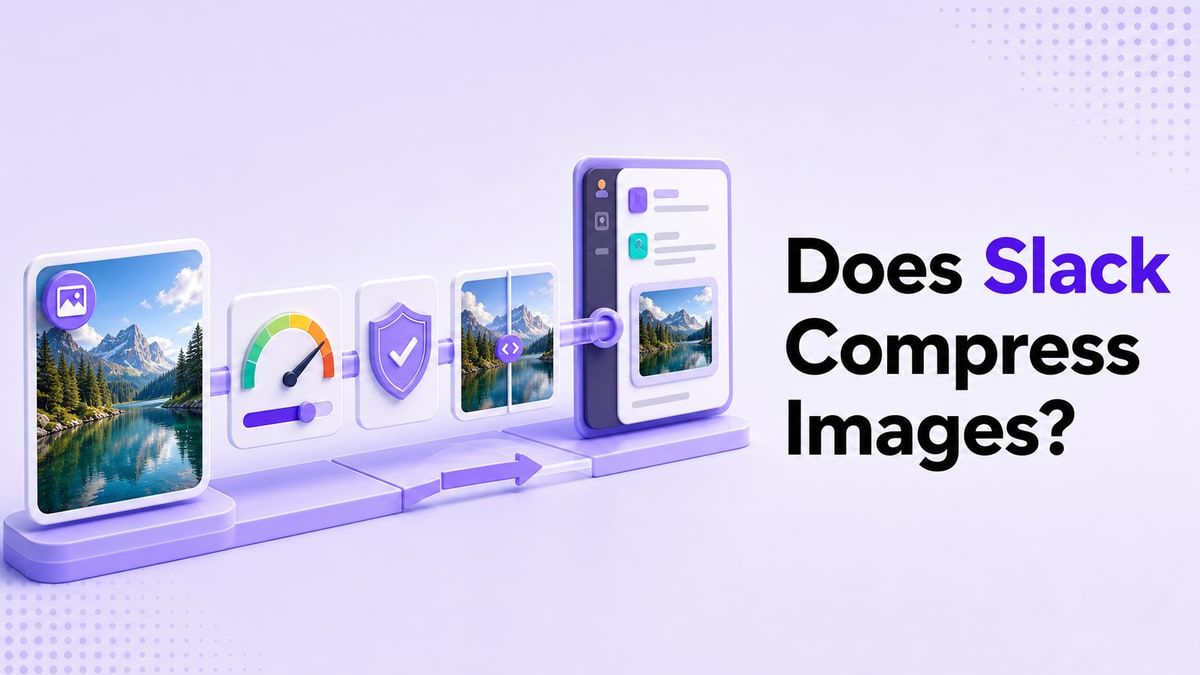
Sì, la domanda Slack comprime le immagini è una preoccupazione reale perché Slack può ottimizzare le immagini per una condivisione più rapida, anteprime e risparmio di dati mobili. Il risultato esatto può dipendere da dove carichi, dal tipo di file, dalle impostazioni dell'app e da come i colleghi visualizzano o scaricano il file.
Il punto chiave è che Slack è costruito per la comunicazione, non per l'ottimizzazione avanzata delle immagini. Se hai bisogno di dimensioni del file prevedibili e di una qualità dell'immagine più pulita, comprimi le immagini prima di caricarle. Questo ti dà un maggiore controllo sull'equilibrio tra qualità, velocità di caricamento e archiviazione.
Perché la Qualità delle Immagini su Slack Può Cambiare
Slack gestisce i media in un modo che aiuta i team a muoversi rapidamente. Le immagini spesso appaiono come anteprime all'interno di canali, thread e chat mobili, e Slack potrebbe visualizzarle in modo diverso dal file originale sul tuo dispositivo. Ecco perché le persone si chiedono Slack comprime la qualità delle immagini dopo aver visto uno screenshot apparire più sfocato del previsto.
Questo problema è più evidente sui dispositivi mobili. Un telefono può utilizzare impostazioni di risparmio dati, anteprime più piccole o caricamenti ottimizzati per ridurre la larghezza di banda. Quando un file di design, uno screenshot annotato o una foto ad alta risoluzione viene condiviso in questo modo, l'anteprima può sembrare meno nitida dell'originale.
C'è anche un problema di flusso di lavoro. Se ogni persona carica immagini grezze direttamente su Slack, i canali si affollano di file di grandi dimensioni, anteprime più lente e versioni ripetute. Un passaggio di compressione controllato prima del caricamento mantiene il file più leggero, aiutando l'immagine a rimanere utile.
1. Controlla se hai bisogno di un'Anteprima o dell'Originale
Prima di chiederti Slack comprime le immagini, decidi cosa deve fare l'immagine. Un meme veloce, una foto di squadra o uno screenshot casuale non necessitano della stessa qualità di un mockup di prodotto, un rapporto di bug o una grafica per il cliente. Il giusto livello di qualità dipende dal compito.
Se l'immagine deve essere vista solo in un thread, una versione compressa più leggera potrebbe essere sufficiente. Se l'immagine necessita di approvazione, modifica o archiviazione, conserva il file originale in un luogo sicuro e condividi una copia compressa su Slack. In questo modo, i colleghi ottengono un'anteprima veloce senza perdere l'accesso alla versione sorgente.
Questa distinzione è particolarmente utile per i team di marketing e design. Slack è eccellente per un feedback rapido, ma non dovrebbe essere l'unica posizione di archiviazione per gli asset creativi finali. Tratta Slack come uno strato di conversazione, quindi usa la compressione controllata delle immagini per i file che effettivamente condividi.
Come Applicare Questo Passaggio
Inizia nominando lo scopo dell'immagine: revisione, riferimento, approvazione, segnalazione di bug o condivisione casuale. Quindi scegli se il caricamento su Slack debba essere un'anteprima leggera o un asset a piena risoluzione.
Se l'immagine include testo minuscolo, elementi dell'interfaccia utente, dettagli di fogli di calcolo o annotazioni, evita una compressione eccessivamente aggressiva. Se l'immagine è una foto grande o un semplice elemento visivo, di solito puoi ridurre ulteriormente le dimensioni del file. Questa piccola decisione previene una perdita di qualità non necessaria.

2. Comprimi le Immagini Prima di Caricarle su Slack
Il modo migliore per gestire la domanda Slack comprime le immagini che carico è preparare il file prima che Slack lo elabori. Quando comprimi l'immagine tu stesso, puoi scegliere una dimensione target, rivedere l'anteprima prima e dopo, e decidere se il risultato è abbastanza chiaro. Questo è più prevedibile che sperare che l'impostazione dell'app dia il risultato giusto.
Puoi usare Lynote Compress Image per questo flusso di lavoro. Ti permette di scegliere una dimensione target prima di caricare, trascinare una o più immagini nell'area di caricamento e confrontare l'immagine originale e quella compressa prima di scaricare. Questo è utile quando hai bisogno che un'immagine si adatti a Slack, e-mail, un modulo, un caricamento su un sito web o un altro limite di condivisione.
Il vantaggio è il controllo. Invece di caricare uno screenshot enorme e chiederti se Slack lo farà apparire diverso, crei prima una versione pronta per Slack. Mantieni comunque il file originale, ma la versione condivisa su Slack è più piccola e più facile da aprire per i colleghi.
Come Comprimere le Immagini di Slack con Lynote
Apri Lynote Compress Image e scegli una dimensione target prima di caricare. Scegli una dimensione del file pratica in base al tipo di immagine, come un target più leggero per screenshot casuali o un target più grande per anteprime di design dettagliate.
Trascina la tua immagine nell'area di caricamento o scegliila dal tuo dispositivo. Dopo il caricamento, la compressione inizia automaticamente, quindi non è necessario regolare impostazioni complicate.
Rivedi il confronto prima e dopo e controlla le dimensioni del file originale e compresso. Se l'immagine appare ancora leggibile, scarica il file compresso e carica quella versione su Slack.

3. Usa il Formato Immagine Corretto per la Condivisione su Slack
La domanda Slack comprime le immagini sorge spesso perché i diversi formati di immagine si comportano in modo diverso. Uno screenshot PNG può preservare il testo nitido dell'interfaccia, ma può anche creare un file più grande. Una foto JPG è solitamente più piccola, ma la compressione ripetuta può rendere i bordi e il testo meno puliti.
Per screenshot, dashboard, interfacce di app e elementi visivi ricchi di testo, il PNG può essere utile quando la chiarezza è importante. Per foto, immagini di eventi, anteprime social e grandi asset visivi, il JPG è spesso una scelta migliore. L'obiettivo non è scegliere un formato per sempre, ma abbinare il formato all'immagine.
Le conversazioni su Slack si muovono velocemente, quindi i team spesso caricano il file più semplice. Questo è comodo, ma può creare sorprese sulla qualità. Un rapido controllo del formato prima del caricamento aiuta a ridurre la possibilità che i colleghi vedano un'immagine sfocata o inutilmente pesante.
Guida ai Formati per le Immagini di Slack
| Tipo di Immagine | Formato Migliore | Perché Aiuta |
|---|---|---|
| Screenshot UI | PNG | Mantiene il testo piccolo e le linee dell'interfaccia più pulite |
| Foto prodotto | JPG | Riduce le dimensioni del file per le immagini basate su foto |
| Anteprima social | JPG o PNG | Dipende se la chiarezza del testo o le dimensioni del file sono più importanti |
| Segnalazione bug annotata | PNG | Aiuta etichette, frecce e commenti a rimanere leggibili |
| Immagine grande evento | JPG | Solitamente più facile da condividere rapidamente su Slack |
Se non sei sicuro, confronta entrambe le versioni prima di pubblicare. Comprimere l'immagine e rivedere il risultato ti dà una risposta pratica invece di una teorica. Questo è più importante che inseguire una singola regola universale sul formato.

4. Regola le Impostazioni Media Mobili di Slack
La struttura di riferimento per questo articolo si concentra sulle impostazioni mobili di Slack perché i dati mobili e lo spazio di archiviazione sono punti dolenti comuni. Se usi Slack su un telefono, impostazioni come la compressione delle immagini, l'ottimizzazione dei caricamenti o il controllo del salvataggio dei media possono influenzare il comportamento delle immagini. Queste impostazioni sono utili quando vuoi che Slack utilizzi meno dati.
È qui che la domanda Slack comprime la qualità delle immagini diventa un compromesso. Un'impostazione mobile che risparmia dati può essere utile per la velocità, ma potrebbe non essere ideale per una revisione visiva dettagliata. Se il tuo team condivide frequentemente bozze di design, grafici o screenshot di app, vale la pena controllare queste preferenze.
La regola pratica è semplice: usa le impostazioni di Slack per la comodità mobile e usa gli strumenti di compressione delle immagini per il controllo della qualità dei file. Le impostazioni di Slack aiutano a ridurre l'uso dei dati all'interno dell'app. Lynote aiuta a preparare le immagini prima che entrino nell'app.
Impostazioni Mobili da Rivedere
Controlla se Slack è impostato per ottimizzare le immagini per il caricamento sul tuo dispositivo mobile. Se questa impostazione è abilitata, i caricamenti potrebbero utilizzare meno dati, ma la qualità dell'immagine potrebbe non corrispondere all'originale in ogni flusso di lavoro.
Rivedi anche se Slack salva automaticamente i media nel rullino fotografico. Disattivare il salvataggio non necessario dei media può ridurre il disordine del telefono e impedire che immagini duplicate riempiano lo spazio di archiviazione.
Infine, comprimi le immagini quando desideri una visualizzazione del canale mobile più pulita. Questo non risolve direttamente la qualità dell'immagine, ma può rendere i canali affollati più facili da scansionare.

5. Crea una Regola di Squadra per la Condivisione delle Immagini
Una regola di squadra è spesso meglio che chiedersi Slack comprime le immagini ogni volta che un file appare diverso. Se tutti seguono lo stesso approccio alla condivisione delle immagini, i tuoi canali Slack diventano più facili da gestire. Designer, marketer, team di supporto e studenti possono tutti beneficiare di una semplice politica sui file.
Ad esempio, i team possono concordare di condividere anteprime compresse su Slack e conservare gli originali finali in un'unità condivisa. Possono anche impostare obiettivi diversi per screenshot, foto e elementi visivi pronti per il cliente. Questo mantiene Slack veloce preservando i file che necessitano di qualità a lungo termine.
La regola non deve essere complicata. Può essere semplice come: comprimere prima le immagini grandi, conservare gli originali al di fuori di Slack e controllare la leggibilità prima di pubblicare. Questo piccolo flusso di lavoro può prevenire la maggior parte dei reclami sulla qualità.
Un Semplice Flusso di Lavoro per le Immagini su Slack
- Conserva l'immagine originale sul tuo dispositivo o nell'archiviazione cloud.
- Comprimi una copia pronta per Slack con una dimensione target.
- Visualizza l'anteprima del risultato compresso prima di inviare.
- Carica la versione compressa su Slack.
- Condividi l'originale solo quando i colleghi necessitano del file a piena risoluzione.
Questo flusso di lavoro è particolarmente utile quando condividi immagini con partner esterni. Un'immagine pulita e leggera si apre più velocemente e riduce l'attrito. Allo stesso tempo, eviti di affidarti a Slack per decidere quanta ottimizzazione è accettabile.
Compressione Immagini Slack: Cosa Controllare
| Fattore | Cosa può influenzare Slack | Cosa puoi controllare prima del caricamento |
|---|---|---|
| Aspetto dell'anteprima | Dimensione di visualizzazione e anteprima nel canale | Dimensioni di esportazione e chiarezza visiva |
| Peso del caricamento | Impostazioni di ottimizzazione mobile | Dimensione del file target e livello di compressione |
| Leggibilità del testo | Scalatura dell'anteprima | Scelta PNG/JPG e revisione prima-dopo |
| Disordine nell'archiviazione | Salvataggio automatico e volume media condivisi | Se carichi copie compresse |
| Coerenza del team | Diverse impostazioni utente | Un flusso di lavoro condiviso per le immagini |
Questa tabella mostra perché la domanda Slack comprime le immagini che carico è solo una parte del problema più grande. Slack può influenzare il modo in cui le immagini vengono caricate o visualizzate, ma tu controlli comunque la preparazione. Più pulito è il tuo file di input, più prevedibile diventa il tuo flusso di lavoro di condivisione su Slack.
Quando Dovresti Comprimere le Immagini Prima di Slack
Comprimi le immagini prima di Slack quando il file è grande, il canale è occupato o i colleghi sono principalmente su dispositivi mobili. Questo aiuta a ridurre l'attrito di caricamento e mantiene le conversazioni in movimento. È anche utile quando stai condividendo diversi screenshot di seguito.
Dovresti anche comprimere prima quando l'immagine verrà riutilizzata in un'attività, un ticket, un rapporto o una revisione di contenuti. In questi casi, le dimensioni del file contano, ma anche la leggibilità. Un'anteprima prima e dopo ti permette di decidere se la versione compressa è sicura da condividere.
Tuttavia, non comprimere eccessivamente le immagini che includono testo piccolo o dettagli importanti. Se l'immagine è uno screenshot di un contratto, un rapporto di analisi, un'annotazione di design o un passaggio di riproduzione di un bug, preserva una qualità sufficiente per la revisione. La compressione dovrebbe facilitare la condivisione, non rendere l'immagine meno utile.
Errori Comuni Che Peggiorano l'Aspetto delle Immagini su Slack
Il primo errore è caricare la stessa immagine ripetutamente dopo averla modificata in diverse app. Ogni esportazione può introdurre maggiore compressione, specialmente con i file JPG. Inizia sempre dall'originale più pulito possibile.
Il secondo errore è ridurre troppo le dimensioni. Una piccola dimensione del file è utile, ma un'immagine minuscola potrebbe diventare illeggibile nell'anteprima di Slack. Mantieni una risoluzione sufficiente per il contesto di visualizzazione effettivo.
Il terzo errore è presumere che Slack sia l'archivio. Se il tuo team avrà bisogno di asset finali in seguito, archivia gli originali al di fuori di Slack e usa Slack per la discussione. Questo mantiene il tuo canale leggero senza rischiare versioni importanti dei file.
Domande Frequenti sulla Compressione delle Immagini di Slack
Slack comprime automaticamente le immagini?
Slack può ottimizzare la gestione delle immagini per caricamenti, anteprime e utilizzo dei dati mobili, quindi molti utenti si chiedono giustamente Slack comprime le immagini. Il comportamento esatto può dipendere dall'app, dal dispositivo, dalle impostazioni e da come l'immagine viene visualizzata o scaricata. Se la qualità è importante, comprimi e rivedi il file tu stesso prima di condividerlo.
Slack comprime la qualità delle immagini su mobile?
I flussi di lavoro mobili sono dove la domanda Slack comprime la qualità delle immagini diventa più visibile. Le impostazioni che riducono l'uso dei dati possono rendere i caricamenti più veloci, ma possono anche creare un'anteprima che appare diversa dall'originale. Per screenshot importanti o revisioni creative, prepara prima l'immagine.
Slack comprime le immagini che carico dal desktop?
I caricamenti da desktop potrebbero comunque essere visualizzati in anteprima o mostrati in modo diverso all'interno di Slack, anche se il file originale rimane disponibile. Se qualcuno visualizza solo l'anteprima, potrebbe pensare che la qualità sia cambiata. Una copia compressa pronta per Slack può rendere l'esperienza di anteprima più prevedibile.
Lynote Compress Image è utile per i caricamenti su Slack?
Sì, Lynote Compress Image è utile quando vuoi ridurre le dimensioni dell'immagine prima di caricarla su Slack. Ti aiuta a scegliere una dimensione target, caricare una o più immagini, confrontare il risultato prima e dopo e scaricare l'immagine compressa. L'onesta limitazione è che una compressione molto aggressiva può comunque ridurre i dettagli, quindi dovresti rivedere l'output prima di condividerlo.
Quale dimensione dell'immagine dovrei usare per Slack?
Non esiste una dimensione migliore unica per ogni immagine di Slack. Una foto casuale può essere più piccola, mentre uno screenshot dell'interfaccia utente o una revisione di design dovrebbero mantenere una risoluzione sufficiente per testo e dettagli. Scegli il file più piccolo che appaia ancora chiaro nell'anteprima prima e dopo.
Verdetto Finale
Quindi, Slack comprime le immagini? Slack può ottimizzare i caricamenti di immagini, le anteprime e il comportamento dei media mobili, motivo per cui la qualità delle immagini potrebbe apparire diversa dopo la condivisione. Il flusso di lavoro più affidabile è comprimere le immagini prima di Slack con uno strumento controllato come Lynote Compress Image, rivedere il risultato e quindi caricare un file più leggero che appaia comunque chiaro.

Scritto da Janet L. Harris
Specialista in Scrittura AI
Janet esamina i rilevatori AI e gli strumenti di umanizzazione, con un focus su accuratezza, limitazioni e uso responsabile. Vedi tutti gli articoli →