

Detector de IA gratuito para Google Docs
¿Por qué el Detector de IA para Google Docs de Lynote es mejor que otras herramientas?

Verificador de IA avanzado para Google Docs
Lynote es un Detector de IA gratuito para Google Doc. Genera informes detallados basados en señales humanas, de IA y mixtas. Clasifica un documento en diferentes partes. Esto ayuda a los usuarios a editar solo las partes necesarias.

Verificador de Plagio
Las herramientas de IA tienden a plagiar contenido de otras fuentes. Nuestro Detector de IA para Google Docs también verifica el plagio junto con la IA. La detección oportuna garantiza que tu documento final no tenga errores.

Detección de Escritura Automática
Ya sea que un documento esté escrito por un humano o una IA, Lynote lo detecta todo. Reconoce patrones de IA repetidos para generar un informe fiable. Envía tus escritos con confianza.
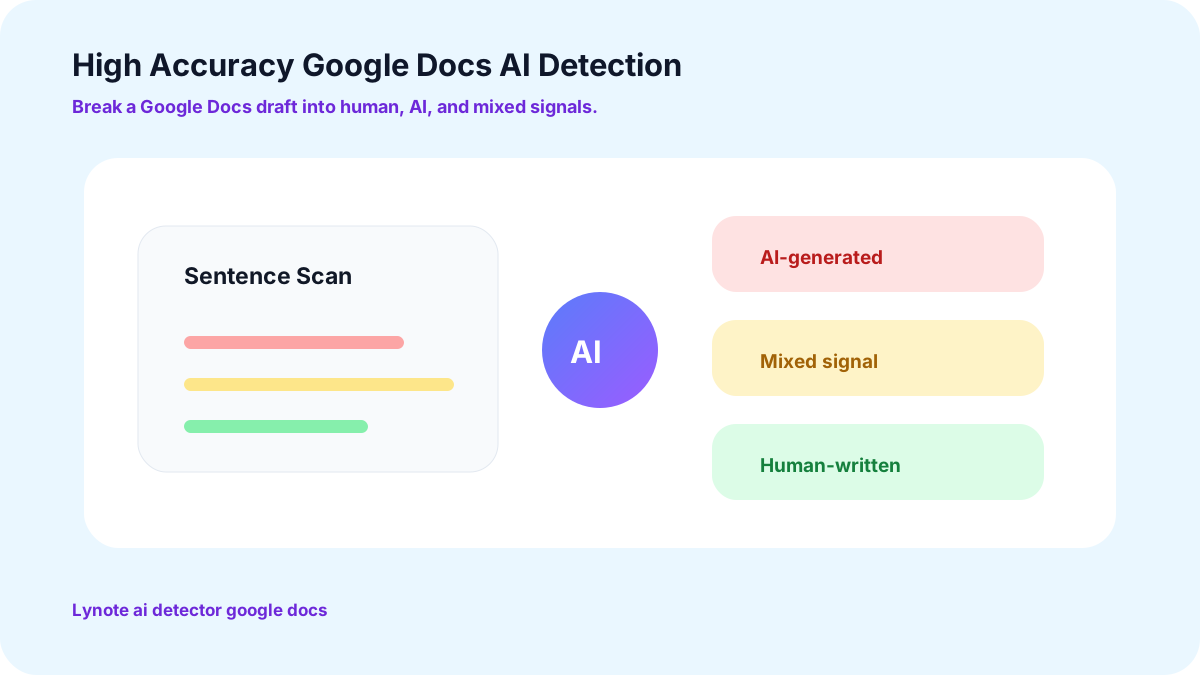
Detector de IA para Google Doc con Alta Precisión
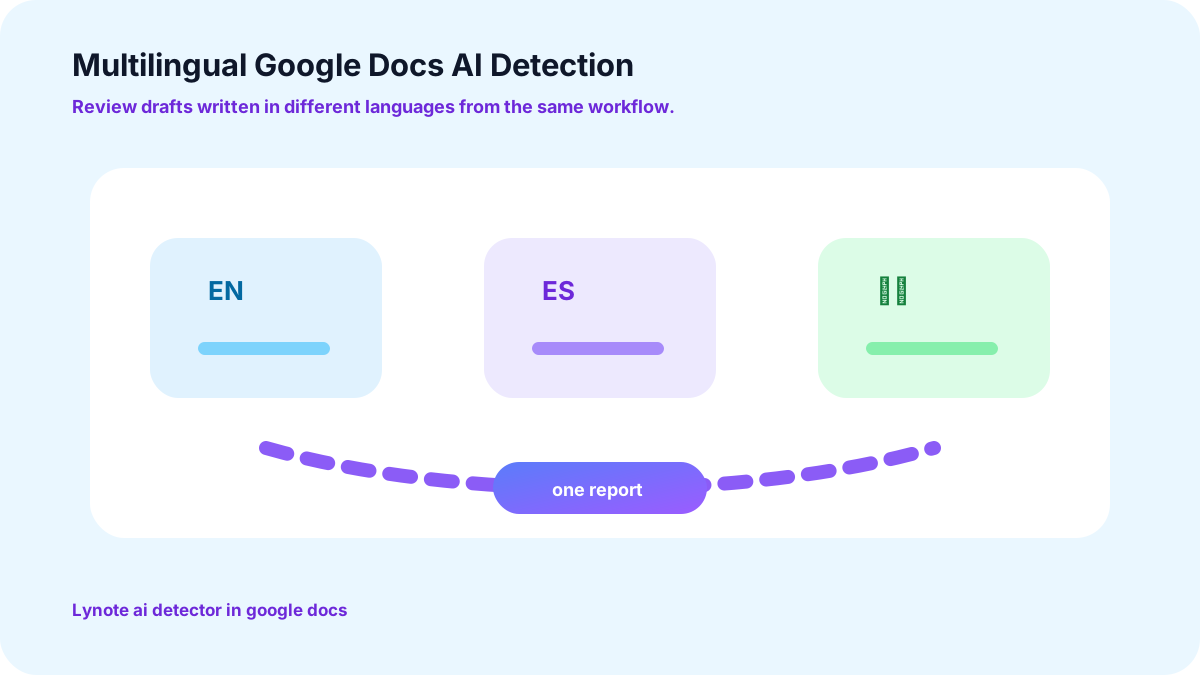
Detección de IA Multilingüe para Google Docs
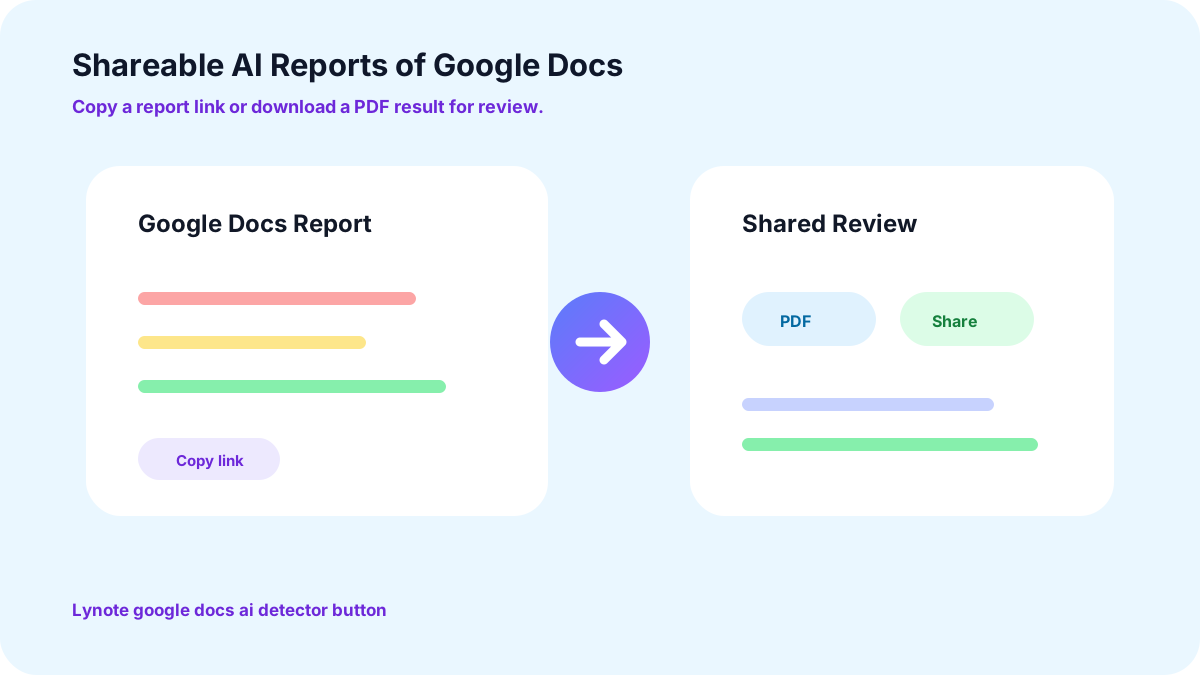
Informes de IA Compartibles de Google Docs
¿Para quién es la herramienta de detección de IA para Google Docs de Lynote?

Escritores, Editores y Especialistas en Marketing
Cualquier persona en el campo de la creación de contenido puede usar nuestro nuevo Detector de IA para Google Docs. Puede detectar IA en publicaciones de blog, artículos de noticias y guiones de marketing en cuestión de segundos.

Estudiantes y Profesores
El Detector de IA para Google Docs de Lynote es perfecto para fines académicos. Está entrenado con una amplia variedad de datos. Por lo tanto, la herramienta puede detectar IA con precisión, incluso en tareas o trabajos de investigación.

Escuelas y Empresas
El Detector de IA de Lynote va más allá de la simple señalización. Distingue entre contenido totalmente generado por IA y contenido escrito por humanos con asistencia de IA. Permite a las organizaciones aplicar políticas justas de uso de IA.
¿Cómo usar el Detector de IA de Lynote en Google Docs?
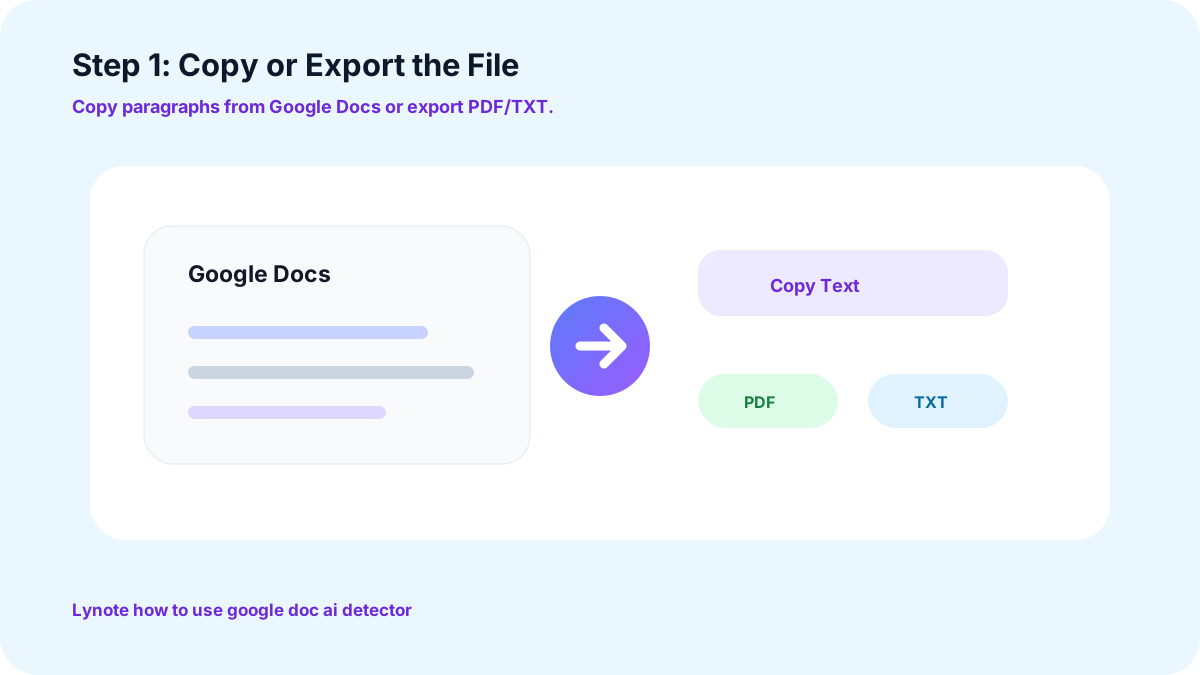
Paso 1: Copiar o Exportar el Archivo
Copia los párrafos de Google Docs o exporta el archivo en formato PDF o TXT. Revisa 300 palabras en la versión gratuita y hasta 3000 palabras en la versión de pago de una sola vez.
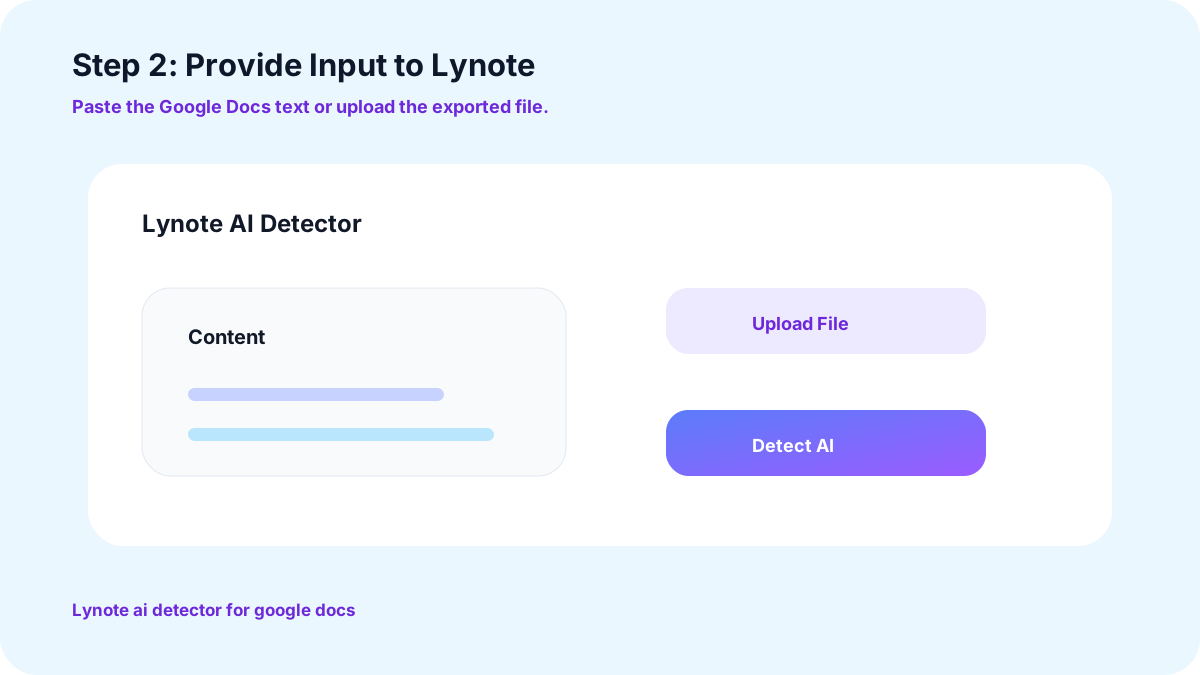
Paso 2: Proporcionar Entrada a Lynote
Ve a Lynote y pégalo o súbelo en la sección “Contenido”.
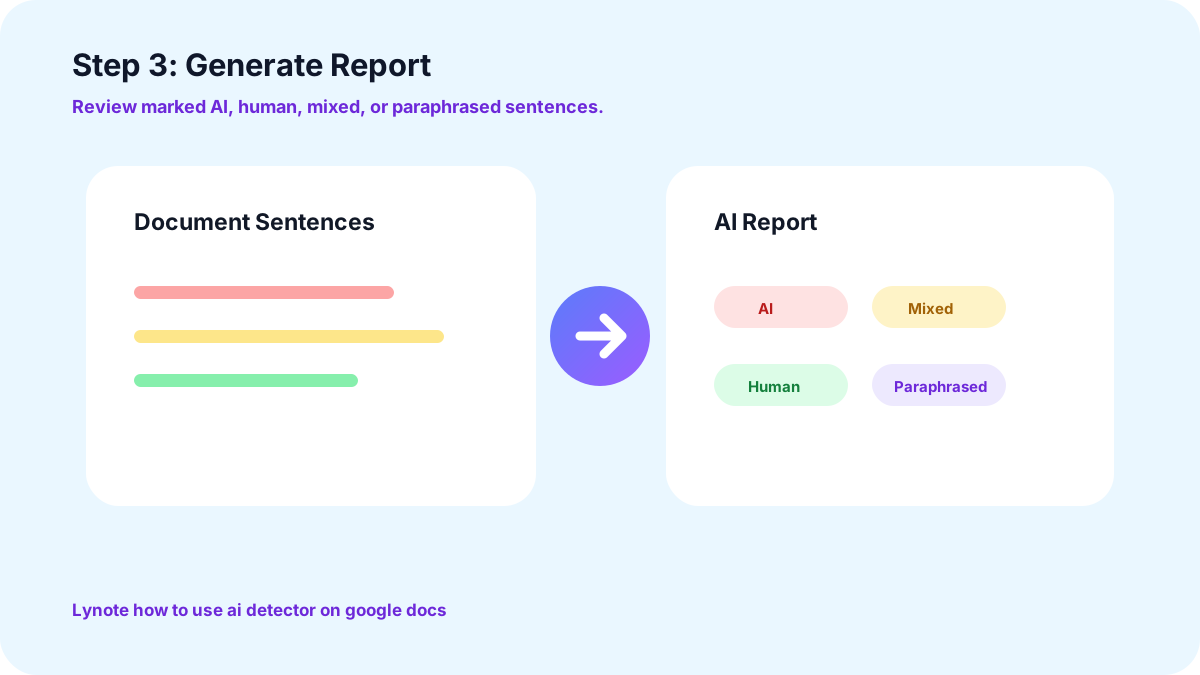
Paso 3: Generar Informe
Haz clic en “Generar IA” para revisar tu informe. Tendrá todas las oraciones marcadas como IA, humanas, mixtas o parafraseadas. Edita solo las partes necesarias y envía.
¿Cuál es el Beneficio del Detector de IA para Google Docs de Lynote?
Mayor Precisión en la Detección de IA
Los informes generados por el detector de IA para Google Docs de Lynote tienen una tasa de falsos positivos muy baja. Nuestra herramienta ofrece un 92% de precisión. Garantiza que el trabajo genuino nunca sea marcado erróneamente y que el esfuerzo de nadie sea desestimado injustamente.
Fomentando el Uso Responsable de la IA
El Detector de IA de Lynote proporciona comentarios claros que dan a los usuarios una mayor visibilidad sobre cómo puede ser percibida su escritura. Al resaltar patrones que pueden parecer generados por IA, ayuda a los usuarios a refinar y personalizar su escritura mientras toman decisiones más informadas sobre cómo utilizan la IA.
Detección de IA más justa para estudiantes de ESL
El detector de IA de Lynote para Google Docs está entrenado con miles de entradas de texto diversas, lo que le ayuda a distinguir los patrones generados por IA de las variaciones naturales que se encuentran en la escritura humana. Al detectar IA, tiene en cuenta las diferencias en el dominio del idioma observadas en la escritura de ESL para proporcionar resultados imparciales.
Preguntas frecuentes
Sí, Lynote proporciona un informe preciso con una tasa de coincidencia de señal del 92%. Su informe a nivel de oración es muy preciso. Además, ha escaneado con precisión más de 500 mil documentos.
Para compartir un informe, haz clic en el botón 'compartir' y copia el enlace para usarlo más tarde. También puedes descargar los resultados en formato PDF y compartirlos con quien quieras.
Sí, el detector de IA de Lynote para Google Docs puede detectar texto parafraseado junto con contenido escrito por IA. El contenido parafraseado puede marcarse como IA o mixto, dependiendo de los patrones de IA que contenga.
No hay condiciones. Puedes usar el detector de IA de Lynote gratis sin preocuparte por requisitos ocultos. Permite a los usuarios escanear 300 palabras a la vez sin ningún pago.
No, la extensión de Google Docs aún no está disponible. Para pasar un documento de Google por nuestro escáner, puedes copiar el texto o exportar los archivos en formato PDF o TXT.
Para pasar un documento de Google por un detector de IA, simplemente puedes abrir la página web del detector de IA de Lynote. Pega o sube tu archivo y haz clic en 'Detectar IA'.
Más herramientas de Lynote para la revisión de Google Docs y la limpieza de borradores








Guías para Revisar Borradores de Google Docs y Texto Escrito por IA
Lee las guías de Lynote sobre detección de IA, falsos positivos, humanización de texto y flujos de trabajo de escritura más limpios antes de enviar, publicar o compartir un borrador de Google Docs.


