Was passiert, wenn Google Fotos Ihre Bilder komprimiert?

Komprimiert Google Fotos Bilder, wenn Sie Ihre Kamerarolle sichern? Ja, das kann es, aber nur wenn Sie den Speicherplatzsparer wählen oder bestehende Backups in Originalqualität konvertieren. Die Originalqualität bewahrt das Foto in derselben Auflösung und Qualität, während der Speicherplatzsparer die Dateigröße reduziert, um Speicherplatz im Konto zu sparen. Der knifflige Teil besteht darin, zu wissen, wann diese Kompression hilfreich ist und wann Sie Bilder selbst vor dem Hochladen komprimieren sollten.
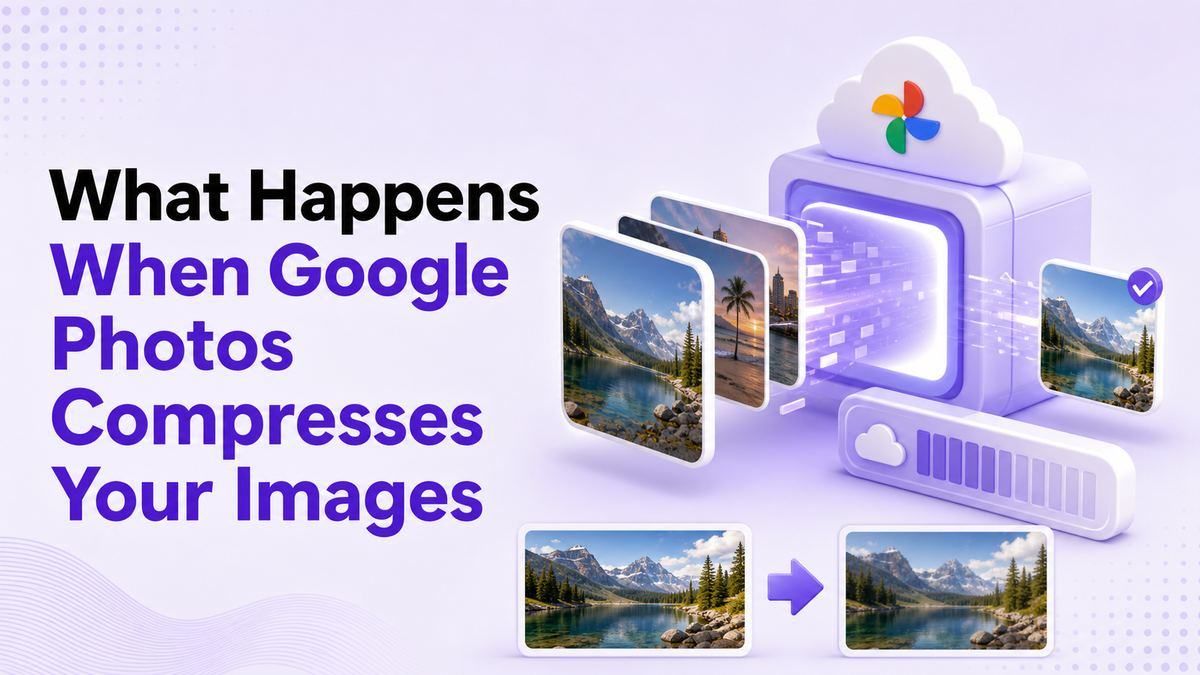
Google Fotos ist praktisch, da es Backup, Suche, Alben und Gerätesynchronisierung an einem Ort verwaltet. Aber wenn Ihr Speicher fast voll ist, wird die Frage der Kompression praktischer: Werden Ihre Fotos weiterhin gut aussehen, verhalten sich Pixel-Backups anders, und sollten Sie einen anderen Bildkompressor verwenden, bevor Google Fotos die Datei bearbeitet?
Schnelle Antwort: Komprimiert Google Fotos Bilder?
Ja, Google Fotos komprimiert Bilder, wenn Sie sie mit der Qualität des Speicherplatzsavers sichern. Laut der Hilfeseite zur Backup-Qualität von Google speichert der Speicherplatzsparer Fotos in leicht reduzierter Qualität und verkleinert Fotos, die größer als 16 MP sind, auf 16 MP. Es kann auch einige hochgeladene Fotos in ein anderes Format, wie JPG, umwandeln.
Wenn Sie die Originalqualität wählen, komprimiert Google Fotos Bilder nicht auf die gleiche Weise. Die Originalqualität speichert Fotos und Videos in der Auflösung, in der sie aufgenommen wurden, ohne Qualitätsänderung, aber diese Dateien zählen zu Ihrem Google-Kontostorage. Deshalb hängt die richtige Einstellung davon ab, ob Ihnen maximale Bildtreue oder das Sparen von Cloud-Speicher wichtiger ist.

| Backup-Auswahl | Was passiert | Am besten für |
|---|---|---|
| Originalqualität | Bewahrt die originale Auflösung und Qualität | Große Drucke, Archive, Bearbeitung |
| Speicherplatzsparer | Komprimiert und kann große Fotos verkleinern | Tägliche Backups, Handyfotos, Speicherplatz sparen |
| Express | Aggressivere Kompression, wo verfügbar | Begrenzte Datenpläne und gelegentliche Backups |
| Lynote Bild komprimieren | Vor dem Hochladen mit Vorschau steuern | Webseitenformulare, E-Mail, Teilen, Zielgrößenbedarf |
Warum ich mich nicht nur auf Google Fotos verlassen würde
Der Artikel von Android Authority, auf dem diese Struktur basiert, verfolgt einen praktischen Ansatz zur Speicherbereinigung: Warten Sie nicht, bis Google One-Warnungen Sie zwingen, hastige Entscheidungen zu treffen. Diese Denkweise gilt auch hier. Wenn Sie nur fragen „Komprimiert Google Fotos Bilder?“, nachdem Ihr Konto voll ist, haben Sie möglicherweise bereits eine große Bibliothek, die gereinigt werden muss.
Google Fotos ist großartig für automatische Backups, aber es ist nicht immer der beste Ort, um jede Kompressionsentscheidung zu treffen. Der Speicherplatzsparer ist für allgemeine Cloud-Speichereinsparungen gedacht, nicht für ein spezifisches Upload-Limit einer Webseite, ein E-Mail-Anhangslimit, ein Schulformular, eine Marktplatzanzeige oder eine Portfolioseite. Wenn Sie eine präzise kleinere Datei benötigen, ist es oft sauberer, das Bild vor dem Hochladen zu komprimieren.
Hier kommt Lynote Bild komprimieren ins Spiel. Sie können eine Zielgröße wählen, ein oder mehrere Bilder hochladen, das Ergebnis vor und nach der Kompression in der Vorschau anzeigen, die Dateigrößen vergleichen und das komprimierte Bild herunterladen. Anstatt zu raten, was Google Fotos später tun wird, entscheiden Sie, was „klein genug“ bedeutet, bevor das Bild Ihren Workflow verlässt.
Wie komprimiert Google Fotos Bilder?
Wenn Sie fragen, wie Google Fotos Bilder komprimiert, ist die einfachste Antwort, dass der Speicherplatzsparer die Dateigrößenreduzierung und Auflösungsgrenzen anwendet. Google sagt, dass Fotos, die größer als 16 MP sind, auf 16 MP verkleinert werden, und Fotos im Speicherplatzsparer werden in leicht reduzierter Qualität gespeichert. In vielen alltäglichen Fällen sieht das auf Handys, sozialen Feeds und Standardbildschirmen immer noch gut aus.
Die Kompression soll Ihnen kein detailliertes Bearbeitungsfeld geben. Sie wählen kein benutzerdefiniertes KB-Ziel, vergleichen keine Kompressionsstufen oder entscheiden nicht, wie viel Detail in jedem Bild erhalten bleiben soll. Google Fotos trifft die speichersparende Entscheidung für Sie basierend auf seinen Backup-Qualitätsregeln.
Das ist praktisch für die Massen-Backup, aber weniger nützlich für kontrolliertes Veröffentlichen. Wenn Ihr Ziel ist „Machen Sie dieses Produktfoto unter 500 KB“ oder „Komprimieren Sie diesen Screenshot, bevor Sie ihn an einen Kunden senden“, gibt Ihnen ein dedizierter Kompressor ein klareres Ergebnis. Mit Lynote ist der Workflow auf die Datei ausgerichtet, die Sie jetzt benötigen, nicht nur auf langfristigen Cloud-Speicher.

Wie stark komprimiert Google Fotos Bilder?
Es gibt keine eindeutige Antwort darauf, wie stark Google Fotos Bilder komprimiert, da es von der ursprünglichen Datei abhängt. Ein 48 MP Handybild kann im Speicherplatzsparer auf 16 MP verkleinert werden, während ein kleineres Foto möglicherweise nur komprimiert wird oder nahe an seinem sichtbaren Original bleibt. Einige Dateien sind möglicherweise überhaupt nicht für die Kompression im Speicherplatzsparer geeignet.
Für Videos sagt Google, dass der Speicherplatzsparer Videos, die höher als 1080p sind, auf 1080p verkleinert. Die Express-Qualität, wo verfügbar, ist aggressiver, verkleinert Fotos, die größer als 3 MP sind, auf 3 MP und Videos, die höher als 480p sind, auf 480p. Das ist nützlich für den Speicher, zeigt aber auch, warum die Backup-Qualität nicht dasselbe ist wie ein benutzerdefinierter Bildoptimierungs-Workflow.
Wenn Sie vorhersehbare Ergebnisse benötigen, messen Sie die Ausgabedatei direkt. Google Fotos kann Ihnen helfen, den Speicher im Laufe der Zeit zu reduzieren, aber Lynote hilft, wenn Sie ein Bild auf eine praktische Upload-Größe komprimieren müssen, bevor Sie es verwenden. Dieser Unterschied ist wichtig, wenn ein Formular Ihre Datei ablehnt oder eine Webseite zu langsam lädt.
Schadet die Kompression von Google Fotos der Leistung?
Wenn Sie die Leistung des Telefons meinen, schadet die Kompression von Google Fotos normalerweise nicht direkt der lokalen Leistung Ihres Geräts. Die Cloud-Backup-Version kann komprimiert sein, aber Ihre lokale Gerätekopie kann je nach Ihren Einstellungen und ob Sie lokale Dateien löschen, getrennt bleiben. Das größere Leistungsproblem ist normalerweise der Speicherdruck, die Synchronisierung, die Upload-Zeit und wie große Bilder sich verhalten, wenn sie anderswo geteilt oder eingebettet werden.
Wenn Sie die Bildqualität auf Webseiten oder in Apps meinen, helfen kleinere komprimierte Bilder oft. Ein kleinerer JPG oder PNG kann schneller hochgeladen werden, schneller laden und weniger Bandbreite verwenden. Zu viel Kompression kann jedoch Text verschwommen machen, Gesichter weich erscheinen lassen oder Produktdetails weniger vertrauenswürdig machen.
Deshalb benötigt die Frage „Schadet die Kompression von Google Fotos der Leistung?“ Kontext. Für den Speicher kann Kompression helfen; für die visuelle Qualität kann Kompression Details kosten; für Webseiten kann ein gut komprimiertes Bild die Ladegeschwindigkeit der Seite verbessern. Ein Vorschau-basiertes Tool wie Lynote gibt Ihnen die Möglichkeit, diesen Kompromiss zu prüfen, bevor Sie sich festlegen.
Komprimiert Google Fotos Bilder auf Pixel?
Die Situation bei Pixel hat sich im Laufe der Zeit geändert, weshalb viele Nutzer weiterhin suchen, ob Google Fotos Bilder auf Pixel komprimiert. Ältere Pixel-Modelle hatten spezielle Vorteile beim Google Fotos-Backup, aber neuere Pixel-Handys folgen im Allgemeinen den aktuellen Speicherregeln von Google Fotos. Android Authority hat behandelt, wie die ursprünglichen Backup-Promotionen für viele Geräte endeten.
Heute ist die entscheidende Frage immer noch die Einstellung der Backup-Qualität. Wenn Ihr Pixel die Originalqualität verwendet, werden Fotos ohne Qualitätsänderung gespeichert und zählen zum Speicherplatz Ihres Kontos. Wenn es den Speicherplatzsparer verwendet, kann Google Fotos Bilder gemäß den Regeln des Speicherplatzsavers komprimieren.
Pixel-Nutzer sollten ihre aktuelle Backup-Qualität überprüfen, anstatt anzunehmen, dass alte Vorteile weiterhin gelten. Öffnen Sie die Google Fotos-Einstellungen, überprüfen Sie die Backup-Qualität und sehen Sie sich einige hochgeladene Bilder unter ihren Details an. Wenn Sie ein kleineres Bild zum Teilen außerhalb von Google Fotos benötigen, komprimieren Sie es absichtlich vor dem Hochladen oder Versenden.

Was Reddit-Diskussionen normalerweise richtig und falsch machen
Suchanfragen wie ob Google Fotos Bilder komprimiert Reddit stammen oft von Nutzern, die echte Meinungen suchen, nicht nur offizielle Dokumentationen. Das macht Sinn, denn Kompression ist visuell: Die Leute wollen wissen, ob sie den Unterschied tatsächlich bemerken werden. Viele Nutzer berichten, dass der Speicherplatzsparer für die normale Anzeige auf dem Handy in Ordnung aussieht, während andere die Originalqualität für Archive, Drucke oder Bearbeitungen bevorzugen.
Die nützliche Erkenntnis im Reddit-Stil ist, dass es keine universelle Einstellung für alle gibt. Familienfotos, Memes, Quittungen, Screenshots und ungezwungene Reisebilder können im Speicherplatzsparer in Ordnung sein. Professionelle Fotos, Designarbeiten, gescannte Kunst, detaillierte Dokumente und Bilder, die Sie später bearbeiten möchten, verdienen mehr Vorsicht.
Der Teil, der oft verwirrend ist, ist die Terminologie. Die Leute verwechseln die Cloud-Kompression von Google Fotos, lokale Gerätedateien, Google One-Speicher, Vorteile beim Pixel-Backup und manuelle Bildkompression. Bevor Sie eine Entscheidung treffen, trennen Sie diese Fragen: Backup-Qualität, lokale Dateiqualiät, Kontospeicher und die endgültige Dateigröße, die Sie für eine bestimmte Aufgabe benötigen.
Wann man den Speicherplatzsparer von Google Fotos verwenden sollte
Verwenden Sie den Speicherplatzsparer, wenn Ihr Hauptziel darin besteht, den Speicherplatz Ihres Google-Kontos zu reduzieren. Er eignet sich gut für große persönliche Bibliotheken, in denen die meisten Fotos auf Handys angesehen, in Alben geteilt oder zur Erinnerung aufbewahrt werden, anstatt detailliert bearbeitet zu werden. Er ist auch nützlich, wenn Sie eine einfache automatische Einstellung wünschen und nicht jedes Bild einzeln komprimieren möchten.
Der Speicherplatzsparer ist weniger ideal, wenn jeder Pixel zählt. Wenn Sie große Banner drucken, RAW-ähnliche Details bearbeiten, kleinen Text bewahren oder originale Kameradateien archivieren möchten, ist die Originalqualität sicherer. Google selbst empfiehlt die Originalqualität für Fotos über 16 MP und Videos über 1080p, wenn Sie diese Treue benötigen.
Die praktische Gewohnheit besteht darin, Ihren Arbeitsablauf zu trennen. Verwenden Sie Google Fotos für Backup und Suche, aber verwenden Sie einen kontrollierten Kompressor, wenn Sie eine kleinere Datei für ein bestimmtes Ziel benötigen. Auf diese Weise müssen Ihre Cloud-Bibliothek und Ihre uploadbereiten Bilder nicht denselben Regeln folgen.
Wann man Bilder vor Google Fotos komprimieren sollte
Sie sollten Bilder vor Google Fotos komprimieren, wenn Sie eine Ziel-Dateigröße benötigen, nicht nur um den Cloud-Verbrauch zu senken. Beispiele sind Jobportale, Schulportale, Immobilienanzeigen, Blogbilder, E-Mail-Anhänge, Produktfotos für den E-Commerce oder Formulare mit strengen Upload-Limits. In diesen Fällen lautet die Frage nicht nur „Komprimiert Google Fotos Bilder“, sondern „Wird diese genaue Datei die Anforderungen erfüllen?“
Google Fotos bietet Ihnen keinen einfachen Workflow wie „komprimiere dies auf 200 KB“. Es konzentriert sich auch nicht auf die visuelle Überprüfung vor und nach der Kompression für eine einzelne Upload-Aufgabe. Es ist in erster Linie ein Backup- und Galerie-Service.
Lynote ist nützlicher, wenn Sie Kontrolle vor dem Teilen wünschen. Sie wählen eine Zielgröße, laden Ihr Bild hoch, lassen die Kompression automatisch ablaufen, vergleichen das Ergebnis vor und nach der Kompression und laden die kleinere Datei herunter. Dieser Workflow ist einfach genug für den täglichen Gebrauch, aber gezielter als sich auf eine Backup-Einstellung zu verlassen.
So komprimieren Sie Bilder mit Lynote vor dem Hochladen
Schritt 1. Wählen Sie eine Zielgröße
Öffnen Sie Lynote Bild komprimieren und wählen Sie die Zielgröße vor dem Hochladen. Dies ist hilfreich, wenn die empfangende Plattform ein klares Limit hat, wie z.B. ein Webformular, E-Mail-Anhang oder Content-Management-System. Mit einer Zielgröße zu beginnen, hält den Workflow auf die Dateigröße fokussiert, die Sie tatsächlich benötigen.
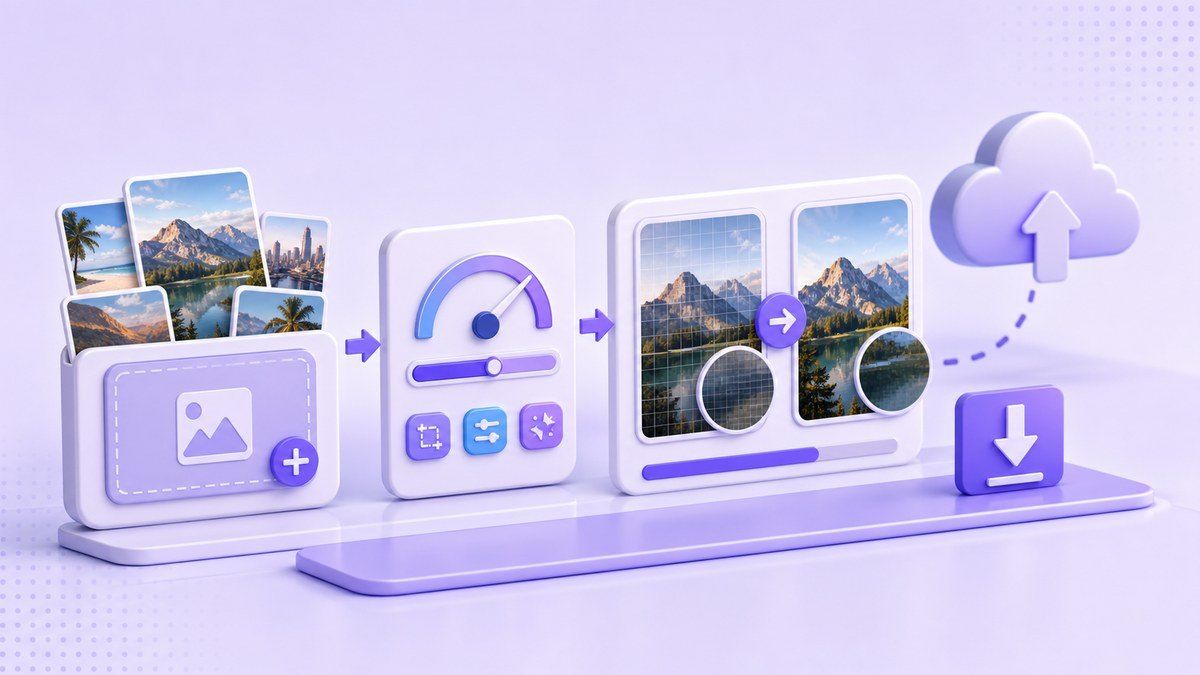
Wenn Sie sich nicht sicher sind, welche Zielgröße Sie wählen sollen, denken Sie an das Ziel. Ein Website-Thumbnail benötigt möglicherweise eine kleinere Datei als ein Portfolio-Bild, während ein E-Mail-Anhang nur klein genug sein muss, um schnell gesendet zu werden. Der Punkt ist, blinde Kompression zu vermeiden, die ein Bild kleiner macht als nötig.
Schritt 2. Laden Sie ein oder mehrere Bilder hoch
Ziehen Sie Bilder in Lynote oder wählen Sie sie von Ihrem Gerät aus. Die Kompression beginnt automatisch nach dem Hochladen, was den Workflow für Screenshots, Fotos und Stapel schnell macht. Dies ist nützlich, wenn Sie mehrere Bilder bereinigen, bevor Sie sie in einen Ordner, eine Website, eine Präsentation oder ein Formular einfügen.
Die Batch-Kompression ist besonders hilfreich, wenn Google Fotos nicht das endgültige Ziel ist. Zum Beispiel möchten Sie möglicherweise kleinere Bilder für einen Blogbeitrag und dennoch Ihre Originaldateien an einem anderen Ort aufbewahren. Eine Kopie zu komprimieren gibt Ihnen Flexibilität, ohne Ihre Fotobibliothek zur einzigen Quelle der Wahrheit zu machen.
Schritt 3. Vergleichen Sie vor und nach der Kompression
Nachdem die Kompression abgeschlossen ist, vergleichen Sie die Vorschau des Original- und des komprimierten Bildes. Überprüfen Sie Gesichter, Text, Kanten, Schatten, Produktdetails und jeden Bereich, in dem Unschärfe wichtig wäre. Vergleichen Sie auch die ursprüngliche Dateigröße und die komprimierte Dateigröße, bevor Sie herunterladen.
Dieser Vorschritt ist der Grund, warum ich einen speziellen Kompressor für wichtige Bilder bevorzuge. Google Fotos kann Speicherplatz sparen, lädt Sie jedoch nicht ein, eine bestimmte Datei zu überprüfen, bevor Sie sie woanders verwenden. Lynote macht diese Qualitätsprüfung zu einem Teil des Workflows.
Schritt 4. Lade das kleinere Bild herunter
Lade das komprimierte Bild herunter, sobald die Vorschau und die Dateigröße stimmen. Verwende diese kleinere Datei für Uploads, E-Mails, Websites, Formulare oder zum Teilen. Bewahre das Original separat auf, falls du später ein hochwertiges Archiv benötigst.
Dieser Ansatz bietet dir zwei saubere Versionen: das Original für die Speicherung und die komprimierte Kopie für die praktische Nutzung. So vermeidest du auch die Verwirrung, ob eine Cloud-Backup-Einstellung die Version geändert hat, die du gerade senden möchtest. Für die tägliche Produktivität ist diese Klarheit die zusätzliche Minute wert.
Google Fotos vs. Lynote Bilder komprimieren
| Aufgabe | Google Fotos | Lynote Bilder komprimieren |
|---|---|---|
| Automatische Cloud-Sicherung | Starke Passform | Nicht der Zweck |
| Speicherplatz im Google-Konto sparen | Starke Passform mit Speicherplatzsparer | Hilfreich vor dem Upload, aber kein Backup-Service |
| Exakte Zielgröße wählen | Eingeschränkt | Ja, Zielgrößen-Workflow |
| Vorschau vor und nach der Kompression | Eingeschränkt | Ja, visuelle Vergleichsmöglichkeit |
| Batch-Bilder komprimieren | Backup-niveau Kompression | Ein oder mehrere Bild-Uploads |
| Beste Anwendungsfälle | Langfristige Fotoarchivierung | Upload-bereite Bildoptimierung |
Die beste Wahl ist nicht entweder oder. Google Fotos ist hervorragend zum Organisieren und Sichern einer großen Bibliothek. Lynote ist besser, wenn du eine kleinere Bilddatei vorbereiten musst, bevor du sie sendest, hochlädst oder veröffentlichst.
FAQs zur Bildkompression in Google Fotos
Komprimiert Google Fotos Bilder automatisch?
Google Fotos komprimiert Bilder automatisch, wenn deine Backup-Qualität auf Speicherplatzsparer oder Express eingestellt ist, wo verfügbar. Die Originalqualität hält Fotos in der gleichen Auflösung und Qualität wie aufgenommen. Überprüfe immer deine Backup-Qualitätseinstellung, bevor du annimmst, wie neue Uploads gespeichert werden.
Komprimiert Google Fotos bereits hochgeladene Bilder?
Google Fotos kann bestehende Originalqualitäts-Backups über die Option Speicherplatz wiederherstellen in Speicherplatzsparer umwandeln. Google sagt, dass dies über das Web erfolgen kann und die Qualität zukünftiger Uploads nicht von sich aus ändert. Es handelt sich um eine Speicherwiederherstellungsaktion, nicht um einen vollständigen manuellen Kompressionseditor.
Beeinflusst die Kompression von Google Fotos lokale Fotos?
Die Kompression der Google Fotos-Backupversion betrifft hauptsächlich die Cloud-Backup-Version. Deine lokale Datei ist eine separate Kopie, es sei denn, du löschst sie, schaffst Speicherplatz auf dem Gerät oder ersetzt deinen Workflow durch heruntergeladene Versionen. Wenn das Original wichtig ist, halte ein separates lokales oder externes Backup.
Komprimiert Google Fotos Bilder auf Pixel-Handys?
Pixel-Handys folgen den Regeln zur Backup-Qualität, obwohl ältere Modelle spezielle Backup-Promotions hatten, die sich im Laufe der Zeit änderten. Neuere Pixel-Nutzer sollten die aktuellen Google Fotos-Backup-Einstellungen überprüfen, anstatt sich auf ältere Annahmen zu verlassen. Speicherplatzsparer kann Bilder komprimieren; die Originalqualität hält sie unverändert, zählt jedoch zum Speicherplatz.
Wie stark komprimiert Google Fotos Bilder?
Der Speicherplatzsparer verkleinert Fotos, die größer als 16 MP sind, auf 16 MP und speichert sie in leicht reduzierter Qualität. Die genaue Reduzierung der Dateigröße hängt vom ursprünglichen Bild, dem Format, den Details und davon ab, ob die Datei für die Kompression geeignet ist. Für eine präzise Zielgröße wie 500 KB oder 1 MB verwende einen speziellen Bildkompressor.
Endgültiges Urteil
Also, komprimiert Google Fotos Bilder? Ja, wenn du Speicherplatzsparer verwendest oder bestehende Backups konvertierst, aber die Originalqualität hält die ursprüngliche Auflösung und Qualität. Google Fotos ist nützlich, um Cloud-Speicher zu sparen, während Lynote Bilder komprimieren besser ist, wenn du eine kontrollierte, vorschau-fähige, upload-bereite Datei benötigst. Nutze Google Fotos für deine Bibliothek und Lynote, wenn das Bild vor dem Teilen kleiner sein muss.
Quellen: Google Fotos Hilfe, Android Authority Referenzartikel

Verfasst von Danny
Produktmarketing-Manager
Danny erklärt, wie Lynote-Funktionen in reale Arbeitsabläufe passen, von der alltäglichen Produktivität bis hin zu produktgesteuerten Schreib-Anwendungsfällen. Alle Artikel ansehen →