How to Summarize a Video in Seconds: The Ultimate Visual Guide (2026)

You found this guide because you are tired of scrubbing through hour-long YouTube tutorials just to find five minutes of actual value. Whether you are a student trying to digest a lecture or a researcher looking for specific data, learning how to summarize a video effectively is the biggest productivity hack of the year.

The problem isn't a lack of information; it's that the information is trapped inside a video file. You can't skim a video like you can a blog post—until now.
Below, we break down the three best ways to turn long videos into concise notes, ranging from instant AI tools to manual methods.
Quick Verdict: What is the Best Way to Summarize YouTube Videos?
If you want the answer fast: Online AI Tools are the best choice for most users. They offer the highest return on time invested, providing deep context and visual snapshots without requiring you to install software or manage API keys.
However, the "best" method depends on your specific workflow. Here is a quick comparison matrix to help you decide:
Comparison Matrix: The 3 Main Methods
| Method | Best For... | Pros | Cons |
|---|---|---|---|
| 1. Online AI Tools (e.g., Lynote) | Speed & Visuals (Students, Researchers) | • Instant: No installation required. • Visual Context: Captures screenshots. | • Works Everywhere: Any browser/device. • Requires copying/pasting the URL. |
| 2. Browser Extensions | Heavy Users (Processing 10+ videos/day) | • Integrated: Button sits inside YouTube. • One-Click: No tab switching. | • Browser Bloat: Can slow down performance. • Privacy: Often requires broad permissions. |
| 3. Manual Method (Native Features) | Accuracy Checks (Journalists, Legal) | • 100% Control: No AI errors. • Free: Native to YouTube. | • Time-Consuming: Extremely slow. • Text Only: Hard to read raw transcripts. |
The Bottom Line
- Choose Online AI Tools if: You want organized notes. Tools in this category (like Lynote) don't just dump text; they organize information into actionable checklists and provide visual snapshots, making the summary actually usable.
- Choose Extensions if: You only need a rough text overview and want to save the few seconds it takes to switch tabs.
- Choose Manual if: You are fact-checking sensitive information and cannot afford a single AI misinterpretation.
Part 1: The Best Online AI Summarizers (No Installation)
For the vast majority of users, online web tools are the superior choice. They require no software installation, no browser extensions slowing down your computer, and they work instantly on any device.
These tools are designed for anyone who needs to extract value from a video right now without jumping through hoops.
The Champion: Lynote YouTube Video Summarizer (Visual & Free)

Most AI summarizers have a fatal flaw: they are text-only. They strip away the visual context that makes video valuable in the first place. If a tutorial says "click the button in the top right," a text summary is useless if it doesn't show you which button.
Lynote offers a different approach. It acts as a true "Second Brain" by capturing visual snapshots from the video and pairing them with the text. Plus, unlike most competitors, there is no sign-up required. You don't need to hand over your email address just to get a summary.
Here is how to turn a 1-hour video into a 2-minute visual guide:
Step 1: Copy the YouTube Video URL
Find the video you want to summarize. Highlight the URL in your browser’s address bar (or click "Share" -> "Copy Link" on mobile) and copy it.
Step 2: Go to Lynote
Navigate to the Lynote YouTube Video Summarizer. You will see a clean, simple input box. Paste your YouTube URL directly into the field.
Step 3: Click "Generate Summary"
Hit the button to start. Behind the scenes, the AI does two things at once:
- Audio Analysis: It processes the spoken audio to understand the core concepts.
- Frame Extraction: It scans the video file to grab relevant screenshots that match the text.
Step 4: Review the Visual Summary
Within seconds, you get a structured report.
- Visual Summary: Key takeaways paired with actual screenshots from the video.
- Action Guide: A dedicated "To-Do" list extracted from the video, perfect for tutorials or recipes.
Step 5: Export to Markdown (Optional)
If you use Notion, Obsidian, or Tana, click the "Export to Markdown" button. This saves the entire summary—formatted perfectly with headers and bullet points—directly to your clipboard.

Alternative Option: Using ChatGPT (The Manual Paste Method)

If you prefer using a general-purpose AI like ChatGPT, Claude, or Gemini, you can summarize videos manually. However, this method is significantly slower and lacks visual context.
The Workflow:
- Open the YouTube video and click "More" in the description.
- Select "Show Transcript."
- Toggle off the timestamps (if possible) to clean up the text.
- Highlight the entire transcript text, scroll to the bottom, and copy it.
- Open ChatGPT and type: "Summarize the following text into bullet points:" followed by pasting the transcript.
The Verdict:
- Pros: It allows you to ask follow-up questions (e.g., "What did he say about X?").
- Cons: It is tedious. You lose all images and diagrams. Furthermore, long videos often exceed the character limit of free AI accounts, forcing you to paste the transcript in multiple chunks.
Part 2: Best Browser Extensions for Video Summarization
If you analyze 10+ videos a day, switching tabs to an online tool might break your flow. Browser extensions solve this by embedding the summary button directly into the YouTube interface.
While these tools require installation and can slightly impact browser performance, they offer tight integration for heavy workflows.
Top Recommendation: YouTube Summary with ChatGPT & Claude

This is currently the gold standard for browser-based summarization. Instead of copy-pasting links, this extension adds a dedicated "Transcript & Summary" box to the top-right corner of the YouTube video player.
It acts as a bridge, sending the video transcript directly to your personal AI account (ChatGPT, Claude, or Mistral) to generate the summary.
How to Install and Use
- Find the Extension: Go to the Chrome Web Store and search for "YouTube Summary with ChatGPT & Claude" (created by Glasp).
- Install: Click Add to Chrome and confirm.
- Pin It: Click the puzzle piece icon in your browser toolbar and "Pin" the extension for easy access.
- Activate: Open any YouTube video. You will now see a small box next to the video player labeled "Transcript & Summary."
- Summarize: Click the OpenAI logo (or your preferred AI icon) inside that box. The extension will open a new tab in ChatGPT with the transcript pasted and the prompt pre-filled.
Pros & Cons
- The Good: Extremely convenient for frequent research. It creates a seamless workflow where you never have to leave the YouTube tab to grab the transcript.
- The Bad: It is not a standalone tool. You must be logged into your ChatGPT or Claude account in a separate tab for it to work. It also lacks the visual snapshots that tools like Lynote provide, giving you text-only output.
Part 3: The Official Method (YouTube Native Features)

If you prefer to stay within the YouTube ecosystem and avoid third-party tools entirely, you can use the platform's built-in transcript feature. While this method doesn't generate a concise summary or extract visual slides, it gives you direct access to the raw source text for 100% accuracy.
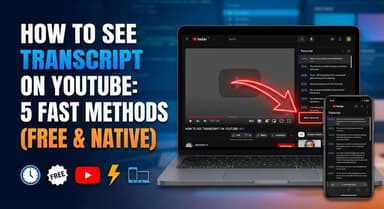
Using the "Show Transcript" Feature
This feature is available on almost every YouTube video that has closed captions (CC) enabled. It allows you to view the spoken content as a searchable script.
- Expand the Description: Open your target video. Below the video title, click "More" to expand the description box.
- Locate the Button: Scroll to the bottom of the description section and click "Show transcript".
- View the Sidebar: A transcript panel will open (on the right for desktop, or below the description on mobile).
- Search the Text: Use Ctrl+F (Cmd+F on Mac) to search for specific keywords within the transcript to jump to that section of the video.
Pro Tip: By default, YouTube includes timestamps next to every line. To copy text without these numbers, click the three dots (⋮) in the transcript panel and select "Toggle timestamps."
The Limitation: Raw Data vs. Actionable Summary
This method is useful for finding a specific quote, but it is not a summarization tool.
- No Formatting: The text appears as a continuous stream of sentences.
- Information Overload: You are presented with thousands of words rather than core concepts.
- Zero Visual Context: Unlike Lynote, the native transcript gives you no visual snapshots, making it difficult to visualize tutorials without watching the video alongside the text.
Comparison: Text-Only vs. Visual Summaries
Most AI summarizers make a critical mistake: they treat a video like a podcast. They listen to the audio track, transcribe it, and condense the words. While this works well for opinion pieces or lectures, it fails completely for tutorials, software walkthroughs, and "how-to" content.
The problem is context loss.
If you are watching a tutorial on "How to optimize Windows 11," a text-only summary might tell you to "Navigate to the System Registry and modify the D-Word value." But if you don't know where that setting is located on the screen, the summary is useless. You are forced to go back to the video and scrub through the timeline to find the visual reference.
Visual Summarization solves this by pairing the actionable step with a snapshot of the video frame.
| Feature | Standard Text Summarizers (ChatGPT/Extensions) | Lynote Visual Summarizer |
|---|---|---|
| Primary Output | Wall of text or bullet points. | Visual Snapshots paired with text explanation. |
| Context | Relies entirely on spoken audio. Misses on-screen demos. | Captures visual frames to show you where to click. |
| Actionability | Generic summaries (e.g., "The speaker discusses settings"). | Actionable Checklists (e.g., "Step 1: Click Export"). |
| Accessibility | Often requires an API key, login, or extension install. | 100% Free, No Sign-up, No Install. |
| Best Used For | Podcasts, Lectures, Opinion Essays. | Tutorials, Walkthroughs, Product Reviews. |
By keeping the visual context intact, you bridge the gap between abstract information and practical application. You stop asking "What did they say?" and start seeing "What do I do?"
Advanced Tips: Exporting Summaries to Your "Second Brain"

Consuming information is only half the battle; retaining it is where the real value lies. If you use tools like Notion, Obsidian, Roam Research, or Evernote, you know the pain of manually re-formatting text copied from a web browser.
Most AI summarizers output plain text. When you copy-paste this, you lose the hierarchy—headers disappear and bullet points break. This creates friction, forcing you to spend 10 minutes formatting a note that should have taken 10 seconds to save.
The Power of Markdown Export

To bridge the gap between "watching" and "knowing," you need a tool that speaks the language of productivity apps: Markdown.
Markdown is a lightweight formatting language that most modern note-taking apps understand natively. When you export a summary in Markdown, you are exporting the structure—H1s, H2s, bolding, and lists—so it pastes perfectly into your digital workspace.
Workflow: From YouTube to Notion in 3 Clicks
Here is how to turn a fleeting video tutorial into a permanent resource using Lynote:
- Generate the Summary: Run the YouTube URL through Lynote.
- One-Click Export: Click the "Export to Markdown" button. This copies the structured summary to your clipboard.
- Paste and Done: Open a new page in Notion or Obsidian and hit Cmd+V (or Ctrl+V).
The Result:
Instead of a wall of text, you get a beautifully formatted page with structured headers, clickable checkboxes for To-Do lists, and time-stamped links.
Critical Safety & Accuracy Tips
While AI summarizers are incredible productivity boosters, they are not perfect. AI models are prediction engines, not truth engines. To get the most out of tools like Lynote without compromising accuracy, keep these factors in mind.
1. The "Hallucination" Risk: Trust but Verify
AI models can occasionally make things up. This is often called "hallucinating." It usually happens when the audio quality is poor or the speaker uses complex jargon.
- Sarcasm: AI often struggles to detect tone. If a YouTuber says, "Yeah, right, like that’s a good idea" sarcastically, an AI might interpret it as a genuine endorsement.
- Data Points: Always double-check specific numbers, prices, or dates against the video. If the summary claims a product costs $50, verify it at the source before making a purchase decision.
Pro Tip: Use the timestamps provided in the summary to jump to the exact moment in the video. This allows you to verify the context of a claim in seconds without watching the whole file.
2. Data Privacy Best Practices
Most online summarizers, including Lynote, are designed to process publicly available YouTube content. However, be careful with sensitive information.
- Public vs. Private: It is perfectly safe to summarize public tutorials, webinars, or lectures.
- Confidential Content: Avoid using free, public AI tools to summarize unlisted internal company meetings, confidential legal depositions, or private family videos. If the video contains trade secrets, rely on enterprise-grade tools with strict data policies, or summarize it manually.
FAQ
Can I summarize a video that is 2 hours long?
Yes, but it depends on the tool.
- Basic Free Tools: Often limit summaries to videos under 15–30 minutes to save server costs.
- Advanced Tools (like Lynote): Use "chunking." They break the transcript into smaller pieces, summarize them individually, and then combine them. This allows for processing videos that are 1 to 2 hours long without losing detail.
Does this work on videos without closed captions (CC)?
Generally, no. Most online summarizers rely on fetching the official transcript or auto-generated captions from YouTube. If a creator has explicitly disabled captions, standard tools will return an error. The exception is tools that use Audio-to-Text engines (like OpenAI’s Whisper), but these are slower.
How do I save the summary to Notion or Obsidian?
Avoid manual copy-pasting if possible, as it often breaks formatting. Look for an "Export to Markdown" or "Copy Markdown" button in your summarizer tool. When you paste Markdown code into Notion or Obsidian, it automatically formats into clean headings and lists.
Is it legal to summarize copyrighted content for personal use?
Yes. Summarizing a video for your own personal knowledge management, study, or research falls under Fair Use. However, be careful about republishing these summaries publicly (e.g., on a blog) without adding your own original insights or credit.
Conclusion: Stop Watching, Start Doing
We have explored the full spectrum of video summarization, from the tedious manual transcript method to convenient browser extensions. While every method has its place, the goal remains the same: extracting value without losing hours of your day.
If you need absolute manual control, the native YouTube transcript is your best bet. If you summarize dozens of videos daily, a browser extension might fit your workflow. However, for most users—especially those who need visual context alongside their notes—a dedicated online tool offers the best balance of speed and utility.
Don't let long-form content paralyze your productivity. You no longer need to sit through a 60-minute lecture just to find three minutes of actionable advice.
Ready to reclaim your time?
Try Lynote for free today. There is no software to install and no sign-up required. Just paste your link, hit generate, and instantly turn that overwhelming 1-hour tutorial into a clear, 2-minute visual guide.

Written by Janet L. Harris
AI Writing Specialist
Janet reviews AI detectors and humanization tools, with a focus on accuracy, limitations, and responsible use. View all articles →