How to Compress an Image on Mac

If you want to know how to compress an image on Mac, the fastest options are Preview, Photos, Shortcuts, or an online image compressor like Lynote. Mac already includes simple tools for reducing image size, but the best method depends on whether you need one smaller photo, many images, a target KB size, or better control over quality.
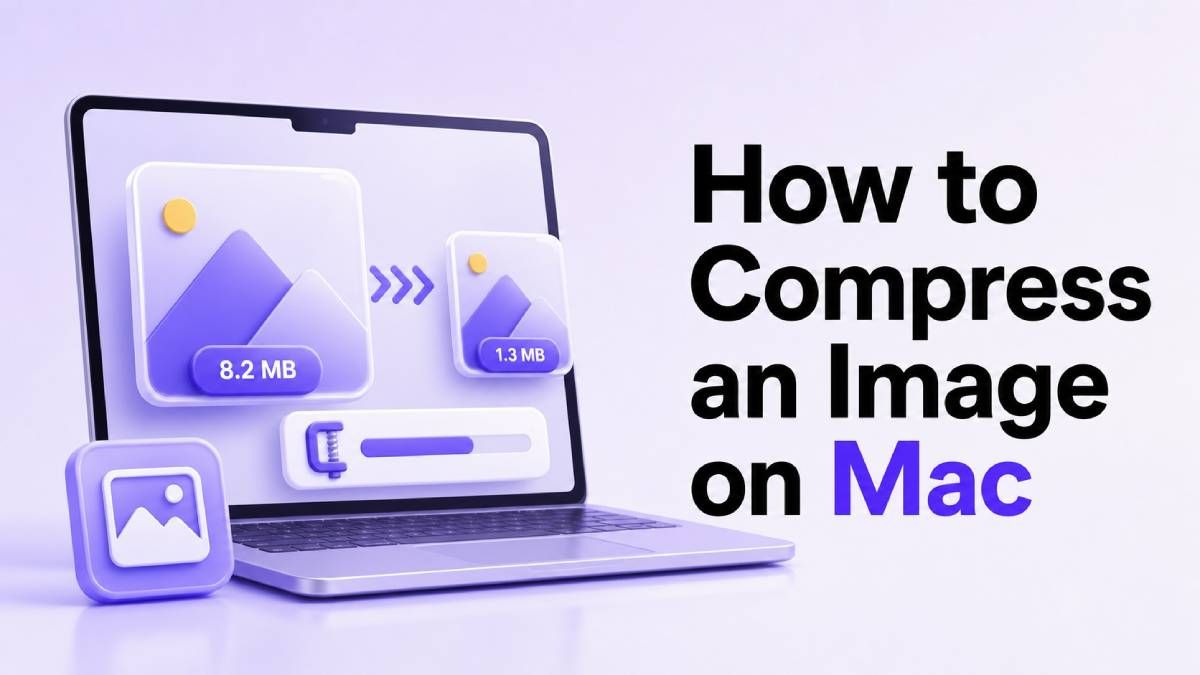
In this guide, you will learn how to compress images on Mac using built-in apps and browser-based tools. We will also compare the best methods, explain when to use each one, and show how Lynote can help when you need quick compression without installing extra software.
Why Compress Images on Mac?
Large images can be difficult to upload, email, or share through forms with strict file limits. If you use a MacBook for school, work, blogging, ecommerce, or social media, reducing image file size can make your workflow much smoother.
Knowing how to compress image size on Mac is also useful for website performance. Smaller image files load faster, use less storage, and are easier to send while still keeping the image clear enough for practical use.
The key is to reduce file size without making the image look blurry or heavily pixelated. That is why choosing the right compression method matters.
Method 1: Compress an Image on Mac with Preview
Preview is the easiest built-in option if you only need to compress one image on Mac. It works well for JPG, PNG, and other common image files, and you do not need to install anything.
Step 1: Open the Image in Preview
Find the image in Finder and double-click it. In most cases, macOS opens the file in Preview automatically.
If another app opens instead, right-click the image, choose "Open With," and select "Preview." This is the simplest way to start if you are learning how to compress image on Mac for the first time.
Step 2: Export the Image
In Preview, click "File" in the top menu and choose "Export." Do not choose "Save" if you want to keep the original file untouched.
Exporting creates a new compressed version. This is useful when you want to compare the original image with the smaller one.
Step 3: Adjust Format and Quality
Choose JPEG as the format if you want a smaller file. Then move the quality slider left or right until the estimated file size looks right.
For most photos, a medium-high quality setting gives a good balance. If your goal is how to compress image size on Mac for upload forms, check the file size carefully before saving.
Method 2: Resize the Image Dimensions in Preview
Sometimes the file is large because the image dimensions are too big. For example, a 4000-pixel photo may be unnecessary if you only need it for a profile picture, document upload, or blog thumbnail.
Step 1: Open Markup Tools
Open the image in Preview and click the Markup icon. Then choose the resize tool from the toolbar.
You can change width, height, and resolution. This method is helpful when you want to compress image size on Mac by reducing both dimensions and file weight.
Step 2: Choose Smaller Dimensions
Enter a smaller width, such as 1200 pixels or 1600 pixels, depending on your use case. Make sure "Scale proportionally" is selected so the image does not become stretched.
After resizing, save or export the new version. This is one of the most reliable ways to compress images on a Mac when the original photo is much larger than needed.
Method 3: Compress Images on Mac with Photos
The Photos app is useful if your images are already stored in your Mac photo library. It gives you a quick export option that can reduce file size without opening each image in Preview.
Step 1: Select the Image
Open Photos and select the image or images you want to reduce. This is convenient if you need to compress images Mac users have imported from iPhone or iCloud.
You can select multiple images at once. That makes Photos more efficient than Preview for small batches.
Step 2: Export with Smaller Settings
Click "File," then choose "Export." Select JPEG as the file type and choose a lower quality or smaller size.
Photos does not always give exact KB control, but it works well for general compression. If you need a specific file size, such as 100 KB or 200 KB, an online compressor may be better.
Method 4: Use Shortcuts to Compress Images on MacBook
Shortcuts can automate image compression if you repeat the same task often. This is helpful for people who regularly resize screenshots, product images, or document photos.
Step 1: Create an Image Shortcut
Open the Shortcuts app on your Mac. Create a shortcut that receives image files and resizes or converts them.
You can add actions like "Resize Image," "Convert Image," and "Save File." Once set up, this becomes a fast way to compress image on MacBook from Finder.
Step 2: Run the Shortcut from Finder
After creating the shortcut, you can use it from the Finder quick actions menu. Select your image, right-click, and run the shortcut.
This method is best for repeat workflows. If you only need to compress one image occasionally, Preview or Lynote will usually be faster.
Method 5: Compress Images Online with Lynote
If you want a faster browser-based option, you can use the Lynote image compressor. It works online, so you can compress image files on Mac without installing a separate app.
Lynote is especially useful when you need a target file size. You can choose options like 10 KB, 30 KB, 50 KB, or 100 KB, then upload your image and download the compressed result.
Step 1: Open Lynote Image Compressor
Go to https://lynote.ai/compress-image in Safari, Chrome, or another browser on your Mac. The tool supports popular formats such as JPG, PNG, WebP, and HEIC.
This makes it practical for Mac and iPhone users. HEIC support is useful because many Apple photos are saved in that format.
Step 2: Choose a Target Size
Select the target size you want before uploading. This is helpful when a website, school portal, visa form, or job application requires a file under a specific limit.
If you are searching how to compress image size in Mac because a form rejected your upload, this approach is often easier than guessing quality settings manually.
Step 3: Upload, Preview, and Download
Drag your image into the upload area or click to select it. Lynote compresses the image automatically and lets you compare the original and compressed version.
After checking the result, download the optimized file. This is a simple way to compress images on Mac when you want speed, batch compression, and clear before-and-after file size comparison.
Best Ways to Compress Images on Mac Compared
| Method | Best For | Main Advantage | Limitation |
|---|---|---|---|
| Preview Export | One image | Built into macOS | No exact target KB |
| Preview Resize | Oversized images | Reduces dimensions and size | Manual process |
| Photos Export | Photo library images | Easy for selected photos | Limited control |
| Shortcuts | Repeated workflows | Automation | Requires setup |
| Lynote | Fast online compression | Target size, batch support, preview | Requires browser upload |
If you only need to compress image on Mac once, Preview is enough. If you need to compress images on Mac in batches or meet a strict file size limit, Lynote is usually more convenient.
Tips to Keep Image Quality High
Start with the clearest original image possible. A blurry or dark photo will not become sharper after compression.
Use JPEG for photos, PNG for graphics with text or transparency, and WebP when you need strong compression for web use. Choosing the right format can reduce file size without damaging the image too much.
Avoid compressing the same image again and again. Repeated compression can slowly reduce quality, especially with JPEG files.
Common Problems When Compressing Images on Mac
| Problem | Possible Cause | Fix |
|---|---|---|
| File is still too large | Dimensions are too big | Resize width and height |
| Image looks blurry | Compression is too strong | Use higher quality setting |
| Upload form rejects file | File exceeds KB limit | Use Lynote target size |
| PNG remains large | PNG is not ideal for photos | Convert to JPEG or WebP |
| Batch compression is slow | Manual Preview workflow | Use Photos, Shortcuts, or Lynote |
When learning how to compress images on a Mac, the most common mistake is only changing quality. In many cases, reducing dimensions first gives a better result.
When Should You Use Lynote?
Use Lynote when you need a quick online workflow and do not want to adjust multiple Mac settings manually. It is a good fit for students, creators, website owners, ecommerce sellers, and everyday users who need smaller image files fast.
It is also useful when you need to compress images Mac tools cannot easily control by target size. Instead of testing several exports, you can choose a file size and preview the result.
For privacy-sensitive or offline-only files, you may prefer Preview or another local Mac app. For everyday upload, sharing, and web optimization, Lynote offers a faster workflow.
FAQs
How do I compress an image on a Mac?
You can compress an image on a Mac using Preview, Photos, Shortcuts, or an online tool like Lynote. Preview is best for quick manual compression, while Lynote is better when you need a target file size.
How do I compress image size on Mac without losing quality?
Use moderate compression and avoid reducing quality too aggressively. You can also resize large dimensions first, which often reduces file size while keeping the image visually sharp.
How do I compress images on Mac in bulk?
You can use Photos, Shortcuts, or Lynote batch compression. Lynote is the easiest option if you want to upload multiple images and compress them online without creating an automation.
How do I compress image on MacBook for email?
Export the image as a JPEG in Preview or upload it to Lynote and choose a smaller target size. For email attachments, a smaller JPEG usually works better than a large PNG.
Can I compress HEIC images on Mac?
Yes. You can convert HEIC images through Preview or use an online compressor that supports HEIC. Lynote supports common formats including JPG, PNG, WebP, and HEIC.
What is the best way to compress image size on Mac?
The best method depends on your goal. Use Preview for one image, Shortcuts for repeat tasks, and Lynote when you need fast compression, batch processing, or a specific target size.
Final Verdict
The easiest way to learn how to compress an image on Mac is to start with Preview for simple edits and use Lynote when you need faster online compression or a specific file size. For batch work, strict upload limits, and quick previews, Lynote is the most convenient option for Mac users.

Written by Janet L. Harris
AI Writing Specialist
Janet reviews AI detectors and humanization tools, with a focus on accuracy, limitations, and responsible use. View all articles →