

Estrai Testo da PDF e Documenti Scansionati
Trascini i file o sfoglia
Aggiunga materiali di studio per consentire all'IA di estrarre e strutturare i contenuti.



Perché Usare Lynote per Estrarre Testo da PDF?

Funziona per PDF Digitali e Scansionati
Estrai testo da PDF selezionabili e usa l'OCR quando il file è basato su immagini o scansionato.

Ottieni Output Copiabile
Trasforma pagine bloccate o difficili da copiare in testo modificabile per appunti, bozze, riassunti o traduzioni.

Evita la Digitazione Manuale
Evita di ridigitare pagine da relazioni, libri, moduli e materiali didattici quando il testo può essere letto automaticamente.

Rivedi i Risultati OCR
Controlla nomi, numeri, tabelle, formule e formattazioni insolite perché la qualità dell'OCR dipende dalla scansione originale.

Prepara il Testo per Altri Compiti AI
Una volta estratto, usa il testo per riassumere, tradurre, studiare o porre domande.

Gestisci Documenti Lunghi
Elabora PDF multipagina più velocemente che copiare pagina per pagina.
I PDF Digitali Sono Solitamente Più Puliti
Se puoi selezionare il testo nel PDF, l'estrazione è spesso semplice. Le pagine scansionate si basano sull'OCR e possono introdurre errori.
Le Scansioni Richiedono una Migliore Qualità della Fonte
Immagini sfocate, pagine inclinate, scrittura a mano, caratteri piccoli e tabelle dense possono ridurre la precisione dell'OCR.
Usa il Testo Estratto con Attenzione
Prima di pubblicare, citare o tradurre, confronta nomi, date, numeri e tabelle importanti con il PDF originale.
Come Estrarre Testo da PDF con l'IA
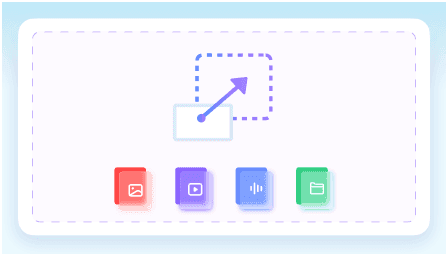
Carica il PDF
Usa la versione più chiara del file. Per le scansioni, scegli una copia ad alta risoluzione se possibile.
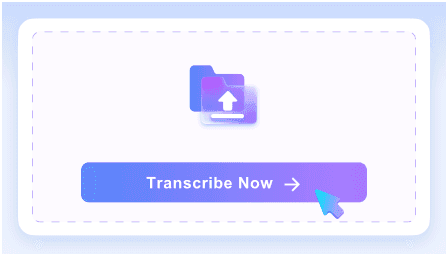
Esegui l'Estrazione del Testo
Lascia che Lynote legga il documento e converta il testo leggibile in un output modificabile.
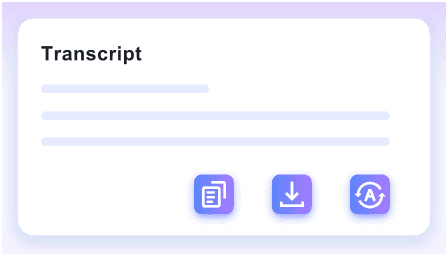
Rivedi il Risultato
Controlla i dettagli importanti, quindi copia il testo in note, riassunti, traduzioni o altri flussi di lavoro.
Chi Dovrebbe Usare Questo Estrattore di Testo PDF?

Studenti
Estrai passaggi di libri di testo, note ed estratti di ricerca per lo studio.

Ricercatori
Estrai testo da articoli, rapporti e archivi prima di riassumere o confrontare le fonti.

Team Aziendali
Estrai testo da PDF, proposte, manuali e moduli per il riutilizzo.

Traduttori
Converti PDF scansionati in testo prima di tradurre.

Scrittori
Trasforma i PDF di riferimento in note modificabili.
Utenti Comuni
Copia il testo dai PDF scaricati senza doverlo ridigitare manualmente.
Cosa Dicono i Nostri Utenti

Consulente Legale

"L'ho usato per estrarre testo da un pacchetto di locazione di 48 pagine e ho ottenuto clausole pulite che potevo rivedere riga per riga. La formulazione è rimasta sufficientemente accurata per le modifiche contrattuali e le note interne."

Ricercatore Accademico
"Lavoro con riviste PDF internazionali e questo strumento ha gestito articoli in spagnolo, tedesco e coreano in un unico progetto. L'estrazione di testo da fonti PDF in oltre 130 lingue mi ha evitato di cambiare strumento tra un articolo e l'altro."

Studente Universitario
"Ho dovuto estrarre appunti da un libro di testo PDF di 200 pagine prima di un seminario. È stato circa 10 volte più veloce che copiare sezioni a mano e mi ha fornito testo utilizzabile in un'unica passata."

Responsabile delle Operazioni
"Il nostro team elabora decine di fatture PDF ogni settimana e il flusso batch ha fatto una vera differenza. Abbiamo estratto il testo da un'intera cartella in una volta sola invece di aprire ogni fattura una per una."

Traduttrice Freelance
"Avevo bisogno di testo modificabile da un manuale di attrezzature PDF di 62 pagine per un progetto di traduzione. Una volta estratto il testo, potevo cercare termini ripetuti e riutilizzarli in diverse sezioni."

Redattrice Tecnica
"Avevo solo bisogno di estrarre testo da una scheda tecnica PDF e non volevo creare un account prima. Poter iniziare l'estrazione di base senza registrazione è stato un grande vantaggio per compiti brevi."
Domande Frequenti
Risposte alle domande più comuni prima di utilizzare questo strumento.
Sì, se l'OCR riesce a leggere chiaramente le pagine scansionate. Le scansioni di scarsa qualità potrebbero richiedere una pulizia preliminare.
OCR significa riconoscimento ottico dei caratteri. Converte il testo all'interno di immagini o pagine scansionate in caratteri modificabili.
Non sempre. Controlla nomi, numeri, tabelle, formule e layout insoliti prima di fare affidamento sull'output.
Puoi copiarlo, riassumerlo, tradurlo, cercarlo o usarlo come note per un altro flusso di lavoro.


