

Bild komprimieren ohne Qualitätsverlust

Bilder hierher ziehen oder klicken zum Auswählen
Max. 50 MB pro Datei



Warum unseren qualitätsbewussten Bildkompressor wählen?
Bilder für Websites, Uploads, E-Mails und zum Teilen verkleinern, während das Ergebnis sauber genug bleibt, um es zu verwenden.

100 % kostenlos
Bilder online komprimieren, ohne für grundlegende Dateigrößenkorrekturen zu bezahlen. Fotos für Formulare, Websites, E-Mails, soziale Medien und den täglichen Austausch verkleinern.

Keine Registrierung erforderlich
Sofort im Browser starten. Bild hochladen, Zielgröße wählen, Ergebnis in der Vorschau ansehen und herunterladen, ohne ein Konto zu erstellen.

Qualitätsbewusste Komprimierung
Dateigröße reduzieren, während das Bild visuell klar bleibt. Lynote hilft Ihnen, Bilder ohne Qualitätsverlust so zu komprimieren, wie es die meisten Benutzer tatsächlich benötigen: kleinere Dateien, die immer noch sauber aussehen.

Kontrolle über Ziel-KB oder MB
Wählen Sie eine praktische Zielgröße vor der Komprimierung. Dies ist hilfreich, wenn Sie die Bildgröße ohne Qualitätsverlust für Upload-Limits, Anwendungen, Online-Shops oder Webseiten komprimieren müssen.

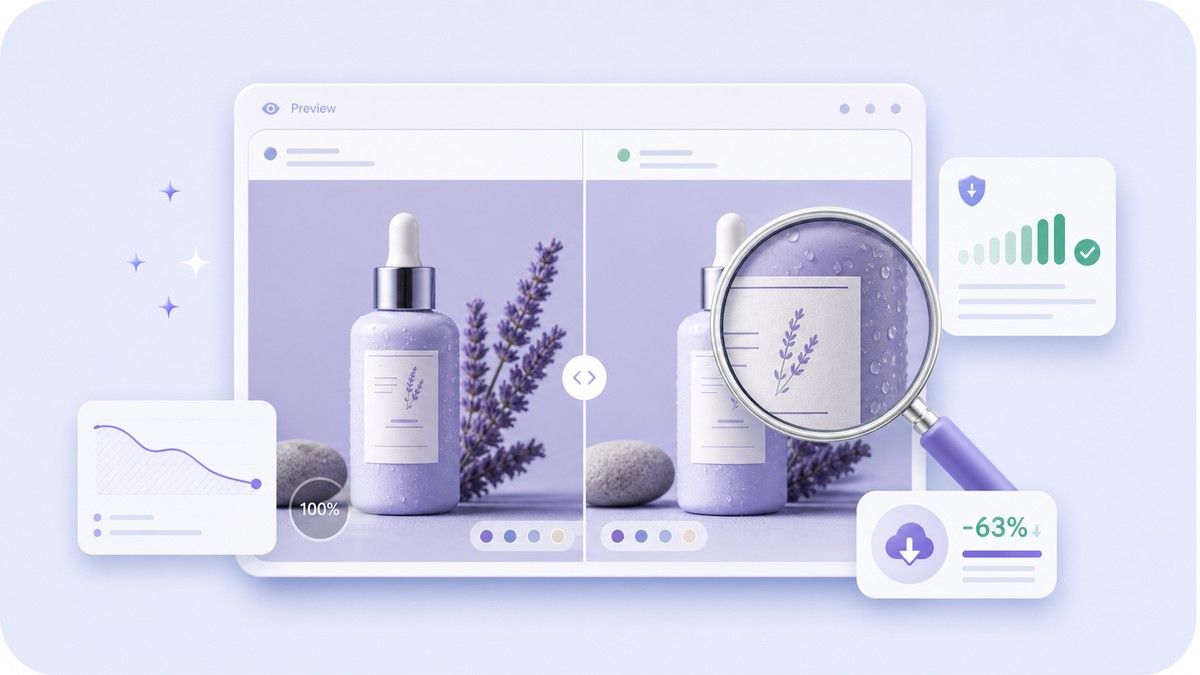
Vorschau vor dem Download
Überprüfen Sie das komprimierte Bild, bevor Sie es speichern. Vergleichen Sie Dateigröße, Abmessungen, Format, Qualitätsstufe und den eingesparten Prozentsatz, damit Sie wissen, dass das Ergebnis noch verwendbar ist.

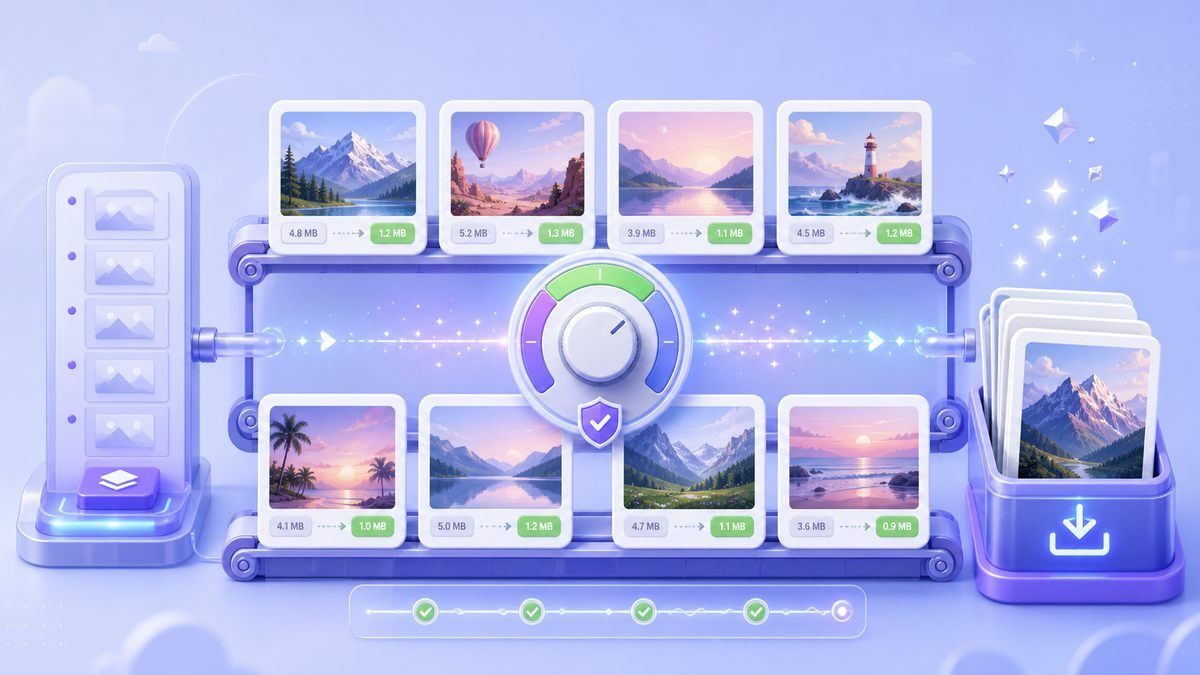
Stapelbildkomprimierung
Laden Sie mehrere JPG-, PNG- oder WebP-Dateien gleichzeitig hoch. Komprimieren Sie Bilder ohne Qualitätsverlust, indem Sie die Ergebnisse einzeln überprüfen, bevor Sie sie herunterladen.

Funktioniert auf jedem Gerät
Nutzen Sie Lynote über Ihren Desktop-, Tablet- oder mobilen Browser. Es gibt keine Softwareinstallation, kein Plugin und keine komplizierten Exporteinstellungen, die Sie lernen müssten.

Private Online-Verarbeitung
Ihre Bilder werden sicher verarbeitet und nicht dauerhaft gespeichert. Es ist ein einfacher Workflow für persönliche Fotos, Produktbilder, Schuldateien und Arbeitsmaterialien.
Bildgröße komprimieren ohne sichtbaren Qualitätsverlust

Details vor dem Speichern in der Vorschau anzeigen
Bilder im Stapel komprimieren, ohne sich um die Qualität sorgen zu müssen
Bilder komprimieren ohne Qualitätsverlust: So geht's
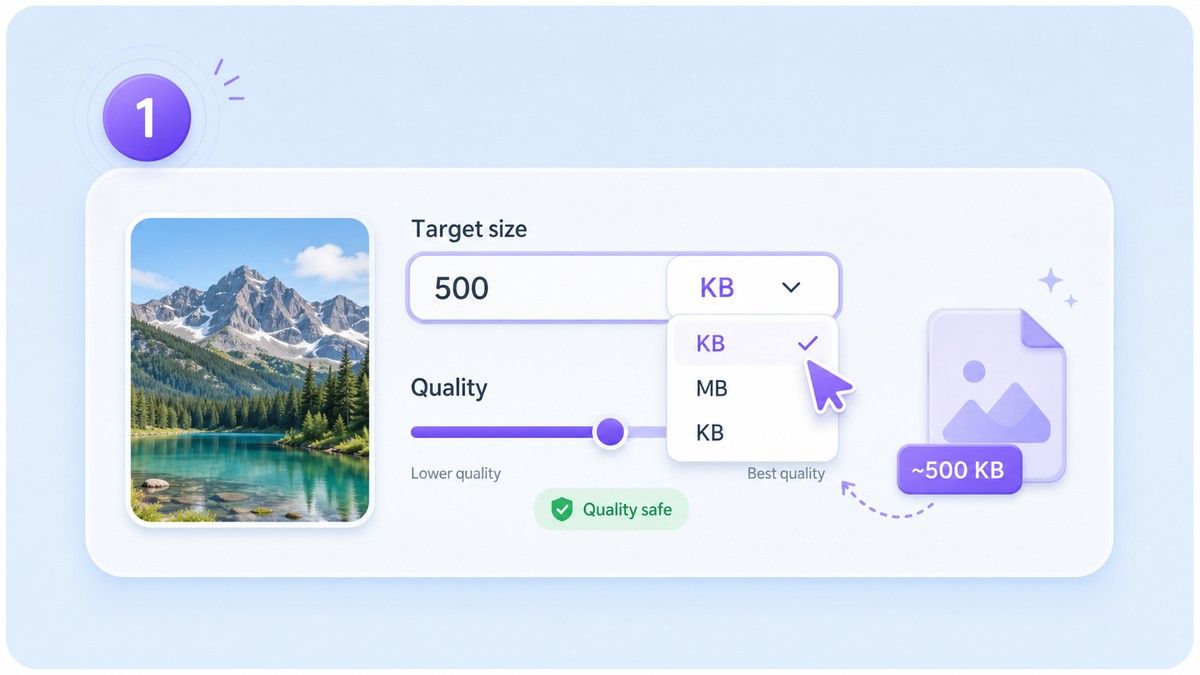
Schritt 1. Eine sinnvolle Zielgröße wählen
Wählen Sie eine KB- oder MB-Zielgröße basierend darauf, wo das Bild hochgeladen wird. Wählen Sie eine kleinere Größe für Formulare oder E-Mails und eine größere Größe, wenn visuelle Details wichtiger sind.
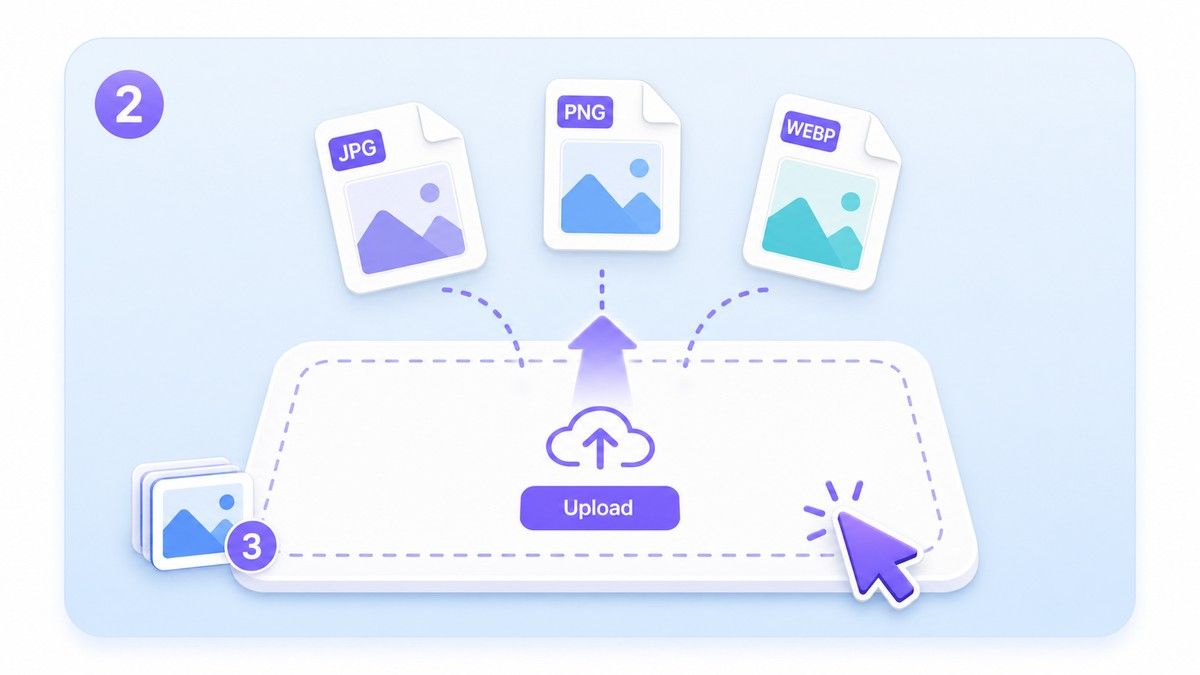
Schritt 2. JPG-, PNG- oder WebP-Bilder hochladen
Ziehen Sie Ihre Bilder per Drag & Drop oder klicken Sie, um Dateien von Ihrem Gerät auszuwählen. Lynote unterstützt gängige Formate und kann einzelne Bilder oder Stapel verarbeiten.
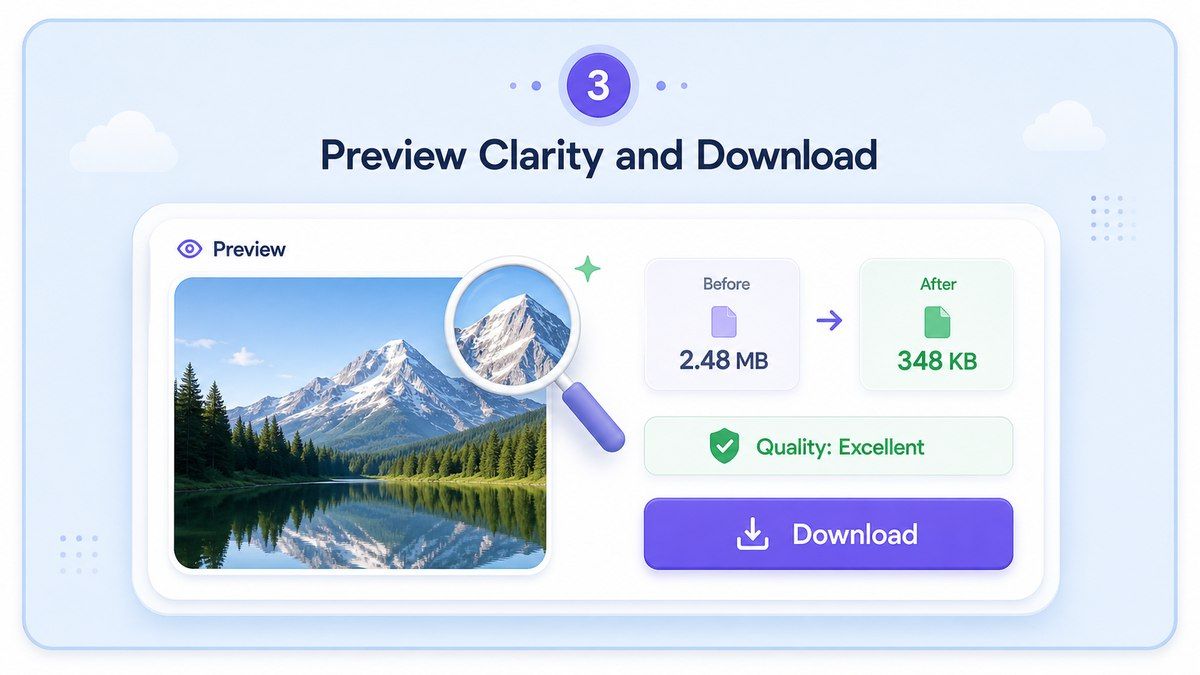
Schritt 3. Klarheit in der Vorschau prüfen und herunterladen
Überprüfen Sie das komprimierte Bild, bevor Sie es speichern. Wenn das Ergebnis sauber aussieht, laden Sie die kleinere Datei herunter und verwenden Sie sie für Uploads, Websites, Nachrichten oder zur Speicherung.
Wer braucht qualitätsbewusste Bildkomprimierung?

Fotografen und Kreative
Komprimieren Sie Portfolio-Vorschauen, Kundenmuster und Social-Media-Beiträge, während das Bild poliert genug bleibt, um Ihre Arbeit zu repräsentieren.

Website-Betreiber
Machen Sie Seiten leichter mit kleineren Bildern, die auf Desktop- und Mobilbildschirmen immer noch klar aussehen.

E-Commerce-Verkäufer
Reduzieren Sie die Größe von Produktfotos, bevor Sie sie in Shops, Katalogen, Marktplätzen oder Anzeigen hochladen, ohne dass Produkte billig oder unscharf aussehen.

Studierende und Bewerber
Bereiten Sie Ausweisfotos, Projektbilder, Screenshots und Bewerbungsdateien für strenge Upload-Limits vor.

Marketing-Teams
Verkleinern Sie Kampagnengrafiken, Banner, Newsletter-Bilder und Werbemittel, bevor Sie sie teilen oder veröffentlichen.

Alltägliche Smartphone-Nutzer
Machen Sie große Handyfotos einfacher zu versenden, zu speichern, hochzuladen und zu organisieren, ohne aufwendige Bearbeitungssoftware öffnen zu müssen.
Was Nutzer über qualitätsbewusste Komprimierung sagen

Online-Shop-Besitzerin

Ich nutze Lynote, bevor ich Produktfotos hochlade. Die Dateien werden viel kleiner, aber die Details sehen immer noch sauber genug für meinen Shop aus.

Website-Publisher
Ich brauchte eine einfache Möglichkeit, Bilder für Blog-Beiträge ohne Qualitätsverlust zu komprimieren. Die Vorschau hilft mir, unscharfe Ergebnisse zu vermeiden.

Studentin
Mein Bewerbungsportal hatte eine strenge Dateigrößenbeschränkung. Lynote half mir, die Fotogröße zu reduzieren und es trotzdem klar zu halten.

Marketing-Designer
Die Zielgrößenoption ist der Grund, warum ich es verwende. Ich kann Kampagnenbilder für verschiedene Kanäle vorbereiten, ohne raten zu müssen.

Social Media Managerin
Ich komprimiere Bilder stapelweise, bevor ich Beiträge plane. Das spart Zeit und sorgt dafür, dass die Bilder konsistent aussehen.

Freiberuflicher Entwickler
Für Websites sind kleinere Bilder wichtig. Lynote bietet mir eine schnelle Möglichkeit, die Dateigröße zu reduzieren und gleichzeitig die Qualität vor dem Start zu überprüfen.
Häufig gestellte Fragen
Antworten zu Bildqualität, Zielgröße, unterstützten Formaten, Stapelkomprimierung und Datenschutz.
Sie können die Bildgröße reduzieren, während das Ergebnis visuell klar bleibt. Bildkomprimierung ist nicht immer mathematisch verlustfrei, besonders bei sehr kleinen Zielgrößen, daher können Sie mit Lynote die Qualität vor dem Download überprüfen.
Laden Sie Ihr Bild hoch, wählen Sie eine sinnvolle Zielgröße, sehen Sie sich das komprimierte Ergebnis in der Vorschau an und laden Sie es herunter, wenn das Bild noch scharf aussieht. Dieser Workflow hilft Ihnen, Dateigröße und visuelle Qualität in Einklang zu bringen.
Ja. Lynote ermöglicht Ihnen, die Bildgröße online kostenlos und ohne Qualitätsverlust für gängige Bildaufgaben zu komprimieren. Für beste Ergebnisse vermeiden Sie es, eine extrem kleine Zielgröße zu wählen, wenn das Bild Gesichter, Text oder feine Details enthält.
Lynote unterstützt gängige Bildformate wie JPG, PNG und WebP. Sie können es für Fotos, Screenshots, Webgrafiken, Produktbilder und alltägliche Bilder verwenden.
Ja. Sie können vor dem Hochladen eine Zielgröße auswählen, z. B. kleinere KB-Ziele für Formulare oder größere MB-Ziele für die Web- und E-Mail-Nutzung.
Ja. Sie können mehrere Bilder hochladen und zusammen komprimieren. Sehen Sie sich die Ergebnisse vor dem Download in der Vorschau an, damit Sie nur die Versionen behalten, die gut aussehen.
Ihre Bilder werden sicher verarbeitet und nicht dauerhaft gespeichert. Lynote ist für eine schnelle Online-Komprimierung ohne komplizierte Einrichtung konzipiert.


