Ulasan NotebookLM: Seberapa Bagus Alat Riset AI Google?

NotebookLM adalah salah satu alat AI terbaik untuk memahami kumpulan sumber yang terdefinisi. Obrolan yang terhubung dengan kutipan, kontrol sumber, dan output Studio yang terus berkembang menjadikannya sangat berguna bagi pelajar, peneliti, pendidik, analis, dan siapa pun yang mengerjakan paket bukti yang padat.
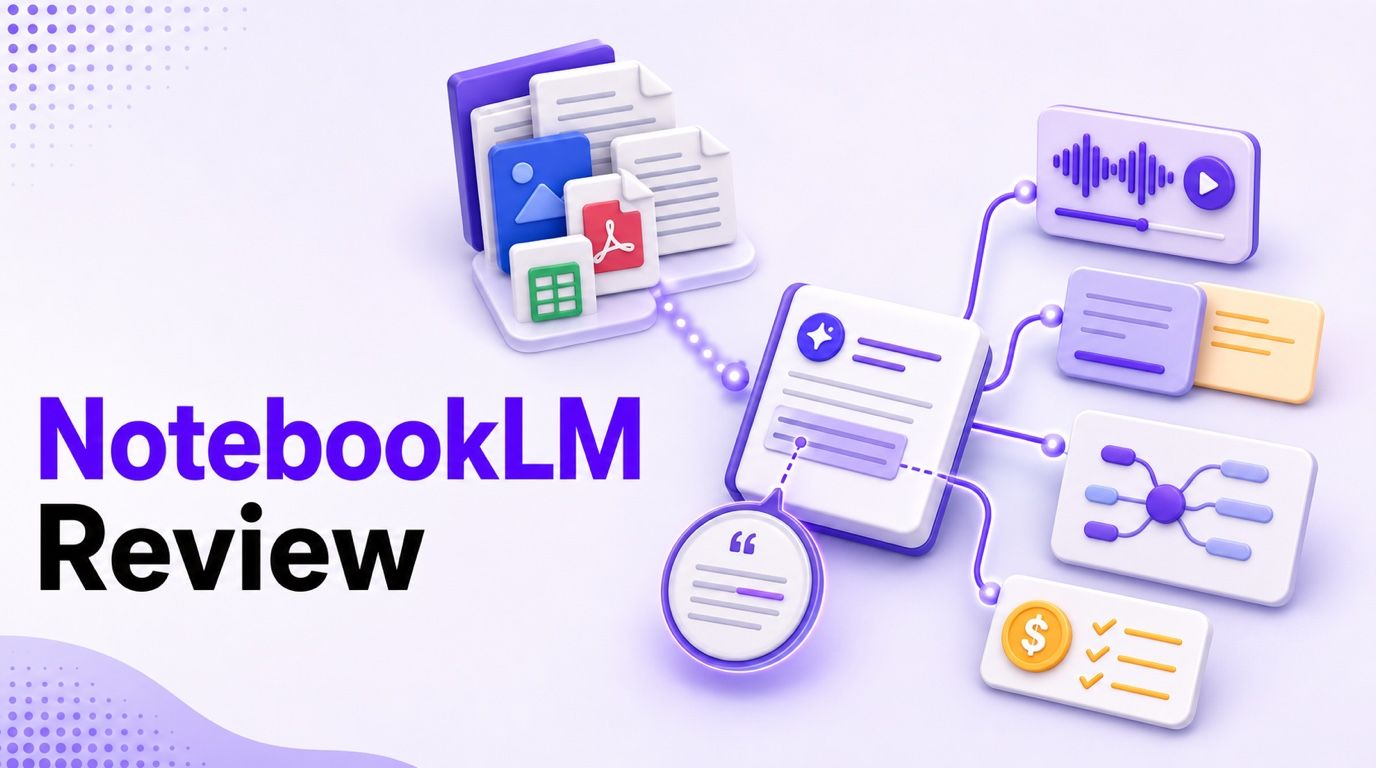
Ini bukan sistem pencatat lengkap, manajer referensi formal, atau jaminan akurasi. Cara paling berguna untuk memikirkan NotebookLM pada tahun 2026 adalah sebagai ruang kerja penelitian berbasis sumber yang dapat mengubah materi terpilih menjadi jawaban, alat bantu belajar, audio, video, laporan, tabel, peta, infografis, dan dek slide.
Untuk ulasan NotebookLM ini, saya membuat buku catatan sungguhan, mengimpor empat halaman bantuan dan produk Google saat ini, memintanya untuk membandingkan batas paket, membuka kutipannya, dan menghasilkan Ikhtisar Audio, 63 kartu flash, peta pikiran, infografis, dan Ikhtisar Video. Uji coba tersebut menunjukkan kekuatan luar biasa produk ini dan tempat-tempat di mana outputnya yang rapi dapat menciptakan terlalu banyak kepercayaan diri.
Putusan Cepat: Apakah NotebookLM Layak Digunakan?
Ya, NotebookLM layak digunakan ketika tugas Anda dimulai dengan sumber. Ini sangat baik untuk menginterogasi bacaan mata kuliah, dokumen kebijakan, transkrip wawancara, laporan, penelitian web, dan materi lain yang Anda ingin AI tetap dekat dengannya.
Keunggulan terkuatnya bukan hanya karena ia menambahkan kutipan. Keunggulan yang lebih besar adalah kontrol: Anda memutuskan sumber mana yang tersedia untuk suatu pertanyaan, lalu Anda dapat memeriksa bagian-bagian di balik suatu jawaban. Itu membuat proses penalaran lebih mudah diaudit daripada respons dari chatbot umum yang mengambil data dari campuran data pelatihan dan hasil web yang tidak diketahui.
| Kategori ulasan | Putusan langsung |
|---|---|
| Terbaik untuk | Penelitian, studi berbasis sumber, pekerjaan briefing, pengajaran, dan tinjauan terstruktur |
| Fitur terkuat | Obrolan berbasis sumber dengan kutipan sebaris yang dapat diklik |
| Output Studio terbaik | Ikhtisar Audio untuk orientasi, kartu flash untuk tinjauan, peta pikiran untuk struktur |
| Kelemahan terbesar | Jawaban yang dikutip masih dapat menghilangkan nuansa atau terlalu memadatkan kualifikasi |
| Nilai paket gratis | Cukup murah hati untuk proyek penelitian dan studi individu |
| Nilai paket berbayar | Paling relevan untuk pengguna bervolume tinggi dan koleksi sumber besar |
| Rekomendasi keseluruhan | Gunakan untuk memahami dan menggunakan kembali paket sumber terbatas, lalu verifikasi klaim konsekuensial |
NotebookLM kurang menarik jika Anda membutuhkan catatan yang mengutamakan offline, grafik yang menghubungkan pengetahuan di banyak proyek, manajemen bibliografi yang ketat, perekaman rapat, atau desain visual siap publikasi. Ini dapat menghasilkan artefak yang mengesankan dengan cepat, tetapi artefak tersebut paling baik diperlakukan sebagai draf yang dibangun dari sumber Anda.
Apa yang Telah Menjadi NotebookLM pada Tahun 2026
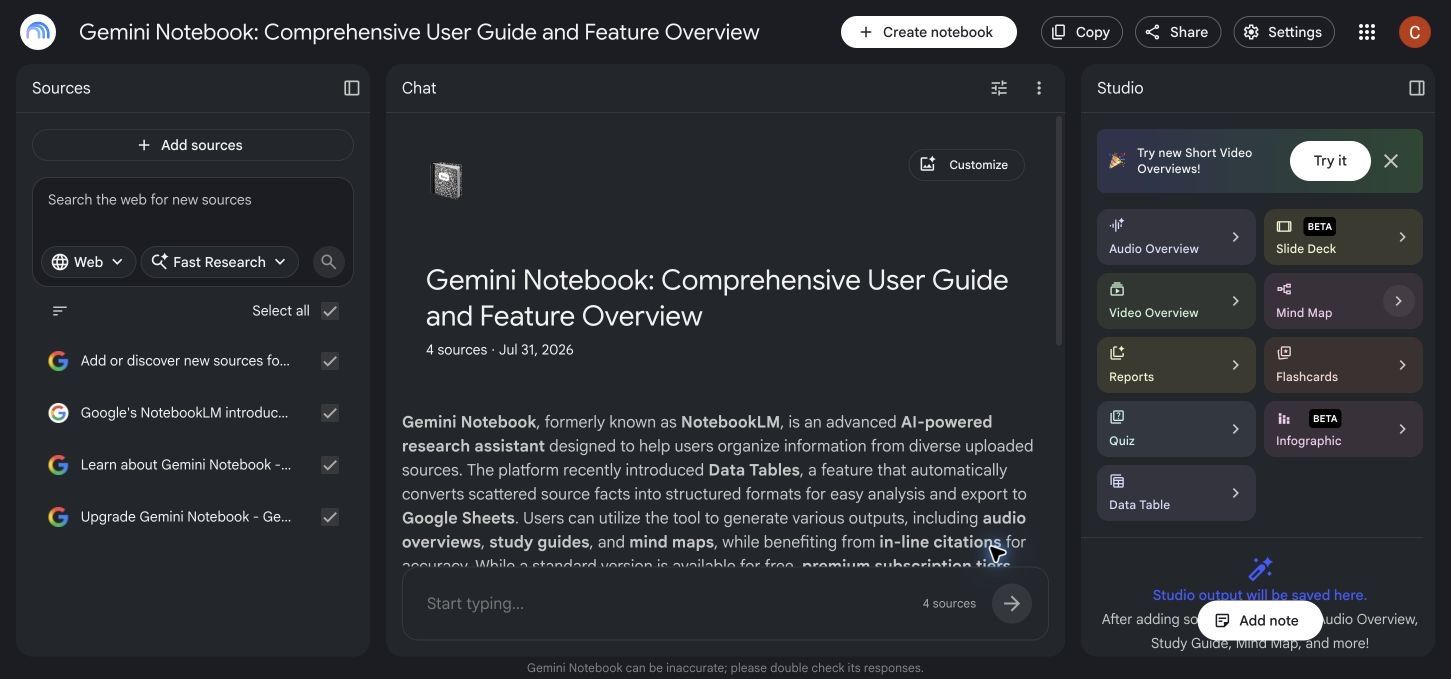
NotebookLM telah berkembang jauh melampaui reputasi awalnya sebagai alat "obrolan dengan PDF" atau generator podcast AI. Antarmuka saat ini diatur di sekitar tiga area kerja: Sumber, Obrolan, dan Studio.
Sumber adalah lapisan bukti. Anda dapat menambahkan file PDF, Word, file teks dan Markdown, CSV, file PowerPoint, eBook, Google Docs, Slides, dan Sheets, halaman web, video YouTube, audio, gambar, teks yang ditempel, dan percakapan Gemini. Setiap sumber dapat berisi hingga 500.000 kata atau berukuran hingga 200 MB.
Obrolan adalah lapisan analisis. Ini menjawab pertanyaan terhadap sumber yang dipilih, menambahkan kutipan bernomor, mengusulkan pertanyaan lanjutan, dan memungkinkan Anda menyimpan respons yang berguna sebagai catatan. Anda dapat memilih hanya sebagian dari kumpulan sumber ketika Anda menginginkan jawaban yang lebih sempit.
Studio adalah lapisan transformasi. Ini dapat menghasilkan Ikhtisar Audio, Ikhtisar Video, peta pikiran, laporan, kartu flash, kuis, infografis, tabel data, dan dek slide. Ini adalah bagian dari NotebookLM yang paling banyak berubah: satu koleksi sumber kini dapat menjadi beberapa format pembelajaran atau komunikasi yang berbeda.
Antarmuka Google sekarang menggunakan nama "Gemini Notebook" di beberapa tempat dan menggambarkannya sebagai yang sebelumnya dikenal sebagai NotebookLM. Nama NotebookLM masih penting karena tetap menjadi istilah yang dicari dan dikenali banyak pengguna, tetapi produk ini semakin terhubung dengan rencana Gemini Google yang lebih luas.
Cara Saya Menguji NotebookLM
Saya menggunakan satu buku catatan uji yang koheren sehingga setiap output harus bekerja dari bukti yang sama. Buku catatan tersebut berisi empat halaman resmi terkini yang mencakup ikhtisar produk, sumber yang didukung, batas paket, dan Tabel Data.
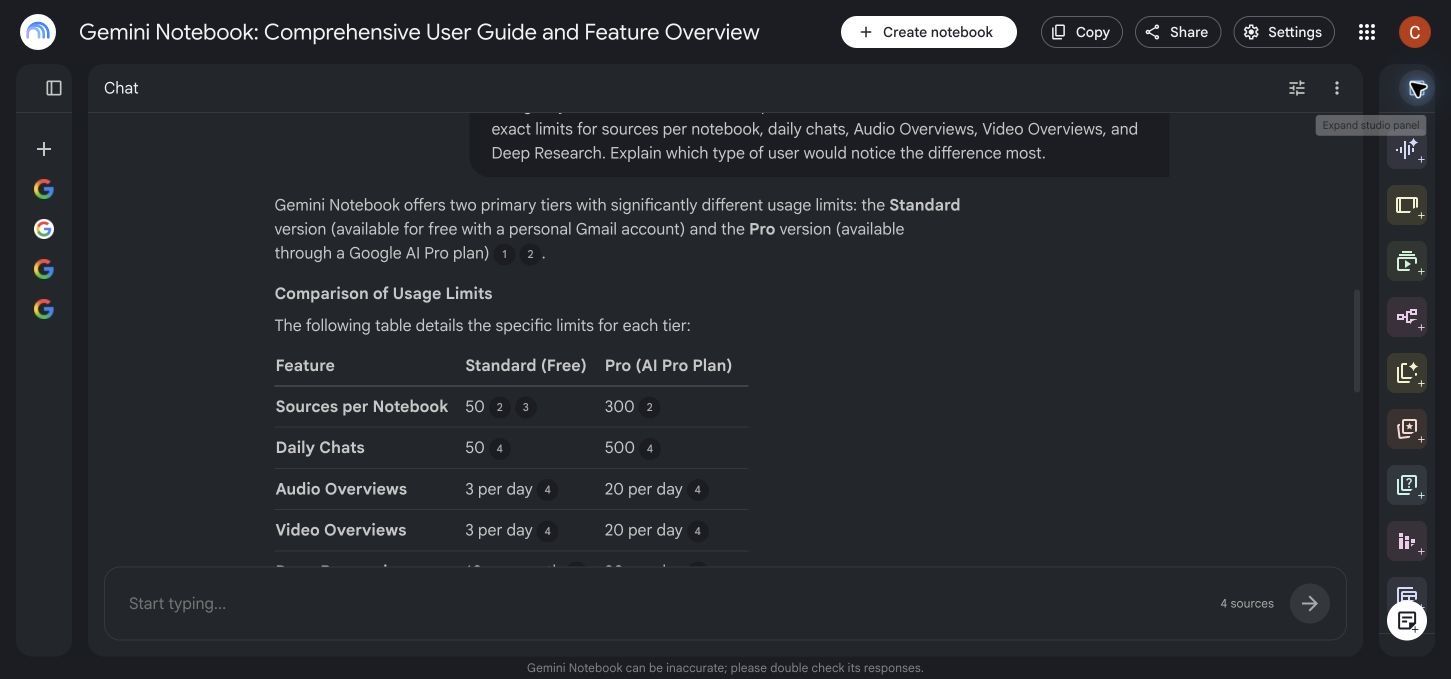
Saya kemudian mengajukan pertanyaan perbandingan spesifik: bandingkan paket Standard dan Pro hanya menggunakan sumber yang dipilih, sertakan batas pasti untuk sumber per buku catatan, obrolan harian, Ikhtisar Audio, Ikhtisar Video, dan Penelitian Mendalam, dan jelaskan siapa yang paling akan merasakan perbedaannya.
Jawabannya menghasilkan tabel perbandingan yang rapi dengan kutipan yang dilampirkan pada angka-angka individual. Ini dengan benar mengembalikan 50 versus 300 sumber per buku catatan, 50 versus 500 obrolan per hari, 3 versus 20 Ikhtisar Audio per hari, 3 versus 20 Ikhtisar Video per hari, dan 10 sesi Penelitian Mendalam per bulan versus 20 per hari.
Saya juga menghasilkan:
- Ikhtisar Audio Deep Dive 19 menit dengan fokus khusus
- Set kartu flash 63 kartu dengan tingkat kesulitan sedang
- Peta pikiran yang diatur berdasarkan sumber, fitur, output, paket, dan penggunaan yang bertanggung jawab
- Infografis lanskap profesional yang membandingkan paket
- Ikhtisar Video Penjelasan dengan fokus khusus dan gaya visual
Ini adalah ulasan produk yang terfokus, bukan tolok ukur akurasi universal. Saya tidak memperlakukan satu jawaban yang berhasil sebagai bukti bahwa setiap jawaban akan benar, dan saya tidak menguji setiap format file yang didukung. Tujuannya adalah untuk memeriksa alur kerja lengkap dan kontrol kualitas yang dapat diterapkan oleh pengguna sungguhan.
Memulai: Membuat Buku Catatan dan Menambahkan Sumber
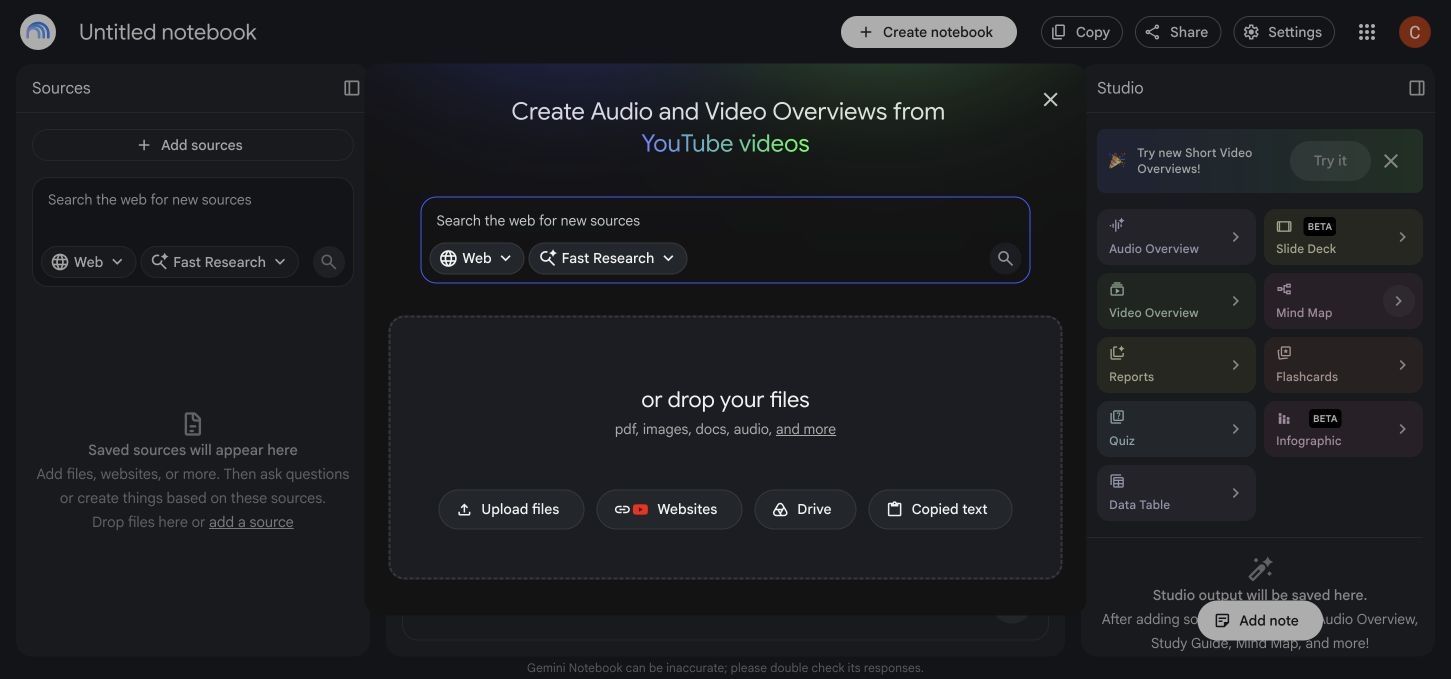
Membuat buku catatan itu sederhana. Setelah membuka NotebookLM, buat buku catatan baru dan gunakan dialog Tambah Sumber untuk mengunggah file, menghubungkan konten Google Drive, menempelkan teks, menambahkan URL web, atau mengimpor tautan YouTube.
Rentang input yang didukung adalah kekuatan nyata. Buku catatan penelitian dapat menggabungkan laporan, presentasi, spreadsheet, rekaman wawancara, beberapa halaman web, dan penjelasan YouTube tanpa memaksa Anda untuk mengonversi semuanya menjadi satu jenis file terlebih dahulu.
Paket Standard saat ini memungkinkan 50 sumber per buku catatan. Plus meningkatkannya menjadi 100, Pro menjadi 300, dan tingkatan Ultra lebih tinggi. Untuk banyak proyek individu, 50 sumber sudah cukup; untuk tinjauan literatur, masalah hukum, proyek kebijakan besar, atau paket pengetahuan perusahaan, batas yang lebih tinggi menjadi lebih berarti.
Ada tiga detail praktis yang perlu dipahami sebelum mengimpor semuanya:
-
NotebookLM bekerja dari salinan atau representasi yang diekstraksi dari sumber, bukan kesadaran langsung akan setiap perubahan di masa mendatang.
-
Impor web mungkin tidak mempertahankan setiap elemen interaktif, detail tata letak, atau komponen halaman.
-
Kualitas sumber mengontrol kualitas output. Materi yang duplikat, usang, atau kontradiktif dapat membuat sintesis lebih sulit.
Dalam pengujian saya, empat halaman publik diimpor dengan sedikit gesekan. NotebookLM secara otomatis menamai buku catatan dan menulis ringkasan pembuka. Satu sumber membutuhkan beberapa detik ekstra untuk menyelesaikan pemrosesan, tetapi buku catatan tetap dapat digunakan saat panel sumber diperbarui.
Untuk proyek serius, jangan mulai dengan mengunggah arsip yang tidak difilter. Tambahkan set inti yang bersih, beri nama buku catatan dengan jelas, hapus versi duplikat, dan kelompokkan bukti berdasarkan pertanyaan. Kurasi sumber adalah bagian dari pekerjaan penelitian, bahkan ketika AI menangani pembacaan.
Obrolan Berbasis Sumber Adalah Fitur Terkuat NotebookLM
Pengalaman obrolan adalah tempat NotebookLM terasa paling berbeda dari chatbot biasa. Jawaban dibatasi oleh kumpulan sumber aktif, dan penanda kutipan mengarah kembali ke bagian-bagian pendukung.
Itu mengubah cara Anda dapat mengajukan pertanyaan. Alih-alih meminta penjelasan luas tentang suatu topik, Anda dapat bertanya:
- Apa yang diklaim sumber A yang tidak diklaim sumber B?
- Batas paket mana yang berubah antara kedua dokumen ini?
- Temukan setiap kualifikasi yang melekat pada rekomendasi ini.
- Buat tabel hanya menggunakan angka yang muncul dalam laporan yang dipilih.
- Klaim mana yang didukung oleh lebih dari satu sumber?
Prompt perbandingan paket saya menghasilkan tabel yang mudah dibaca dan analisis singkat tentang pengguna yang paling terpengaruh oleh batas. Jawabannya mengidentifikasi peneliti intensif, manajer proyek besar, pembuat konten, dan pengguna obrolan berat. Yang lebih penting, sel-sel numerik memiliki kutipan yang dapat dibuka dan diperiksa.
Pemilihan sumber adalah kontrol berguna lainnya. Jika buku catatan berisi 20 sumber tetapi pertanyaan hanya menyangkut tiga, batalkan pilihan yang lain sebelum bertanya. Ini mengurangi pengambilan yang tidak relevan dan membuat jejak bukti lebih mudah diperiksa.
Obrolan masih menghargai prompt yang tepat. "Ringkas semuanya" mengundang kompresi. Permintaan yang menyebutkan dimensi perbandingan, unit yang diperlukan, batas tanggal, dan pengecualian lebih mungkin menghasilkan jawaban yang dapat Anda validasi.
Apakah Jawaban dan Kutipan NotebookLM Akurat?
Kutipan NotebookLM membuat kesalahan lebih mudah dideteksi, tetapi tidak membuat kesalahan tidak mungkin terjadi. Sebuah respons dapat didasarkan pada bagian yang nyata dan masih salah menyatakan cakupannya, meratakan pengecualian, menggabungkan dua definisi yang berbeda, atau menghilangkan bukti yang akan mengubah kesimpulan.
Ini membantu untuk memisahkan tiga mode kegagalan:
| Mode kegagalan | Seperti apa tampilannya | Apa yang harus diperiksa |
|---|---|---|
| Generasi tidak didukung | Klaim tidak memiliki dasar yang memadai dalam sumber yang dipilih | Buka kutipan dan cari sumbernya |
| Kesalahan pengambilan | Jawaban menggunakan bagian yang berdekatan tetapi tidak relevan | Bandingkan kata-kata yang dikutip dengan pertanyaan yang tepat |
| Sintesis yang merugikan | Fakta-fakta individual didukung, tetapi kesimpulan gabungan terlalu luas | Cari pengecualian, tanggal, definisi, dan sumber yang bertentangan |
Dalam pengujian saya, batas paket didukung oleh tabel peningkatan resmi dan direproduksi dengan benar. Jawabannya berguna karena saya dapat memeriksa kutipan pada titik penggunaan, bukan karena keberadaan kutipan membuktikan seluruh paragraf.
A repeatable citation audit takes four steps:
-
Buka kutipan yang dilampirkan pada klaim konsekuensial.
-
Baca di luar kalimat yang disorot untuk memulihkan kualifikasi dan konteks.
-
Periksa apakah sumber lain yang dipilih menggunakan tanggal, unit, atau definisi yang berbeda.
-
Tulis ulang klaim dengan kata-kata Anda sendiri dan pertahankan sumber asli untuk kutipan formal.
Jika suatu jawaban akan memengaruhi nilai, kebijakan, publikasi, kontrak, diagnosis, atau keputusan keuangan, kutipan adalah awal dari verifikasi. Ini bukan akhir.
Ikhtisar Audio dan Video: Mengesankan, tetapi Bukan Pengganti Membaca
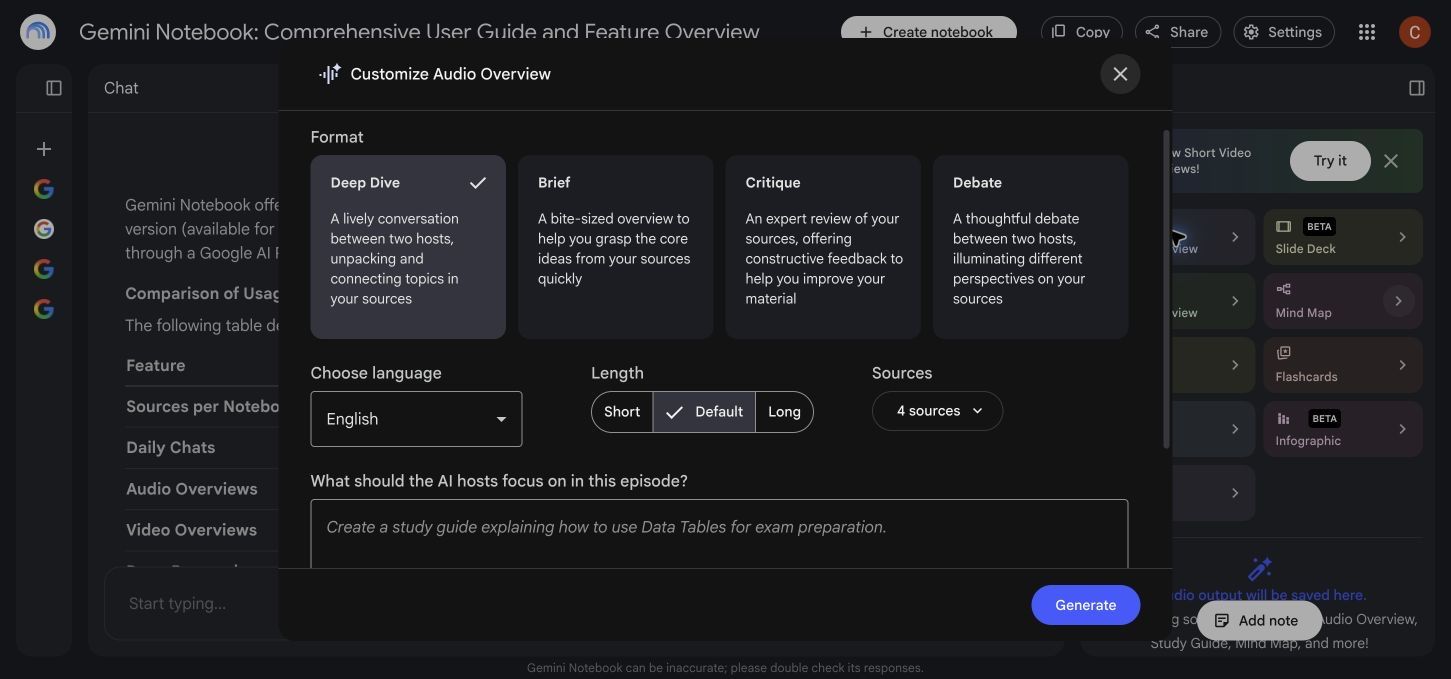
Ikhtisar Audio tetap menjadi fitur NotebookLM yang paling berkesan. Kontrol saat ini lebih substansial daripada pengalaman podcast satu-klik awal: Anda dapat memilih Deep Dive, Brief, Critique, atau Debate; memilih bahasa; mengatur durasi; memilih sumber; dan memberikan fokus khusus.
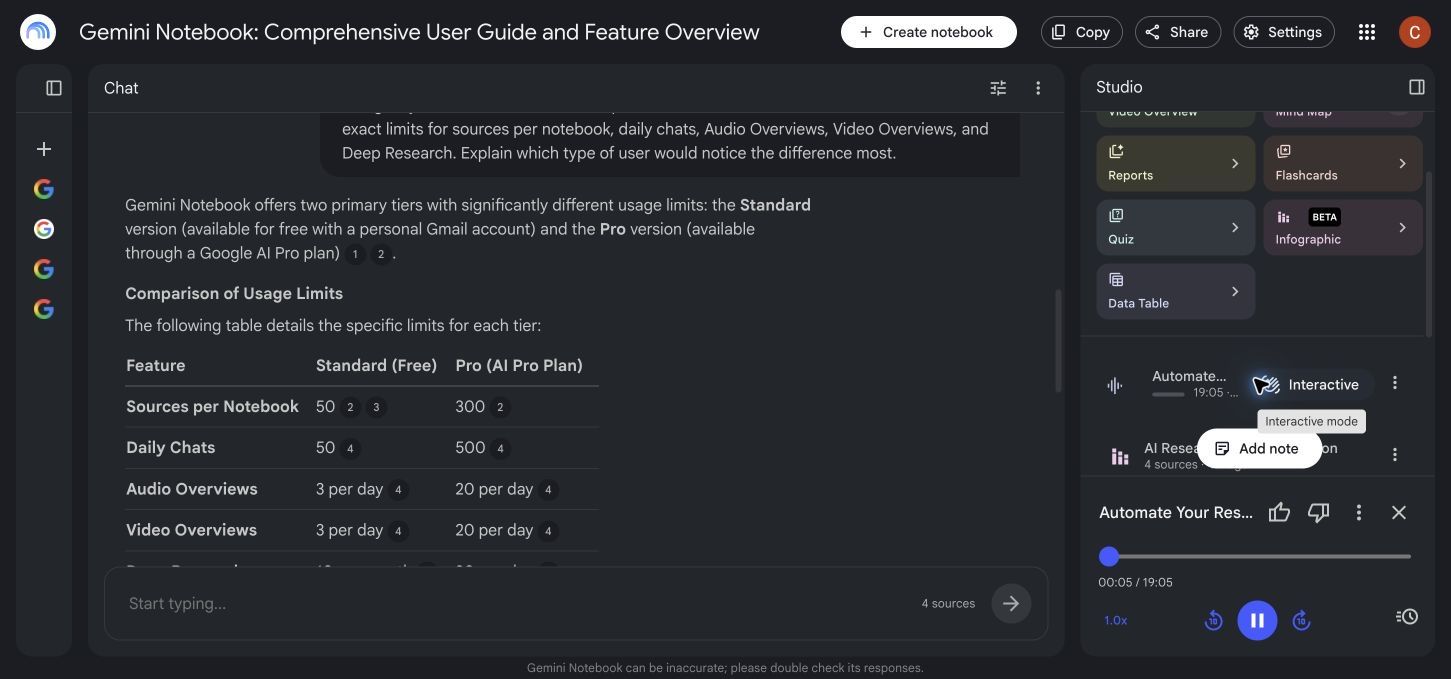
Untuk pengujian saya, saya memilih Deep Dive dan meminta penjelasan yang ringkas dan seimbang tentang apa yang dilakukan produk, bagaimana Standard dan Pro berbeda, dan mengapa kutipan masih perlu diverifikasi. NotebookLM menghasilkan diskusi 19 menit berjudul "Otomatiskan Penelitian Anda dengan Gemini Notebook."
Audio sangat berguna untuk orientasi. Ini dapat membantu Anda mendengar tema utama sebelum membaca dengan cermat, meninjau materi saat jauh dari layar, atau mengidentifikasi bagian mana dari paket sumber yang membutuhkan lebih banyak perhatian.
Kelancarannya juga merupakan risiko. Dua suara yang percaya diri dapat membuat interpretasi yang terkompresi terdengar pasti. Pemutar audio tidak mengubah setiap kalimat yang diucapkan menjadi kutipan sebaris yang mudah diperiksa, sehingga lebih sulit diaudit daripada jawaban obrolan.
Ikhtisar Video menawarkan format Penjelasan atau Pendek, pemilihan bahasa, fokus khusus, dan gaya visual termasuk Klasik, Papan Tulis, Kawaii, Anime, Cat Air, Cetakan Retro, Warisan, dan Kerajinan Kertas. Ini bisa efektif untuk menyajikan ikhtisar kepada kelas atau tim, tetapi generasi membutuhkan waktu lebih lama dan urutan yang selesai mungkin menekankan apa yang mudah divisualisasikan daripada apa yang paling penting.
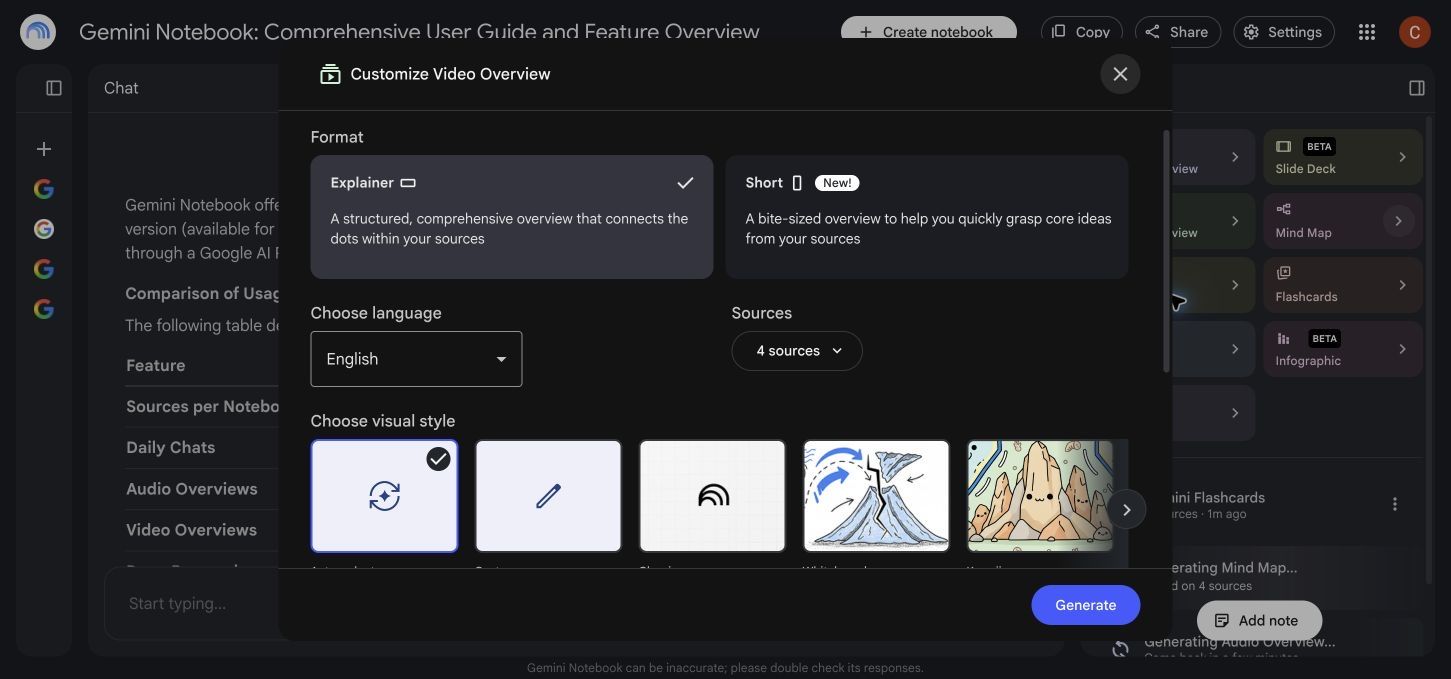
Gunakan Ikhtisar Audio dan Video untuk orientasi, tinjauan, dan komunikasi. Kembali ke Obrolan dan bagian asli sebelum mengandalkan detail.
Kartu Flash dan Kuis Lebih Baik untuk Tinjauan daripada Pembelajaran Pertama Kali
NotebookLM dapat menghasilkan kartu flash dan kuis dari sumber yang dipilih, dengan kontrol untuk kuantitas, kesulitan, dan topik. Ini lebih berguna daripada tombol panduan belajar tetap karena Anda dapat meminta kumpulan konsep yang sempit daripada menerima paket tinjauan generik.
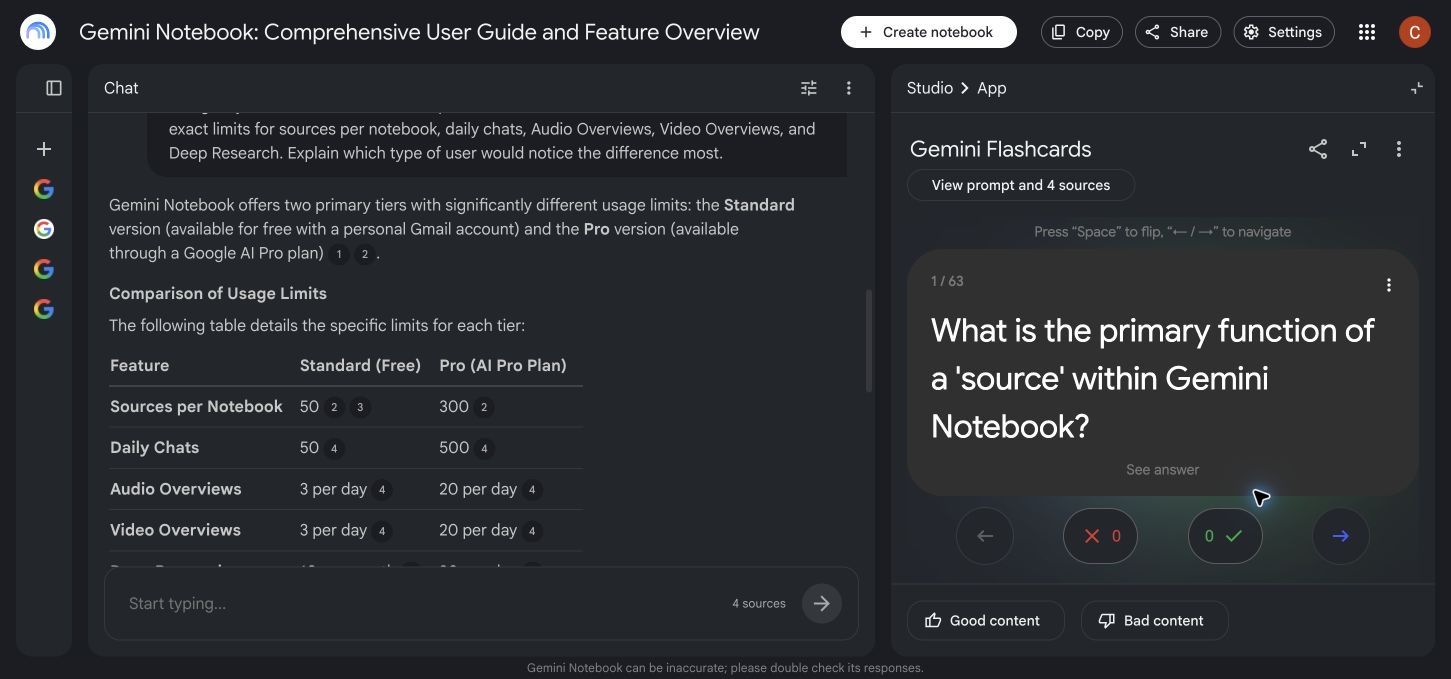
Saya meminta kartu flash tingkat kesulitan sedang tentang fitur produk, batas paket, sumber yang didukung, dan penggunaan kutipan yang bertanggung jawab. Pengaturan kuantitas Standar menghasilkan 63 kartu dari empat sumber.
Kartu pertama menanyakan fungsi utama sumber dalam NotebookLM. Jawabannya dengan benar menjelaskan bahwa sumber menyediakan informasi dasar yang digunakan untuk menjawab pertanyaan dan menyelesaikan permintaan. Antarmuka kartu mencakup kontrol ungkap, penjelasan, salah, dan benar.
Outputnya secara faktual berguna, tetapi 63 kartu lebih dari yang saya inginkan untuk tinjauan cepat. Ini menggambarkan batasan penting: generasi mengurangi upaya membuat materi belajar, bukan upaya memutuskan apa yang pantas dipelajari.
Untuk hasil yang lebih baik:
- Sebutkan ujian, bab, atau tujuan pembelajaran dalam prompt topik.
- Minta lebih sedikit kartu ketika paket sumber kecil.
- Gunakan kesulitan keras hanya setelah memeriksa bahwa sumber berisi detail yang cukup.
- Tandai kartu yang lemah atau ambigu alih-alih menghafalnya.
- Verifikasi angka, tanggal, rumus, dan klaim yang disengketakan terhadap sumber.
Kuis menambahkan pengecoh dan alur yang lebih mirip tes, tetapi aturan yang sama berlaku. Ini lebih baik untuk latihan pengambilan setelah Anda memahami materi daripada untuk mempelajari topik yang sulit dari awal.
Peta Pikiran, Laporan, dan Tabel Data Membuat Sintesis Lebih Berguna
Output Studio yang berbeda memecahkan tugas kognitif yang berbeda. Peta pikiran menunjukkan struktur, laporan mengembangkan narasi, dan tabel data mengekstrak atribut berulang ke dalam baris dan kolom yang sebanding.
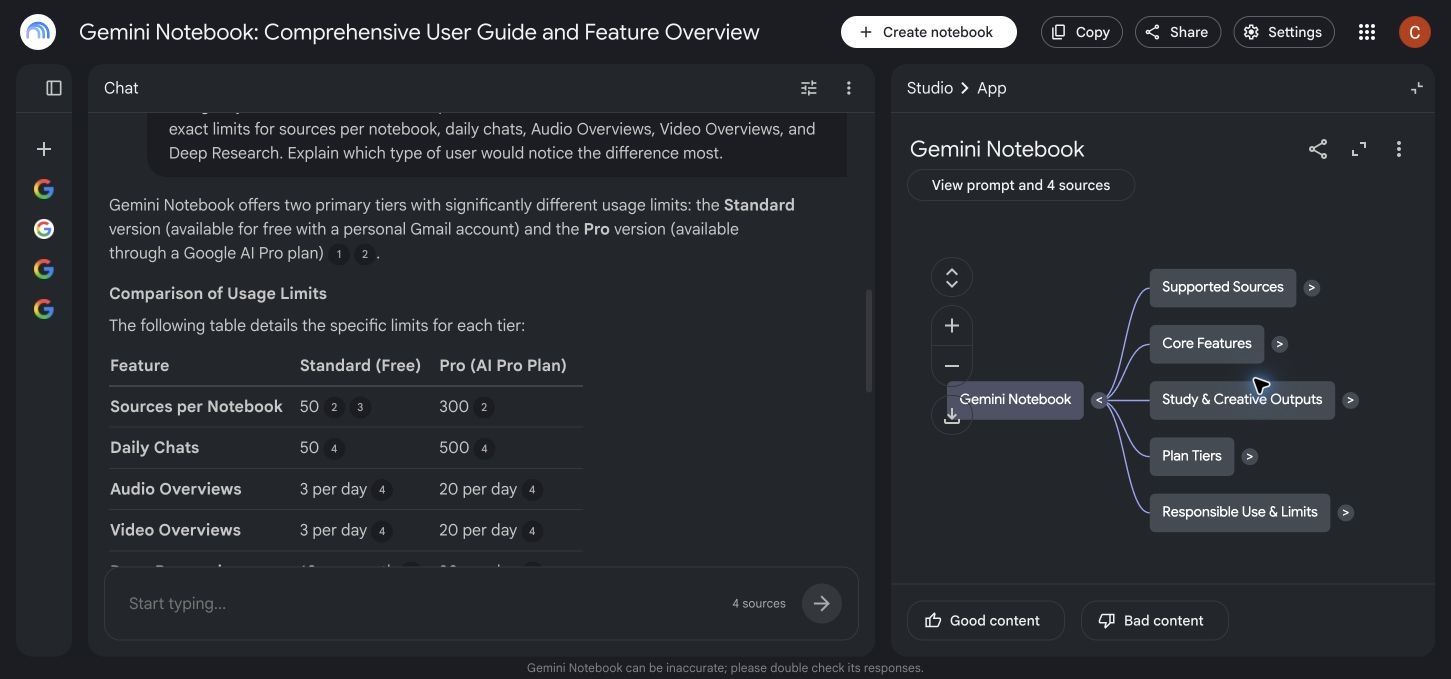
Peta pikiran yang saya hasilkan menempatkan NotebookLM di tengah dan membagi materi menjadi Sumber yang Didukung, Fitur Inti, Output Studi dan Kreatif, Tingkatan Paket, serta Penggunaan dan Batas yang Bertanggung Jawab. Hierarki itu koheren dan segera berguna sebagai lapisan orientasi.
Peta pikiran mendukung perluasan cabang, pembesaran, pengunduhan, dan pemilihan node. Kelemahan utamanya adalah bahwa pohon yang rapi dapat menyembunyikan tumpang tindih. Sebuah fitur mungkin termasuk dalam beberapa cabang, dan bukti yang diperdebatkan jarang sesuai dengan hierarki sederhana.
Laporan lebih baik ketika tujuannya adalah panduan belajar, briefing, FAQ, atau penjelasan terstruktur. Ini menghemat waktu penyusunan, tetapi setiap bagian masih mencerminkan sumber yang dipilih dan kerangka prompt.
Tabel Data sangat menjanjikan untuk penelitian yang melibatkan bidang berulang. Anda dapat meminta organisasi, tanggal, klaim, biaya, hasil, atau metode diekstraksi ke dalam kolom dan kemudian mengekspor hasilnya ke Google Sheets. Nilainya bukan hanya pemformatan yang lebih cepat; ini adalah melihat di mana bukti hilang.
Sebelum menggunakan tabel yang diekstraksi, ambil sampel beberapa baris terhadap aslinya. AI dapat menggeser nilai ke kolom yang salah, menyimpulkan kategori yang tidak disebutkan sumber, atau memperlakukan "tidak dilaporkan" sebagai nol.
Infografis dan Dek Slide Adalah Draf Pertama yang Cepat
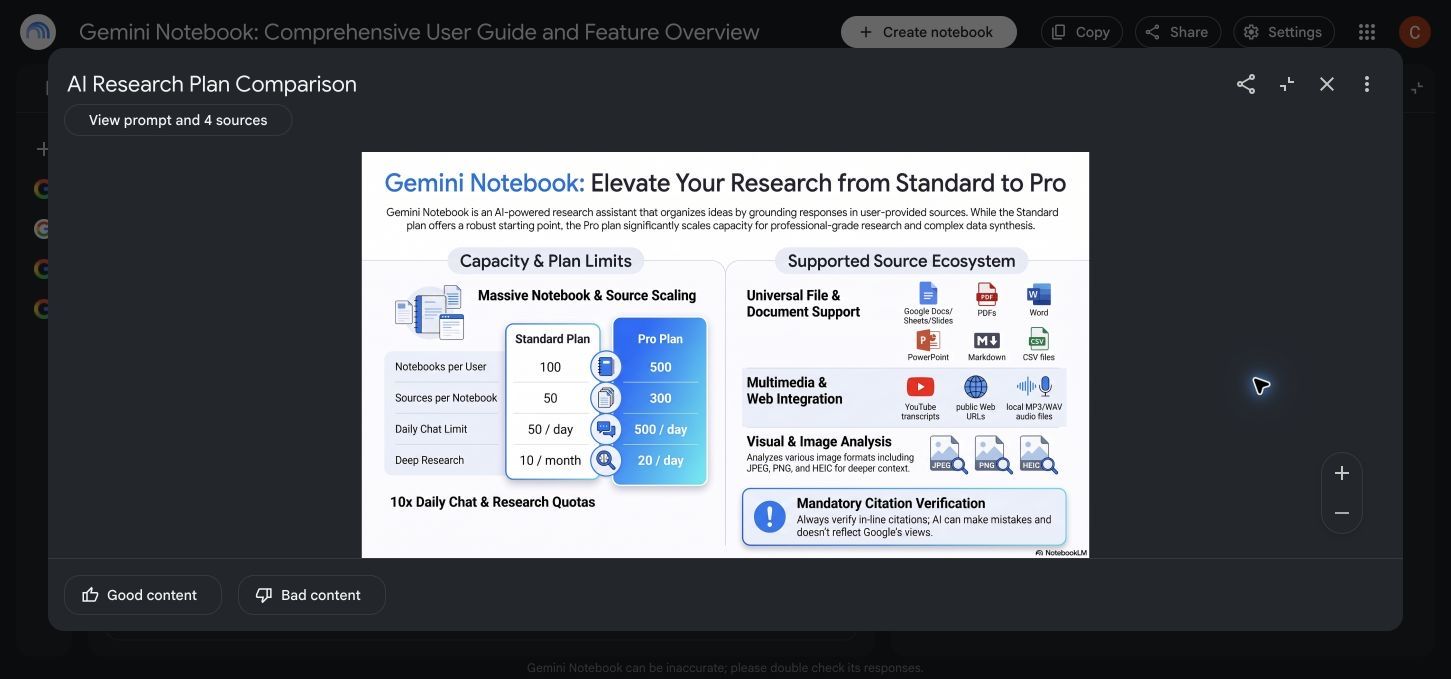
Output visual NotebookLM ambisius. Infografis dapat diatur ke lanskap, potret, atau persegi; menggunakan gaya seperti Profesional, Editorial, Ilmiah, Bento Grid, atau Sketch Note; dan bervariasi dari ringkas hingga detail.
Saya meminta perbandingan lanskap profesional Standard dan Pro dengan batas paket utama, sumber yang didukung, dan pengingat untuk memverifikasi kutipan. Infografis yang dihasilkan diatur secara visual dan berguna sebagai artefak briefing cepat.
Komprominya adalah kemampuan edit. Infografis yang dihasilkan mungkin berisi teks kecil, prioritas yang lemah, atau frasa yang perlu dikoreksi. Bahkan ketika fakta-fakta yang mendasari didukung, hierarki visual dapat membuat poin sekunder terlihat lebih penting daripada kesimpulan utama.
Dek Slide mengatasi kebutuhan serupa dalam skala yang lebih besar. Ini berguna untuk mengubah paket sumber menjadi kerangka presentasi, tetapi dek yang dihasilkan tidak secara otomatis sadar audiens. Penjelasan kelas, briefing eksekutif, presentasi penjualan, dan pertahanan akademik membutuhkan kecepatan dan bukti yang berbeda.
Perlakukan kedua format sebagai akselerator produksi:
-
Periksa setiap angka dan label.
-
Hapus konten bernilai rendah daripada mengecilkannya.
-
Tambahkan informasi sumber yang dibutuhkan audiens Anda.
-
Kerjakan ulang hierarki visual untuk konteks presentasi yang sebenarnya.
-
Konfirmasikan aturan paket saat ini sebelum mendistribusikan tangkapan layar atau harga.
Penelitian Mendalam dan Penemuan Sumber Membantu Membangun Buku Catatan
NotebookLM tidak terbatas pada sumber yang sudah Anda miliki. Penemuan sumber dapat mencari materi yang relevan, sementara Penelitian Mendalam dapat menjelajahi banyak halaman web dan menghasilkan laporan yang dapat ditambahkan ke buku catatan.
Ini menciptakan dua tahap yang berbeda. Penemuan menemukan bukti yang mungkin; obrolan berbasis sumber menganalisis bukti yang Anda pilih. Memisahkan tahap-tahap tersebut membantu mencegah hasil pencarian menjadi bukti yang dipercaya hanya karena muncul dalam laporan yang dihasilkan AI.
Batasnya sangat berbeda berdasarkan paket. Standard saat ini mencakup 10 sesi Penelitian Mendalam per bulan. Plus mencakup 3 per hari, Pro 20 per hari, dan tingkatan Ultra jauh lebih banyak.
Untuk proyek siswa yang terfokus, alokasi gratis mungkin cukup. Untuk analis yang berulang kali membangun paket sumber, batas berbayar dapat mengubah alur kerja. Batasan sebenarnya bukan hanya kuota; ini adalah waktu yang dibutuhkan untuk mengevaluasi apa yang ditemukan Penelitian Mendalam.
Alur kerja yang baik adalah meninjau judul, tanggal, penerbit, metodologi, dan konflik sebelum menambahkan sumber yang ditemukan. Lebih banyak sumber tidak secara otomatis menghasilkan buku catatan yang lebih baik.
Organisasi, Catatan, Berbagi, dan Penggunaan Seluler
NotebookLM mengatur pekerjaan di sekitar buku catatan daripada grafik pengetahuan global. Itu sangat baik untuk menjaga satu proyek tetap terbatas, tetapi bisa menjadi canggung ketika sumber yang sama termasuk dalam beberapa proyek atau ketika Anda ingin ide-ide terhubung di seluruh buku catatan.
Respons obrolan yang berguna dapat disimpan sebagai catatan. Catatan dapat menyimpan temuan sementara, pertanyaan, kerangka, dan keputusan di dalam buku catatan, mengurangi kebutuhan untuk mengulang prompt.
Berbagi mendukung tinjauan kolaboratif, tetapi akses harus disengaja. Buku catatan mungkin berisi materi berhak cipta, pribadi, rahasia, atau belum dipublikasikan. Membuka dialog Bagikan itu mudah; memutuskan siapa yang harus melihat kumpulan sumber dan output yang dihasilkan membutuhkan penilaian tata kelola informasi biasa.
Aplikasi seluler berguna untuk mengakses buku catatan dan mengonsumsi output, tetapi pengalaman web tetap menjadi ruang kerja yang lebih lengkap untuk manajemen sumber dan pembuatan Studio. Siapa pun yang merencanakan pengaturan penelitian yang mengutamakan offline harus memverifikasi kemampuan seluler saat ini sebelum bergantung padanya.
NotebookLM bekerja paling baik ketika buku catatan memiliki tujuan dan pemilik yang jelas. Beri nama, definisikan batas sumber, catat apa yang dikecualikan, dan arsipkan atau hapus sumber yang usang saat proyek berubah.
Harga NotebookLM: Standard vs Plus vs Pro vs Ultra
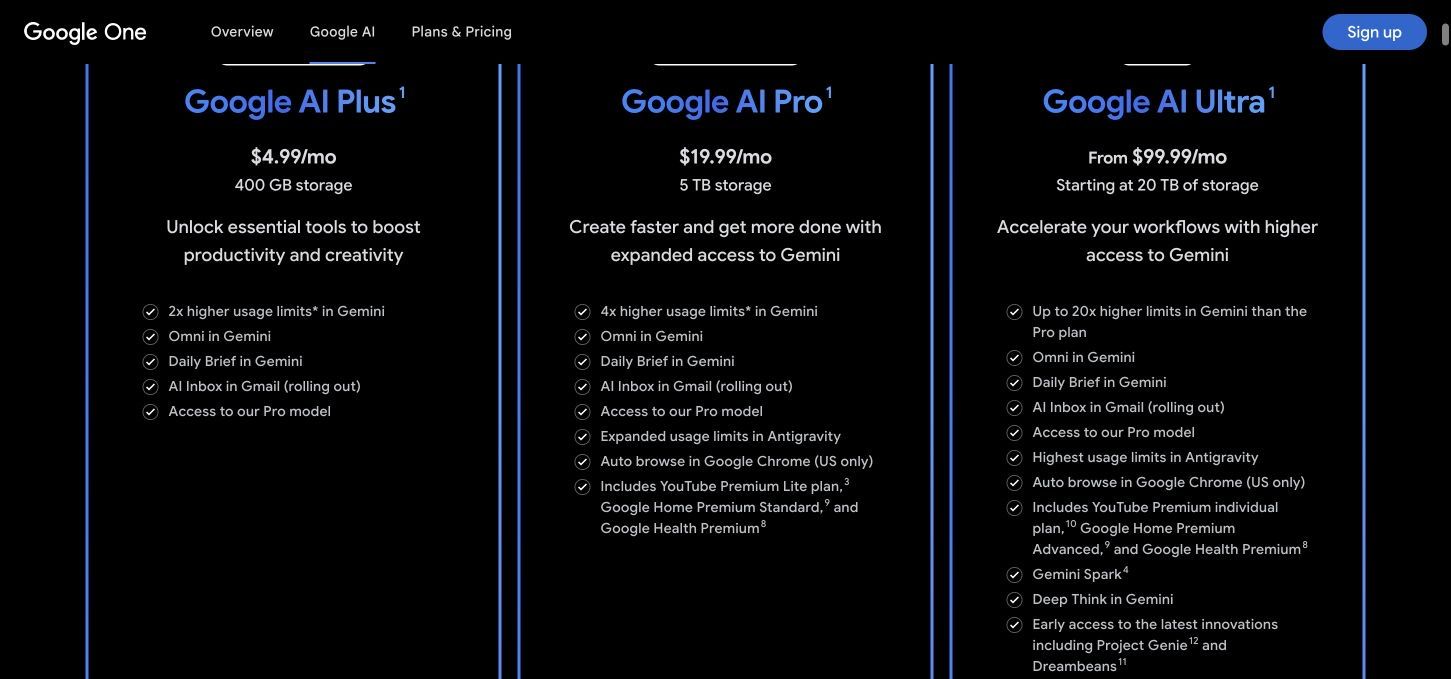
NotebookLM Standard gratis dengan akun Google pribadi. Akses berbayar dibundel ke dalam paket Google AI yang lebih luas, sehingga harga termasuk penyimpanan dan manfaat Gemini di luar NotebookLM.
Pada saat ulasan ini, halaman Google One AS mencantumkan Google AI Plus seharga $4.99 per bulan, Google AI Pro seharga $19.99 per bulan, dan Google AI Ultra mulai dari $99.99 per bulan. Harga regional, promosi, penyimpanan yang disertakan, dan manfaat yang dibundel dapat berubah, jadi periksa halaman paket langsung sebelum berlangganan.
| Batas | Standard | Plus | Pro | Ultra 20 TB | Ultra 30 TB |
|---|---|---|---|---|---|
| Buku Catatan | 100 | 200 | 500 | 500 | 500 |
| Sumber per buku catatan | 50 | 100 | 300 | 500 | 600 |
| Obrolan | 50/hari | 200/hari | 500/hari | 2.500/hari | 5.000/hari |
| Ikhtisar Audio | 3/hari | 6/hari | 20/hari | 100/hari | 200/hari |
| Ikhtisar Video | 3/hari | 6/hari | 20/hari | 100/hari | 200/hari |
| Laporan | 10/hari | 20/hari | 100/hari | 500/hari | 1.000/hari |
| Kartu Flash | 10/hari | 20/hari | 100/hari | 500/hari | 1.000/hari |
| Kuis | 10/hari | 20/hari | 100/hari | 500/hari | 1.000/hari |
| Peta Pikiran | 10/hari | 20/hari | 100/hari | 500/hari | 1.000/hari |
| Penelitian Mendalam | 10/bulan | 3/hari | 20/hari | 75/hari | 200/hari |
Paket gratis adalah titik awal yang tepat untuk sebagian besar individu. Tingkatkan ketika proyek nyata berulang kali mencapai batas sumber, obrolan, artefak, atau Penelitian Mendalam, bukan karena label berbayar terlihat lebih akurat.
Plus adalah tingkatan menengah yang berarti bagi pengguna reguler. Pro lebih masuk akal untuk buku catatan besar dan penggunaan harian yang berat. Batas Ultra yang sangat tinggi sulit dibenarkan untuk studi atau penelitian biasa kecuali bundel Google yang lebih luas sudah memiliki nilai bagi Anda.
Privasi, Penggunaan Data, dan Risiko Akademik atau Tempat Kerja
Privasi bergantung pada jenis akun dan materi yang Anda unggah. Google menyatakan bahwa data dari akun Workspace dan Pendidikan yang memenuhi syarat tidak digunakan untuk melatih model dan tidak ditinjau oleh peninjau manusia. Alur umpan balik akun konsumen mungkin memiliki penanganan yang berbeda, jadi pengguna harus membaca persyaratan privasi saat ini yang berlaku untuk akun mereka.
Jangan mengunggah sumber hanya karena Anda secara teknis bisa. Periksa hak cipta, batasan kontrak, kebijakan institusional, kerahasiaan klien, persetujuan penelitian, dan persyaratan perlindungan data.
Dalam pekerjaan akademik, NotebookLM dapat mendukung pembacaan dan studi, tetapi tidak menggantikan format kutipan yang diperlukan atau tanggung jawab Anda untuk memahami sumbernya. Kutipan NotebookLM adalah tautan antarmuka ke bukti, bukan secara otomatis entri bibliografi.
Untuk penggunaan di tempat kerja, definisikan jenis dokumen apa yang diizinkan, siapa yang dapat berbagi buku catatan, bagaimana output yang dihasilkan diberi label, dan kapan peninjau manusia harus membuka kembali sumbernya. Proyek sensitif membutuhkan kebijakan, bukan hanya alat produktivitas.
Kekuatan dan Kelemahan Terbesar NotebookLM
Kekuatan NotebookLM berasal dari cara bagian-bagiannya saling memperkuat. Paket sumber yang dikurasi yang sama dapat mendukung pencarian fakta, analisis komparatif, praktik studi, mendengarkan, orientasi visual, dan penyusunan presentasi.
Kekuatan
- Pemilihan sumber memberi pengguna kontrol yang berarti atas batas bukti.
- Kutipan obrolan sebaris membuat klaim penting lebih mudah diperiksa.
- Paket gratis berguna daripada hanya promosi.
- Output Studio mendukung beberapa gaya pembelajaran dan komunikasi.
- Audio, kartu flash, peta pikiran, tabel, dan artefak visual menggunakan kembali satu set sumber.
- Lebih dari 80 bahasa memperluas penggunaan studi dan penelitian multibahasa.
- Penelitian Mendalam dan penemuan sumber dapat mempercepat pembuatan paket sumber.
Kelemahan
- Sintesis yang dikutip masih dapat menghilangkan kualifikasi atau melebih-lebihkan kesimpulan.
- Buku catatan lebih terisolasi daripada grafik pengetahuan lintas proyek.
- Generasi artefak dapat menghasilkan terlalu banyak konten, seperti yang ditunjukkan oleh hasil 63 kartu saya.
- Kehalusan audio dan visual dapat membuat sintesis yang tidak lengkap terasa otoritatif.
- Infografis dan dek yang sudah jadi masih memerlukan pemeriksaan fakta dan pengeditan desain.
- Akses berbayar dibundel dengan paket Google yang lebih luas daripada dijual sebagai peningkatan mandiri yang sederhana.
- Alur kerja seluler dan offline kurang lengkap daripada ruang kerja web.
Kompromi utamanya jelas: NotebookLM sangat baik dalam mengubah kumpulan bukti yang terbatas, tetapi pengguna masih harus mengkurasi kumpulan itu dan menilai transformasinya.
Lynote sebagai Alternatif NotebookLM untuk Generasi Catatan AI
NotebookLM paling kuat ketika Anda menginginkan buku catatan penelitian yang berpusat pada Google dengan obrolan berbasis sumber dan Studio besar berisi artefak yang dihasilkan. Lynote AI Note Generator adalah alternatif praktis ketika tugas utama adalah mengubah materi studi atau penelitian campuran secara langsung menjadi catatan terstruktur yang dapat diedit.
Lynote menerima dokumen, audio, video, gambar, halaman web, dan tautan YouTube. Ini mengatur sumber menjadi catatan dengan judul, poin-poin, dan bagian yang terhubung dengan sumber, lalu memungkinkan Anda mengedit hasilnya, mengajukan pertanyaan lanjutan, membagikannya, atau mengubahnya menjadi kartu flash.
Cara Membuat Catatan dengan Lynote
-
Buka Lynote dan unggah dokumen, file audio, video, atau gambar, atau tempel halaman web atau URL YouTube. Klik Parse saat menggunakan URL.
-
Klik Create Note. Lynote memproses sumber dan menghasilkan catatan terstruktur dengan judul, poin-poin, dan bagian yang terhubung dengan sumber.
-
Edit catatan di ruang kerja teks kaya, ajukan pertanyaan lanjutan, ekspor atau bagikan, atau ubah materi menjadi kartu flash.
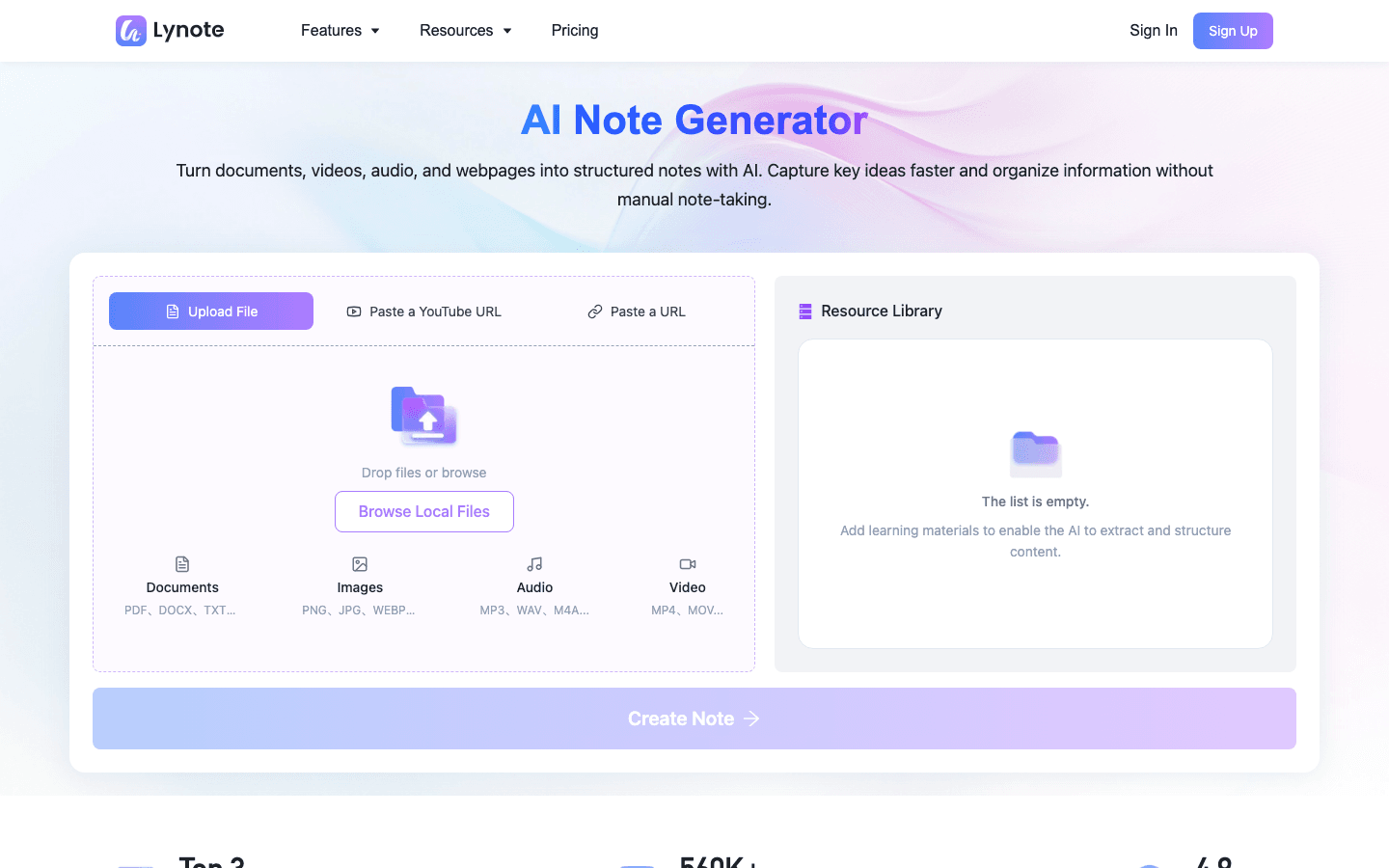
Pilih NotebookLM ketika buku catatan penelitiannya, koneksi Google Drive, dan output Studio yang luas menjadi pusat. Pilih Lynote ketika Anda menginginkan jalur konten campuran langsung dari materi mentah ke catatan terstruktur yang tetap dapat diedit dan digunakan kembali untuk studi.
Siapa yang Harus Menggunakan NotebookLM, dan Siapa yang Harus Melewatkannya?
NotebookLM sangat cocok untuk siswa yang mempelajari paket mata kuliah terbatas, peneliti yang menyaring koleksi terfokus, pendidik yang membuat materi tinjauan, dan analis yang menyiapkan briefing berbasis bukti. Ini juga berguna untuk tim kebijakan, hukum, dan bisnis ketika batas sumber dikontrol dan aturan data sensitif jelas.
Tim konten dapat memperoleh manfaat ketika mereka perlu memahami korpus produk atau menggunakan kembali penelitian ke dalam beberapa format. Mereka tidak boleh mengharapkan dek, skrip, atau visual yang dihasilkan siap untuk publikasi tanpa pengeditan.
NotebookLM kurang cocok untuk:
- Pengguna yang membutuhkan manajer kutipan dan bibliografi formal
- Tim yang membutuhkan satu grafik pengetahuan di banyak proyek
- Alur kerja yang mengutamakan rapat yang berpusat pada perekaman langsung dan item tindakan
- Pencatatan yang mengutamakan offline
- Desainer yang membutuhkan aset visual yang sepenuhnya dapat diedit dan siap produksi
- Siapa pun yang ingin AI memutuskan sumber mana yang dapat dipercaya
Pertanyaan kuncinya bukan apakah Anda membuat catatan. Ini adalah apakah pekerjaan Anda dimulai dengan seperangkat bukti spesifik yang ingin Anda pertanyakan dan ubah.
FAQ Tentang NotebookLM
Apakah NotebookLM gratis?
Ya. NotebookLM Standard gratis dengan akun Google pribadi dan saat ini mencakup 100 buku catatan, 50 sumber per buku catatan, 50 obrolan per hari, dan generasi Studio harian terbatas. Paket Google AI berbayar meningkatkan batas tersebut.
Berapa biaya NotebookLM?
Tingkatan Standard gratis. Pada saat ulasan ini, harga AS mencantumkan Google AI Plus seharga $4.99 per bulan, Pro seharga $19.99 per bulan, dan Ultra mulai dari $99.99 per bulan.
Paket-paket ini mencakup manfaat di luar NotebookLM, dan harga regional dapat berbeda.
Apakah NotebookLM akurat?
NotebookLM dapat akurat ketika sumbernya dengan jelas mendukung pertanyaan, tetapi masih dapat mengambil bagian yang salah, menghilangkan nuansa, atau terlalu memadatkan bukti yang bertentangan. Buka kutipan dan bandingkan klaim penting dengan sumber aslinya.
Apakah NotebookLM mengutip sumbernya?
Ya. Jawaban obrolan dapat menyertakan kutipan bernomor yang terhubung ke bagian-bagian dari sumber yang dipilih. Artefak audio dan visual yang dihasilkan kurang nyaman untuk diaudit baris demi baris, jadi detail konsekuensial harus diperiksa di Obrolan atau di aslinya.
Apakah NotebookLM aman untuk dokumen rahasia?
Itu tergantung pada akun Anda, perjanjian organisasi, dan kebijakan dokumen. Akun Workspace dan Pendidikan yang memenuhi syarat menerima perlindungan data yang lebih kuat. Jangan mengunggah materi rahasia atau yang diatur tanpa mengonfirmasi persyaratan yang berlaku dan aturan organisasi Anda.
Bisakah NotebookLM membaca PDF, video YouTube, dan file audio?
Ya. Ini mendukung PDF, URL YouTube, audio, halaman web, format dokumen dan presentasi umum, spreadsheet, gambar, eBook, teks yang ditempel, dan beberapa format Google Drive. Batas dan perilaku ekstraksi bervariasi berdasarkan sumber.
Bisakah NotebookLM membuat kartu flash, kuis, dan presentasi PowerPoint?
Ini dapat membuat kartu flash, kuis, dan dek slide. Dek slide adalah draf pertama yang cepat, bukan pengganti untuk memverifikasi fakta, mengadaptasi narasi ke audiens, dan menyempurnakan desain visual.
Apakah NotebookLM berfungsi offline?
NotebookLM terutama adalah layanan cloud. Beberapa akses seluler mungkin mendukung konsumsi offline terbatas, tetapi pengguna yang membutuhkan alur kerja penelitian dan pencatatan offline lengkap tidak boleh mengasumsikan kesetaraan fitur dengan aplikasi web.
Apakah NotebookLM bagus untuk siswa dan peneliti?
Ya, terutama ketika mereka sudah memiliki daftar bacaan atau paket bukti yang terdefinisi. Ini paling berguna untuk mengajukan pertanyaan komparatif, menemukan dukungan, membuat materi tinjauan, dan memahami struktur.
Apa alternatif NotebookLM terbaik?
Alternatif terbaik bergantung pada kemampuan yang hilang. Cari manajemen referensi formal jika kontrol bibliografi penting, aplikasi grafik pengetahuan untuk koneksi lintas proyek, alat rapat untuk perekaman langsung, atau alat obrolan konten campuran untuk alur kerja input-ke-jawaban yang lebih sederhana.
Putusan Akhir
NotebookLM adalah salah satu alat paling mumpuni untuk bekerja dengan koleksi sumber yang terbatas. Nilainya berasal dari kombinasi kontrol sumber, obrolan yang terhubung dengan kutipan, dan Studio yang dapat membingkai ulang bukti yang sama untuk membaca, mendengarkan, meninjau, membandingkan, dan presentasi.
Produk ini paling kuat ketika Anda tetap bertanggung jawab atas bukti. Kurasi paket sumber, ajukan pertanyaan sempit, buka kutipan penting, dan edit setiap artefak konsekuensial.
Digunakan dengan cara itu, NotebookLM lebih dari sekadar perangkum AI. Ini adalah ruang kerja penelitian yang fleksibel. Digunakan tanpa verifikasi, kelancaran dan polesan visualnya dapat membuat pemahaman yang tidak lengkap terlihat selesai.

Ditulis oleh Danny
Manajer Pemasaran Produk
Danny menjelaskan bagaimana fitur-fitur Lynote sesuai dengan alur kerja nyata, mulai dari produktivitas sehari-hari hingga kasus penggunaan penulisan berbasis produk. Lihat semua artikel →