

Extraer texto de PDF y documentos escaneados
Arrastre archivos o explore
Agrega materiales de aprendizaje para que la IA pueda extraer y estructurar el contenido.



¿Por qué usar Lynote para extraer texto de PDF?

Funciona para PDFs digitales y escaneados
Extrae texto de PDFs seleccionables y utiliza OCR cuando el archivo es basado en imágenes o escaneado.

Obtén salida copiables
Convierte páginas bloqueadas o difíciles de copiar en texto editable para notas, borradores, resúmenes o traducción.

Ahorra reescritura manual
Evita reescribir páginas de informes, libros, formularios y materiales de clase cuando el texto puede ser leído automáticamente.

Revisar resultados de OCR
Verifica nombres, números, tablas, fórmulas y formatos inusuales porque la calidad del OCR depende del escaneo de origen.

Preparar texto para otras tareas de IA
Una vez extraído, utiliza el texto para resumir, traducir, estudiar o hacer preguntas.

Manejar documentos largos
Procesa PDFs de varias páginas más rápido que copiando página por página.
Los PDFs digitales suelen ser más limpios
Si puedes seleccionar texto en el PDF, la extracción suele ser sencilla. Las páginas escaneadas dependen del OCR y pueden introducir errores.
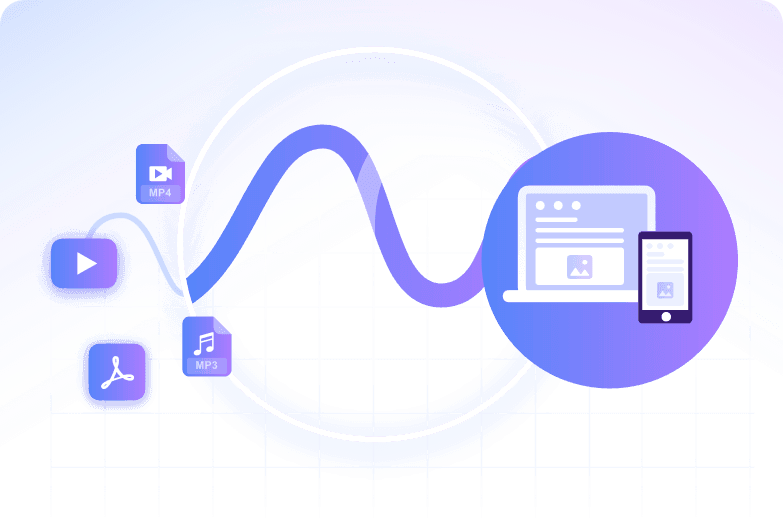
Los escaneos necesitan mejor calidad de origen
Imágenes borrosas, páginas inclinadas, escritura a mano, fuentes pequeñas y tablas densas pueden reducir la precisión del OCR.
Utiliza el texto extraído con cuidado
Antes de publicar, citar o traducir, compara nombres, fechas, números y tablas importantes con el PDF original.
Cómo extraer texto de un PDF con IA
Sube el PDF
Utiliza la versión más clara del archivo. Para escaneos, elige una copia de alta resolución si es posible.
Ejecuta la extracción de texto
Deja que Lynote lea el documento y convierta el texto legible en un resultado editable.
Revisa el resultado
Verifica los detalles importantes, luego copia el texto en notas, resúmenes, traducciones u otros flujos de trabajo.
¿Quién debería usar este extractor de texto de PDF?

Estudiantes
Extrae pasajes de libros de texto, notas y extractos de investigación para estudiar.

Investigadores
Extrae texto de artículos, informes y archivos antes de resumir o comparar fuentes.

Equipos de negocio
Extrae texto de PDFs, propuestas, manuales y formularios para reutilizar.

Traductores
Convierte PDFs escaneados en texto antes de traducir.

Escritores
Convierte PDFs de referencia en notas editables.
Usuarios cotidianos
Copia texto de PDFs descargados sin necesidad de reescribir manualmente.
Lo que dicen nuestros usuarios

Consultor legal

"Lo utilicé para extraer texto de un paquete de contratos de arrendamiento de 48 páginas y obtuve cláusulas claras que pude revisar línea por línea. La redacción se mantuvo lo suficientemente precisa para las ediciones del contrato y las notas internas."

Investigador académico
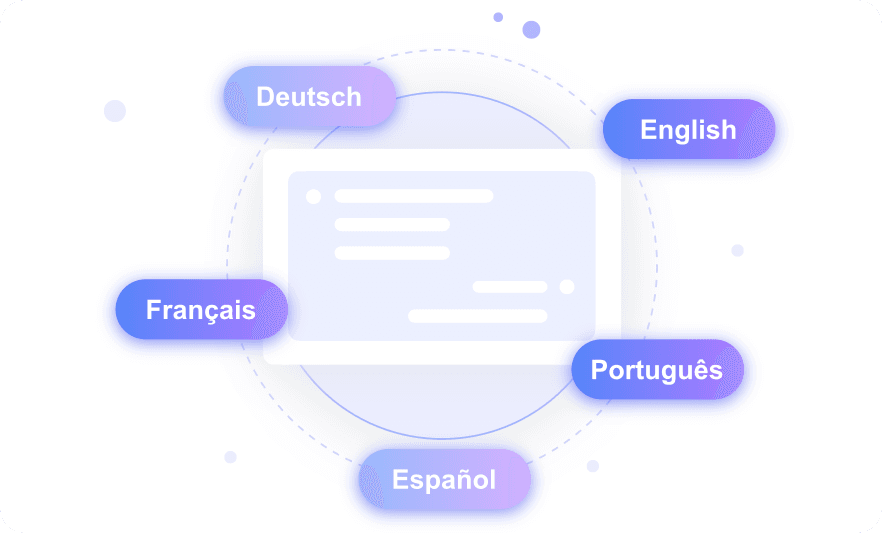
"Trabajo con revistas internacionales en formato PDF, y esta herramienta me permitió procesar artículos en español, alemán y coreano en un mismo proyecto. Extraer texto de archivos PDF en más de 130 idiomas me ahorró tener que cambiar de herramienta entre diferentes documentos."

Estudiante de posgrado
"Tuve que extraer apuntes de un libro de texto en PDF de 200 páginas antes de un seminario. Esto fue aproximadamente 10 veces más rápido que copiar secciones a mano y me proporcionó texto utilizable de una sola vez."

Gerente de Operaciones
"Nuestro equipo procesa docenas de facturas en formato PDF cada semana, y el procesamiento por lotes marcó una gran diferencia. Extrajimos el texto de una carpeta completa de una sola vez, en lugar de abrir cada factura individualmente."

Traductor autónomo
Necesitaba texto editable de un manual de equipo en formato PDF de 62 páginas para un proyecto de traducción. Una vez extraído el texto, pude buscar términos repetidos y reutilizarlos en diferentes secciones.

Redactor técnico
"Solo necesitaba extraer texto de una hoja de especificaciones en PDF y no quería crear una cuenta primero. Poder iniciar la extracción básica sin registrarme fue una gran ventaja para tareas cortas."
Preguntas frecuentes
Respuestas a preguntas comunes antes de usar esta herramienta.
Sí, si el OCR puede leer claramente las páginas escaneadas. Los escaneos de mala calidad pueden necesitar limpieza primero.
OCR significa reconocimiento óptico de caracteres. Convierte el texto dentro de imágenes o páginas escaneadas en caracteres editables.
No siempre. Verifica nombres, números, tablas, fórmulas y diseños inusuales antes de confiar en el resultado.
Puedes copiarlo, resumirlo, traducirlo, buscarlo o usarlo como notas para otro flujo de trabajo.


