logo
menu

Goodnotes Note Taking App: Best Alternative for AI Notes

Autor: Janet | July 30, 2026

The goodnotes note taking app is a popular choice for people who like handwritten notes, PDF annotation, templates, and Apple Pencil workflows. It works especially well when you want a digital notebook that still feels close to paper. But if your goal is to turn videos, PDFs, web pages, audio, or lecture materials into structured AI notes, Goodnotes may not be the fastest path.

That is where Lynote AI Note Generator becomes useful. Instead of starting from a blank page, Lynote helps you generate organized notes from source material. This guide compares the goodnotes note taking app with Lynote, explains common Goodnotes workflows, and shows when an AI note generator is the better alternative.

Goodnotes Note Taking App Alternative for AI Notes cover illustration

What Is the Goodnotes Note Taking App?

The goodnotes note taking app is a digital note-taking tool built around handwriting, notebooks, PDF markup, whiteboards, typed documents, and cross-device work. Goodnotes highlights handwriting, PDF annotation, collaboration, audio recordings, AI productivity, and meeting notes on its official site. It is especially familiar to iPad users who want a notebook-style interface.

For students, Goodnotes notes can feel natural because you can write formulas, sketch diagrams, annotate slides, and organize class materials into notebooks. For professionals, it can help with meeting notes, document markup, and brainstorming. The strength of the goodnotes note taking app is flexible capture, especially when handwriting is part of the workflow.

However, handwritten capture is not the same as AI-generated structure. If you already have a lecture video, long PDF, article, or audio recording, you may still need to read, watch, listen, and summarize manually. Lynote is designed for that source-to-note step.

How People Usually Use Goodnotes Notes

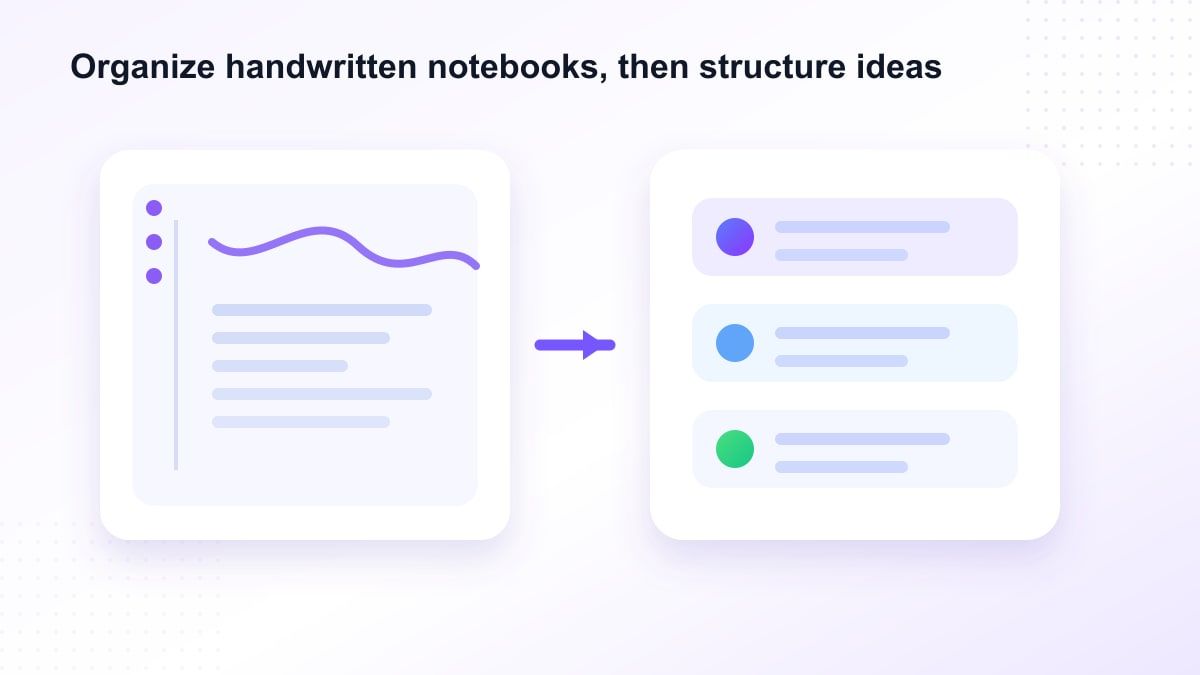
Ways to organize notes on Goodnotes illustration

Many users open the goodnotes note taking app to create notebooks for school, work, personal planning, or client projects. They may add PDF slides, write on top of them, use highlighters, and create sections for different subjects. This makes Goodnotes useful for people who already know what they want to write down.

One common search is ways to organize notes on Goodnotes. A practical setup is to create separate notebooks by class, project, or client, then use folders for broad categories. Inside each notebook, users can rely on headings, colors, templates, and page order to keep Goodnotes notes readable.

Templates also matter. A Goodnotes Cornell notes template can help students split pages into cues, main notes, and summary sections. This is useful for active review, but the student still has to extract the key ideas manually.

Goodnotes for Math Notes and Handwriting

Goodnotes math notes are one of the strongest use cases for the app. Math often needs handwriting because equations, graphs, geometry sketches, and step-by-step problem solving are hard to type quickly. For many students, math notes Goodnotes workflows feel easier than typing formulas into a text editor.

If you are solving calculus problems, drawing coordinate planes, or annotating a professor's PDF, the goodnotes note taking app can be a comfortable workspace. You can write freely, erase mistakes, and arrange visual work across a page. This paper-like experience is why Goodnotes often appears in conversations about the best apps for note taking on iPad 2026 Goodnotes Notability comparisons.

Still, math review is more than handwriting. After a lecture, you may want definitions, theorem summaries, practice prompts, and concept explanations. Lynote can help turn lecture material into structured notes that support review beyond the handwritten page.

Common Goodnotes Problems Users Search For

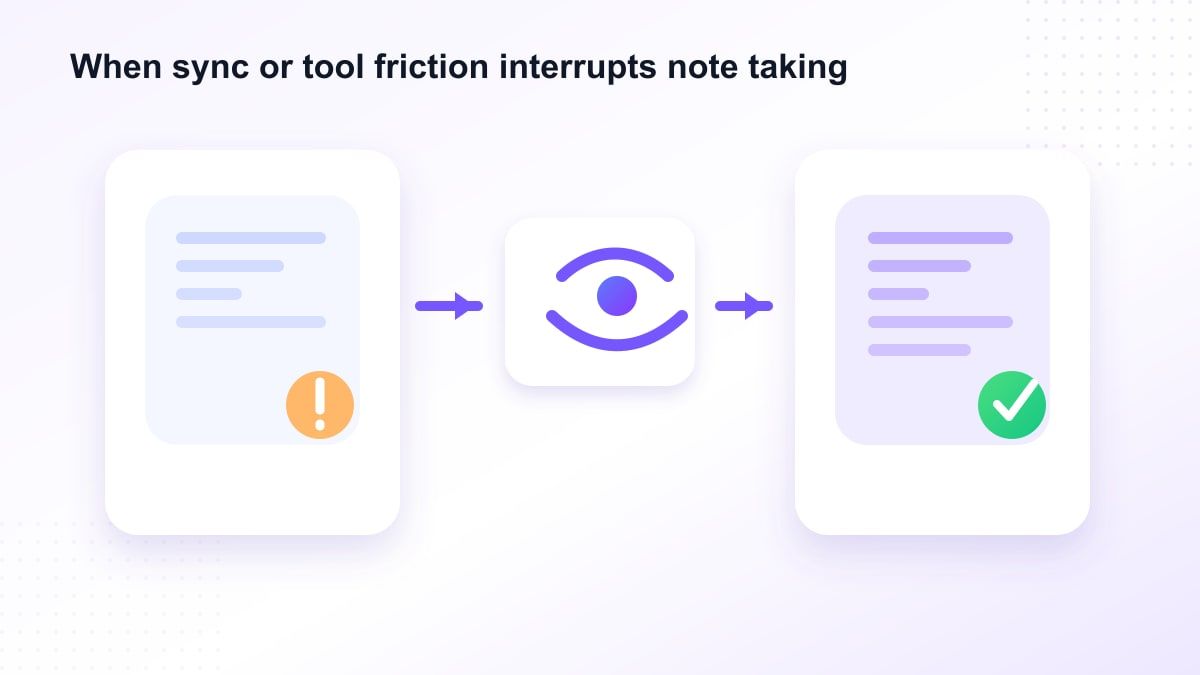
Goodnotes not syncing and eraser not working illustration

The goodnotes note taking app is useful, but users still search for friction points. Queries like Goodnotes eraser not working often come from stylus settings, app behavior, tool mode confusion, or a temporary device issue. The right fix depends on the device, app version, and how the writing tool is configured.

Another common issue is Goodnotes not syncing. Users also search why is my Goodnotes not syncing when notes do not appear across iPad, iPhone, Mac, or other devices as expected. Sync problems can involve account settings, cloud storage, network conditions, app updates, or platform-specific behavior.

These issues do not mean Goodnotes is bad. They show that a handwritten notebook app depends heavily on device, account, sync, stylus, and storage workflows. If your main goal is generating notes from source content, an online AI note generator can avoid some of that device-centered friction.

Goodnotes vs Apple Notes

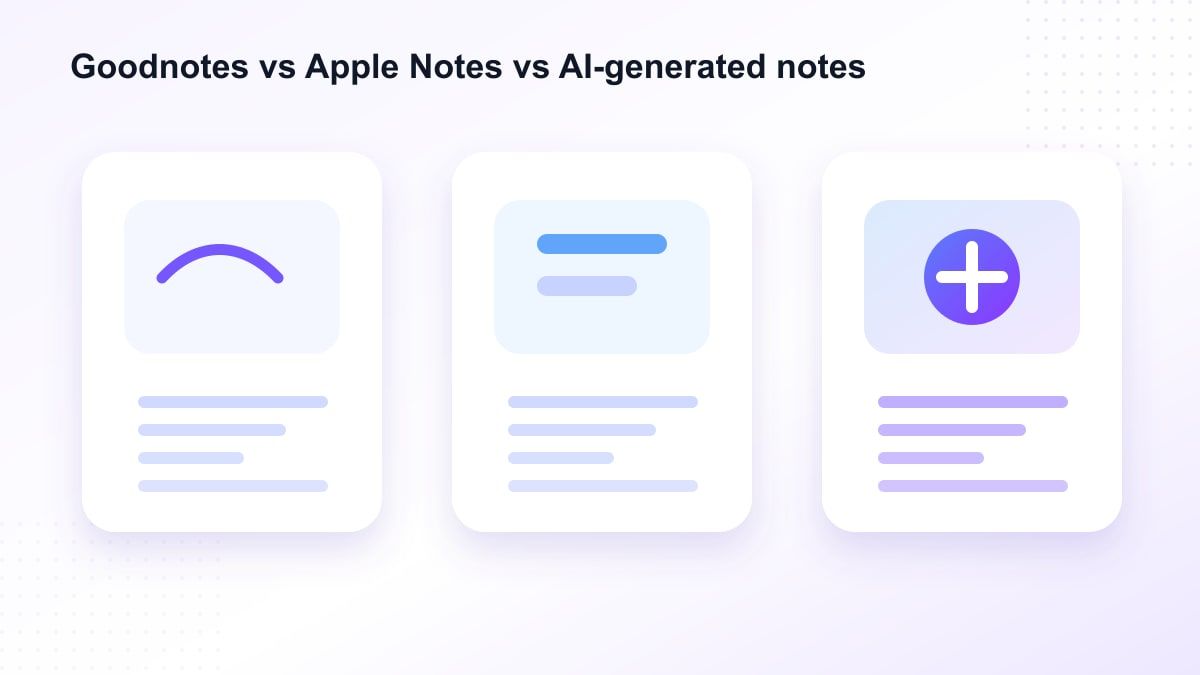
Goodnotes vs Apple Notes vs Lynote comparison illustration

Goodnotes vs Apple Notes is a practical comparison for iPad users. Apple Notes is simple, built into Apple devices, and useful for quick text notes, checklists, scans, sketches, and everyday capture. Goodnotes is stronger when you want notebook-style organization, handwriting, PDF annotation, and template-heavy study workflows.

The goodnotes note taking app is better for people who treat the iPad like a digital binder. Apple Notes is better for quick capture that does not need a full notebook structure. The right choice depends on whether your notes are casual reminders or detailed study materials.

Lynote sits in a different category. It is not trying to replace every handwritten page. It is useful when your notes should come from a PDF, YouTube video, web page, audio file, image, or other source material.

Where Goodnotes Is Strong

The goodnotes note taking app is strong for handwriting. If you love writing with Apple Pencil, marking up PDFs, drawing diagrams, or using study templates, Goodnotes can feel very natural. It is also useful when you want a visual notebook that you control page by page.

It also works well for reviewing documents. You can annotate PDFs, highlight pages, and keep related materials in notebooks. For students who receive lecture slides, this can be an easy way to write directly on class materials.

Goodnotes also supports more flexible capture than a plain text editor. You can write, type, sketch, or add visuals. That makes it a good fit for creative thinking, classroom notes, and handwritten review.

Where Goodnotes Can Feel Limited

The limitation appears when you do not want to build notes manually. A Goodnotes Cornell notes template gives you a page structure, but it does not automatically understand the lecture. Goodnotes math notes can capture formulas, but they do not automatically turn a whole lesson into a study guide.

If you have a long PDF, video, article, or audio recording, the goodnotes note taking app still depends on your attention and manual extraction. You may need to read the source, decide what matters, rewrite key points, and organize them into headings. That takes time.

For modern study and work, many users need notes generated from source content first. After that, they can edit, highlight, or rewrite. This is where Lynote becomes a strong Goodnotes alternative for AI notes.

A Better AI Alternative: Lynote AI Note Generator

Lynote AI Note Generator helps turn documents, audio, video, images, web pages, and YouTube links into structured AI notes. Instead of opening a blank notebook, you provide the source material and let Lynote organize the key ideas. The result can include headings, bullet points, and source-linked sections.

This makes Lynote useful when your goal is understanding and organizing information. A student can turn lecture materials into study notes. A researcher can convert long source content into a structured outline. A creator can summarize a video or article into reusable notes.

The goodnotes note taking app is best when you want to write and annotate by hand. Lynote is better when you want AI to read or process source material first. They can even work together: generate notes in Lynote, then use Goodnotes for handwritten review if you prefer that style.

How to Generate Notes with Lynote

Lynote AI Note Generator workflow illustration

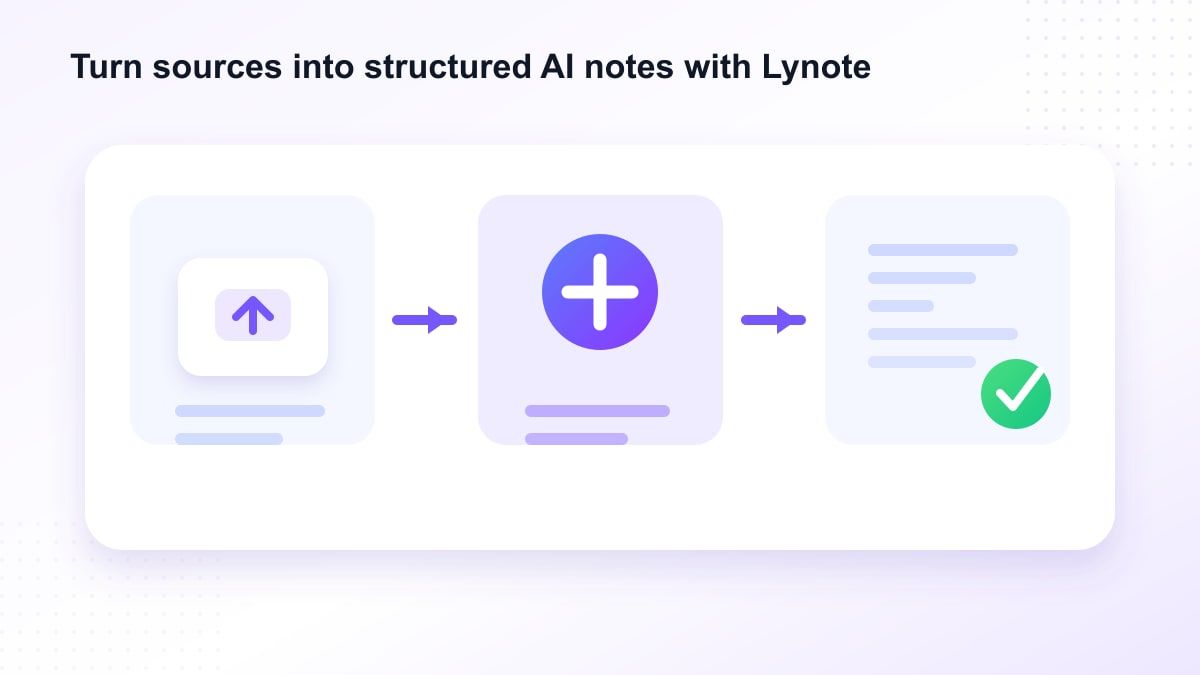
Step 1. Add Your Source Content

Open Lynote AI Note Generator and add the material you want to understand. You can upload a file or paste a URL, depending on the source. If you paste a link, parse it so Lynote can fetch the content before note generation.

This workflow is different from Goodnotes notes because you do not start with a blank page. You start with real source material. That makes Lynote useful for lectures, PDFs, videos, articles, and study resources.

Step 2. Generate Structured AI Notes

Once the source is loaded, create the note and let Lynote process the material. Lynote can turn the content into organized notes with headings, bullets, and source-linked sections. This helps you see the structure of the material faster.

The key benefit is speed. Instead of manually building a Goodnotes Cornell notes template from scratch, you can first generate the main ideas. Then you can revise, annotate, or study from a cleaner base.

Step 3. Review, Edit, and Reuse

After the notes are generated, review the output carefully. Edit wording, remove anything unnecessary, and add your own examples or class-specific context. AI notes should support your understanding, not replace your judgment.

You can reuse the notes for summaries, study guides, article outlines, meeting recaps, or flashcards. This gives Lynote a broader workflow than the goodnotes note taking app alone. It is especially helpful when you want to move from source content to organized learning materials quickly.

Goodnotes vs Lynote: Which Should You Use?

Use CaseGoodnotesLynote
Handwritten iPad notesStrong fitNot the main use case
PDF annotationStrong fitUseful for extracting structured notes
Goodnotes math notesStrong fit for handwriting formulasUseful for summaries and explanations
Source-to-note generationManual work requiredStrong fit
YouTube or web content notesManual captureAI note generation workflow
Cornell notes setupTemplate-based manual notesAI-generated structure first
Sync/device workflowDepends on device and account setupBrowser-based source workflow

If you want to write by hand, the goodnotes note taking app is still a strong option. If you want to turn source materials into structured notes, Lynote is more direct. The best choice depends on whether your bottleneck is writing notes or creating notes from content.

When to Use Goodnotes

Use Goodnotes when handwriting is the point. If you are solving equations, sketching diagrams, marking up lecture slides, or using a Goodnotes Cornell notes template, Goodnotes gives you a familiar digital-paper feel. It is also useful when you want visual control over every page.

Use it for math notes Goodnotes workflows, PDF markup, brainstorming, and notebook-style class organization. If you enjoy building your own system, Goodnotes can be satisfying. It rewards people who like manual structure and visual note design.

The goodnotes note taking app is also a good fit when your iPad is your main study device. Apple Pencil support and page-based organization make it feel close to a physical notebook. That is its core advantage.

When to Use Lynote

Use Lynote when your source material is already there and you need organized notes quickly. A long YouTube lecture, research PDF, article, audio recording, or web page can become easier to review once Lynote structures it. This is especially useful when you are short on time.

Lynote also helps when you want notes that can become other study assets. You can edit the generated notes, ask follow-up questions, export content, or convert material into flashcards. That makes it useful for students, researchers, creators, and knowledge workers.

For people comparing the goodnotes note taking app with AI note tools, the distinction is simple. Goodnotes captures what you write. Lynote helps generate what you need to study from the source.

FAQs About the Goodnotes Note Taking App

Is Goodnotes a good note taking app?

Yes, the goodnotes note taking app is strong for handwriting, PDF annotation, templates, and iPad-based study. It works well when you want a digital notebook experience. It is less direct when you need AI-generated notes from source materials.

What are the best ways to organize notes on Goodnotes?

The best ways to organize notes on Goodnotes include folders by subject, notebooks by class or project, templates for repeat workflows, and consistent page headings. You can also separate lecture notes, assignments, math notes, and review pages. The key is to keep the structure simple enough to maintain.

Can I use a Goodnotes Cornell notes template?

Yes, a Goodnotes Cornell notes template can help you separate cues, main notes, and summaries. It is useful for lecture review and active recall. However, it still requires you to write or summarize the content manually.

Is Goodnotes good for math notes?

Yes, Goodnotes math notes are a strong use case because handwriting is often faster for equations and diagrams. Many users prefer math notes Goodnotes workflows over typing formulas. For summaries and concept review, Lynote can complement handwritten math work.

Why is my Goodnotes not syncing?

If you wonder why is my Goodnotes not syncing, the cause may involve account settings, cloud sync settings, app updates, network connection, or platform-specific issues. Check Goodnotes support guidance and your device settings. For source-based AI notes, Lynote can reduce dependence on an iPad sync workflow.

What should I do if the Goodnotes eraser is not working?

If the Goodnotes eraser is not working, check whether the correct tool mode is selected, whether your stylus settings are behaving correctly, and whether the app needs an update or restart. The exact fix depends on the device and app version. For urgent note extraction, use Lynote to generate structured notes from the source while you troubleshoot.

Goodnotes vs Apple Notes: which is better?

Goodnotes vs Apple Notes depends on your workflow. Goodnotes is better for handwriting, notebooks, PDF markup, and templates. Apple Notes is better for quick, simple notes across Apple devices.

Final Verdict

The goodnotes note taking app is a strong digital notebook for handwriting, PDF annotation, templates, and iPad-based study. But if you need to turn PDFs, videos, audio, images, web pages, or YouTube links into structured notes, Lynote AI Note Generator is the better alternative. Use Goodnotes when you want to write; use Lynote when you want source material transformed into organized notes.

Sources reviewed: Goodnotes, Lynote AI Note Generator, and the referenced Swifdoo article structure.